An email address at your own domain, such as [email protected], tells customers they are dealing with a real business, not a free Gmail account. With Domain India there are two ways to get one: the email accounts included with your hosting plan, or Business Email, a separate product billed per mailbox. This guide shows how to create an address with each, how to make it deliver reliably, and what to do when it does not.
If you have a cPanel, DirectAdmin or Webuzo hosting plan, you already have email accounts included: create them in your control panel under Email Accounts, which takes about a minute. If you have no website, or want your email kept separate from your website, Business Email gives you mailboxes on a dedicated mail platform, priced per mailbox. Either way, mail only arrives once your domain's MX record points to the right server.
1. Two ways to get email at your domain
The two run on different servers and are managed from different places, so first work out which one you have or want.
| Feature | Email included with hosting | Business Email |
|---|---|---|
| What you buy | A cPanel, DirectAdmin or Webuzo hosting plan; email accounts come with it | Mailboxes only, priced per mailbox, starting from one |
| How many addresses | A fixed number per plan (see the table below) | As many mailboxes as you pay for; more than 100, talk to us first |
| Where it runs | On the same server as your website | On a dedicated mail platform, separate from any website |
| Where you create addresses | Your hosting control panel | The Business Email admin console |
| Webmail | yourdomain.com/webmail (all three panels) | https://mail.yourdomain.com:8443/ |
| If your website is suspended | Email stops too | Email keeps running |
| Mail apps | IMAP (recommended) or POP3 | IMAP only, no POP3 |
| Best for | A business that already has, or wants, a website on hosting | A business that wants email without hosting, or email kept independent of the website |
Business Email works with a domain registered anywhere, and you do not need a hosting plan from us to use it. For a longer comparison, read Business Email vs the email included with your hosting.
How many email accounts each hosting plan includes
| Plan | Email accounts |
|---|---|
| cPanel Starter | 10 |
| cPanel Growth | 50 |
| cPanel Business | 150 |
| DA Starter | 5 |
| DA Growth | 50 |
| DA Business | 250 |
| Webuzo Starter | 5 |
| Webuzo Developer | 25 |
| Webuzo Agency | 100 |
Account counts are from the Domain India plan list on 19 September 2026. If you need more addresses than your plan allows, you can upgrade the plan, or use forwarders and aliases, which do not count as separate mailboxes.
2. Before you start
You need three things:
- Your domain. The address will be something@yourdomain, so the domain must be registered and active.
- Access to the right panel. For hosting email, log in to your control panel from the Domain India client area: see logging in to cPanel, DirectAdmin or Webuzo. For Business Email, sign in at
https://mail.yourdomain.com:8443/as the domain administrator. - A list of the addresses you want. Common choices are info@, sales@, support@ and accounts@, plus one address per staff member.
If sales@ and info@ are both read by the same person, make one mailbox and point the other address at it as an alias or forwarder. You get both addresses, but only one mailbox to check and, on Business Email, only one mailbox to pay for. See creating email aliases and catch-all addresses.
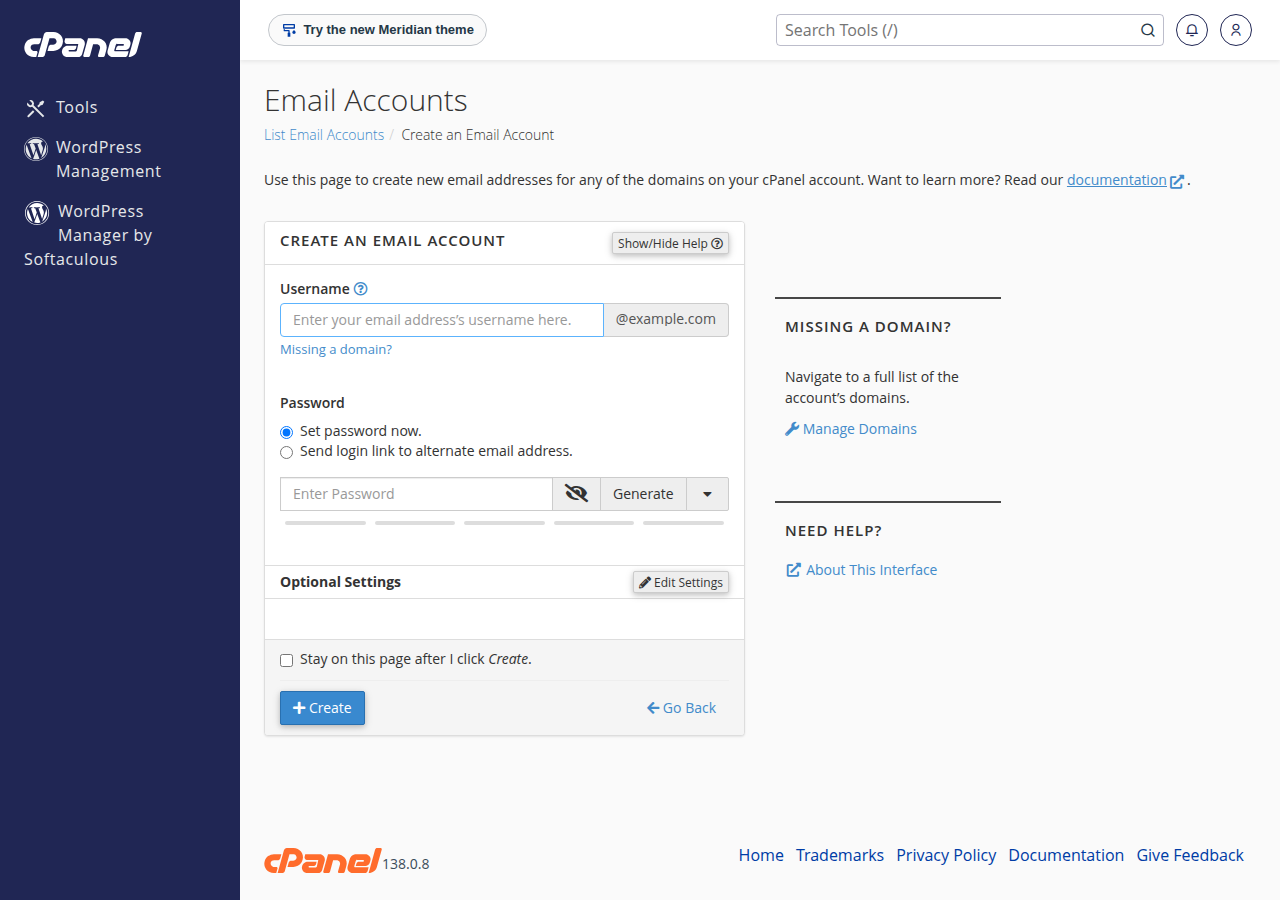
3. Create an email account in cPanel
- Open Email Accounts.In cPanel, go to the Email section and click Email Accounts.
- Click Create.Click the + Create button.
- Choose the address.Type the username, the part before the @ (for example
info). If your account has more than one domain, pick the right domain from the list. - Set a password.Type a strong password, or use Generate to create a random one. Copy it somewhere safe before you continue.
- Set the storage.Under Storage Space, enter a quota in MB or choose Unlimited. Section 7 explains which to pick.
- Create the account.Click + Create. The address works straight away.
To change a password or quota later, go back to Email Accounts and click Manage next to the address. Check Email opens webmail for that account, and Connect Devices shows the settings for mail apps.
4. Create an email account in DirectAdmin
- Open E-mail Accounts.In DirectAdmin, go to E-mail Manager and click E-mail Accounts.
- Click CREATE ACCOUNT.The form that opens is titled Create Mail Account.
- Enter the username.Type the part before the @, for example
info. - Set a password.The form has one Password field; use a long, unique password.
- Set the quota.Enter the mailbox size in MB. An optional send limit caps how many emails the account can send per day.
- Create the account.Click CREATE ACCOUNT. The address is ready to use.
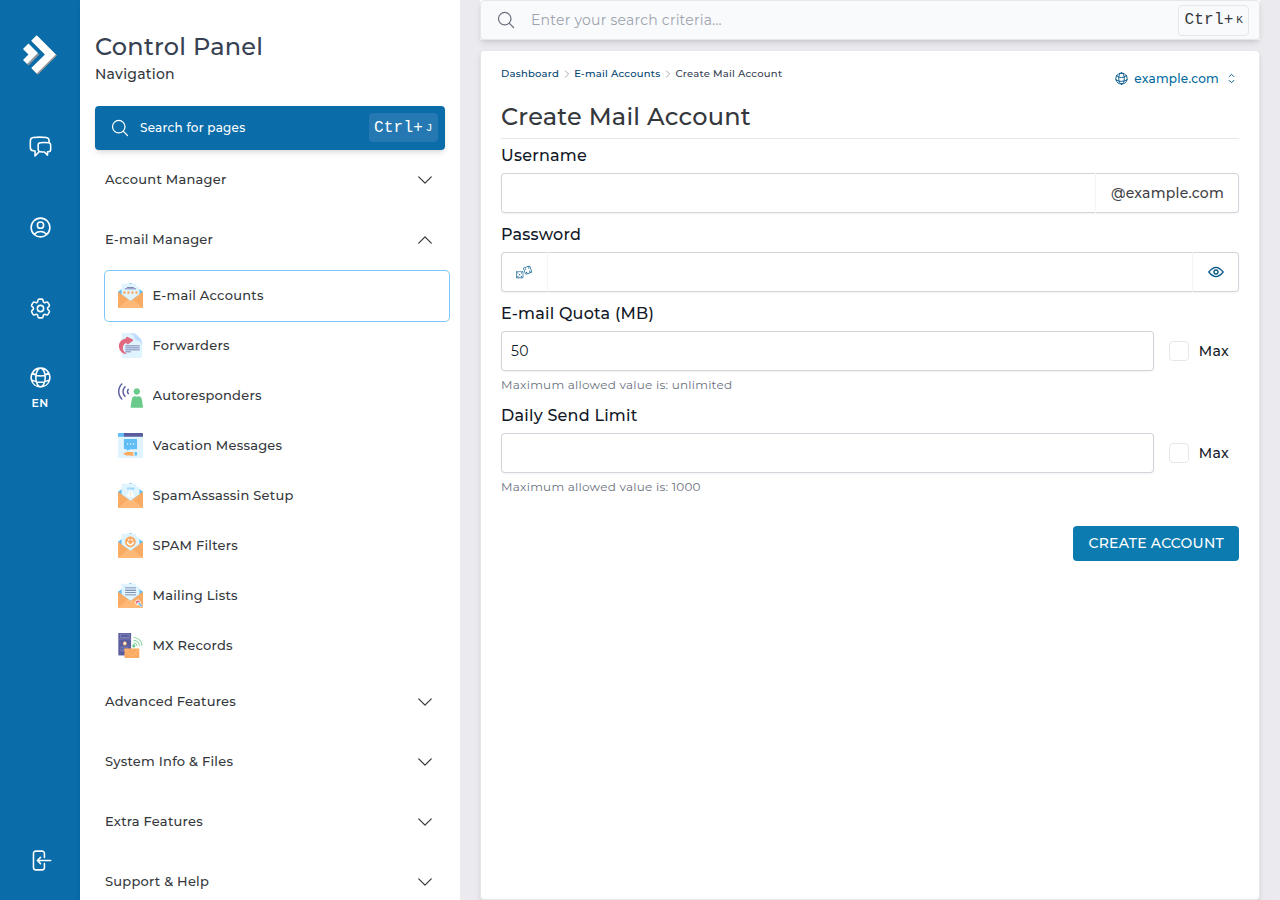
To change the password or quota later, click Modify next to the account on the same page.
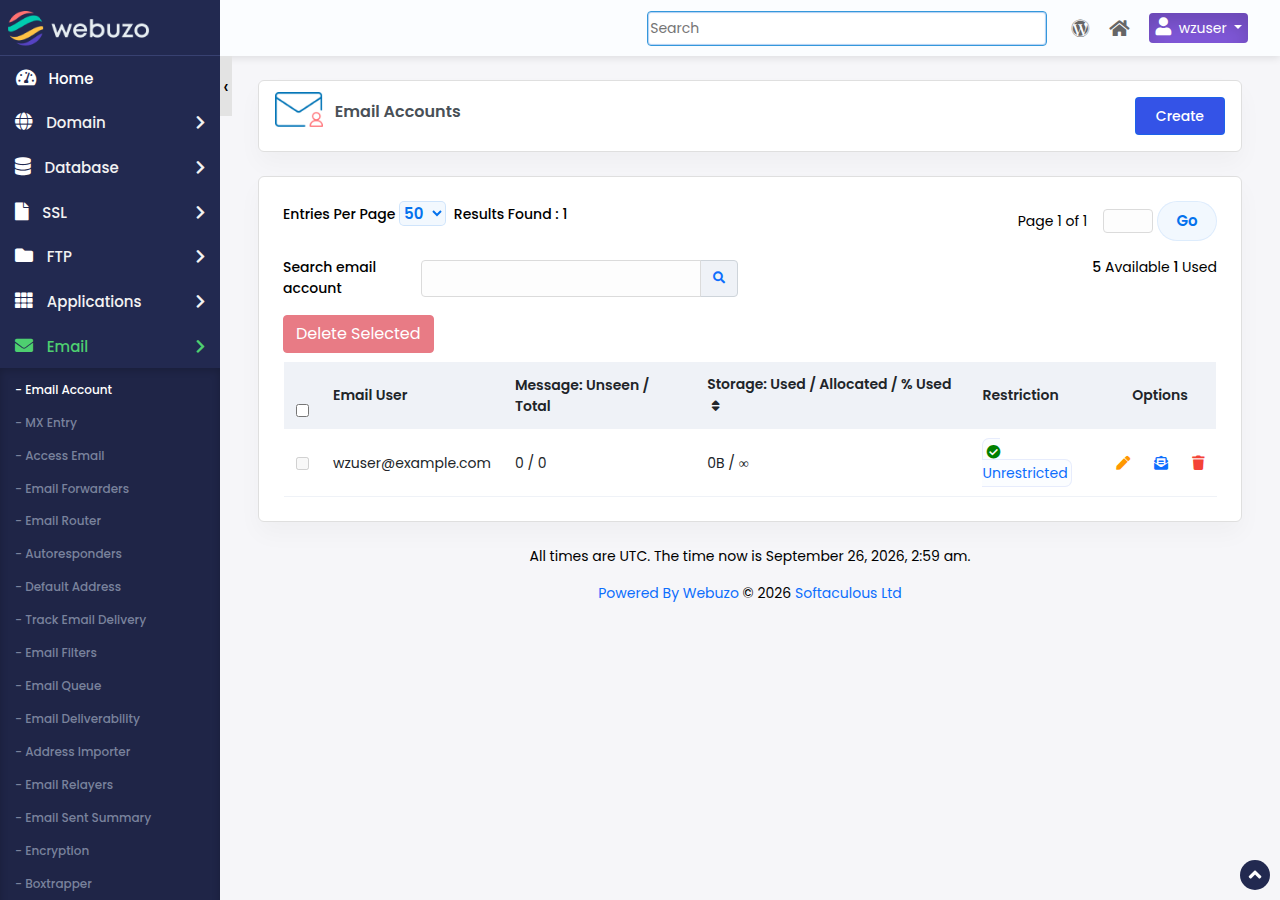
5. Create an email account in Webuzo
- Open Email Accounts.In Webuzo, go to Email and then Email Account.
- Add an account.Click Create.
- Fill in the details.Enter the part before the @, choose the domain, set a strong password and set the mailbox quota.
- Create the account.Click Create.
The same page lets you change a password, adjust the quota or delete an account.
On every panel, and on Business Email, deleting an email account permanently removes all the mail stored in it. When someone leaves, change the password or set up forwarding first, and delete the mailbox only once anything important has been saved.
6. Create a mailbox on Business Email
Business Email has its own admin console, separate from any hosting panel and from the client area.
- Sign in.Go to
https://mail.yourdomain.com:8443/and sign in with your full email address and password. Type thehttps://; the server refuses plainhttp://. The address also works without:8443. - Open the admin console.From the menu, open /domain-admin. Only the domain administrator sees it.
- Add a mailbox.Choose to add a mailbox and enter the part before the @. The domain is already set to yours.
- Set a password.Set a password and give it to the person who will use the mailbox. The mailbox works immediately.
You can create mailboxes yourself up to the number you have paid for. To increase or reduce the number of mailboxes on your plan, open a support ticket. For more detail, read signing in to Business Email for the first time and adding and removing Business Email mailboxes.
7. Passwords and mailbox storage
Strong passwords
An email password protects more than your inbox. Anyone who gets it can send mail as your business, reset passwords sent to that address, and get your mail server flagged for spam.
- Use a long password that you do not use anywhere else: a password manager, or the panel's Generate button, makes this easy.
- Change a password immediately when a staff member leaves or a device is lost.
- Turn on two-factor authentication for your control panel where it is offered. On Business Email, turn on two-factor authentication and create a separate app password for each phone or mail app, so a lost device can be cut off without changing your main password.
Quota: how much space each mailbox gets
On hosting plans, every mailbox shares your plan's total disk space with your website, databases and files. The quota is the most one mailbox may use. When a mailbox is full, new mail to it bounces back to the sender.
- Set a sensible limit per mailbox rather than Unlimited, so one busy inbox cannot fill the whole account and take the website down with it.
- Check usage now and then. The Email Accounts page in each panel shows how much each mailbox uses. See managing email quotas.
Business Email has no per-mailbox quota to set or monitor.
8. DNS: MX, SPF and DKIM
Creating the address is only half the job. Other mail servers find yours through your domain's DNS, and three records matter most.
Mail only reaches the mailbox you created if your MX record points to the server that holds it. This is the most common reason a new address "does not work".
- Hosting email: MX must point to your hosting server. In cPanel, Email > Email Deliverability shows whether SPF and DKIM are set up correctly for each domain and offers to install the suggested records. In DirectAdmin and Webuzo, check the records in the panel's DNS management page.
- Business Email: when the service is set up you receive a record sheet with your A, MX, SPF, DKIM and DMARC values. Remove your old MX records when you switch, or some mail keeps going to the old mailbox. See DNS records for Business Email.
Add or change these records wherever your domain's nameservers point. For hosting email, the simplest setup is to point the domain at your hosting nameservers, shown in the Point a domain to this hosting card on your hosting service page in the client area; your control panel then manages the MX, SPF and DKIM records for you. Do not use the client area's Free DNS button to fix mail: it does not copy your existing records. See how do I change my nameservers and how to change your domain DNS settings. DNS changes can take a few hours to take effect everywhere. For what SPF, DKIM and DMARC do in detail, read understanding SPF, DKIM and DMARC.
Changing your MX record sends new mail to the new mailbox. It does not copy the mail already stored with your old provider. Save or migrate that mail before you switch. Business Email customers can ask our support team to help migrate existing messages and folders.
9. Next steps: webmail and mail apps
- cPanel:
https://yourdomain.com/webmail,https://webmail.yourdomain.comorhttps://yourdomain.com:2096 - DirectAdmin:
https://yourdomain.com/webmailorhttps://yourdomain.com/roundcube - Webuzo:
https://yourdomain.com/webmail - Business Email:
https://mail.yourdomain.com:8443/
Sign in with the full email address as the username. The full guide is how to log in to webmail.
To get mail on your phone or computer, add the account to a mail app and choose IMAP, which keeps the same mail on every device:
- Outlook
- iPhone and iPad
- Android
- Thunderbird
- Mail apps with Webuzo
- Business Email in Outlook, Apple Mail and phones
10. Common problems and fixes
"I created the address but no mail arrives." Check the MX record first: it must point to the server where you created the mailbox. Then check that the mailbox is not over its quota, and look in the spam folder of the sender if they got no bounce. See troubleshooting email not receiving.
"I can receive but not send." In your mail app, make sure outgoing (SMTP) authentication is switched on and you are not using port 25; use 465 with SSL/TLS or 587 with STARTTLS. See I can receive mail but I cannot send it.
"Sending stopped after a batch of messages." Hosting email has an outgoing limit per account, so one account cannot harm the shared server's reputation. On cPanel it is 200 messages per hour per account; on DirectAdmin it is 1,000 messages per day (200 per mailbox by default). Everyday business mail stays well inside these limits; for newsletters and bulk mail, use a dedicated email delivery service. See do you limit the amount of mail I can send.
"My password is rejected." The username is the full address, [email protected], not just you. If it still fails, reset the password in the control panel or the Business Email admin console.
"My emails go to the recipient's spam folder." Usually SPF or DKIM is missing or wrong, or there are two SPF records. Fix the records as in section 8, then read email going to spam: how to fix.
"I cannot create any more accounts." You have reached your plan's limit. Upgrade the hosting plan, use aliases for role addresses, or ask support to raise your Business Email mailbox count.
"Webmail will not open on Business Email." Type the address with https://, for example https://mail.yourdomain.com:8443/. The server refuses plain http:// on purpose. If your own address doesn't open yet, use the Open Webmail button on your Business Email service in the client area.
11. Which Domain India option fits you
Already have a website on cPanel, DirectAdmin or Webuzo hosting? Use the email accounts included in your plan. You pay nothing extra, and everything is managed in the panel you already use. cPanel Starter includes 10 email accounts alongside one website:
- 25 GB NVMe SSD Storage
- 50 GB Monthly Bandwidth
- 1 Website
- 10 Email Accounts
Want email without hosting, or email that stays up whatever happens to your website? Business Email is priced per mailbox, starting with one, and includes webmail with calendar, contacts and tasks, IMAP and SMTP over TLS, DKIM signing on every message, SPF and DMARC records for your domain, two-factor authentication, and mail filters:
- Priced per mailbox - start with one
- Email at your own domain ([email protected])
- Add and remove mailboxes yourself
- Webmail with calendar, contacts and tasks
- Businesses whose website is on the AI Website Builder or another provider
- Keeping email running if the website has a problem
- Paying only for the mailboxes you use
- It is email only: no documents, spreadsheets or video meetings
- No POP3; mail apps must use IMAP
- Raising your mailbox count is done by support ticket today
Prices on the cards are Domain India list prices and exclude 18% GST. Compare all hosting plans on cPanel hosting, DirectAdmin hosting and Webuzo hosting.
Frequently asked questions
How do I create an email account for my domain?
If you have a Domain India hosting plan, log in to your control panel and open Email Accounts: in cPanel it is Email > Email Accounts > Create, in DirectAdmin E-mail Manager > E-mail Accounts, and in Webuzo Email > Email Account. Enter the part before the @, a strong password and a mailbox quota, then click Create. On Business Email, add mailboxes from the admin console at https://mail.yourdomain.com:8443/.
Is email included with Domain India hosting?
Yes. Every cPanel, DirectAdmin and Webuzo plan includes a set number of email accounts. For example, cPanel Starter includes 10, DA Starter and Webuzo Starter include 5, and DA Business includes 250.
Do I need a hosting plan to get an email address at my domain?
No. Business Email is a separate product that works without hosting, and with a domain registered anywhere. It is priced per mailbox, starting from one mailbox.
I created the email account, so why am I not receiving mail?
Mail is delivered to whichever server your domain's MX record points to. If the MX record still points to an old provider, or to a different server, new mail goes there instead. Check the MX record first, then check that the mailbox is not full.
What is a mailbox quota and what should I set?
The quota is the maximum space one mailbox may use on a hosting plan. All mailboxes share the plan's disk space with your website, so set a fixed limit per mailbox rather than Unlimited, and give more to people who receive large attachments. When a mailbox is full, new mail bounces.
Should I use IMAP or POP3 in my mail app?
Use IMAP. It keeps your mail on the server and in sync across your phone, computer and webmail, and your mail survives if a device is lost. Business Email supports IMAP only.
Is there a limit on how many emails I can send from a hosting email account?
Yes. On Domain India cPanel hosting, each account can send 200 messages per hour. On DirectAdmin hosting the limit is 1,000 messages per day per account (200 per mailbox by default). Everyday business mail stays well inside these limits; use a dedicated email delivery service for newsletters and bulk mail.
Can one person receive mail for several addresses?
Yes. Create one mailbox and add the other addresses as aliases or forwarders. They do not use up an extra email account on your hosting plan, and on Business Email they are not billed as extra mailboxes.
Ready to set up email at your domain? Create your first address in your control panel today, or see Business Email for mailboxes that do not need hosting. If you get stuck, open a support ticket and include your domain name.
Mailboxes at your own domain with webmail, calendar and contacts, priced per mailbox and starting from one.
See Business Email