Any mail app can read and send the email included with your Domain India hosting plan, as long as it has five things right: the server name, the port, the encryption, the username and SMTP authentication. This guide gives you those settings once, then walks through Outlook, Apple Mail, Thunderbird, iPhone and iPad, and Android, so you can set up every device the same way.
For mailboxes on cPanel, DirectAdmin, Webuzo and Windows (Plesk) hosting, use mail.yourdomain.com for both incoming and outgoing mail. Choose IMAP on port 993 with SSL/TLS, and send with SMTP on port 465 with SSL/TLS. The username is your full email address, and SMTP authentication must be on. Port 587 with STARTTLS also works on Linux hosting, but not on Windows (Plesk). Business Email has its own setup guide.
1. Check which email you have first
These settings are for the email included with your hosting plan: mailboxes you created in cPanel, DirectAdmin, Webuzo or Plesk.
Domain India Business Email is a separate product, billed per mailbox, with its own admin console and webmail at https://mail.yourdomain.com:8443/. It supports IMAP only, with no POP3. If that is what you have, use setting up Outlook, Apple Mail and your phone for Business Email instead of this page. Not sure? Read Business Email vs the email included with your hosting.
2. The settings every mail app needs
We measured these ports as open on our shared servers on 20 September 2026. Replace yourdomain.com with your own domain.
| Setting | cPanel, DirectAdmin and Webuzo | Windows (Plesk) |
|---|---|---|
| Incoming server | mail.yourdomain.com | mail.yourdomain.com |
| IMAP port (recommended) | 993, SSL/TLS | 993, SSL/TLS |
| POP3 port | 995, SSL/TLS | 995, SSL/TLS |
| Outgoing (SMTP) server | mail.yourdomain.com | mail.yourdomain.com |
| SMTP port (recommended) | 465, SSL/TLS | 465, SSL/TLS |
| SMTP alternative | 587, STARTTLS | Not available: port 587 is closed |
| Username | Your full email address | Your full email address |
| Password | The mailbox password | The mailbox password |
| SMTP authentication | Required | Required |
A few rules that save most setup problems:
- The username is always the full address,
[email protected]. Older guides suggested other formats; use the full address. - The password is the mailbox password, not your control panel or client area password. You set it when you created the address, and you can change it in your panel: see managing your email accounts.
- Ports and encryption are pairs. 993, 995 and 465 go with SSL/TLS (some apps say "SSL"). 587 goes with STARTTLS (some apps say "TLS").
- Avoid the unencrypted ports. 143 (IMAP) and 110 (POP3) are open, but they send your password across the internet in the clear. Port 26 is closed on every Domain India server.
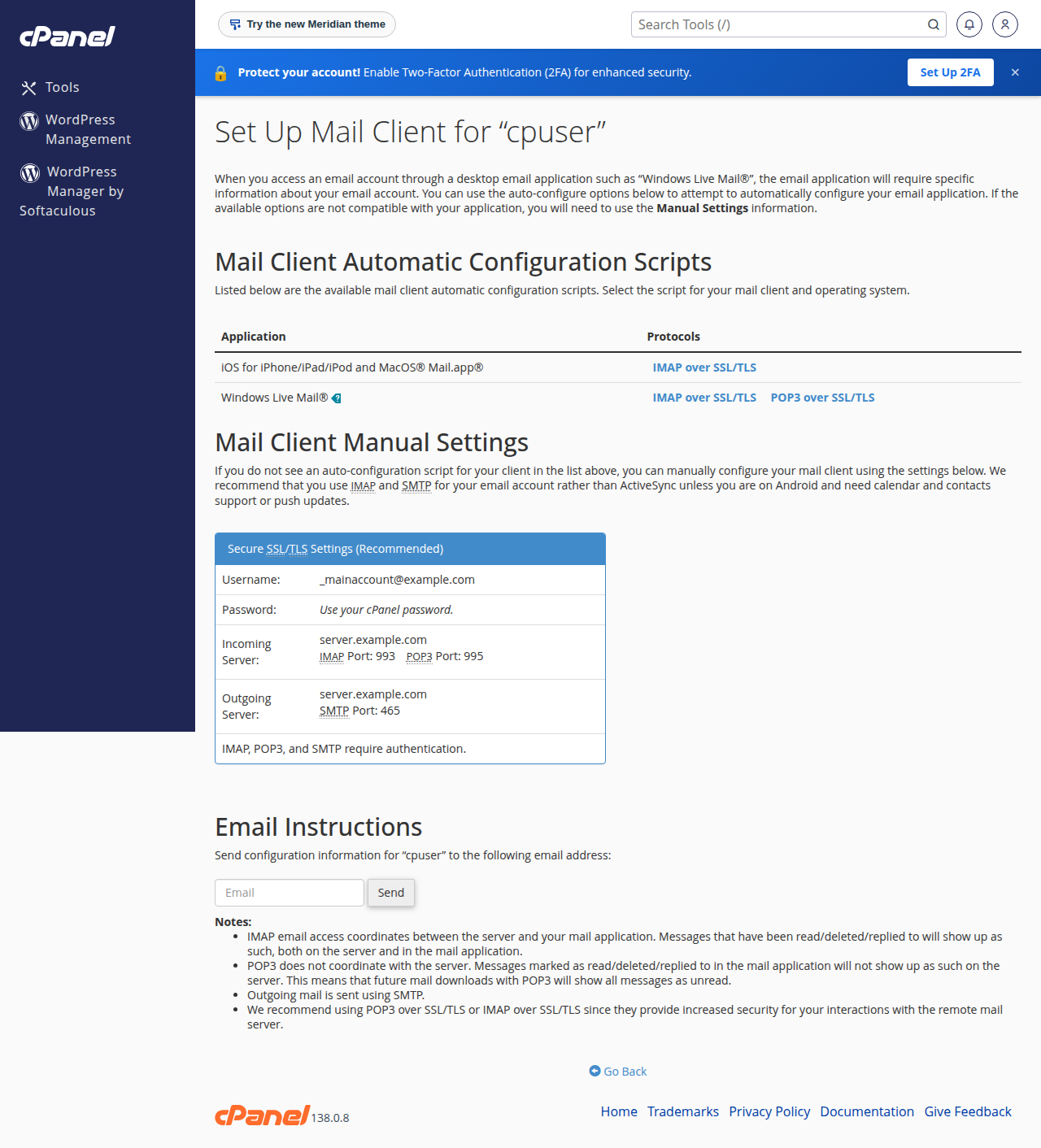
In cPanel, open Email › Email Accounts and click Connect Devices next to the address. It shows the server names, ports and security settings for that exact account, and can generate automatic setup files for some mail apps. If mail.yourdomain.com shows a certificate warning in your app, use the server name shown on that page instead.
3. IMAP or POP3?
Choose IMAP unless you have a specific reason not to.
- Keeps your mail on the server, so your phone, laptop and webmail show the same inbox and folders
- Nothing is lost if a device breaks or is stolen
- Sent and deleted items stay in step on every device
- Downloads mail to one device and, unless "leave a copy on the server" is on, removes it from the server
- The device that collects a message first is the only one that has it
- If that device fails, the mail goes with it
With IMAP, the mailbox keeps growing on the server until you delete things, so keep an eye on its quota. Before switching an existing computer from POP3 to IMAP, check its "leave a copy on the server" setting: if it was off, that computer holds the only copy of older mail. More detail is in IMAP vs POP3: which to choose.
4. Microsoft Outlook
Outlook comes in two versions on Windows: the new Outlook and classic Outlook (Outlook for Microsoft 365, 2021, 2019 and 2016). Both ask for your email address first and try to find the settings automatically. If that fails or picks the wrong server, set it up manually.
- Start adding the account.In classic Outlook, go to File › Add Account. In the new Outlook, go to Settings › Accounts › Email accounts › Add account.
- Enter your full email address.In classic Outlook, open Advanced options, tick Let me set up my account manually, then choose IMAP. In the new Outlook, choose IMAP if it asks for the account type, and open the advanced or manual settings.
- Enter the incoming settings.Server
mail.yourdomain.com, port 993, encryption SSL/TLS. - Enter the outgoing settings.Server
mail.yourdomain.com, port 465, encryption SSL/TLS. Make sure the outgoing server requires authentication, using the same username and password as incoming. - Enter your password and finish.Use the full email address as the username if Outlook asks for one separately.
If Outlook receives but cannot send, open the account's server settings and check that My outgoing server (SMTP) requires authentication is on, with Use same settings as my incoming mail server selected. Screens change between Outlook updates; the step-by-step guide is how to configure Outlook.
5. Apple Mail on a Mac
- Add the account.Open Mail and choose Mail › Add Account, then Other Mail Account and Continue.
- Enter your details.Your name, full email address and mailbox password, then Sign In.
- Fill in the servers if asked.If Mail cannot find the settings, choose IMAP, and enter
mail.yourdomain.comas both the incoming and outgoing server, with your full email address as the username. - Check the ports.Go to Mail › Settings › Accounts, select the account and open Server Settings. Untick Automatically manage connection settings for incoming and outgoing, then set 993 with TLS/SSL for incoming and 465 with TLS/SSL for outgoing.
On older macOS versions, Settings is called Preferences.
6. Mozilla Thunderbird
Thunderbird is free for Windows, macOS and Linux and handles IMAP well.
- Open the new account screen.On first launch it appears automatically. Otherwise open the menu, choose Account Settings, then Account Actions › Add Mail Account.
- Enter your details.Your name, full email address and password, then Continue.
- Check what it found.Thunderbird looks up settings for your domain. If it shows anything other than
mail.yourdomain.comwith the ports below, choose Configure manually. - Set incoming.Protocol IMAP, hostname
mail.yourdomain.com, port 993, connection security SSL/TLS, authentication Normal password, username your full email address. - Set outgoing.Hostname
mail.yourdomain.com, port 465, connection security SSL/TLS, authentication Normal password, same username. Click Re-test, then Done.
More screens: how to configure Thunderbird.
7. iPhone and iPad
- Open Mail accounts.On current iOS go to Settings › Apps › Mail › Mail Accounts. On older versions it is Settings › Mail › Accounts.
- Add the account.Tap Add Account › Other › Add Mail Account, enter your name, full email address, password and a description, then tap Next.
- Choose IMAP.At the top of the next screen, make sure IMAP is selected, not POP.
- Enter both servers.Under Incoming Mail Server and Outgoing Mail Server, enter
mail.yourdomain.com, your full email address as the username, and your password. The outgoing password is not optional, even if the screen says so. Tap Next, then Save. - Check the ports.Open the account, tap Advanced and confirm Use SSL is on with port 993. Then tap Outgoing Mail Server › SMTP, open the primary server and confirm Use SSL is on with port 465.
Details: configuring email on iPhone and iPad.
8. Android phones
Android phones come with different mail apps: Gmail on most phones, Samsung Email on Samsung phones, and many people install Outlook. The steps are similar in all of them.
- Add an account.In Gmail, tap your profile picture, then Add another account › Other. In Samsung Email or Outlook, use Add account in the app's settings.
- Enter your full email addressand choose Manual setup if the app offers it.
- Choose the account type.Pick Personal (IMAP) or IMAP, then enter your password.
- Incoming settings.Server
mail.yourdomain.com, username your full email address, port 993, security SSL/TLS. - Outgoing settings.Server
mail.yourdomain.com, port 465, security SSL/TLS, with Require sign-in on and the same username and password. Finish with your display name.
Menu names differ between phone makers and app versions, so look for "manual", "advanced" or "server settings" if you do not see the exact words above. More: configuring email on Android. Webuzo users can also read configuring email clients on Webuzo.
9. When the account will not connect
| What you see | Likely cause | Fix |
|---|---|---|
| Password rejected | Username is not the full address, or an old password | Use [email protected]; test the password in webmail |
| Receives but will not send | SMTP authentication is off | Turn on "outgoing server requires authentication" |
| Timeout when sending | Port blocked on your network, often port 25 | Use 465 with SSL/TLS; try on mobile data |
| Certificate warning | Server name does not match the certificate | Use the server name from cPanel's Connect Devices page |
| Works on mobile data, fails on office Wi-Fi | That network's IP address is blocked after failed logins | Fix passwords on every device, then contact support |
Test the mailbox in webmail first: if the password works there, the problem is in the app. The addresses are in how to log in to webmail. For sending problems, see I can receive mail but I cannot send it; for everything else, start at email troubleshooting.
A phone that keeps trying an old password causes repeated failed logins, and the server firewall then blocks that IP address automatically, cutting off mail for everyone on the same connection. After changing a mailbox password, update it in the incoming and outgoing settings on every device, or remove the account from devices you no longer use.
10. Where Domain India products fit
Every cPanel, DirectAdmin and Webuzo hosting plan includes email accounts at your domain, and all of them work with the apps above.
- 25 GB NVMe SSD Storage
- 50 GB Monthly Bandwidth
- 1 Website
- 10 Email Accounts
If you want mail that runs separately from your website, Business Email is priced per mailbox, starting with one. It includes webmail with calendar, contacts and tasks, IMAP and SMTP over TLS for Outlook, Apple Mail, Thunderbird and phones, and two-factor authentication. Use its own setup guide for the app settings.
- Priced per mailbox - start with one
- Email at your own domain ([email protected])
- Add and remove mailboxes yourself
- Webmail with calendar, contacts and tasks
Prices on the cards are Domain India list prices and exclude 18% GST.
Frequently asked questions
What incoming and outgoing server should I use for my Domain India email?
For mailboxes included with cPanel, DirectAdmin, Webuzo or Windows (Plesk) hosting, use mail.yourdomain.com for both incoming and outgoing mail, replacing yourdomain.com with your own domain. If your app shows a certificate warning, cPanel's Connect Devices page shows the exact server name for your account.
Which ports should I use for IMAP, POP3 and SMTP?
IMAP on port 993, POP3 on port 995 and SMTP on port 465, all with SSL/TLS. On cPanel, DirectAdmin and Webuzo hosting, SMTP on port 587 with STARTTLS also works. Port 587 is closed on Windows (Plesk) hosting, and port 26 is closed on every Domain India server.
What is my email username?
Your username is your full email address, for example [email protected], and the password is the mailbox password you set in your control panel. It is not your control panel or client area password.
Should I choose IMAP or POP3?
Choose IMAP. It keeps your mail on the server so every device and webmail show the same inbox, and nothing is lost if a device fails. POP3 downloads mail to one device and usually removes it from the server.
Why can my phone receive email but not send it?
Usually because SMTP authentication is off, or the outgoing port and encryption do not match. Set the outgoing server to mail.yourdomain.com on port 465 with SSL/TLS, and enter your full email address and password for the outgoing server as well as the incoming one.
Do these settings work for Domain India Business Email?
Not entirely. Business Email is a separate product with its own settings and supports IMAP only, with no POP3. Use the Business Email client setup guide for Outlook, Apple Mail and phones.
Ready to set up your devices? Open Connect Devices in cPanel for your exact settings, keep managing your email accounts handy for passwords, and check the full port numbers list if a connection times out. If an app still will not connect, open a ticket in the client area or use the public ticket form.
Tell us your email address, the app and device, and the server, port and encryption you entered, and we will check it with you.
Open a support ticket