An email account at your own domain is three things at once: a mailbox that stores your mail, a password that controls who can use it, and a quota that caps how much space it may take. Almost everything you will do with it — change the password, free up space, forward mail elsewhere, set an out-of-office reply, stop spam, close the account — happens on one page in your hosting control panel.
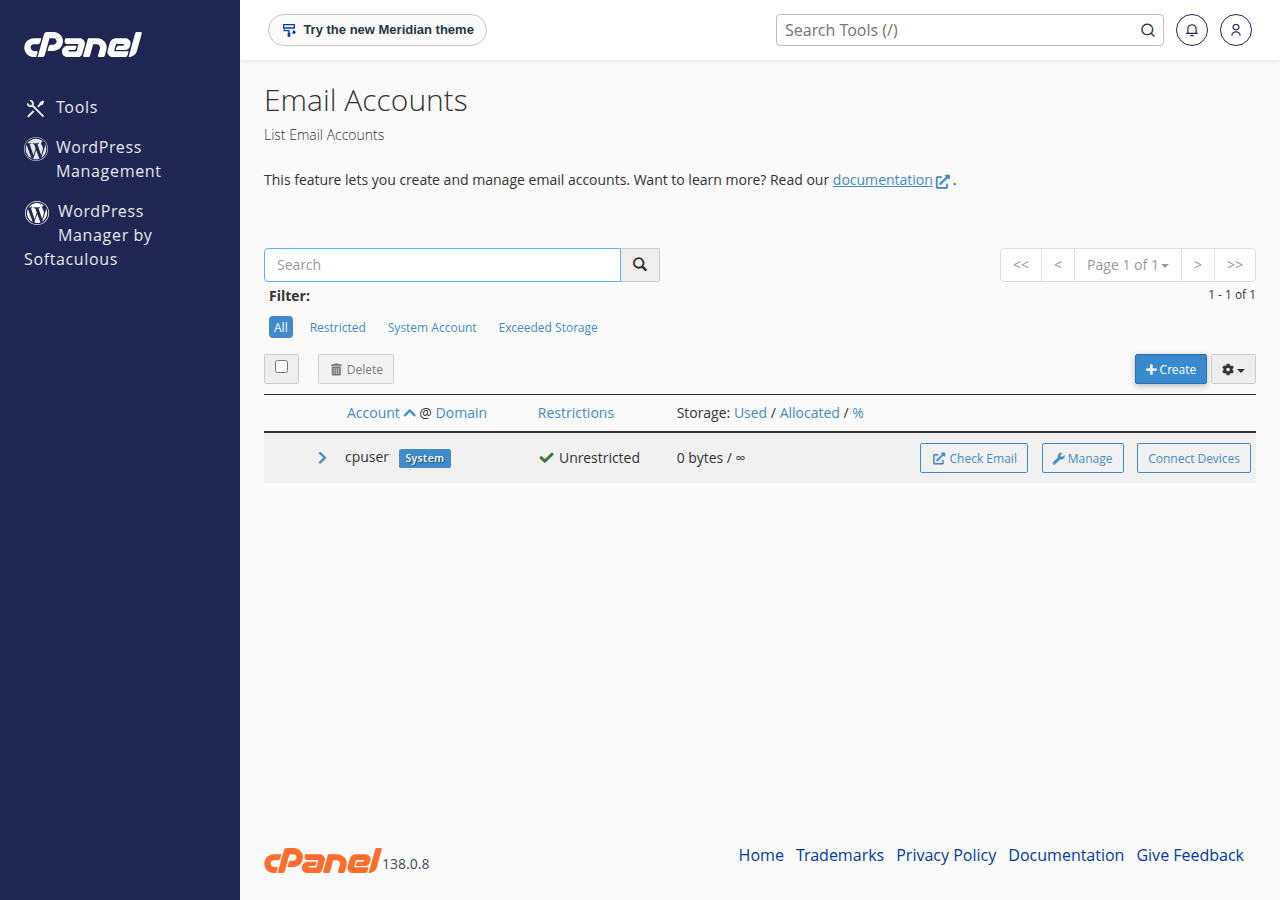
Your email accounts live in your control panel under Email Accounts (cPanel, DirectAdmin, Webuzo) or Mail (Plesk on Windows). That is where you change a password, raise a quota, add forwarders and aliases, adjust spam filtering and delete an account. To read the mail, use webmail, or add the account to a mail app with IMAP on port 993 and SMTP on port 465. Not created your addresses yet? Start with how to create email accounts for your domain.
1. What your email account actually is
When you create [email protected], the server sets up three things. They explain nearly every email problem you will have.
The address is not a separate thing you own: it is the name of the mailbox. That is why deleting a mailbox deletes its mail, and why changing a password instantly locks out every device using the old one.
2. Where you manage your mailboxes
Log in to your control panel from the Domain India client area and open the email section.
| Panel | Where to go | Webmail address |
|---|---|---|
| cPanel | Email → Email Accounts → Manage | yourdomain.com/webmail, webmail.yourdomain.com or yourdomain.com:2096 |
| DirectAdmin | E-mail Manager → E-mail Accounts → Modify | yourdomain.com/webmail or yourdomain.com/roundcube |
| Webuzo | Email → Email Account | yourdomain.com/webmail |
| Plesk (Windows) | Mail → Mail Accounts → the address | Plesk at https://yourdomain.com:8443 |
| Business Email | Its own admin console | https://mail.yourdomain.com:8443/ |
Labels shift between panel versions and skins, but the email section is always in the main menu. Creating addresses is covered in how to create email accounts for your domain and setting up email accounts in Plesk; signing in is in how to log in to webmail.
3. Changing a mailbox password
Do this the moment a staff member leaves, a phone goes missing, or an account starts sending spam.
- Open the account.On the email accounts page for your panel (section 2), choose Manage, Modify or the address itself.
- Set a new password.Use a long password you do not use anywhere else, or click Generate. You never need the old one, and you can never recover it, so copy the new one somewhere safe first.
- Save, then update every device.The change takes effect at once, so re-enter the password in webmail and on every phone and mail app using the account.
Every mail app still holding the old password starts failing, usually with a repeated login prompt. That is normal. If a device keeps failing after you enter the new password, check the username is the full email address, not just the part before the @.
4. Quota: what happens when a mailbox is full
All your mailboxes share the plan's disk space with your website and databases, so mail that is never deleted eats the space your website needs.
When a mailbox hits its quota, incoming mail is refused. The sender gets a bounce with a code such as 552 5.2.2 or 452 4.2.2 and the words "mailbox full" or "over quota". Nothing already stored is lost, but nothing new arrives — and the sender may never tell you. Understanding email bouncebacks explains those codes.
Freeing space
Every panel's email accounts page shows how much of its quota each mailbox uses (checking email storage). Then, in webmail or your mail app:
- Empty Trash and Junk. Deleted mail sits on the server until the folder is emptied, so this alone often recovers most of the space.
- Delete or archive large attachments. Sort by size: a few big ones outweigh thousands of ordinary messages.
- Clear Sent Items, often the biggest folder on an account that sends invoices or photographs.
Increasing the quota
The quota is a field on the same page you use to change the password: open the account, change the storage value, save. It applies immediately, but mail that bounced while the mailbox was full is not resent, so ask important senders to try again. You cannot give a mailbox more than your plan has left. See managing email quotas.
"Unlimited" on a mailbox means "up to whatever the plan has left", so one neglected inbox can fill the account and take the website offline with it. Give each mailbox a fixed size, and raise it when the person needs more.
5. Forwarders, aliases and catch-all
These let one person handle several addresses without checking several mailboxes.
- A forwarder sends everything arriving at one address on to another, at any domain —
[email protected]to your accountant, for example. - An alias is the same rule pointed at one of your own mailboxes, so
sales@andinfo@land in one inbox and you reply from either address. - A catch-all — the default address in cPanel — decides what happens to mail sent to an address that does not exist at your domain, such as
[email protected]. Deliver it to a mailbox, or reject it with an error. On Domain India cPanel servers, a new account's default address is the account itself, so mail to unknown addresses is delivered to the main account mailbox until you change it.
Look under Email → Forwarders and Default Address in cPanel, E-mail Manager → Forwarders in DirectAdmin (current DirectAdmin plans already refuse mail to unknown addresses, so there is no catch-all to set), Email → Email Forwarders in Webuzo, and Mail → the address → Forwarding in Plesk. Steps: email aliases and catch-all addresses, email forwarding setup.
Spammers send to invented addresses at every domain, and a catch-all accepts every one — into a real mailbox, against its quota, where genuine typo mail drowns in the noise. Unless you really want a catch-all, open Email → Default Address in cPanel and choose to reject unknown addresses with an error (Discard the email while sending a failure message to the sender), so a real sender is told at once that they typed it wrong. If you do want one, point it at a mailbox nobody depends on.
6. Autoresponders and out-of-office replies
An autoresponder replies automatically to mail arriving at an address, then delivers it to the mailbox as normal. It suits holidays, festival closures and "we have received your enquiry" replies.
Set one up under Email → Autoresponders in cPanel, E-mail Manager → Autoresponders or Vacation Messages in DirectAdmin, Email → Autoresponders in Webuzo, or Mail → the address → Auto-Reply in Plesk: setting up email autoresponders.
Always set an end date — an out-of-office still running six months later is a common support ticket. Say when you will reply, name an alternative contact, and leave private details out, because the reply goes to everyone who writes, spammers included. Panels wait an interval before replying to the same sender twice. Autoresponders are not for newsletters: bulk marketing from a hosting mailbox gets the address rate-limited or blocked.
7. Spam filtering
Every panel ships with server-side spam filtering, on by default. What you control is how aggressive it is, and where the mail it catches goes.
- Leave the filter on. Switching it off does not make missing mail appear; it only stops the scoring.
- Start at the default score threshold, then lower it one step at a time if real spam still gets through.
- Prefer delivery to a Spam folder over automatic deletion, which leaves no copy and no bounce. Use the allow list for a supplier whose mail keeps being caught.
In cPanel this is Email → Spam Filters; DirectAdmin has its own spam settings under E-mail Manager; Webuzo and Plesk expose a spam section per domain or mailbox. See how to manage spam filters.
Always check the Spam or Junk folder before concluding mail was never delivered. Filtering runs both ways: if your mail lands in other people's spam folders, the fix is in your domain's authentication records — see SPF, DKIM and DMARC.
8. Deleting a mailbox, and what happens to its mail
Deleting an email account removes the mailbox and every message in it. There is no undo, so treat it as permanent.
- Change the password first.That cuts off access immediately, which is usually the real goal, and buys time to do the rest properly.
- Save the mail you need,while the mailbox exists: add the account to a mail app over IMAP and copy the folders locally, or export from webmail.
- Redirect the address.Add a forwarder so mail to it reaches a colleague. An address with a forwarder and no mailbox keeps working and uses no disk space.
- Delete the account,once nothing still points at it — a contact form, a catch-all target, or the contact address on a domain or hosting order.
Afterwards, mail to the deleted address is refused with a "no such user" bounce, unless the domain has a catch-all, in which case it is quietly collected there instead. On cPanel the default address delivers to the main account mailbox unless you have set it to reject (section 5).
9. Connection settings: webmail and mail apps
Webmail needs only a browser and always shows the true contents of the mailbox. Use the addresses in section 2 and sign in with the full email address.
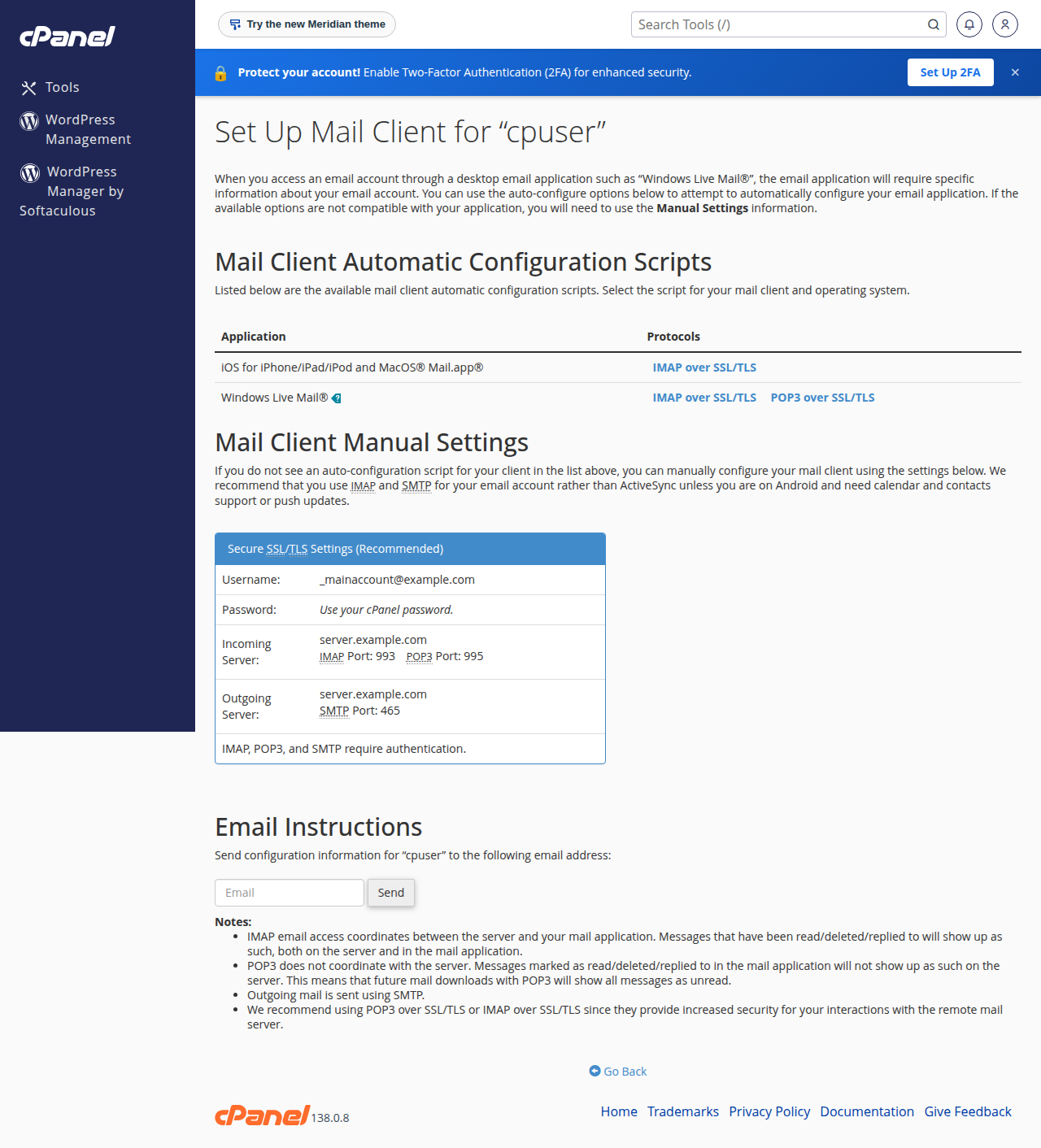
A mail app — Outlook, Apple Mail, Thunderbird or your phone — needs the settings below, tested on Domain India shared servers on 20 September 2026.
| Setting | cPanel, DirectAdmin and Webuzo | Windows (Plesk) |
|---|---|---|
| Incoming server | mail.yourdomain.com | mail.yourdomain.com |
| IMAP port (recommended) | 993, SSL/TLS | 993, SSL/TLS |
| POP3 port | 995, SSL/TLS | 995, SSL/TLS |
| Outgoing (SMTP) server | mail.yourdomain.com | mail.yourdomain.com |
| SMTP port (recommended) | 465, SSL/TLS | 465, SSL/TLS |
| SMTP alternative | 587, STARTTLS | Not available: port 587 is closed. Use 465 |
| Username | Your full email address | Your full email address |
| SMTP authentication | Required | Required |
Port 587 is not open on our Windows (Plesk) servers, so any guide telling you to use it will fail there. The unencrypted ports 143 and 110 are open, but they send your password across the internet in the clear, so there is no reason to choose them. If mail.yourdomain.com raises a certificate warning, your panel's settings page — Connect Devices in cPanel — shows the hostname to use instead. See mail server settings.
IMAP or POP3?
IMAP keeps your mail on the server and shows the same inbox and folders on your phone, your computer and in webmail. Nothing is lost if a device is, but the mailbox grows until you delete things, so the quota matters.
POP3 downloads mail to one device and, unless "leave a copy on server" is on, removes it from the server: whichever device collects a message first is the only one with it, and if that machine dies the mail goes with it.
Use IMAP unless you have a specific reason not to, and before switching away from POP3 check that app's "leave a copy on the server" setting — if it was off, the only copy of that mail is on that computer. IMAP vs POP3: which to choose goes deeper.
App guides: Outlook, iPhone and iPad, Android, Thunderbird, Webuzo and Business Email.
10. Common problems and what fixes them
"My password is rejected." The username must be the full address, [email protected], not you. Watch for a trailing space or a phone that capitalised the first letter. If it still fails, reset the password (section 3) and re-enter it everywhere.
"Senders get a bounce saying the mailbox is full." It has hit its quota. Free space or raise the quota (section 4), then ask important senders to resend.
"Mail is not arriving at all." In order: check the Spam or Junk folder; check the mailbox is not over quota; check your domain's MX record still points to the server holding the mailbox; check whether a forwarder or filter is moving it elsewhere. See troubleshooting email not receiving.
"I can receive but not send." Turn on SMTP authentication in the app and use port 465 with SSL/TLS. See troubleshooting email not sending.
"My mail lands in the recipient's spam folder." A domain-level problem, not a mailbox one: usually a missing or wrong SPF or DKIM record, or two SPF records on one domain. Start with email going to spam: how to fix, then understanding email bouncebacks to decode what the receiving server says.
11. Business Email or the mailboxes in your hosting plan
Everything above describes the email accounts included with a hosting plan. Domain India also sells Business Email, a separate mail platform billed per mailbox, with its own admin console and webmail at https://mail.yourdomain.com:8443/. Its mailboxes are not managed in a hosting panel, are not limited by your plan's disk space, and support IMAP only.
Hosting mailboxes are the right answer if you already have a website with us: nothing extra to pay, all of it in the panel you already use. Compare plans on the cPanel hosting and DirectAdmin hosting pages.
Business Email fits if you want email without hosting, more mailboxes than a hosting plan allows, or email that keeps running independently of your website.
- Priced per mailbox - start with one
- Email at your own domain ([email protected])
- Add and remove mailboxes yourself
- Webmail with calendar, contacts and tasks
Domain India list prices exclude 18% GST. For a side-by-side, read Business Email vs the email included with your hosting; to change your mailbox count, adding and removing mailboxes.
Frequently asked questions
How do I change the password on my email account?
Open your control panel's email section: cPanel is Email > Email Accounts > Manage, DirectAdmin is E-mail Manager > E-mail Accounts > Modify, Webuzo is Email > Email Account, and Plesk is Mail > the address > Password. Enter a new password and save; you do not need the old one. The change is immediate, so re-enter it on every phone and mail app.
What happens when my mailbox is full, and how do I give it more space?
New mail is refused and the sender gets a bounce with a code such as 552 5.2.2 or 452 4.2.2 and the words "mailbox full" or "over quota". Nothing already stored is lost. Empty Trash, Junk and Sent Items and delete large attachments, or open the account in your control panel and raise the storage value. Mail that bounced while it was full is not delivered afterwards and must be sent again.
What is the difference between a forwarder, an alias and a catch-all?
A forwarder sends everything arriving at one address on to another and has no mailbox or password of its own. An alias is the same rule pointed at one of your own mailboxes, so two addresses land in one inbox. A catch-all decides what happens to mail sent to an address that does not exist at your domain, and mostly collects spam. Forwarders and aliases use no disk space and do not count against your plan's email account limit.
What are the email settings for Outlook or my phone?
Use mail.yourdomain.com as both incoming and outgoing server, with IMAP on port 993 (SSL/TLS) or POP3 on port 995 (SSL/TLS), and SMTP on port 465 (SSL/TLS). Port 587 with STARTTLS also works on cPanel, DirectAdmin and Webuzo hosting, but is not available on Windows (Plesk) hosting, where you must use 465. The username is always your full email address, and SMTP authentication must be switched on.
If I delete an email account, can I get the mail back?
No. Deleting an email account permanently removes the mailbox and every message in it, and there is no undo in the control panel. Before deleting one, change its password to cut off access, copy any mail you need using IMAP or webmail, and add a forwarder so future mail to that address still reaches someone.
Ready to tidy up your email? Open your control panel and start with the mailbox using the most space (checking email storage). For mailboxes that run independently of your website, see Business Email. If something is not working, open a support ticket with your domain name and the exact error you see.
Mailboxes at your own domain with webmail, calendar and contacts, priced per mailbox and starting from one.
See Business Email