Webuzo is the control panel on Domain India's Webuzo hosting plans. You log in in your browser at https://yourdomain.com:2003, the Webuzo login page, with your Webuzo username and password, and this page shows where to find both.
Logging in is section 2 of Mastering Webuzo, which also covers apps, email, files and SSL on Webuzo. For every panel's login routes side by side, see How to log in to cPanel.
Log in at https://yourdomain.com:2003 with your Webuzo username and password. If the Webuzo button in the client area doesn't open the panel, use this address. Your username, server IP and panel URL are on the account's Access tab. For a forgotten Webuzo password, contact support.
1. Log in from the client area
- Sign into the client area.
- Choose Hosting › My hostingin the menu (/client/services/hosting).
- Open the Webuzo login page.Once the account is Active, go to
https://yourdomain.com:2003. If the Webuzo button on your domain's row doesn't open the panel, use this address. - Enter your Webuzo username and password.They are in the "Your Hosting Account is Ready" email.
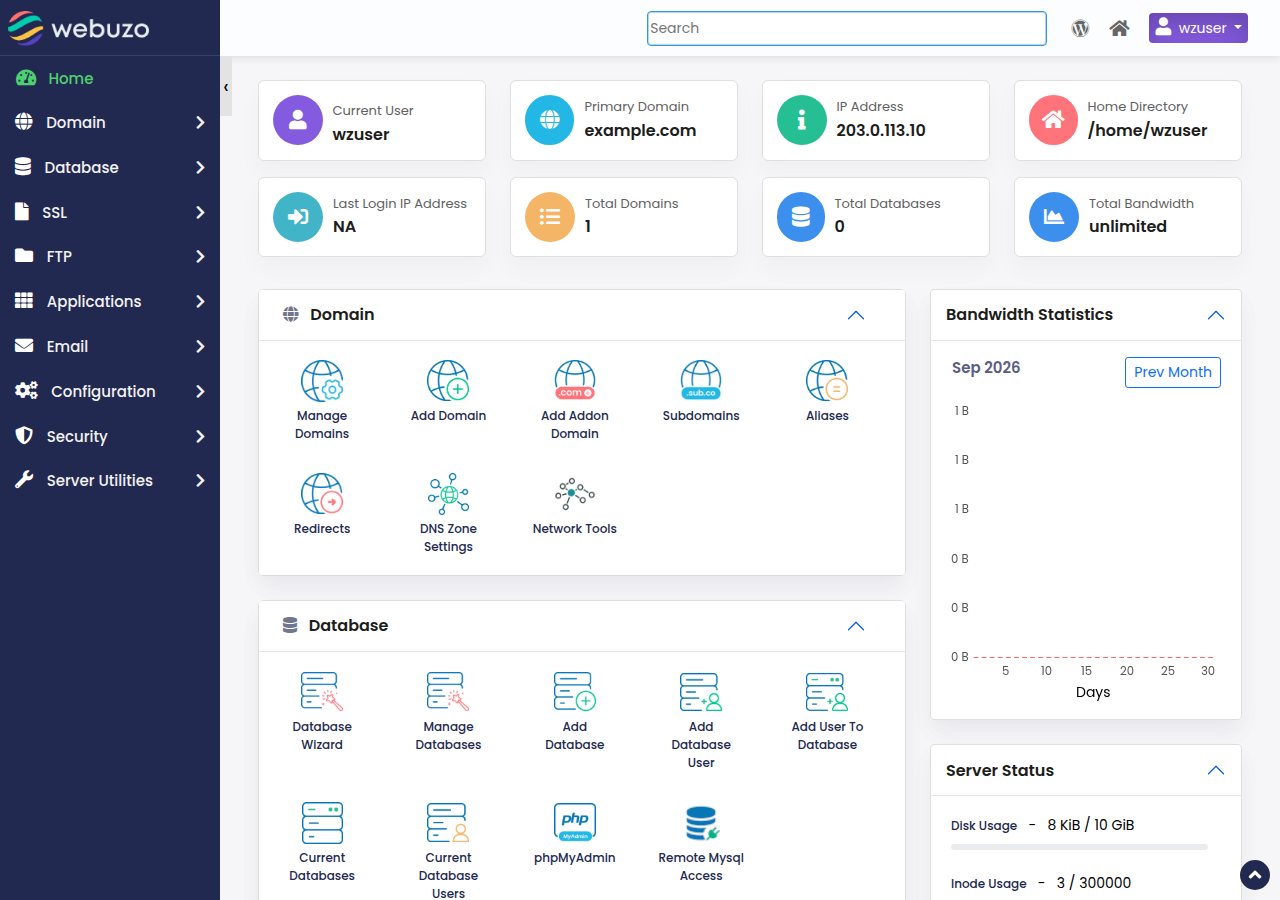
2. Log in directly
To open the panel directly, go to https://yourdomain.com:2003. If your domain doesn't point to Domain India yet, use the server hostname with :2003 instead; the hostname is on the account's Access tab (click Manage on the hosting row, then Access).
3. Forgotten your Webuzo password?
The Reset password button in the client area does not work for Webuzo accounts yet. Contact support by live chat or open a ticket, and we will reset it for you. Never send a password in a chat or ticket.
Your client area password and your Webuzo password are separate; changing one never changes the other. See How can I change my hosting account password.
4. If the login page will not load
- Check the account status. No Webuzo button on the row means the account is not Active yet, usually because an invoice is unpaid.
- Check the address. Use
https://and port 2003:https://yourdomain.com:2003, or the server hostname with:2003if your domain doesn't point to us yet. - Check for a firewall block. If the panel, your website and webmail all stop loading from one connection at the same time, but work on mobile data, your IP address may have been blocked after repeated failed logins. Send us your public IP address by live chat or ticket and we will check; see have I been blocked?
Support is 24/7 live chat, and tickets get a first response within 15 minutes. There is no phone support.
Frequently asked questions
What is the Webuzo login URL at Domain India?
Log in at https://yourdomain.com:2003. If your domain doesn't point to Domain India yet, use your server hostname with :2003; the hostname is on the Access tab of your hosting account.
Why does the Webuzo button ask for my password?
Webuzo always needs your Webuzo username and password, from your "Your Hosting Account is Ready" email. Log in at https://yourdomain.com:2003; if the button doesn't open the panel, use that address.
How do I reset my Webuzo password?
The Reset password button in the client area does not work for Webuzo accounts yet. Contact Domain India support by live chat or a ticket and we will reset it for you.
Is my Webuzo password the same as my client area password?
No. They are separate logins, and changing one never changes the other.
Ready to log in? Go to https://yourdomain.com:2003, or read Mastering Webuzo for what to do next.
Log in at yourdomain.com:2003 with your Webuzo username and password.
Open my hosting