Mailboxes on Domain India Webuzo hosting work in any standard email app: Outlook, Apple Mail on iPhone and Mac, Thunderbird and the Gmail app on Android. This guide gives the exact server settings to use, then the steps for each app, and how to fix the errors people run into most.
Use mail.yourdomain.com for both incoming and outgoing mail. Choose IMAP on port 993 with SSL/TLS, and send with SMTP on port 465 with SSL/TLS (port 587 with STARTTLS also works). The username is your full email address, the password is the mailbox password, and SMTP authentication must be on. Your domain must point to our server for the certificate on mail.yourdomain.com to be valid. To read mail in a browser instead, open https://yourdomain.com/webmail.
1. The settings
| Setting | Value |
|---|---|
| Incoming server | mail.yourdomain.com |
| IMAP port (recommended) | 993, SSL/TLS |
| POP3 port | 995, SSL/TLS |
| Outgoing server (SMTP) | mail.yourdomain.com |
| SMTP port | 465 with SSL/TLS, or 587 with STARTTLS |
| Username | Your full email address, for example [email protected] |
| Password | The mailbox password you set in Webuzo |
| SMTP authentication | On, using the same username and password |
Replace yourdomain.com with your own domain. These ports were measured open on our Webuzo server; the full list is in Domain India web hosting port numbers.
Choose IMAP. It keeps your mail on the server and in sync across your phone, laptop and webmail. POP3 downloads messages to one device and can remove them from the server, so mail read on your phone may never appear on your laptop. Use POP3 only if you deliberately want a single device to hold everything.
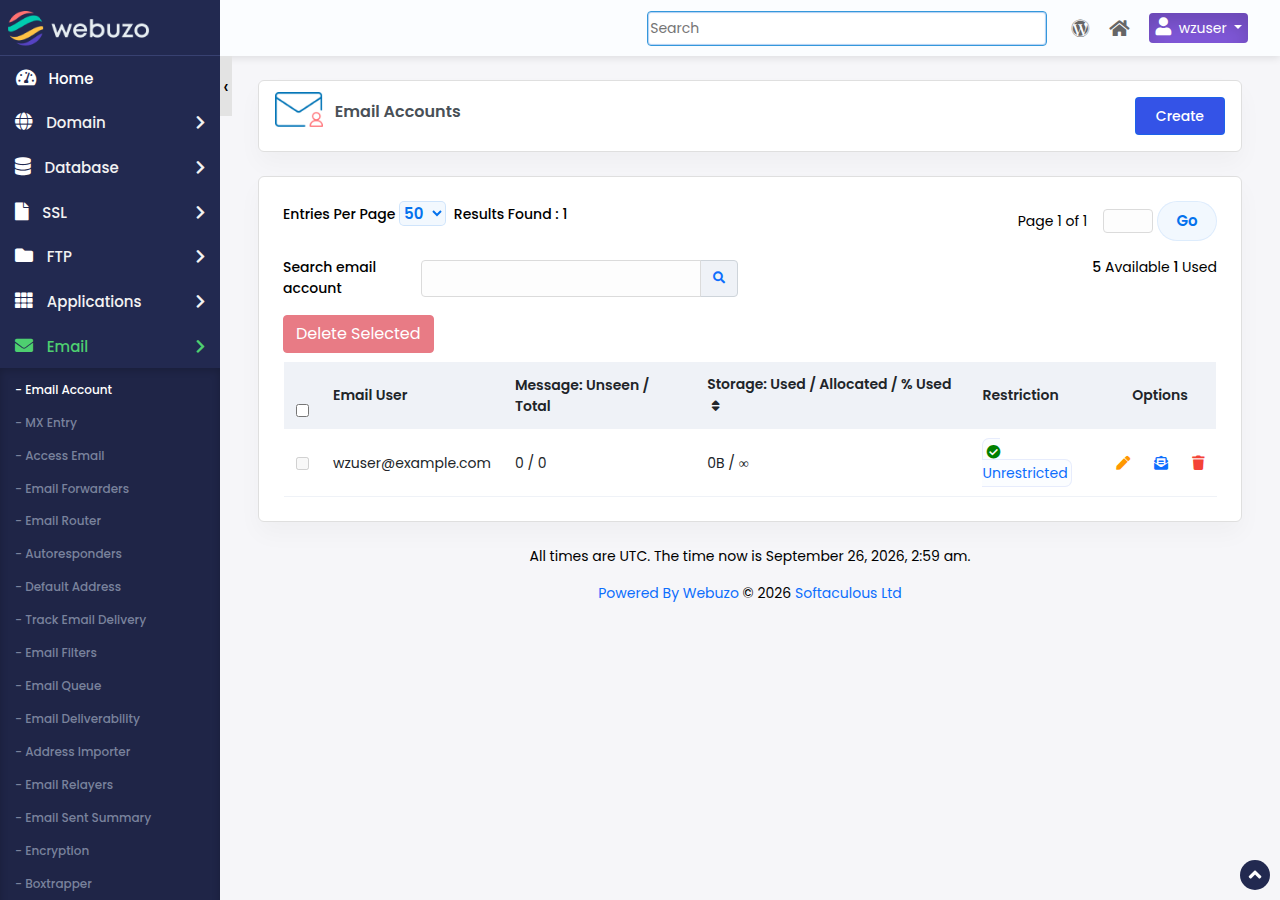
If you have not created the mailbox yet, see how to create email accounts in Webuzo. If you use Domain India Business Email rather than the email included with Webuzo hosting, follow setting up Outlook, Apple Mail and your phone for Business Email instead.
2. Microsoft Outlook
The current Outlook for Windows and Mac, and classic Outlook, both follow the same idea.
- Add the account.In new Outlook, open Settings › Accounts › Add account. In classic Outlook, choose File › Add Account.
- Enter your email addressand continue. If Outlook asks for the provider, choose IMAP.
- Enter the server settingswhen Outlook cannot find them itself: incoming
mail.yourdomain.com, port 993, SSL/TLS; outgoingmail.yourdomain.com, port 465, SSL/TLS. - Enter the mailbox passwordand finish.
In classic Outlook, leave Require logon using Secure Password Authentication (SPA) unticked. More detail: configuring email in Microsoft Outlook.
The old Windows Mail app has been retired by Microsoft and replaced by the new Outlook for Windows, so use the Outlook steps above on Windows 10 and 11.
3. iPhone and iPad
- Open Settings › Apps › Mail › Mail Accounts › Add Account.On older iOS versions, it is Settings › Mail › Accounts.
- Choose Other, then Add Mail Account.Enter your name, full email address, password and a description, and tap Next.
- Choose IMAP.Under Incoming Mail Server and Outgoing Mail Server, enter
mail.yourdomain.com, your full email address as the user name, and the password. - Tap Nextand wait for the check, then Save.
If sending fails, open the account, tap Outgoing Mail Server › Primary Server, and check that SSL is on, the port is 465 and authentication uses a password. More: configuring email on iPhone and iPad.
4. Android with the Gmail app
- Open the Gmail app,tap your profile picture, then Add another account › Other.
- Enter your email addressand choose Personal (IMAP).
- Enter the password,then the incoming server
mail.yourdomain.com(port 993, SSL/TLS). - Enter the outgoing server
mail.yourdomain.com(port 465, SSL/TLS) with Require sign-in on. - Choose sync optionsand a display name, and finish.
Menu names differ between phone makers and app versions; look for "manual setup" or "advanced" if you do not see these words. More: configuring email on Android.
5. Mozilla Thunderbird
- Open Account Settings › Account Actions › Add Mail Account,or use the setup screen on first run.
- Enter your name, email address and password,and click Configure manually.
- Incoming:IMAP,
mail.yourdomain.com, port 993, SSL/TLS, normal password. - Outgoing:SMTP,
mail.yourdomain.com, port 465, SSL/TLS, normal password. - Username:your full email address for both. Click Re-test, then Done.
More: configuring email in Thunderbird.
6. When the app will not connect
| Error | Usual cause | Fix |
|---|---|---|
| Authentication failed | Wrong password, or username without the domain | Sign in to webmail with the same details first; if that fails too, reset the mailbox password in Webuzo |
| Cannot connect to server | Wrong server name, port or security type | Recheck against the table in section 1; don't mix port 465 with STARTTLS |
| Certificate warning | Your domain does not point to our server yet, so its certificate has not been issued or renewed | Point the domain to your hosting, then try again. Don't permanently accept an unknown certificate; ask support |
| Receives but cannot send | SMTP authentication is off, or your network blocks the port | Turn on SMTP authentication; try 587 with STARTTLS if 465 is blocked |
| Worked yesterday, now times out everywhere | Our firewall blocked your IP after repeated failed logins from an app with an old password | Fix the password in every app, then open a ticket with your public IP |
The certificate on mail.yourdomain.com is issued for your own domain, so a warning is a sign that something needs fixing, not something to click past. For sending problems, read I can receive mail but I cannot send it.
If messages you send land in spam, your domain's SPF, DKIM and DMARC records need checking. Ask support to confirm the records for your domain, and test a message with a tool such as mail-tester.com.
7. Webmail when you are away from your apps
Every Webuzo mailbox can also be read in a browser: open https://yourdomain.com/webmail and sign in with the full email address and mailbox password. On Webuzo, webmail.yourdomain.com does not exist, so use the /webmail path. See how to log into webmail.
8. Where Domain India fits
Every Domain India Webuzo hosting plan includes email accounts on your domain that work with all the apps above; the number of mailboxes depends on the plan. If you need mailboxes separate from your hosting, Domain India Business Email is billed per mailbox and has its own webmail. Compare plans on Webuzo hosting or see Business Email. For the settings on every panel in one place, read email client settings for popular email clients.
What are the email server settings for Domain India Webuzo hosting?
Use mail.yourdomain.com for incoming and outgoing mail. IMAP on port 993 with SSL/TLS, POP3 on port 995 with SSL/TLS, and SMTP on port 465 with SSL/TLS or port 587 with STARTTLS. The username is your full email address.
Should I use IMAP or POP3?
IMAP. It keeps mail on the server and in sync on every device. POP3 downloads mail to one device and can remove it from the server.
What username and password do I use?
Your full email address, such as [email protected], and the password of that mailbox as set in Webuzo. It is not your Webuzo panel or client-area password.
Why does my email app show a certificate warning?
The certificate on mail.yourdomain.com is issued for your domain once it points to our server. If the domain points elsewhere, or has only just been pointed, the certificate may be missing or out of date. Fix the domain's DNS or ask support; don't permanently accept an unknown certificate.
Can I read my Webuzo email in a browser?
Yes. Open https://yourdomain.com/webmail and sign in with your full email address and mailbox password.
My app receives email but cannot send. What should I check?
Make sure SMTP authentication is on with the same username and password, and that the port and security match: 465 with SSL/TLS or 587 with STARTTLS. If one port is blocked by your network, try the other.
Ready to set up your mail? Create the mailbox in Webuzo, add it to your app with the settings above, and open a support ticket if it still will not connect. Live chat is available 24/7, tickets get a first response within 15 minutes, and there is no phone support.
Webuzo hosting plans include email accounts that work in Outlook, Apple Mail, Thunderbird and your phone.
See Webuzo plans