Your domain's nameservers decide which DNS provider answers for it, and so where your website and email are found. You change them when you connect a domain to new hosting, move to a DNS service such as Cloudflare, or point a domain at a website platform. This guide shows how to change nameservers in the Domain India client area, where to find the right values, what to check before you switch, and how to confirm the change worked.
For a domain registered with Domain India, sign in to the client area, open Domains → My domains, select the domain, open the Nameservers tab, click Edit, enter the new nameservers and click Save. Take the values from your hosting welcome email or from your hosting service's page in the client area, never from an old article or forum post. The change usually spreads within a few hours and can take up to 24-48 hours. Changing nameservers moves all of your DNS, including email, so make sure your records exist at the new provider first.
1. What nameservers do
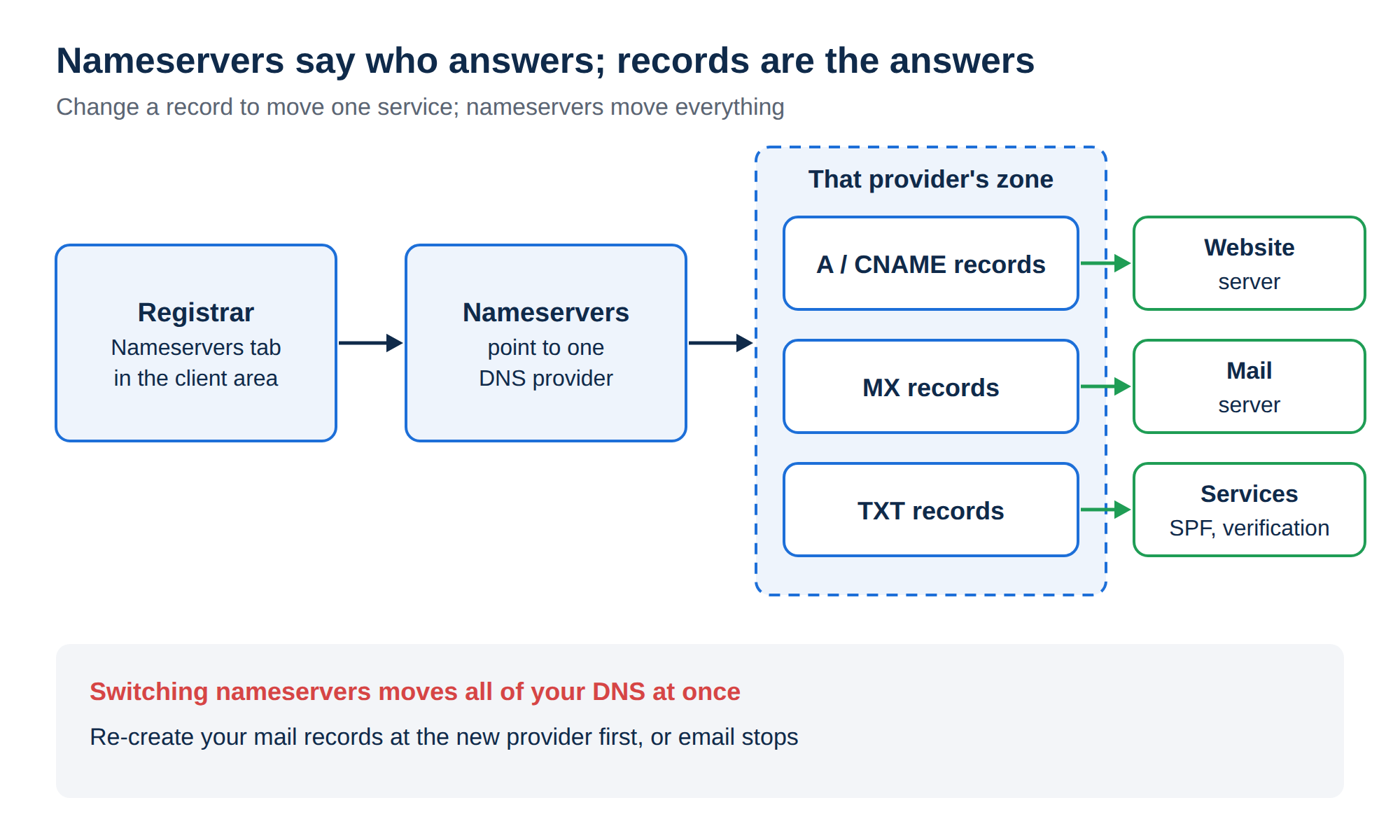
Every domain has a small set of nameservers recorded at its registry. When someone visits your website or sends you an email, their system asks those nameservers where to go. The nameservers answer with your DNS records: the address of the website (A or CNAME records), where email is delivered (MX records), and any verification records (TXT).
That makes the nameserver setting a switch that decides who is in charge of all your DNS:
- Your hosting server's nameservers: the records live in your hosting control panel (cPanel, DirectAdmin, Webuzo or Plesk).
- An outside DNS provider, such as Cloudflare: the records live in that provider's dashboard.
- A website platform's nameservers: the platform manages the records.
For more background, read What is a nameserver and why do I need it.
2. Before you change anything: nameservers or a DNS record?
You do not always need to change nameservers. If you only want to point one thing somewhere new, changing a single record is safer.
| You want to | Change | Where |
|---|---|---|
| Move everything (website, email, subdomains) to a new host or DNS provider | Nameservers | Domain India client area, Nameservers tab |
| Point only the website to a different server | A and/or CNAME records | Wherever your nameservers point today |
| Move only email to another provider | MX and TXT records | Wherever your nameservers point today |
| Verify the domain for Google, Microsoft or another service | A TXT or CNAME record | Wherever your nameservers point today |
The new provider answers for everything from the moment the change takes effect. If your email works today and the new provider does not have the same MX, SPF, DKIM and DMARC records, email stops arriving. Before you switch, write down your current records (or export them from your current provider) and make sure every one you still need exists at the new provider.
For record-level changes, follow How to change your domain DNS settings.
3. Where to find the correct nameservers
Use only values given to you for your account. Nameserver hostnames differ from server to server, and old lists copied from articles or forum posts can be out of date. A wrong or retired nameserver can take your website and email offline.
If your website and email are both on a Domain India hosting plan, using the hosting nameservers is the simplest choice: the control panel then manages every record for you. If your email or other services live elsewhere and you do not want to move them, use Option 2 on the same card instead: keep your current DNS and add two A records, @ and www, pointing to the server IP address shown there.
If you are unsure which nameservers belong to your hosting, open a support ticket before you change anything.
Which nameservers does Domain India free DNS use?
If your domain is registered with Domain India and uses our free DNS, you manage its records on the domain's DNS tab in the client area. The free DNS nameservers depend on where the domain is registered:
| Your domain | Free DNS nameservers |
|---|---|
| A .in domain registered with us directly at the .IN registry | a.ns.domainindia.net and b.ns.domainindia.net |
| Any other domain registered with Domain India | c.ns.domainindia.net, d.ns.domainindia.net, e.ns.domainindia.net and f.ns.domainindia.net |
| Older domains | may show domainindian.mercury.orderbox-dns.com, domainindian.venus.orderbox-dns.com, domainindian.earth.orderbox-dns.com and domainindian.mars.orderbox-dns.com. That is the same free DNS service, so there is nothing to change. |
If your domain uses Domain India hosting, use your hosting server's nameservers from your hosting service page instead, as described above. If you are not sure which set applies to your domain, open a support ticket.
4. How to change nameservers in the Domain India client area
These steps are for domains registered with Domain India. Every such domain has its own page in the client area with Overview, Nameservers, DNS and Transfer tabs (and Contacts for most domains).
- Sign in.Go to the client area and sign in to your account.
- Open your domains.Choose Domains → My domains in the menu.
- Select the domainwhose nameservers you want to change.
- Open the Nameservers tab.It shows the current nameservers. Click Edit.
- Enter the new nameservers.Replace the current entries with the new ones, one per field. Use Add nameserver for a third or fourth. At least one is required; enter every nameserver your provider gave you, which is usually two or more.
- Save.Click Save. The client area confirms "Nameservers updated", and the change starts to spread from there.
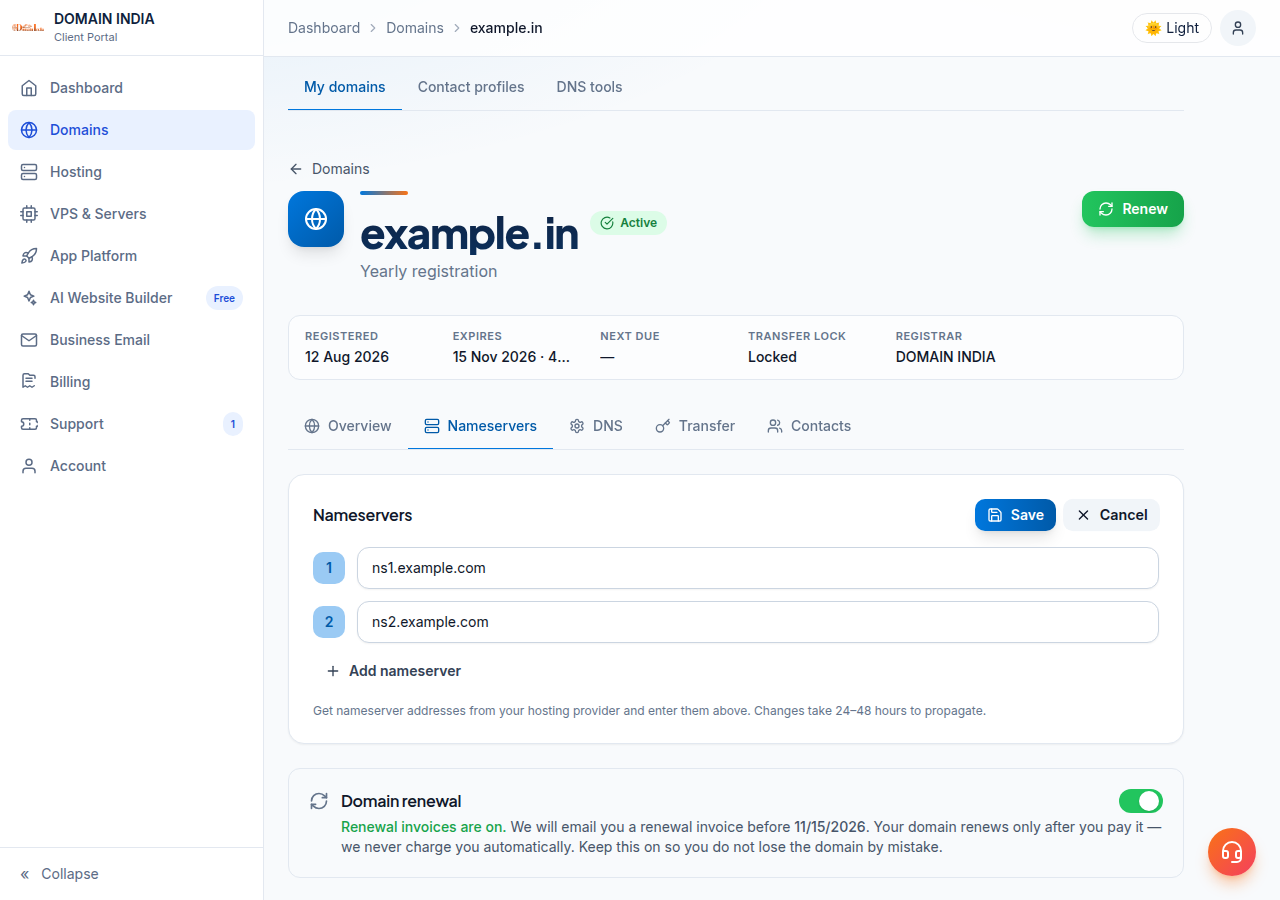
A few details worth knowing:
- Type the hostnames exactly, such as
ns1.example-dns.com, with nohttp://, no spaces and no trailing dot. A typo sends your domain to a server that does not answer for it. - The transfer lock does not block nameserver changes, so there is no need to unlock the domain.
- The Custom nameservers (glue records) section at the bottom of the tab is only for people who run their own DNS server and want nameservers such as
ns1.yourbusiness.in. Most customers can ignore it. See Can I have my own nameservers. - If the save fails, check the hostnames for typos. The registry can reject a nameserver that does not exist. If it still fails, open a ticket and include the error message.
5. If your domain is registered somewhere else
Nameservers are always changed at the registrar where the domain is registered, not at the hosting company. If you bought the domain from another company, sign in to that company's control panel and look for a "Nameservers" or "DNS" setting on the domain. Enter the nameservers from your Domain India hosting service page or welcome email, exactly as shown there.
If you are not sure where a domain is registered, a WHOIS lookup shows the registrar's name. If you would rather manage the domain and hosting in one place, you can transfer the domain to Domain India. Read Can I transfer an existing domain to Domain India first.
6. How long does a nameserver change take?
A nameserver change usually takes effect within a few hours, and can take up to 24-48 hours to reach every network. There is no guaranteed time.
The delay is caused by caching, not by a queue at Domain India. Internet providers, resolvers and your own devices remember the old nameservers and records for a while. Until their cached copy expires, some visitors reach the old provider and others the new one.
- During that window, keep your website and email running at both the old and the new provider if you can. Do not cancel the old hosting on the day you switch.
- A phone on mobile data may show the new site before your office computer does. That usually means the change worked and your computer still has an old copy cached.
- Changing nameservers again and again during the window only restarts the wait.
For a deeper explanation, read Understanding DNS propagation.
7. How to check that the change worked
A browser can show you a cached page, so check with a DNS lookup.
On macOS or Linux, use dig:
dig NS yourbusiness.in +short          # which nameservers answer for the domain
dig NS yourbusiness.in @8.8.8.8 +short  # ask a public resolver
dig A yourbusiness.in +short           # the website address
dig MX yourbusiness.in +short          # where email is delivered
On Windows, use Command Prompt or PowerShell:
nslookup -type=ns yourbusiness.in
nslookup -type=ns yourbusiness.in 8.8.8.8
nslookup -type=mx yourbusiness.in
How to read the results:
- The NS answer shows the new nameservers: the change has reached that resolver. Check that the A and MX answers are what you expect.
- The NS answer still shows the old ones: wait a few more hours, then check again. If it has been more than 48 hours, compare the Nameservers tab with what you intended.
- The NS answer is right but the website or email is wrong: the records are missing or wrong at the new provider. Fix them there.
Online DNS propagation checkers, which query resolvers in many countries at once, are a useful second opinion. If something still looks wrong, read Debugging nameserver and DNS issues.
8. Common mistakes to avoid
9. Where Domain India fits
When you register a domain and buy hosting with Domain India, both appear in one client area. Your hosting service page shows the nameservers for that account, and the domain's Nameservers tab is where you enter them, so there is no need to copy details between two companies. Most hosting accounts are created automatically within a couple of minutes of payment, and the welcome email includes the nameservers.
If you need hosting for a domain, compare plans on cPanel hosting. If you need a domain, start at domain registration. If you move email to a new provider, see Business Email DNS records for the records email needs.
Support is available by 24/7 live chat and support tickets, and tickets get a first response within 15 minutes; resolution can take longer depending on the issue. There is no phone support.
How do I change my nameservers at Domain India?
Sign in to the Domain India client area, open Domains → My domains, select the domain, open the Nameservers tab, click Edit, enter the new nameservers and click Save. The client area confirms "Nameservers updated" when the change is accepted.
What nameservers should I use for my Domain India hosting?
Use the nameservers shown for your hosting account, either in the "Point a domain to this hosting" card on your hosting service page in the client area or in your hosting welcome email. Different servers use different nameservers, so do not copy them from an article or from another account.
How long does it take for new nameservers to work?
A nameserver change usually takes effect within a few hours and can take up to 24-48 hours to reach every network, because resolvers cache the old answer. There is no guaranteed time.
Will changing my nameservers affect my email?
Yes. Changing nameservers moves all of your DNS, including the MX records that deliver email. Make sure the new DNS provider has your email records (MX, SPF, DKIM and DMARC) before you switch, or email will stop arriving.
My domain is registered with another company. Where do I change the nameservers?
Nameservers are changed at the registrar where the domain is registered. Sign in to that company's control panel and update the nameservers there, using the values from your Domain India hosting service page or welcome email.
Do I need to unlock my domain to change nameservers?
No. The transfer lock only prevents the domain being transferred to another registrar. You can change nameservers while the domain is locked.
Can I point my domain to Domain India hosting without changing nameservers?
Yes. Keep your current DNS provider and add two A records, for @ and www, pointing to the server IP address shown in the "Point a domain to this hosting" card on your hosting service page. This leaves your existing email records untouched.
My domain shows domainindian.*.orderbox-dns.com nameservers. Is that wrong?
No. Older domains on Domain India free DNS may show the domainindian.mercury, venus, earth and mars orderbox-dns.com nameservers. They are the same free DNS service as c.ns, d.ns, e.ns and f.ns.domainindia.net, so you don't need to change them.
How do I check whether my nameserver change has worked?
Run "dig NS yourdomain +short" on macOS or Linux, or "nslookup -type=ns yourdomain" on Windows. When the answer shows the new nameservers, the change has reached that resolver.
Ready to connect your domain? Sign in to the client area to update your nameservers, read the full DNS settings guide, or open a support ticket if you are not sure which values to use.
Register your domain with Domain India and connect it to your hosting from the same client area.
Search for a domain