Changing your domain's DNS is how you tell the internet where your website lives and where your email should go. It is a few minutes of work, but one wrong record can take a site offline or send email into a void. This guide explains the difference between nameservers and DNS records, what each record type does, where to make each change, and how to check that it worked.
Change your nameservers when you want a different provider to manage all of your domain's DNS. Change DNS records when you only want to point one service somewhere, such as the website (A or CNAME) or email (MX and TXT), and keep everything else where it is. Records only take effect at the provider your nameservers point to, so edit them there. For a site on Domain India hosting, that usually means your control panel's DNS editor, such as the Zone Editor in cPanel. Changes usually take effect within a few hours, and can take up to 24-48 hours because of caching.
1. Nameservers or DNS records: which one do you change?
Two different settings are both called "DNS", and mixing them up causes most of the trouble.
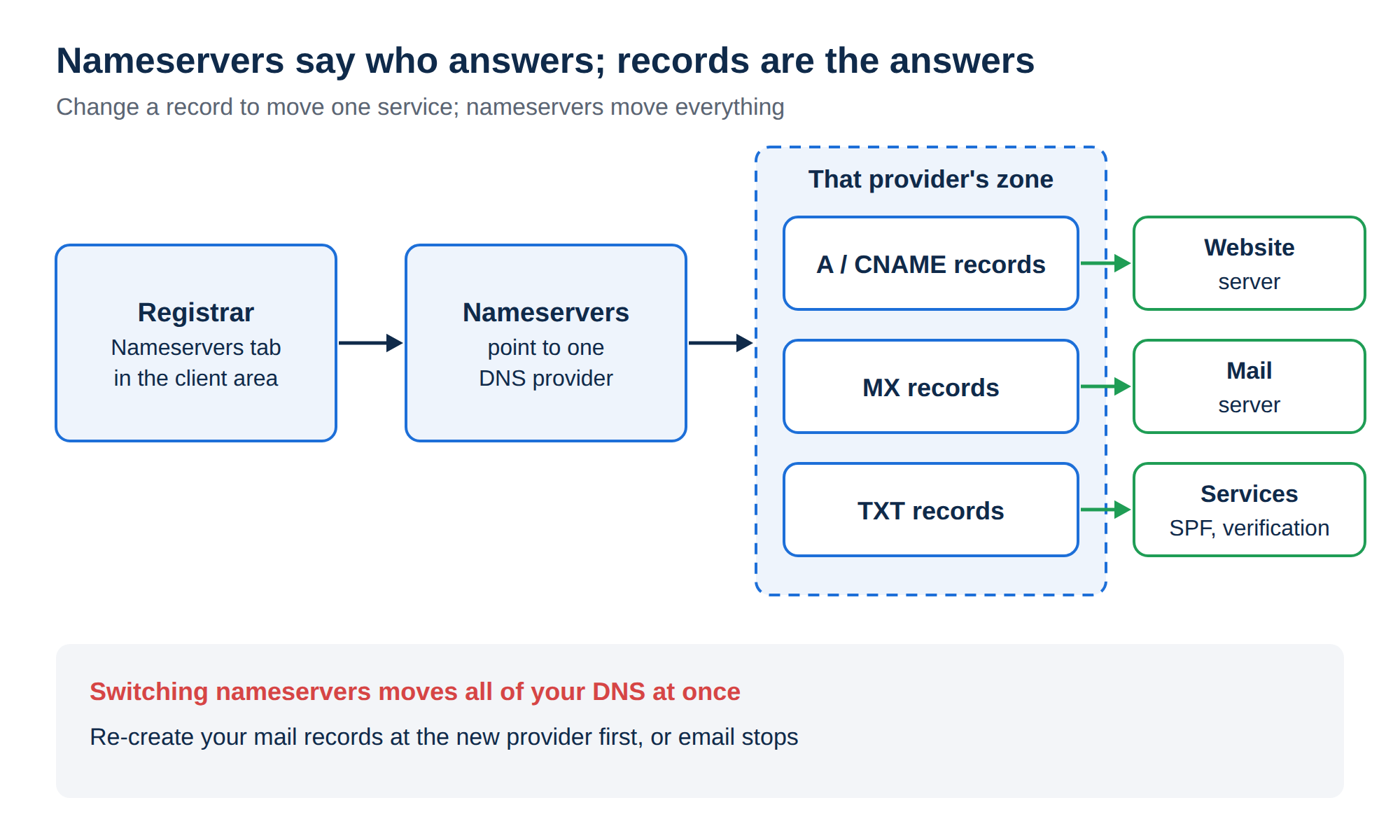
- Nameservers say who answers for your domain. They are set at the registrar (Domain India, for a domain you registered with us) and point to one DNS provider: your hosting server, an outside DNS service such as Cloudflare, or a website platform.
- DNS records are the answers themselves: "the website is at this IP address", "email goes to this mail server". They live at whichever provider your nameservers point to.
| You want to | Change | Where |
|---|---|---|
| Move everything (website, email, subdomains) to one new provider | Nameservers | Domain India client area, Nameservers tab |
| Point only the website to a new host | A and/or CNAME records | Wherever your nameservers point today |
| Move only email to Google Workspace, Microsoft 365 or Business Email | MX and TXT records | Wherever your nameservers point today |
| Verify the domain for a service (Google, Microsoft, Meta, an SSL provider) | TXT or CNAME record | Wherever your nameservers point today |
| Create a subdomain such as shop.yourbusiness.in | A or CNAME record | Wherever your nameservers point today |
A rule worth remembering: changing nameservers moves all of your DNS at once. If your email works today and you switch nameservers without re-creating the mail records at the new provider, email stops arriving. When you only need to change one thing, change the record, not the nameservers.
For more background, read What is a nameserver and why do I need it.
2. Find out where your DNS is managed today
Before you edit anything, find out which provider currently answers for your domain. A record only takes effect on the nameservers that serve your domain's zone. A record saved anywhere else is simply never read, even if the screen said it was saved. There are two common situations:
- Your domain points to your Domain India hosting nameservers. The records live on your hosting server. Edit them in your hosting control panel: Domains › Zone Editor in cPanel, Account Manager › DNS Management in DirectAdmin, or Domain › DNS Zone Settings in Webuzo.
- Your domain points somewhere else, such as Cloudflare or a website platform. Edit the records in that provider's dashboard.
If you are not sure which applies, or the nameservers belong to no service you recognise, open a support ticket before you change anything.
To check, sign in to the client area, open Domains → My domains, select the domain and look at the Nameservers tab. You can also check from any computer:
dig NS yourbusiness.in +shortOn Windows, use nslookup -type=ns yourbusiness.in. The hostnames in the answer tell you who is in charge of your DNS.
3. DNS record types explained
These are the records you will meet most often. In the host column, @ means the domain itself (yourbusiness.in), and www means www.yourbusiness.in. The IP addresses below are documentation examples; always use the values your provider gives you.
| Type | What it does | Example host | Example value |
|---|---|---|---|
| A | Points a name to an IPv4 address | @ | 203.0.113.10 |
| AAAA | Points a name to an IPv6 address | @ | 2001:db8::10 |
| CNAME | Makes a name an alias of another hostname | www | yourbusiness.in or shops.example-platform.com |
| MX | Says which mail server receives email for the domain, with a priority (lower is tried first) | @ | 10 mail.yourbusiness.in |
| TXT (SPF) | Lists the servers allowed to send email for your domain | @ | v=spf1 a mx include:_spf.google.com ~all |
| TXT (verification) | Proves to a service that you own the domain | @ | google-site-verification=abc123… |
| CAA | Limits which certificate authorities may issue SSL certificates for the domain | @ | 0 issue "letsencrypt.org" |
| NS | Names the nameservers for the domain or delegates a subdomain | @ | ns1.example-dns.com |
A few details that matter in practice:
- TTL (time to live) is how long, in seconds, other servers may cache a record.
3600is one hour and14400is four hours. - SRV records point specific services, such as some calling or chat systems, to a server and port. You only need one if a provider asks for it.
- CAA is optional. If you add one, it must list every certificate authority your hosts use, or free SSL certificates will fail to issue or renew. Check with your host before you add one. The record editor on the client area's DNS tab does not offer CAA, so if you need one, add it in your hosting control panel or at your DNS provider, or contact support.
- NS records at the root are normally managed for you by the DNS provider. You change your domain's nameservers on the Nameservers tab, not by adding NS records.
4. How to make the change
Every domain registered with Domain India has a page in the client area with Overview, Nameservers, DNS and Transfer tabs (and Contacts for most domains). Nameserver changes go on the Nameservers tab. Record changes go wherever your nameservers point, which is usually your hosting control panel or your DNS provider rather than the client area.
Change your nameservers
- Sign in.Go to the client area and sign in.
- Open the domain.Choose Domains → My domains, then select the domain.
- Open the Nameservers taband click Edit.
- Enter the new nameservers.Replace the current entries with the ones your hosting or DNS provider gave you. You can enter up to four; use Add nameserver for a third or fourth.
- Save.Click Save. The client area confirms "Nameservers updated", and the change starts to spread from there.
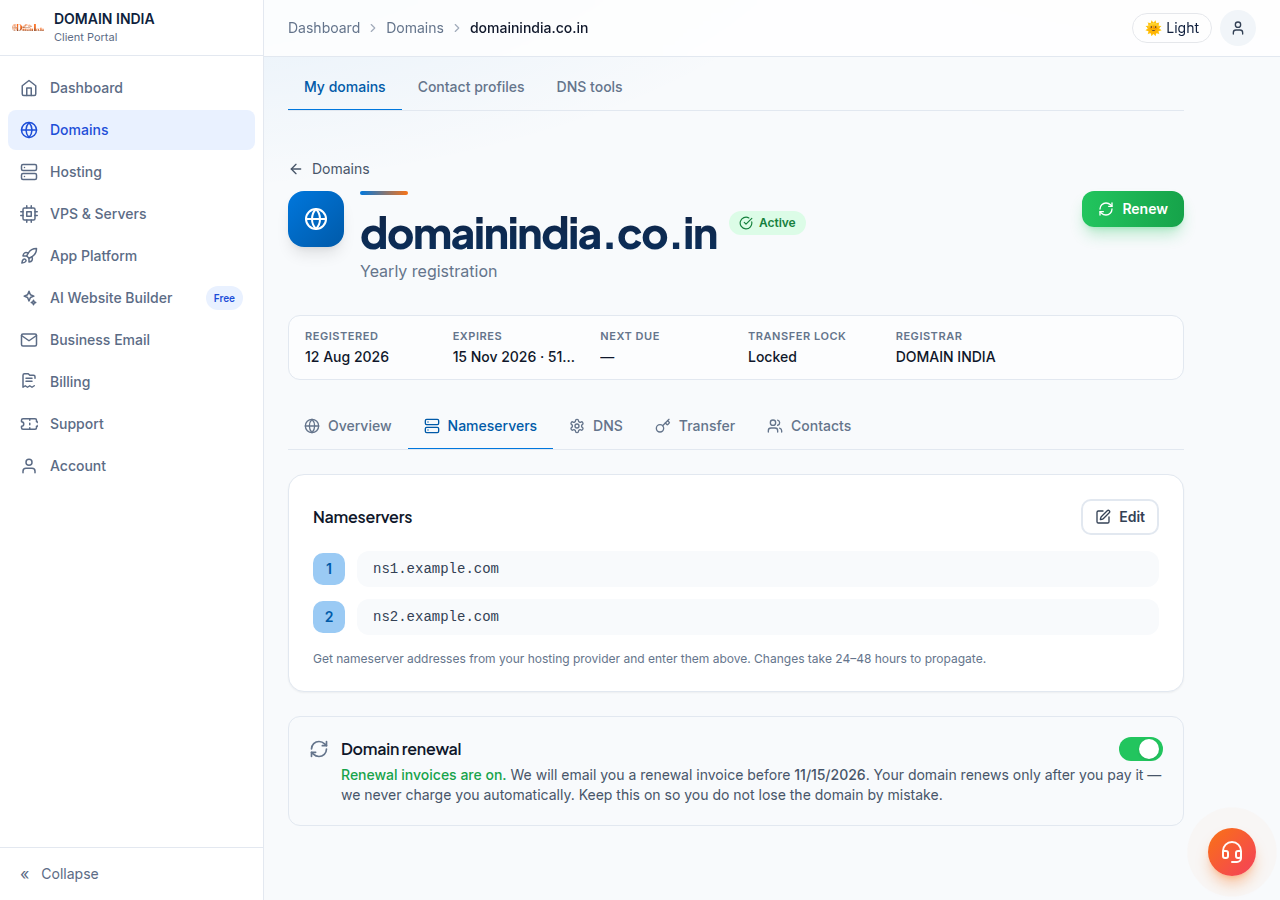
The transfer lock does not block nameserver changes, so there is no need to unlock the domain. The Custom nameservers (glue records) section at the bottom of the tab is only for people who run their own DNS server and want nameservers such as ns1.yourbusiness.in. Most customers can ignore it.
Add or edit DNS records
Edit records at the provider your nameservers point to, which you found in section 2.
- On Domain India hosting nameservers: sign in to your hosting control panel and use its DNS editor. See how to make DNS changes in cPanel or how to manage DNS records in DirectAdmin.
- On an outside DNS provider or platform: add the records in that provider's dashboard.
In any editor, you choose the type (A, AAAA, CNAME, MX, TXT and so on), then fill in the host (@ for the domain itself, or a subdomain such as www or mail), the value and the TTL. MX and SRV records also need a priority. Save each record, and repeat for every record your provider asked for.
What the client area's DNS tab shows. For a domain on hosting nameservers or an outside DNS provider, the DNS tab says the records are managed wherever the nameservers point and cannot be edited there. That is expected: use your control panel or DNS provider instead. Where the tab does show a record list, those records take effect only while the domain uses the nameservers that serve that zone. If the tab warns that the records are not in use, anything you add there is saved but never read.
The DNS tab may offer Activate Free DNS or Switch to Free DNS. Clicking it changes your domain's nameservers, and your existing records are not copied across, so email (MX, SPF, DKIM and DMARC), the website and any verification records stop working until they are re-created. For some domains it can also leave the domain answering from a zone that holds none of your records. Point the domain to your hosting nameservers, or add A records at your current DNS provider, as described in How do I change my nameservers. If your domain has no hosting and no DNS provider, open a support ticket and ask how to set up DNS for it.
5. Common setups, step by step
Point your domain to Domain India hosting
Open your hosting service in the client area. The Point a domain to this hosting card gives you two options:
- Option 1, nameservers: copy the nameservers shown and enter them on the domain's Nameservers tab. Your hosting control panel then manages all of the domain's records, including email. This is the simplest choice when the website and email are both on the hosting plan.
- Option 2, A records: keep your current DNS provider and add two A records,
@andwww, pointing to the server IP address shown on the card. Choose this when your email or other services are managed elsewhere and you do not want to move them.
Once DNS points to the server, the free SSL certificate can be issued. For a full walkthrough, read Connecting your domain to your web hosting.
Point your domain to an external website host
Website builders and store platforms (Shopify, Wix, Squarespace, Webflow, Blogger, WordPress.com and others) usually ask for:
- an A record for
@pointing to an IP address, and - a CNAME record for
wwwpointing to a hostname on their platform.
These values differ between platforms, and sometimes between accounts on the same platform, so copy them from the platform's own "connect a domain" page rather than from a list on the internet. Some platforms offer to "connect using nameservers" instead. Avoid that if your email is somewhere else, because it moves all of your DNS to the platform.
Building with the Domain India AI Website Builder? See How to connect your domain to the website builder. It only needs the records it shows you, with no nameserver change.
Use Google Workspace or Microsoft 365 for email
Email only needs MX and TXT records (plus a CNAME or two for Microsoft), so there is no reason to change nameservers.
| Record | Google Workspace | Microsoft 365 |
|---|---|---|
| MX | smtp.google.com, priority 1 (accounts set up before 2023 may use the older five ASPMX records; both work) | The value shown in the Microsoft 365 admin centre for your domain, priority 0 |
| SPF (TXT at @) | v=spf1 include:_spf.google.com ~all | v=spf1 include:spf.protection.outlook.com -all |
| Verification | TXT google-site-verification=… from the Google Admin console | TXT MS=ms… from the Microsoft 365 admin centre |
| DKIM | TXT record generated in the Google Admin console | Two CNAME records (selector1 and selector2) from Microsoft |
| Other | CNAME autodiscover pointing to autodiscover.outlook.com |
Delete the old MX records when you add the new ones. If old and new MX records are both present, some messages go to the old mailbox. See Setting up Google Workspace email and Understanding SPF, DKIM and DMARC.
Keep your website here and your email elsewhere
This is a common and perfectly good setup. The website records (A for @ and www) point to your hosting server, and the mail records (MX, SPF, DKIM) point to your email provider.
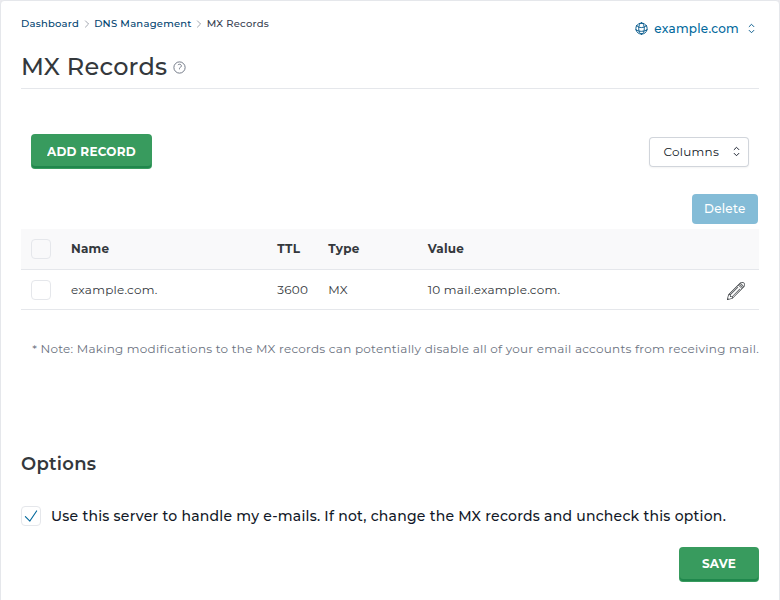
- Domain on your hosting nameservers: in cPanel's Zone Editor, replace the MX records with your email provider's and update the SPF record. Then set Email Routing to Remote Mail Exchanger, so the server stops treating the mail as local. In DirectAdmin, open E-mail Manager › MX Records, change the MX records, then untick Use this server to handle my e-mails and click SAVE.
- Domain on another DNS provider: add the A records for the website and the mail provider's MX and TXT records in the same zone, at that provider.
To reverse this later, read switching from third-party email back to your hosting email.
6. How long do DNS changes take?
DNS changes usually take effect within a few hours, and can take up to 24-48 hours to reach every network. There is no guaranteed time.
The delay is caused by caching, not by a queue at Domain India. Internet providers and devices remember DNS answers for as long as the record's TTL allows. Until the cached copy expires, some visitors still see the old answer, so the new setting can reach one network before another.
- Record changes follow the old record's TTL. A record with a one-hour TTL is usually updated everywhere within about an hour of the change.
- Nameserver changes can take longer, because resolvers also cache the old nameservers for as long as the extension's registry allows.
- Your own computer and browser cache DNS too. If a phone on mobile data shows the new site and your laptop does not, the change has worked and your laptop is still using its cached copy.
If you know you will move a website or email, lower the TTL of those records to 300 seconds (5 minutes) a day before the move. When you change the records, the switch then spreads within minutes. Raise the TTL again once everything works.
7. How to check your DNS changes
Check with a DNS lookup rather than only a browser, because a browser can show you a cached page.
On macOS or Linux, use dig:
dig NS yourbusiness.in +short        # which nameservers answer for the domain
dig A yourbusiness.in +short         # the website's IPv4 address
dig CNAME www.yourbusiness.in +short # where www points
dig MX yourbusiness.in +short        # mail servers and priorities
dig TXT yourbusiness.in +short       # SPF and verification records
dig A yourbusiness.in @1.1.1.1 +short # ask a specific public resolver
On Windows, use nslookup in Command Prompt or PowerShell:
nslookup -type=ns yourbusiness.in
nslookup -type=mx yourbusiness.in
nslookup -type=txt yourbusiness.in
nslookup yourbusiness.in 8.8.8.8
How to read the results:
- The NS answer is not what you set: the nameserver change has not taken effect yet, or it was saved with a typo. Check the Nameservers tab.
- The NS answer is right but a record is missing or old: the record was added at a different provider from the one your nameservers point to, or the old value is still cached.
- Public resolvers disagree: the change is still spreading. Wait for the TTL to pass.
Online DNS propagation checkers, which query resolvers in many countries at once, and your email provider's own setup checker are useful second opinions. If something still looks wrong, read Debugging nameserver and DNS issues.
8. Common mistakes to avoid
9. Where Domain India fits
Every domain you register with Domain India is managed from one client area: nameservers, the transfer lock and contacts. A domain can point to any website platform, DNS provider or server you choose; if you are not sure how to set up DNS for a domain with no hosting plan, open a support ticket before you change anything.
If you want your website and email in one place, a Domain India hosting plan manages your DNS through its control panel as soon as you point the domain's nameservers to it. Domain India list prices on 19 September 2026, excluding 18% GST: DirectAdmin hosting from ₹100 a month and cPanel hosting from ₹125 a month, both with email accounts included.
- 10 GB NVMe SSD Storage
- 50 GB Monthly Bandwidth
- 1 Website
- 5 Email Accounts
- 25 GB NVMe SSD Storage
- 50 GB Monthly Bandwidth
- 1 Website
- 10 Email Accounts
If you want professional email on its own, alongside any website host, Business Email is ₹60 per mailbox a month. It includes DKIM signing on every message, and SPF and DMARC records are provided for your domain.
- Priced per mailbox - start with one
- Email at your own domain ([email protected])
- Add and remove mailboxes yourself
- Webmail with calendar, contacts and tasks
Frequently asked questions
What is the difference between nameservers and DNS records?
Nameservers decide which provider answers DNS questions for your domain. DNS records are the answers that provider gives, such as the website's IP address (A record) or the mail server (MX record). Changing nameservers moves all of your DNS to a new provider; changing a record changes only one service.
How long does a DNS change take to work?
Changes usually take effect within a few hours, and can take up to 24-48 hours, because internet providers cache DNS answers for as long as each record's TTL allows. Nameserver changes can take longer than record changes.
Where do I edit DNS records for a domain registered with Domain India?
At the provider your nameservers point to, because records only take effect on the nameservers that serve the domain's zone. If the domain uses your Domain India hosting nameservers, use your control panel's DNS editor, such as the Zone Editor in cPanel. If it points to Cloudflare or another provider, edit the records there. Records saved anywhere else are not read.
Will changing nameservers affect my email?
Yes, unless you re-create your mail records at the new provider first. Nameservers move all DNS, including the MX, SPF, DKIM and DMARC records that email depends on. To change only the website, change its A or CNAME records instead of the nameservers.
Can I host my website with one company and my email with another?
Yes. Point the website records (A or CNAME for @ and www) to your web host and the MX and TXT records to your email provider, all in the same DNS zone. If your domain uses cPanel hosting nameservers, also set Email Routing to Remote Mail Exchanger.
Why can I not add a CNAME record for my main domain?
DNS rules do not allow a CNAME at the root of a domain (@), because the root also holds records such as MX and NS. Use an A record for the root domain and a CNAME for subdomains such as www.
Can I have two SPF records?
No. A domain must have only one SPF TXT record starting with v=spf1. If you send email through more than one service, combine them into a single record, for example v=spf1 a mx include:_spf.google.com ~all.
Do I need to unlock my domain to change nameservers or DNS?
No. The transfer lock only prevents the domain from being transferred to another registrar. You can change nameservers and DNS records while the lock is on, and you should leave it on.
Ready to make the change? Open My domains in the client area, point a domain to DirectAdmin or cPanel hosting, add Business Email, or register a new domain. If anything is unclear, contact support and include your domain name and the records you are trying to set.
Change nameservers and check your domain's settings in one place.
Go to My domains