When mail arrives but nothing you send goes out, the mailbox itself is almost always fine. Receiving and sending are two separate connections: your mail app downloads over IMAP or POP3, and sends over SMTP with its own server name, port, encryption and login. If any one of those SMTP settings is wrong, or your network blocks the port, you get exactly this problem.
Set the outgoing (SMTP) server to mail.yourdomain.com, switch SMTP authentication on, and log in with your full email address and the mailbox password. Use port 465 with SSL/TLS, or 587 with STARTTLS on cPanel, DirectAdmin and Webuzo hosting. Port 587 is not open on Windows (Plesk) hosting, and port 25 is blocked by many internet providers. If the settings are right and mail still fails, check for a changed password, a suspended account, a sending limit, or missing SPF and DKIM records.
1. First, read the error message
The error your mail app shows tells you which step below to start with. Write it down before you change anything.
| What you see | Most likely cause | Go to |
|---|---|---|
| "Cannot connect to the outgoing server", or a timeout | Wrong server name, or the port is blocked on your network | Sections 2, 4 and 5 |
| "Relaying denied", "Relay access denied" or "Authentication required" | SMTP authentication is switched off | Section 3 |
| "Authentication failed" or a repeated password prompt | Wrong username or an old password | Sections 3 and 6 |
| A certificate or "connection reset" warning | Port and encryption do not match, or the server name does not match the certificate | Sections 2 and 4 |
| Mail leaves your Sent folder, but the recipient gets nothing | Limits, blocklists or spam filtering at the other end | Sections 7 and 8 |
| A bounce message comes back to you | The receiving server refused it; the bounce says why | Section 8 |
Your mail stays on the server either way, so none of these checks can lose mail you have already received.
2. Check the outgoing server name
The outgoing server is where your app delivers mail for sending. On Domain India hosting mailboxes it is normally mail.yourdomain.com, the same as the incoming server. Replace yourdomain.com with your real domain.
Two common mistakes:
- Your internet provider's SMTP server is still in the app. Some phones and older Outlook profiles fill in the provider's server automatically. It will not accept mail sent from your domain address.
- A typo or a missing
mail.An outgoing server of justyourdomain.commay point at your website rather than the mail service.
If mail.yourdomain.com gives a certificate warning, do not click past it. Your control panel shows the exact server name that matches the certificate for your account (section 9 explains where), and that name will connect without a warning.
3. Switch SMTP authentication on
Our servers only send mail for people who log in. That stops strangers using the server to send spam. If your app sends without logging in, the server refuses with "relaying denied" or "authentication required", while receiving keeps working perfectly. This is the single most common reason for this problem.
| Setting | What to enter |
|---|---|
| Outgoing server requires authentication | On |
| Username | Your full email address, for example [email protected], not just you |
| Password | The mailbox password, not your control panel or client area password |
| Authentication method | Normal password (the encryption from section 4 protects it) |
In Outlook, the switch is under the account's outgoing server settings, labelled "My outgoing server (SMTP) requires authentication", with "Use same settings as my incoming mail server" selected. On phones it appears as a username and password under "Outgoing server" or "SMTP". Step-by-step screens are in how to configure Outlook.
4. Match the port with the right encryption
The port and the encryption setting are a pair. Use a matching pair from this table; a mismatch fails at once or shows a certificate or "connection reset" error. These are the ports we measured as open on our servers on 20 September 2026.
| Your hosting | Recommended | Alternative | Not available |
|---|---|---|---|
| cPanel | 465 with SSL/TLS | 587 with STARTTLS | Port 26 |
| DirectAdmin | 465 with SSL/TLS | 587 with STARTTLS | Port 26 |
| Webuzo | 465 with SSL/TLS | 587 with STARTTLS | Port 26 |
| Windows (Plesk) | 465 with SSL/TLS | None | Ports 587 and 26 |
- 465 goes with SSL/TLS. Some apps call this "SSL" or "SSL/TLS".
- 587 goes with STARTTLS. Some apps call this "TLS".
- Port 26 is closed on every Domain India server. Older guides, including an earlier version of this one, suggested it as a workaround. It no longer works, so change it to 465.
The full list of ports for every service is in Domain India web hosting port numbers.
5. Port 25 and your internet provider
Port 25 is the port mail servers use to pass mail to each other. Our servers accept connections on it, but many internet providers and mobile networks block outgoing port 25 from homes, offices and phones, because infected computers use it to send spam. The result looks like this: the app times out when sending, but the same settings work on another network.
Try sending on mobile data, or on a different Wi-Fi. If it works there, your usual network is blocking the port. Do not ask your provider to open port 25; simply use port 465 with SSL/TLS, which is the recommended setting anyway.
Office and college firewalls sometimes block 465 and 587 as well. If neither works on one network but both work elsewhere, ask that network's IT team to allow outgoing connections on port 465. A VPN or an antivirus program that scans outgoing mail can also interfere: pause it and try once more.
6. A password that changed, and a blocked IP address
If you or a colleague changed the mailbox password, every device still holding the old one fails. Receiving can appear to keep working for a while because the app shows mail it already downloaded, which makes the problem look like a sending fault.
- Test the password in webmail.Log in with the full email address and the password. The addresses for each panel are in how to log in to webmail.
- If webmail rejects it, reset it.Set a new password on your panel's email accounts page. Full steps are in managing your email accounts.
- Update both password fields.Many apps store the incoming and the outgoing password separately. Enter the new one in both, on every phone, tablet and computer that uses the address.
A phone that keeps retrying an old password causes repeated failed logins, and the server firewall then blocks that IP address automatically. Every device on the same connection loses mail at once, while it still works on mobile data. Update or remove the account on every device first, then see I can't reach my server: have I been blocked?
7. Account suspended, disk full or a sending limit reached
If the settings and password are right and the error persists, look at the account itself.
- Suspended hosting account. If a hosting account is suspended, for example because its renewal invoice is unpaid, mail stops in both directions. Check the service's status in your client area under Services, and any open invoices under Invoices.
- Outgoing mail paused for one address. Control panels such as cPanel let the account owner suspend sending for one address while it keeps receiving. If only one address cannot send, check that address on your panel's email accounts page.
- Mailbox or disk full. A full mailbox mainly refuses incoming mail, but when the mailbox or the whole hosting account is out of space, your app may fail to save the copy in Sent and report the send as failed. Free space as described in managing your email accounts.
- Sending limit reached. Shared hosting limits how many messages an account can send (per hour on cPanel, per day on DirectAdmin, where each mailbox also stops at 200 a day by default), so one account cannot harm the shared server's reputation. Everyday business mail normally stays inside it; newsletters and bulk mail often do not. The current limit and what happens when you reach it are in do you limit the amount of mail I can send per hour. For bulk mail, use a dedicated email delivery service.
If a website form or plugin sends mail through your hosting, the rules for scripts are different: see PHP sendmail settings.
8. Mail that sends but never arrives: spam folders and SPF, DKIM, DMARC
Sometimes sending works, the message sits in your Sent folder, and the recipient still says nothing arrived. Then the problem is not your app. The receiving server has put the mail in spam or refused it.
Receiving servers such as Gmail and Outlook.com check three DNS records to decide whether mail from your domain is genuine:
_dmarc telling receivers what to do when SPF or DKIM fails, and where to send reports.Common causes of mail going to spam:
- No SPF or DKIM record, often after the domain's DNS moved to another provider and the records were not copied across.
- Two SPF records on one domain. A domain may have only one; two make both invalid. Merge them into a single record.
- Mail sent through another service (a CRM, a newsletter tool or Google Workspace) that is not included in your SPF record.
- Content that looks like spam: all-capital subjects, only an image with no text, or link shorteners.
In cPanel, Email Deliverability shows whether SPF and DKIM are valid for each domain and offers the correct records. Read the full guide in SPF, DKIM and DMARC, then email going to spam: how to fix. If the recipient's server sent a bounce, understanding email bouncebacks decodes it, and email blacklist removal covers blocklists.
9. Where to find the correct settings in your control panel
Rather than typing settings from memory, copy them from your panel.
- cPanel: open Email → Email Accounts, then click Connect Devices next to the address. The page shows the incoming and outgoing server names, ports and the secure settings for that exact account, and can generate automatic setup files for some mail apps.
- DirectAdmin and Webuzo: manage the address under E-mail Manager › E-mail Accounts on DirectAdmin or Email › Email Account on Webuzo, and use the settings in section 4 with
mail.yourdomain.comas the server. - Windows (Plesk): open Mail, then the address, and use port 465 with SSL/TLS for sending.
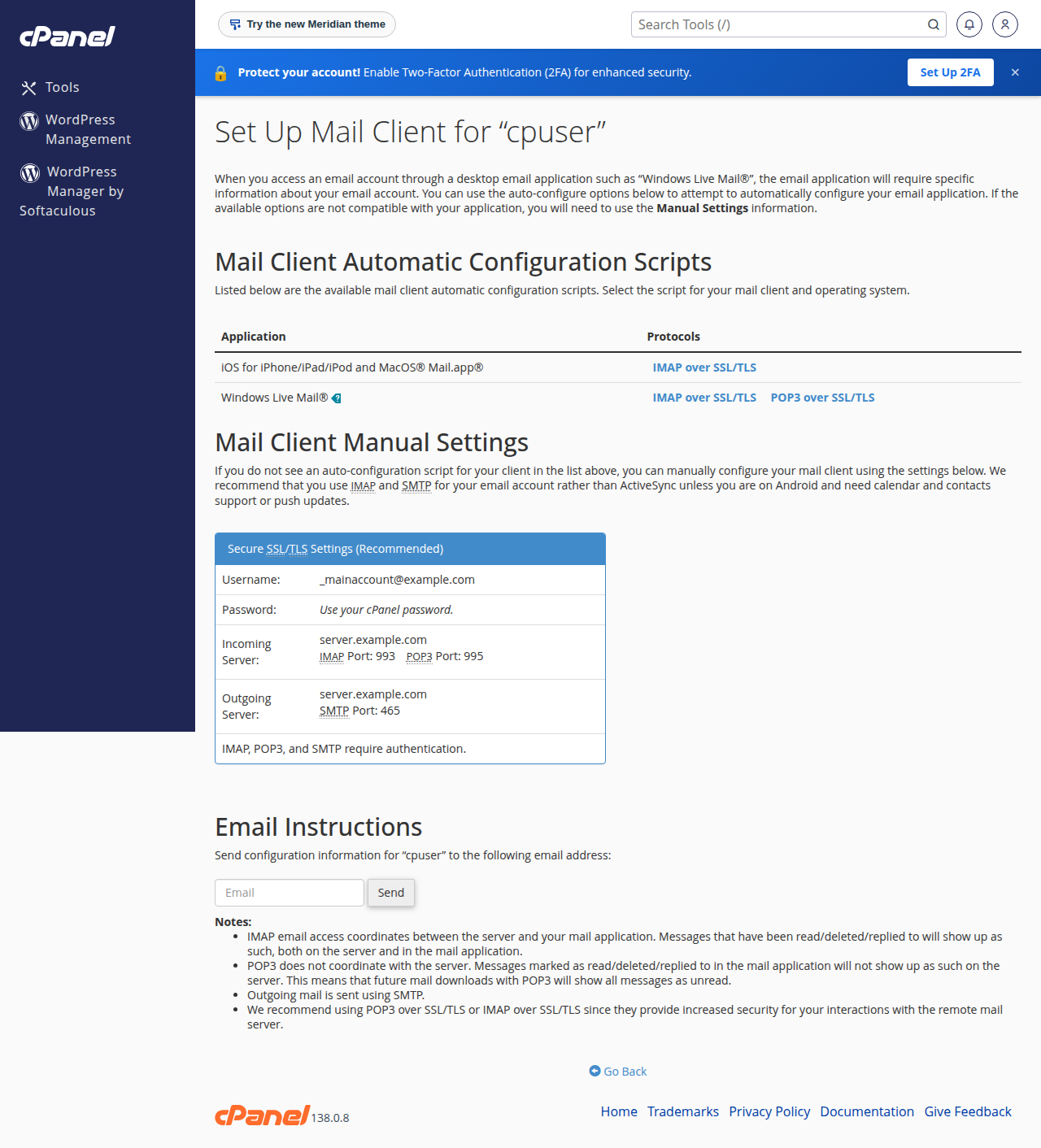
To open your panel without a separate password, log in to your Domain India client area, go to Services, open your hosting service and use its login button. The complete settings table for every panel is in mail server settings and section 9 of managing your email accounts.
10. If you use Business Email
Everything above is about the mailboxes included with a hosting plan. Domain India's Business Email is a separate product, billed per mailbox, with its own settings. It includes IMAP and SMTP over TLS, DKIM signing on every message you send, and SPF and DMARC records for your domain, and its webmail is at https://mail.yourdomain.com:8443/.
Because its settings are different, hosting mailbox guides do not apply to it. Use setting up Outlook, Apple Mail and your phone for Business Email for the app settings, Business Email sending limits for its limits, and Business Email DNS records if mail goes to spam. Not sure which one you have? Read Business Email vs the email included with your hosting.
11. Where Domain India products fit
If your website is hosted with us, you already have email: every cPanel, DirectAdmin and Webuzo plan includes email accounts at your domain, managed in the same panel as your website.
- 25 GB NVMe SSD Storage
- 50 GB Monthly Bandwidth
- 1 Website
- 10 Email Accounts
If you want email that runs separately from your website, or you have no hosting with us, Business Email is priced per mailbox and starts with one.
- Priced per mailbox - start with one
- Email at your own domain ([email protected])
- Add and remove mailboxes yourself
- Webmail with calendar, contacts and tasks
Prices on the cards are Domain India list prices and exclude 18% GST.
If you are still stuck after working through this guide, contact support. Live chat runs 24/7, and tickets get a first response within 15 minutes, although a fix can take longer depending on the problem. We do not offer phone support. Include your email address, your mail app, the outgoing server, port and encryption you are using, the exact error, and your public IP address.
Frequently asked questions
Why can I receive email but not send it?
Receiving and sending use different settings. Your app receives over IMAP or POP3 but sends over SMTP, which has its own server name, port, encryption and login. The most common causes are SMTP authentication being switched off, the wrong port or encryption, or your internet provider blocking port 25. Set the outgoing server to mail.yourdomain.com, switch authentication on, log in with your full email address, and use port 465 with SSL/TLS.
What outgoing mail (SMTP) settings should I use on Domain India hosting?
Server mail.yourdomain.com, port 465 with SSL/TLS, SMTP authentication on, and your full email address and mailbox password as the login. On cPanel, DirectAdmin and Webuzo hosting, port 587 with STARTTLS also works. On Windows (Plesk) hosting, port 587 is not open, so use 465.
Should I use port 26 for outgoing mail?
No. Port 26 is closed on every Domain India server, so older instructions that suggest it no longer work. Use port 465 with SSL/TLS, or 587 with STARTTLS on Linux hosting.
Why does sending fail on port 25?
Many internet providers and mobile networks block outgoing connections on port 25 to stop infected computers sending spam. Our servers are not the cause. Change your mail app's outgoing port to 465 with SSL/TLS, which is the recommended setting on all Domain India hosting plans.
What does "relaying denied" mean?
It means your mail app tried to send without logging in to the outgoing server. Our servers only send mail for authenticated users. Turn on "My outgoing server (SMTP) requires authentication" or the equivalent setting, and use your full email address and mailbox password.
I changed my email password and now I cannot send. What do I do?
Enter the new password in both the incoming and the outgoing settings on every device that uses the address, because many apps store them separately. A device that keeps trying the old password can get your IP address blocked by the server firewall, which stops mail for everyone on the same connection.
My mail sends but lands in the recipient's spam folder. How do I fix it?
Check that your domain has one valid SPF record, a DKIM record and a DMARC record. In cPanel, Email Deliverability shows whether SPF and DKIM are valid and offers the right records. Also avoid bulk mail from a hosting mailbox, and add any other service that sends as your domain to your SPF record.
Is there a limit on how much email I can send?
Yes. Shared hosting accounts have an hourly sending limit that protects the shared server's reputation, and everyday business mail normally stays within it. For newsletters and bulk mail, use a dedicated email delivery service. Business Email has its own limits, listed in its sending limits article.
Ready to fix it? Start with sections 3 and 4, then compare your app with the settings in managing your email accounts and the full port numbers list. If mail still will not send, open a ticket in the client area or use the public ticket form, and follow it on Track ticket.
Tell us your email address, the mail app you use, the port and encryption it is set to and the exact error, and we will look into your account.
Open a support ticket