Spam filtering is already switched on for the email that comes with Domain India cPanel and DirectAdmin hosting, so managing it mostly means tuning it: how strict the filter is, where marked spam goes, and which senders to always allow or block. This page shows where those settings are in each panel and links to the full guide for each.
For cPanel, see SpamAssassin and Spam Box in cPanel. For DirectAdmin, see DirectAdmin spam filtering with Easy Spam Fighter. This page is for mailboxes included with hosting; Domain India Business Email has its own filters and webmail at mail.yourdomain.com:8443.
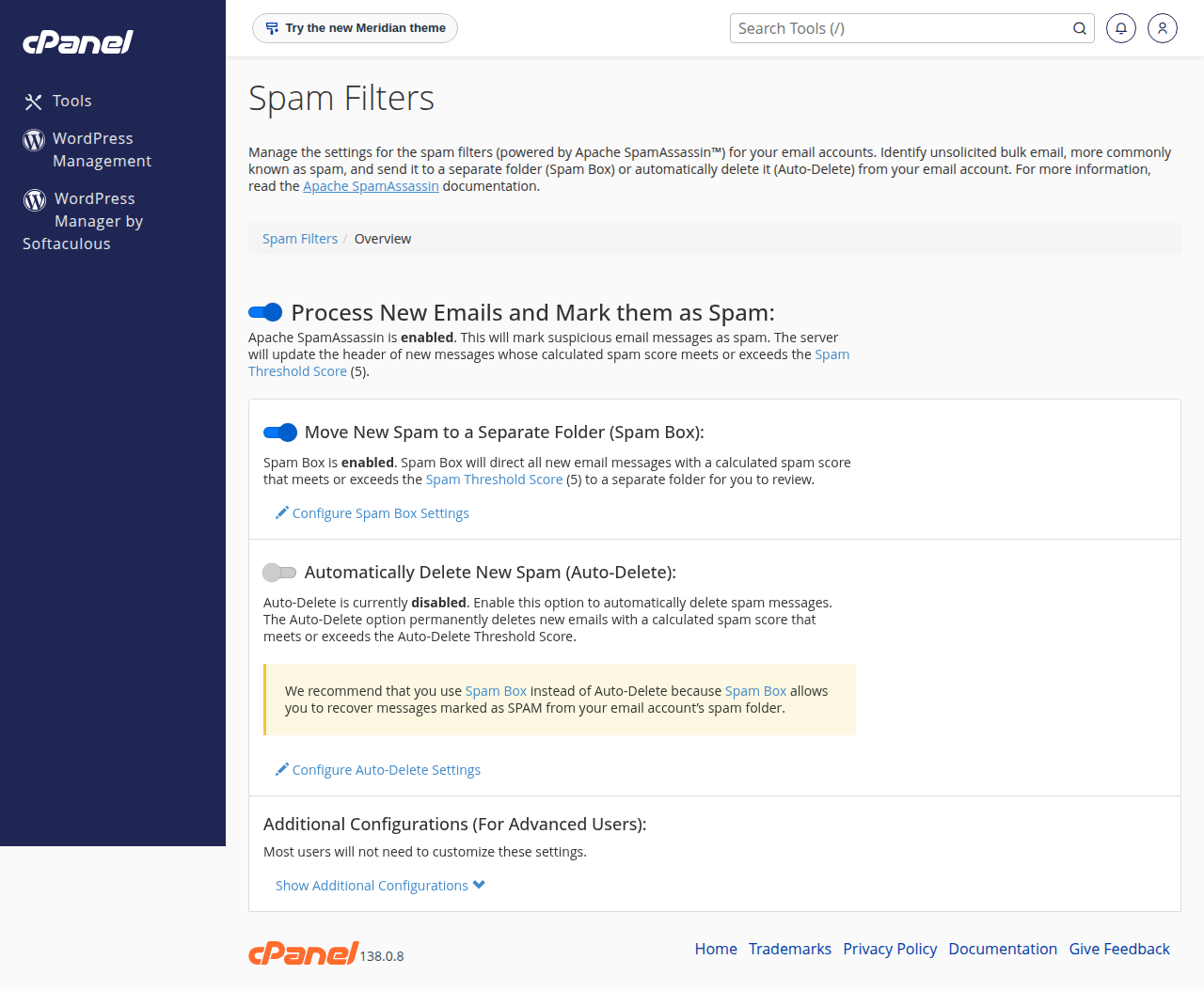
In cPanel, open Email › Spam Filters: filtering and Spam Box are already on for almost every account, with a threshold score of 5. In DirectAdmin, open E-mail Manager › SpamAssassin Setup: SpamAssassin is on with a threshold of 5.0, but by default marked spam still goes to the inbox, so choose delivery to a spam folder. Change the score one point at a time, prefer a spam folder over automatic deletion, and whitelist trusted senders rather than your own domain.
1. Where the settings are
| Task | cPanel | DirectAdmin |
|---|---|---|
| Score threshold, spam folder, auto-delete | Email › Spam Filters | E-mail Manager › SpamAssassin Setup |
| Always allow or always block a sender | Spam Filters › Show Additional Configurations (whitelist and blacklist) | In SpamAssassin Setup (whitelist and blacklist) |
| Block by sender, domain or words | Email › Email Filters or Global Email Filters | E-mail Manager › SPAM Filters |
| Default out of the box | Filtering and Spam Box on, score 5 | SpamAssassin and Easy Spam Fighter on, score 5.0, spam delivered to the inbox |
We checked these menus read-only on our cPanel server and our DirectAdmin server (DirectAdmin 1.710, Evolution skin) in September 2026. For Webuzo or Windows (Plesk) hosting, ask support what spam filtering your account has.
2. Tune the filter in three steps
- Send spam to a folder, not the bin.In cPanel, keep Spam Box on. In DirectAdmin, change the delivery option so spam goes to the spam folder instead of the inbox.
- Adjust the score slowly.A lower score is stricter. Start at 5, lower it by one if spam still gets through, raise it by one if genuine mail is being marked, and watch the spam folder for a few days after each change.
- Add trusted senders to the whitelist,such as
*@supplier.com, and persistent spammers to the blacklist.
Auto-delete removes messages permanently, with no copy and no warning. In cPanel, never set the Auto-Delete score equal to your threshold; if you use it at all, set it to 10 or higher. In DirectAdmin, keep spam in a folder for a few weeks after any change before choosing to delete it.
Don't whitelist your own domain. Spammers often forge your own address as the sender, and a whitelist entry for *@yourdomain.com lets their mail straight through.
3. Finding the spam folder
- Webmail: the spam folder is in the folder list. See how to log in to webmail.
- Phones and Outlook over IMAP: you may need to subscribe to the folder before it appears.
- POP3: only the inbox downloads, so check the spam folder in webmail.
The spam folder counts against the mailbox's storage quota. Empty it now and then after checking it; see managing email quotas.
4. When the problem is the other way round
If mail you send lands in other people's spam folders, the spam filter on your own account isn't the cause. Fix your domain's SPF, DKIM and DMARC records; see email going to spam: how to fix. If a message never arrived at all, check the spam folder, your email filters and any auto-delete setting, then see emails suddenly disappearing.
Frequently asked questions
Is spam filtering on by default on Domain India hosting?
Yes. On our cPanel server, spam filtering and Spam Box are on for almost every account. On our DirectAdmin server, SpamAssassin and Easy Spam Fighter run for every account, but marked spam is delivered to the inbox until you choose a spam folder.
Where are the spam settings in DirectAdmin?
Open E-mail Manager, then SpamAssassin Setup, to set the threshold score, where spam is delivered, and the whitelist and blacklist. E-mail Manager also has SPAM Filters for blocking specific senders, domains or words.
What spam score should I use?
Start with the default of 5. Lower it by one point if too much spam reaches the inbox, or raise it by one point if genuine mail is being marked as spam, and check the spam folder for a few days after each change.
Should I turn on automatic deletion of spam?
Only with care. Deleted spam is gone for good, including genuine messages marked by mistake. Keep spam in a folder, and in cPanel set any Auto-Delete score to 10 or higher, well above your threshold.
Do spam settings apply to every mailbox?
In cPanel, the Spam Filters settings apply to every mailbox on the hosting account. In DirectAdmin, check the settings for each domain you host, because the panel shows them per domain.
Ready to tune your filter? Log in to your panel from your hosting services, or open a support ticket with the sender, mailbox and time of a message that went missing.
Tell us the mailbox, the sender and the time of a message that did not arrive, and we will trace it on the server.
Open a support ticket