An autoresponder sends an automatic reply to everyone who emails one of your addresses: useful when you are on leave, to confirm that an enquiry arrived, or to share your business hours. Where you set it up depends on where your email is hosted: your hosting control panel, or Domain India Business Email.
For step-by-step cPanel instructions, personalisation tags, a sample message and the reply-loop rules, see How to create an autoresponder in cPanel.
For email included with your hosting, open your control panel's autoresponder option (in cPanel, Email › Autoresponders › Add Autoresponder), pick the address, write the message, set an interval of several hours between replies to the same sender, and add start and stop dates for leave. Business Email is a separate platform with its own auto-reply support. Test from a different email account.
1. Which email do you have?
This matters because each platform only sees its own mailboxes.
| Your email | Where to set the auto-reply |
|---|---|
| Included with cPanel hosting | cPanel: Email › Autoresponders |
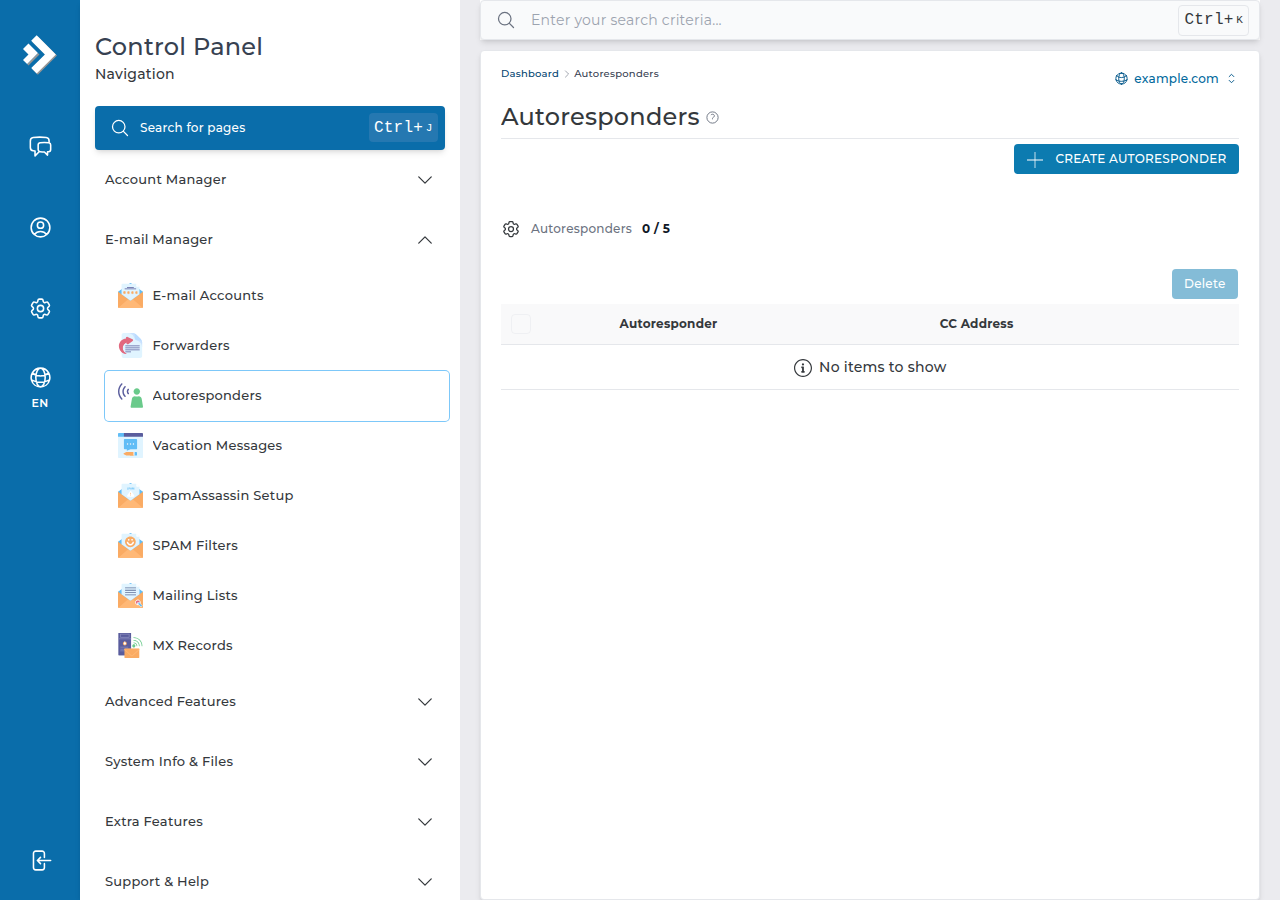
| Included with DirectAdmin hosting | DirectAdmin, E-mail Manager › Autoresponders |
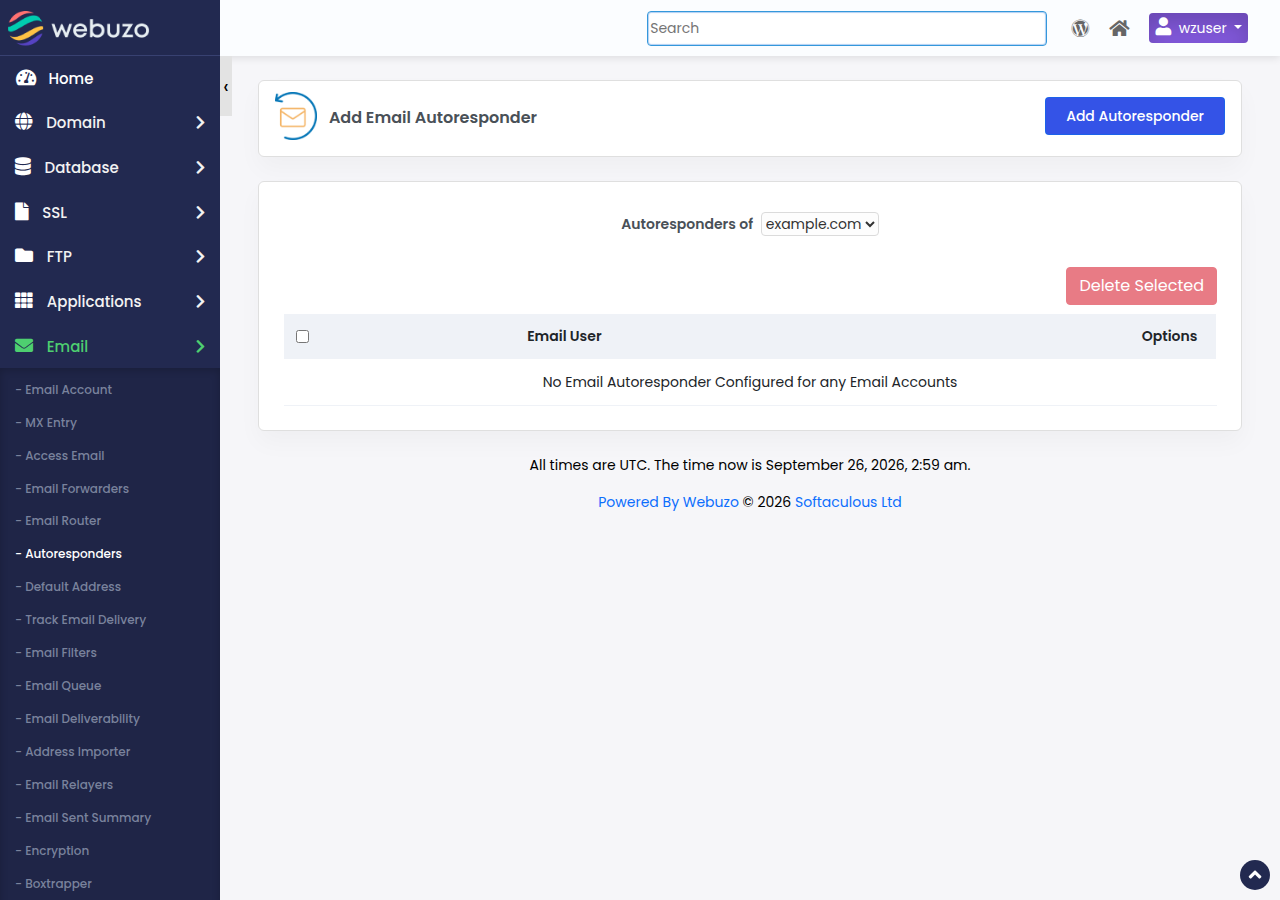
| Included with Webuzo or Windows (Plesk) hosting | The email settings in that control panel |
| Domain India Business Email | Business Email webmail at mail.yourdomain.com:8443 |
| Google Workspace or Microsoft 365 | That provider's own settings |
Not sure? See Business Email vs the email included with your hosting.
2. cPanel
- Open Autoresponders.In cPanel, go to the Email section and click Autoresponders, then Add Autoresponder.
- Set the interval.Enter the number of hours cPanel waits before it replies again to the same sender. A value of 8 to 24 suits most out-of-office messages. Avoid 0, which replies to every message.
- Choose the address, then fill in From, Subject and Body.Leave the character set as utf-8. Keep the message short and give an alternative contact for urgent matters.
- Set Start and Stop.For leave or a holiday, set both, so the reply switches itself off when you return.
- Click Create.It appears under Current Autoresponders, where you can edit or delete it later.
3. DirectAdmin, Webuzo and Plesk
DirectAdmin has its own autoresponder feature under E-mail Manager › Autoresponders; see How to configure autoresponders in DirectAdmin. Webuzo has one under Email › Autoresponders. Plesk also manages email from its panel, but menu names change between versions and we haven't confirmed them on our servers. The idea is the same everywhere: choose the address, write the message, set dates if offered, and save. If you can't find the option, open a support ticket.
4. Business Email
Domain India Business Email runs on a separate mail platform, so your hosting control panel can't see those mailboxes. The Business Email mail server supports vacation auto-replies, and its webmail at https://mail.yourdomain.com:8443/ has server-side filters and rules. For a first login, see Business Email: first sign-in.
5. Good practice
With no interval, two automatic systems (your autoresponder and another one, a ticket system or a no-reply address) can bounce messages back and forth until one is stopped, filling your mailbox and using your outgoing mail limit.
- Keep an interval of several hours, so each sender gets at most a few replies a day.
- Say when you will be back and who to contact meanwhile.
- Use start and stop dates for leave, so you can't forget to switch it off.
- Don't autoreply on an address subscribed to mailing lists or newsletters. Well-run lists mark their mail as bulk, and autoresponders are designed to skip it, but not every list does this.
- Don't autoreply on a catch-all address, or spam to made-up addresses will all get replies.
- Test it by emailing the address from a different account, such as a personal Gmail.
How do I set up an autoresponder for my domain email?
For email included with cPanel hosting, log in to cPanel, open Email › Autoresponders, click Add Autoresponder, choose the address, write the message, set an interval and optional start and stop times, then click Create. DirectAdmin has it under E-mail Manager › Autoresponders and Webuzo under Email › Autoresponders; Plesk has a similar option, and Business Email has its own auto-reply support.
Will my autoresponder reply to mailing lists and spam?
Autoresponders are designed to skip mail marked as bulk, but not every mailing list or spammer marks messages correctly. Don't use an autoresponder on an address subscribed to lists, or on a catch-all address, and always keep an interval of several hours.
What interval should I set?
The interval is how long the server waits before replying again to the same sender. 8 to 24 hours suits most out-of-office and acknowledgement messages. Avoid 0, which replies to every message and can start a reply loop.
Can I set up an autoresponder for Business Email in cPanel?
No. Business Email runs on a separate platform, so cPanel cannot see its mailboxes. Its mail server supports vacation auto-replies, and its webmail at https://mail.yourdomain.com:8443/ has server-side filters and rules. Ask support if you can't find the option.
Ready to set up your reply? Log in from your hosting services, follow the full cPanel autoresponder guide, or open a support ticket with the address and the message you want to send.
Tell us the email address and what the automatic reply should say, and we will help you set it up on your control panel or on Business Email.
Open a support ticket