When a WordPress, Joomla or Drupal site breaks, the fix is almost always in one of four places: the error log, a recent change, a file or folder permission, or the database connection. This guide gives you a fixed order to check them in, then the specific fixes for the errors each CMS shows most often on shared hosting.
Start with the exact error and the last thing that changed. Read the error log before you touch anything, take a backup, then work from the most likely cause: a plugin, extension or module; the PHP version; .htaccess; the database details in the CMS configuration file; and your account's resource limits. On Domain India shared hosting, a php_value line in .htaccess causes a 500 error, and a cached copy of a page can hide your fix for a while, so test with ?t=1 added to the URL.
1. Collect the facts first
Before you change anything, write down:
- The exact message and the URL where it appears. A white page, a 500, a 403 and a 508 have different causes.
- What changed recently. A plugin or theme update, a CMS core update, a PHP version switch, a migration, a new
.htaccessrule or an edited configuration file explains most breakages. - The scope. One page or the whole site? The front end, the admin area, or both? One site on the account, or every site?
Copy the files you are about to edit, and export the database from phpMyAdmin. On cPanel and DirectAdmin, JetBackup keeps weekly account backups (Sunday, 5 copies) that you can restore from your panel if a fix goes wrong. See backing up and restoring with JetBackup.
2. Read the error log
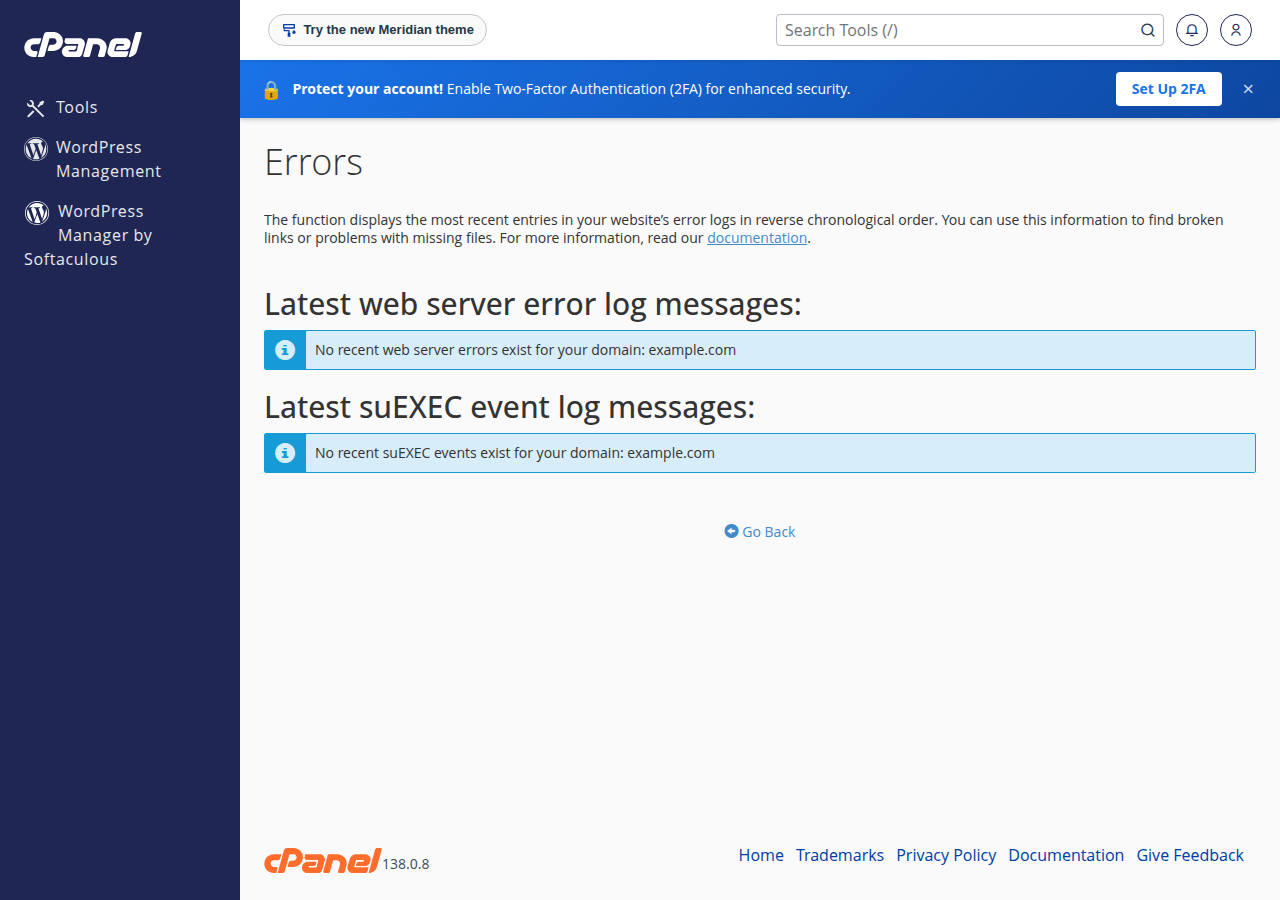
- The server's error log for your account is in the control panel. Reviewing error logs in cPanel and DirectAdmin shows where.
- A PHP
error_logfile often appears in the folder where the error happened, for examplepublic_html/error_log. - The CMS's own log, covered per CMS below.
Look for the last few entries with today's time. "Allowed memory size exhausted", "Call to undefined function", "has been disabled for security reasons" and "Access denied for user" each point straight at a section of this guide.
3. Checks that apply to every CMS
- Test without the cache.On our cPanel servers a proxy cache in front of the site can serve a stored copy of a page for up to 120 minutes. Add
?t=1to the URL to see what the server returns right now. - Check the PHP version.An old plugin may fail on a new PHP version, and a new CMS release may refuse an old one. Change the version from your panel and test again. See PHP version management.
- Check
.htaccess.Rename it to.htaccess.bakand reload. If the site comes back, the file holds the bad rule. Our servers run PHP through PHP-FPM, not as an Apache module, so anyphp_valueorphp_flagline in.htaccesscauses a 500 error; set PHP options in your panel or a.user.inifile instead. - Check permissions.Folders should be
755and files644. Never use777: it lets other processes change your files and is a security risk. - Check resource usage.A 508 error means the account hit its entry-process limit; memory or process limits show as 500 or 503. See the "Resource Limit Is Reached" error.
- Check disk space and inodes.A full account cannot write sessions, cache or uploads, and the CMS fails in odd ways.
4. WordPress
White screen or "There has been a critical error"
WordPress emails the site administrator a recovery-mode link when a plugin or theme causes a fatal error. Use it first: it logs you in with the faulty plugin paused. If the email never arrives:
- Turn on logging in
wp-config.php, above the line that says to stop editing:
define( 'WP_DEBUG', true );
define( 'WP_DEBUG_LOG', true );
define( 'WP_DEBUG_DISPLAY', false );- Reload the page, then read
wp-content/debug.log. The plugin or theme folder named there is the culprit. - If there is no log, rename
wp-content/pluginstoplugins-offin File Manager. If the site returns, rename it back and disable plugins one by one. Do the same with the active theme folder underwp-content/themes. - Set
WP_DEBUGback tofalsewhen you are done.
More detail: fixing the WordPress blank page and enabling debugging through cPanel.
"Error establishing a database connection"
Compare DB_NAME, DB_USER, DB_PASSWORD and DB_HOST in wp-config.php with the database and user in your panel. On shared hosting DB_HOST is normally localhost, and the database name and user carry your account prefix. Check the user is assigned to the database with all privileges. Full walkthrough: troubleshooting the database connection error.
500 Internal Server Error
Rename .htaccess, then regenerate it from Settings › Permalinks › Save Changes. If memory is the cause, raise WordPress's limit in wp-config.php with define( 'WP_MEMORY_LIMIT', '256M' );; it cannot exceed the PHP limit your plan allows. See troubleshooting HTTP 500 in WordPress.
403 Forbidden in the admin area
If saving a post or a plugin setting gives a 403, the web application firewall may have blocked that one request. Send support the URL and time so we can check it. See resolving 403 Forbidden.
Slow site
Install Query Monitor to find slow plugins and database queries, and use a page cache such as WP Super Cache or W3 Total Cache. Our shared servers run Apache, so LiteSpeed Cache is not the right choice here. See my website is slow.
5. Joomla
- Error reporting: in System › Global Configuration › Server, set Error Reporting to Maximum while you test, and set it back afterwards. Debug System is on the System tab.
- Logs: Joomla 4 and 5 write logs to
administrator/logs/by default; the path is set in Global Configuration. - Database errors: check
$host,$user,$password,$dband$dbprefixinconfiguration.php. - "404 Component not found": the menu item points to an extension that is disabled, uninstalled or not updated for your Joomla version. Re-enable or reinstall it, or fix the menu item.
- Blank page after an update: disable the newest extension from System › Manage › Extensions. If you cannot reach the admin, rename that extension's folder under
plugins/in File Manager.
6. Drupal
- Logs: Reports › Recent log messages shows PHP and Drupal errors if the Database Logging module is on.
- Show errors while testing: add
$config['system.logging']['error_level'] = 'verbose';tosites/default/settings.php, and remove it afterwards. - Database errors: check the
$databasesarray insettings.php. - White screen after a module update: read the log first. Do not simply rename a module's folder in Drupal 8 and later, as Drupal will then fail on the missing code. Uninstall the module with Drush if you have it, or restore the files and database from the backup you took.
- Clean URLs not working: Drupal's own
.htaccessmust be present in the site root. The Apache rewrite module is enabled on our servers. - Stale pages after a fix: clear caches from Configuration › Development › Performance.
7. When the CMS says "disabled for security reasons"
Shared hosting blocks PHP functions that start other programs or open raw sockets, so backup plugins that call mysqldump, image tools that shell out to ImageMagick and SMTP mailers can fail. PHP disabled functions on shared hosting lists the workarounds.
8. When to contact support, and what to send
Open a ticket at /support/ticket or from your client area, or use our 24/7 live chat. Tickets get a first response within 15 minutes; how long a fix takes depends on the problem. Include the URL, the exact error, the time it happened, what changed, and what you have already tried. That lets us check the server logs for the same moment.
If you are a reseller, collect the same details from your customer before you open a ticket with us. If the site was hacked rather than simply broken, follow the security checklist for a hacked website instead.
9. Where Domain India fits
Our cPanel, DirectAdmin and Webuzo shared plans run WordPress, Joomla and Drupal. Softaculous is installed on the cPanel and DirectAdmin servers, cPanel adds WP Toolkit, you choose the PHP version per account, and JetBackup takes weekly backups on cPanel and DirectAdmin. The cPanel and DirectAdmin servers run Imunify360, and the cPanel servers add a web application firewall. Fixing your site's code, plugins or content remains your job, and our support team can help you read the logs.
- 25 GB NVMe SSD Storage
- 50 GB Monthly Bandwidth
- 1 Website
- 10 Email Accounts
Prices on the card are Domain India list prices and exclude 18% GST.
Where do I find the error log for my WordPress, Joomla or Drupal site?
The server error log is in your control panel, and PHP often writes an error_log file in the folder where the error happened. WordPress writes wp-content/debug.log when WP_DEBUG_LOG is on, Joomla writes to administrator/logs, and Drupal shows errors under Reports › Recent log messages.
Why does my site show a 500 error after I edited .htaccess?
Either the new rule has a syntax error, or it contains a php_value or php_flag line. Domain India servers run PHP through PHP-FPM, not as an Apache module, so those lines cause a 500 error. Set PHP options in your control panel or in a .user.ini file.
I fixed the problem but the site still shows the old error. Why?
On Domain India cPanel servers, a proxy cache can serve a stored copy of a page for up to 120 minutes. Add ?t=1 to the URL to see the current response.
Can Domain India restore my site if a fix goes wrong?
On cPanel and DirectAdmin, JetBackup keeps weekly backups taken on Sunday, with 5 copies kept, and you can restore files, databases or the whole account yourself from your panel. Take your own backup before big changes as well.
How fast does Domain India support respond?
Live chat is available 24/7, and tickets get a first response within 15 minutes. The time to resolve an issue depends on the problem. There is no phone support.
Ready to get your site back? Work through the WordPress blank page guide, check the 500 error guide, or open a support ticket with the error message and the time it happened.
Send us the URL, the exact error and what changed. We will check the server logs for the same moment and tell you what we find.
Open a support ticket