A WordPress site that shows a completely white page, with no error and no content, is suffering from what developers call the "White Screen of Death". Behind it there is almost always a PHP error that WordPress is hiding, usually from a plugin, the theme or a memory limit. This guide shows how to find the real error and fix it from your control panel, without deleting anything.
First reload with ?t=1 added to the address, in a private window, to rule out a cached copy. Then read the server error log, and if that is unclear, turn on the WordPress debug log with WP_DEBUG_DISPLAY set to false. The log usually names the plugin or theme at fault: rename its folder to switch it off. Memory errors are fixed in cPanel's MultiPHP INI Editor, never with php_value in .htaccess.
1. What a blank page means
A white page means PHP stopped with a fatal error before WordPress could print anything, and error display is switched off, as it should be on a live site. Current WordPress versions often catch the error and show "There has been a critical error on this website" instead, and may email the site's admin address a recovery-mode link. Either way, the cause is the same, and the fix is the same: find the error message, then deal with the file it names.
Common causes, roughly in order of how often they happen:
- a plugin that broke after an update, or that doesn't support your PHP version;
- a theme with the same problem;
- PHP running out of memory;
- a bad line in
.htaccess; - missing or damaged WordPress core files after a failed update;
- an account that has run out of disk space or hit a resource limit.
2. Rule out the cache first
Our cPanel servers run nginx in front of Apache as a caching proxy, and it can keep serving a stored copy of a page for up to 120 minutes (measured 22 September 2026). A cached blank page can outlive your fix, and a cached good page can hide a broken site.
Open the site in a private browser window and add a test parameter, for example https://yourdomain.com/?t=1, then ?t=2 for the next try. Check both the home page and /wp-admin/: if only one of them is blank, the cause is usually a plugin or theme that loads only there.
3. Read the server error log
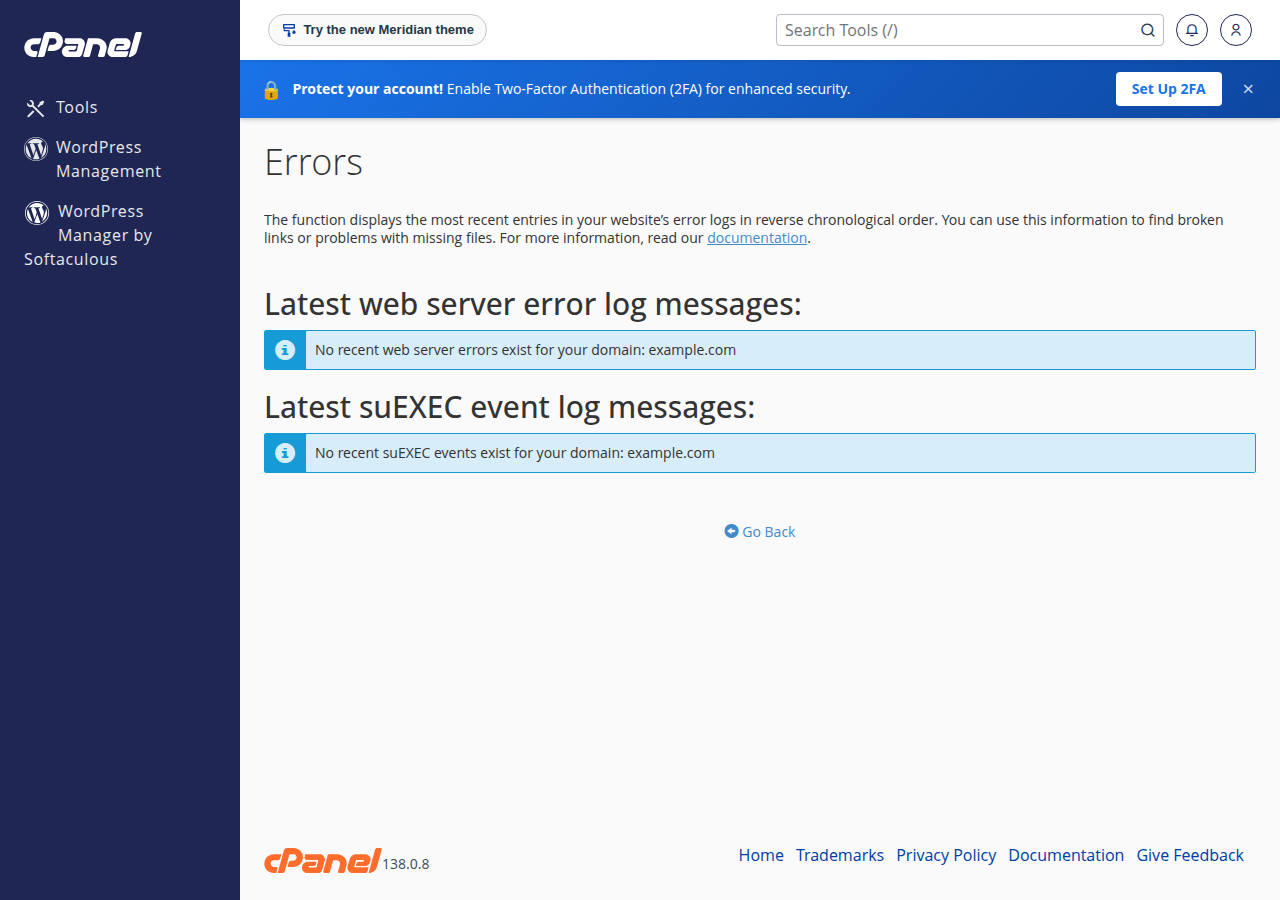
Many blank pages are already explained in the server's logs. In cPanel, open Metrics › Errors, and use the File Manager to look for a file called error_log in public_html, or in public_html/wp-admin if only the dashboard fails. A line that mentions a path inside wp-content/plugins/ or wp-content/themes/ names the culprit.
For DirectAdmin and more detail on reading these files, see Reviewing error logs in cPanel and DirectAdmin.
4. Turn on the WordPress debug log
If the server log is empty or unclear, let WordPress write its own log. Open wp-config.php in your WordPress folder and, above the line that begins /* That's all, stop editing!, set:
define( 'WP_DEBUG', true );
define( 'WP_DEBUG_LOG', true );
define( 'WP_DEBUG_DISPLAY', false );
If WP_DEBUG is already defined, change its value rather than adding a second line. Reload the blank page with a new ?t= value, then open wp-content/debug.log. The newest lines are at the bottom; look for PHP Fatal error.
Keep WP_DEBUG_DISPLAY set to false on a live site, so visitors never see your file paths. Anyone who knows the address of wp-content/debug.log can download it, so set WP_DEBUG back to false and delete the log as soon as you have the answer. The full walkthrough is in How to enable debugging in WordPress.
5. Fix "Allowed memory size exhausted"
If the log says Allowed memory size of ... bytes exhausted, one request ran out of PHP memory. Raise the limit in the control panel:
- cPanel: open MultiPHP INI Editor, choose your domain in Basic Mode, set
memory_limitto256Mand click Apply. - Any panel: create a
.user.inifile in your WordPress folder containing the single linememory_limit = 256M. It can take up to 5 minutes to apply.
WordPress also has its own WP_MEMORY_LIMIT and WP_MAX_MEMORY_LIMIT settings in wp-config.php, but they can't go above a limit the server has locked or the memory your plan provides, so set memory_limit in the panel first. Never add php_value memory_limit to .htaccess: our servers run PHP through PHP-FPM or CGI, so that line turns the blank page into a 500 error. If the error continues at 256M or 512M, a plugin or theme is the real problem. See How to fix "Allowed memory size exhausted" PHP errors.
6. Switch off the plugins
A faulty plugin is the most common cause. You can switch them all off without the dashboard, and without losing any settings.
- Rename the plugins folder.In File Manager, open
wp-contentand renamepluginstoplugins-off. WordPress deactivates every plugin. - Reload with a new
?t=value.If the site appears, a plugin is the cause. - Rename the folder back to
plugins.The plugins stay deactivated. - Reactivate them one at a timefrom Plugins in the dashboard, reloading the site after each. The one that brings back the blank page is the culprit: leave it off, then update or replace it.
If the log already names one plugin, rename just that plugin's folder inside wp-content/plugins instead.
7. Test the theme
If the plugins are not to blame, rename your active theme's folder in wp-content/themes, for example mytheme to mytheme-off. WordPress falls back to a default "Twenty" theme if one is installed; if none is, upload one to wp-content/themes first. If the site loads, the theme is the cause: rename it back, then update it or ask its developer for a version that supports your PHP version.
8. Check .htaccess and the PHP version
.htaccess: show hidden files in File Manager, rename .htaccess to .htaccess-off and reload. If the site works, go to Settings › Permalinks in the dashboard and click Save Changes to write a clean file. Copy back only the extra rules you need, one block at a time, and never php_value or php_flag lines. Most .htaccess problems show as a 500 error rather than a blank page, so this step is usually quick to rule out.
PHP version: a plugin or theme written for old PHP can fail silently on a newer version, and the reverse is also true. New cPanel accounts use PHP 8.3 by default, and you can change the version per domain in MultiPHP Manager. Use a version that still gets security fixes rather than dropping back to an old one, and update the plugin instead where you can. See How to change the PHP version.
9. Other causes
- A failed WordPress update can leave core files missing or half-written. Replace them with a fresh copy, keeping
wp-contentandwp-config.php: see Restoring and resetting WordPress core files. - A full disk or a resource limit. When your account runs out of disk space, WordPress can't write files and pages may break. A blank or error page that comes and goes at busy times points to a memory or process limit. Check both in how to check your hosting resource usage.
- A hacked site. Unknown files, redirects or code you didn't add at the top of PHP files mean you should follow the security checklist for hacked websites.
- Restore a backup. If you know when the site last worked, you can restore files and the database from JetBackup in your cPanel or DirectAdmin panel, which keeps weekly backups.
10. Where Domain India fits
Everything in this guide can be done from the panel: File Manager, Metrics › Errors, MultiPHP INI Editor, MultiPHP Manager and JetBackup are all in cPanel, alongside Softaculous and WP Toolkit for managing WordPress. On DirectAdmin the same WordPress settings apply; your site's files are in domains/yourdomain.com/public_html. If you can't find a setting in your panel, ask support.
If a blank page turns out to be a memory ceiling your site keeps hitting even after the plugins are fixed, a larger plan gives your account more resources.
- 50 GB NVMe SSD Storage
- 100 GB Monthly Bandwidth
- 5 Websites
- 50 Email Accounts
The price on the card is the live list price, excluding 18% GST.
Support is on 24/7 live chat, and tickets get a first response within 15 minutes; the fix itself takes as long as the problem needs. There is no phone support.
Why does my WordPress site show a blank white page?
A PHP fatal error stopped WordPress before it could print anything, and error display is off, as it should be on a live site. The usual causes are a broken plugin or theme, PHP running out of memory, or missing core files after a failed update. The error log or the WordPress debug log names the cause.
How do I fix the WordPress white screen without access to the dashboard?
Use your control panel's File Manager. Rename wp-content/plugins to plugins-off to switch every plugin off, and rename your theme's folder to switch the theme off. If the site comes back, rename the folder back and reactivate plugins one at a time from the dashboard to find the faulty one.
Where do I find the error behind a blank WordPress page?
Check the server's error log first: in cPanel that is Metrics › Errors, plus any error_log file in your WordPress folder. If that is unclear, set WP_DEBUG and WP_DEBUG_LOG to true and WP_DEBUG_DISPLAY to false in wp-config.php, reload the page and read wp-content/debug.log.
Can I increase the PHP memory limit with .htaccess?
Not on Domain India shared hosting. The servers run PHP through PHP-FPM or CGI, so php_value lines in .htaccess cause a 500 error. On cPanel, set memory_limit in MultiPHP INI Editor; on any panel you can put memory_limit = 256M in a .user.ini file in your site's folder.
I fixed the problem but the page is still blank. Why?
On Domain India cPanel servers, nginx can keep serving a cached copy of a page for up to 120 minutes. Open the site in a private window with a new test parameter such as ?t=5 added to the address to see the live result.
Should I leave WP_DEBUG turned on?
No. Set WP_DEBUG back to false and delete wp-content/debug.log once you have found the error. The log can be downloaded by anyone who knows its address and can reveal file paths and plugin details.
Ready to bring your site back? Start with the WordPress debug log guide, work through the WordPress 500 error checklist if the page shows an error instead, or open a support ticket with the page address, the time and the log line.
Tell us the page address, when it went blank and any error line you found, and we will check your account's logs with you.
Open a support ticket