Bots try WordPress logins around the clock. Putting a second password in front of the wp-admin folder means a visitor has to get past the web server before WordPress even shows its login form. This guide shows how to do it with cPanel's Directory Privacy tool, the one exception you must add so your site's front end keeps working, and how to extend the same lock to wp-login.php.
In cPanel, open Files › Directory Privacy, go into public_html, click Edit next to wp-admin, tick Password protect this directory, save, then create a username and password. Then add a small rule to wp-admin/.htaccess so admin-ajax.php stays open, or contact forms, carts and search can break. Use it only over HTTPS, and do not protect the login if your visitors log in to your site.
1. What this protects, and what it does not
Directory Privacy uses HTTP basic authentication. The browser shows a small username and password box, and the web server checks it before any WordPress code runs. Bots that hammer /wp-admin/ get a 401 error instead of your dashboard, and they use far less of your account's resources doing it.
Three limits to know before you start:
wp-login.phpis not insidewp-admin. It sits in your WordPress root folder, and it is what most password-guessing bots actually attack. Section 5 shows how to put the same lock in front of it.- It is a second lock, not a replacement. A strong, unique WordPress password with two-factor authentication is still the main control. See installing Wordfence and setting up two-factor authentication.
- It does not suit sites where visitors log in. Membership sites, forums, learning platforms and shops that use the standard WordPress login would put your customers in front of a password box they cannot pass.
2. Before you start
- Make sure the site uses HTTPS.Basic authentication sends the password with every request. Over plain HTTP it can be read on the network. See how to enable free SSL.
- Back up
.htaccessfiles.Downloadpublic_html/.htaccessand, if it exists,public_html/wp-admin/.htaccesswith the File Manager. If something goes wrong, you can put them back. - Choose credentials that differ from your WordPress login.Two different passwords are the whole point. Store both in a password manager.
3. Protect wp-admin with Directory Privacy
- Log in to cPanel.From the client area, open your hosting service and use the login button, or see how to log in to cPanel.
- Open Directory Privacy.It is in the Files section.
- Go to your WordPress folder.Click the
public_htmlfolder name to open it. If WordPress is in a subfolder or an addon domain's folder, open that instead. - Click Edit next to wp-admin.This opens the privacy settings for that folder.
- Turn protection on.Tick Password protect this directory, type a label such as "Admin area" in the name box, and click Save. The label appears in the browser's login box.
- Create a user.On the same page (click Go Back if cPanel shows a confirmation first), under Create User enter a username and a strong password, confirm it and click Save. Add one user per person who manages the site.
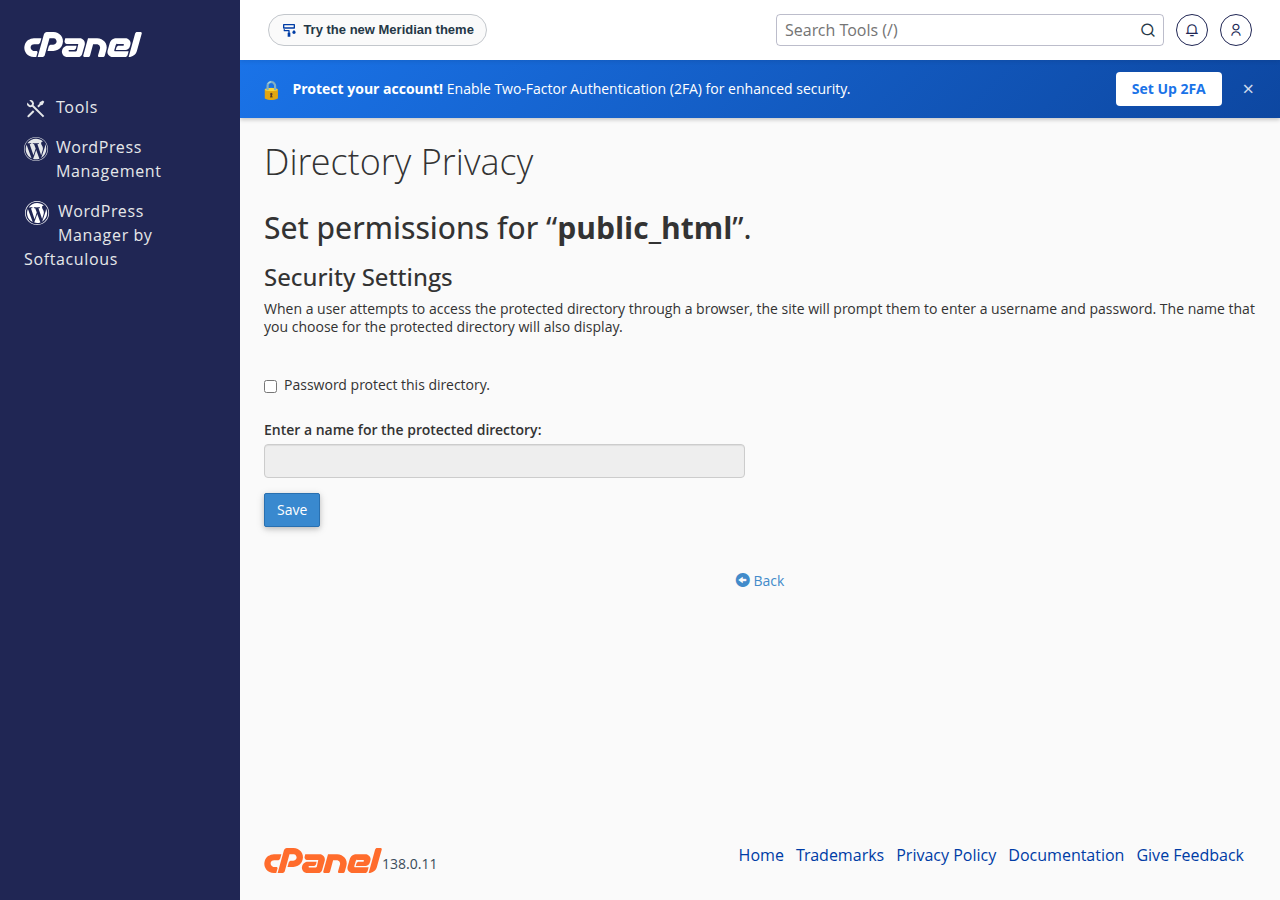
cPanel writes the rules into wp-admin/.htaccess and stores the password file outside your website folder, at /home/USERNAME/.htpasswds/public_html/wp-admin/passwd. You need that path in section 5.
4. Keep admin-ajax.php open (do not skip this)
Many themes and plugins send requests from the public site to /wp-admin/admin-ajax.php: contact forms, add-to-cart buttons, live search, "load more" buttons, cookie banners. Once wp-admin is protected, every visitor who triggers one of those gets a password box or a silent failure.
Open public_html/wp-admin/.htaccess in the File Manager's editor and add this at the end:
# Let the public site use admin-ajax.php
<Files "admin-ajax.php">
    Require all granted
</Files>

# Show the real 401 response instead of a WordPress page
ErrorDocument 401 default
The first block exempts one file from the password. The second stops WordPress from answering the 401 error with its own page, which can otherwise show a "page not found" or loop instead of the login box.
If a front-end feature still asks for a password, open your browser's developer tools, look at the Network tab for the /wp-admin/ file that returned 401 (often admin-post.php), and add a matching Files block for it.
cPanel edits wp-admin/.htaccess whenever you change the protection settings. After any change, reopen the file and check that your admin-ajax.php block is still there.
5. Also protect wp-login.php
Protecting wp-admin leaves the login form itself open. To put the same password in front of it, add this to the .htaccess in your WordPress root folder, above the # BEGIN WordPress line:
<Files "wp-login.php">
    AuthType Basic
    AuthName "Admin area"
    AuthUserFile "/home/USERNAME/.htpasswds/public_html/wp-admin/passwd"
    Require valid-user
</Files>
Replace USERNAME with your cPanel username, and adjust the folder part of the path if WordPress is not in public_html. It reuses the users you created in Directory Privacy, so there is one list to manage.
Skip this step if customers or members log in, register or reset their passwords through wp-login.php.
6. Test it properly
- Open a private browser windowso no saved login is used.
- Visit
https://yourdomain.com/wp-admin/.A browser login box should appear. Cancel it and you should see a 401 "Unauthorised" message, not a WordPress page. - Log in through both locks.Enter the Directory Privacy credentials, then your WordPress username and password.
- Test the public site.Submit your contact form, add a product to the cart, run a search. None of them should ask for a password.
The browser may ask twice if you switch between http and https, or between www and the bare domain, because it remembers the password per address. Always use one address; see how to redirect non-www to www.
7. If something goes wrong
| Problem | Likely cause | Fix |
|---|---|---|
| Contact form, cart or search broken | admin-ajax.php is behind the password | Add the section 4 block |
| Page not found or a loop instead of a login box | WordPress is answering the 401 | Add ErrorDocument 401 default |
| Login box keeps coming back | Wrong username or password, or mixed http and https | Reset the user in Directory Privacy; use one address |
| Site suddenly will not load at all from your office | Too many failed attempts blocked your IP | Wait, or ask support to check the firewall |
| Forgot the Directory Privacy password | Lost credentials | Set a new password for the user in Directory Privacy |
500 error after editing .htaccess | A typo in the rules | Restore your backup copy and add the rules again carefully |
On our cPanel server, the firewall is configured to block an IP address for an hour after 10 failed logins to password-protected folders (measured 23 September 2026). That stops bots, and it can also stop you if you mistype repeatedly. If you are locked out, open a ticket from another connection, such as mobile data, and include your IP address.
To remove the protection, open Directory Privacy, click Edit next to wp-admin, untick the box and save. Delete any wp-login.php block you added to the root .htaccess as well.
8. Where this fits in WordPress security
This lock cuts noise and brute-force load. It does not fix an outdated plugin, which is still the most common way WordPress sites are hacked. Pair it with the basics in useful tips to secure WordPress from hackers, and read why and how WordPress websites get hacked for the routes attackers really use.
On Domain India's cPanel server, Imunify360's WordPress protection and web application firewall are already on for every account, measured on 20 September 2026. Directory Privacy adds a lock you control on top.
DirectAdmin and Webuzo also offer password-protected directories from their panels; the admin-ajax.php rule in section 4 applies there too. For password-protecting folders other than WordPress, see can I password protect directories.
- 25 GB NVMe SSD Storage
- 50 GB Monthly Bandwidth
- 1 Website
- 10 Email Accounts
The plan card shows the Domain India list price on 19 September 2026, excluding 18% GST.
Frequently asked questions
Where is Password Protect Directories in cPanel?
In current cPanel it is called Directory Privacy and is in the Files section. Open it, go into the folder that contains WordPress, click Edit next to wp-admin, tick Password protect this directory, save, and then create a user.
Why did my contact form stop working after I protected wp-admin?
Many forms and plugins send their requests to wp-admin/admin-ajax.php. Add a Files block for admin-ajax.php with Require all granted to wp-admin/.htaccess so that one file stays open to visitors.
Does protecting wp-admin also protect wp-login.php?
No. wp-login.php is in the WordPress root folder, not inside wp-admin. To protect it, add a Files block for wp-login.php to the root .htaccess that points to the same password file Directory Privacy created.
Should I use this on a WooCommerce or membership site?
Protecting wp-admin with an admin-ajax.php exception is usually fine. Do not protect wp-login.php if customers or members log in, register or reset passwords through it, because they would face a password box they cannot pass.
Is directory password protection safe without SSL?
No. Basic authentication sends the password with every request, so without HTTPS it can be read on the network. Enable the free SSL certificate and use https addresses before protecting any folder.
How do I remove the password from wp-admin?
Open Directory Privacy in cPanel, click Edit next to wp-admin, untick Password protect this directory and save. Remove any wp-login.php block you added to the root .htaccess file as well.
Ready to lock it down? Log in to cPanel from the client area, follow the steps above, then work through useful tips to secure WordPress. If you lock yourself out or a rule breaks the site, open a support ticket.
Imunify360, a web application firewall, CloudLinux account isolation and free SSL on every Domain India cPanel plan.
See cPanel hosting plans