Finding your website defaced, redirecting to a scam page or sending spam is stressful, but it is a common problem with a well-known fix. This checklist walks you through what to do in the first hour, what to check in the first day, and how to stop it happening again.
Take a backup of the hacked site as evidence, then change every password connected to it and turn on two-factor authentication. Find out what the attacker touched (files, users, database, email, cron jobs), then either restore a backup from before the hack or clean the site in place. Close the hole the attacker used, tell anyone whose data may have leaked, and in India check whether you must report the incident to CERT-In.
1. Signs your website has been hacked
Many hacks are quiet, because the attacker wants to keep using your site. Look out for these signs:
- Defacement. Your home page is replaced with a message, a flag or an image you did not upload.
- Redirects. Visitors from Google or on mobile phones land on a gambling, pharma or fake-shop site, while the site looks normal to you when you are logged in.
- Spam from your domain. Customers receive emails you never sent, your mail is bounced or lands in spam, or you get "undelivered mail" messages for addresses you never wrote to.
- Unknown admin users. A new administrator account appears in WordPress or your CMS, or an extra FTP account appears in your control panel.
- Browser or Google warnings. A red "Dangerous site" or "Deceptive site ahead" screen, or "This site may be hacked" under your listing in Google Search.
- Your hosting account is suspended for abuse. Hosts suspend accounts that send spam, host phishing pages or run malware, to protect other customers and the server's reputation. See why accounts get suspended for outdated or insecure scripts.
If you see a Google or browser warning, follow this checklist and also read How to Handle the Google "Dangerous Site" Warning. That guide covers the Search Console report, detailed malware cleanup and the Google review request.
2. Before you start: stay calm and keep evidence
The instinct is to start deleting files. Resist it. Deleting at random destroys the clues that tell you how the attacker got in, and if you do not find the way in, the site is usually hacked again within days.
If a password was stolen by malware on your own PC or phone, a new password typed on that device can be stolen too. Run a full antivirus scan on the devices you use to manage the site before you change any passwords.
Write down what you see and when you first noticed it. Take screenshots of any defacement, warning or strange email. Times matter later, when you read logs or report the incident.
3. The first hour: contain the damage
These steps stop the attacker making things worse and protect your visitors. Do them in this order.
- Take a full backup of the site as it is now.Download your files and a database export from your control panel to your own computer. This is evidence, not a restore point: it contains the malware, so never restore from it.
- Change the passwords that control everything.Start with your Domain India client area and your email account used for it, then your control panel (cPanel, DirectAdmin or Webuzo). Use a new, unique password for each.
- Change every other password on the site.Every FTP account, every database user, every CMS administrator and every email account on the domain. After changing the database password, update it in your site's configuration file (for WordPress,
wp-config.php), or the site stops loading. - Turn on two-factor authentication.In your Domain India account, in your control panel where it is offered, and on every CMS admin account.
- Remove access you did not create.Delete unknown CMS administrators, FTP accounts, SSH keys, email forwarders and cron jobs. Note what you removed before you remove it.
- Protect visitors.If the site redirects people to scam pages or shows a defacement, switch it to a simple maintenance page until it is clean.
- Stop the spam.If mail is being sent from your domain, change every mailbox password and check your control panel for scripts that send mail. Tell your host if you think your server is being used for spam.
4. The first day: find out what was touched
Once the attacker is locked out, work out how far they got. Check each area below, even if a scanner has already said "clean". Attackers usually leave more than one way back in.
| What to check | Where to look | What you are looking for |
|---|---|---|
| Website files | Control panel File Manager or SFTP, sorted by date modified | Files changed around the time of the hack, PHP files in upload folders, files with random names |
| CMS core, plugins and themes | Your CMS dashboard, or WP-CLI checksum commands | Modified core files, plugins or themes you did not install, pirated "nulled" add-ons |
| Users | CMS Users screen, control panel FTP and SSH access | Administrator or FTP accounts you do not recognise |
| Database | phpMyAdmin or WP-CLI | Your site address changed, injected script tags or hidden links in posts, widgets and options |
| .htaccess | Website folder and every subfolder | Redirect rules you did not add, especially ones that check the referrer or user agent |
| Scheduled tasks | Control panel Cron Jobs | Jobs that download files or run scripts you do not recognise |
| Control panel email accounts and forwarders | Forwarders to outside addresses, mailboxes you did not create | |
| Access logs | Control panel raw access logs | Repeated login attempts and requests to unfamiliar PHP files |
| Malware scan | Your control panel's malware scanner and a CMS security plugin | Files flagged as malicious; write each one down |
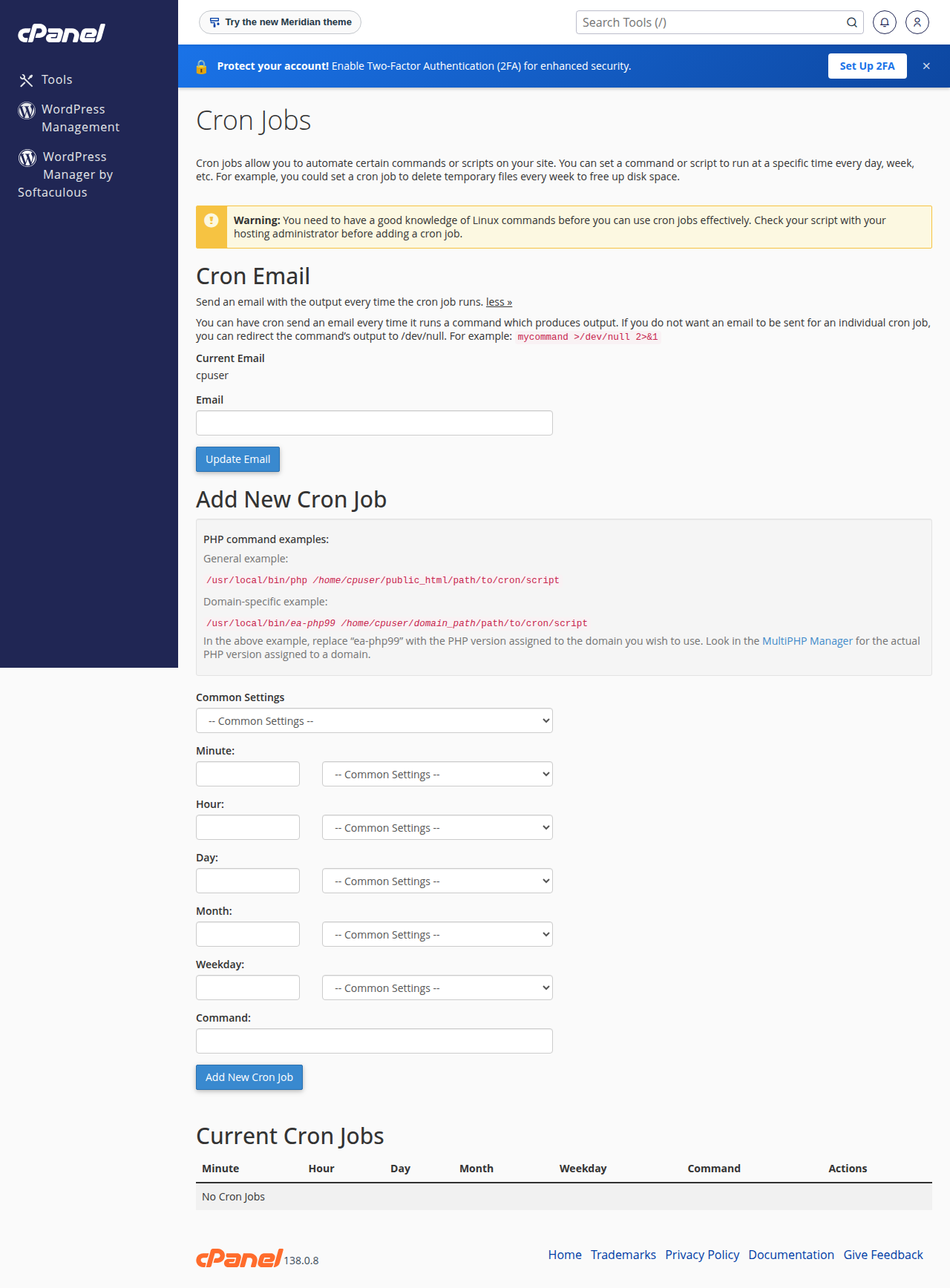
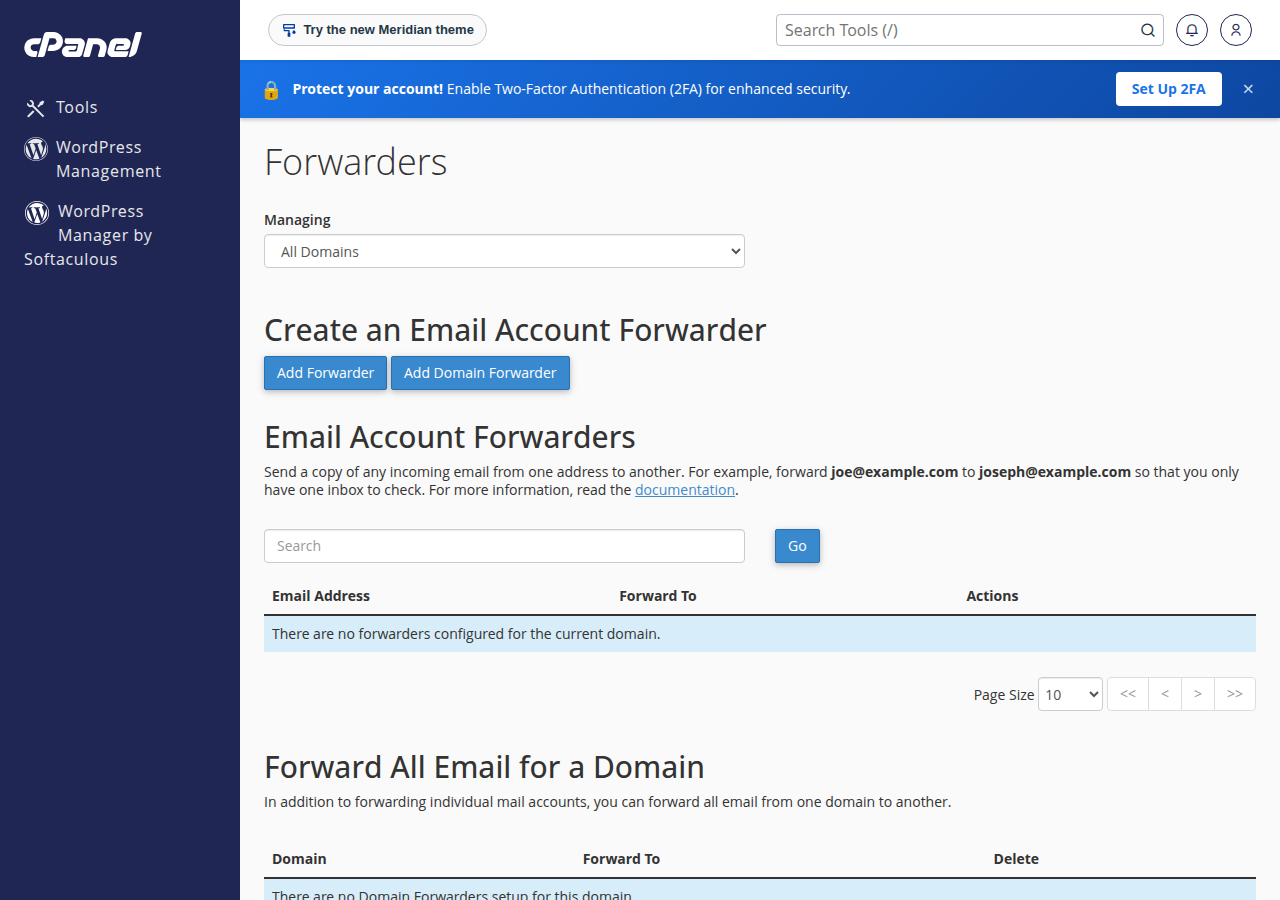
The Google warning guide has the exact commands for finding modified files, checking WordPress checksums and searching the database, so they are not repeated here.
Find the way in
The most common entry points are:
- an outdated or pirated plugin, theme or CMS;
- a weak, reused or stolen password;
- an old, forgotten installation in a subfolder, such as a test copy of the site;
- a PC infected with password-stealing malware.
Your access logs and the dates of the first malicious files usually point to one of these. Fix it before the site goes back online.
5. Restore a clean backup or clean in place?
You have two ways to get a clean site back. The right one depends on whether you have a backup you trust.
| Question | Restore from a clean backup | Clean the site in place |
|---|---|---|
| When it fits | You have a backup from before the hack started | You have no clean backup, or the backup is too old to use |
| Speed | Usually the fastest route | Slower: every file, user and database table must be checked |
| Risk | Anything added after the backup date is lost (orders, posts, sign-ups) | Easy to miss one hidden file that lets the attacker back in |
| What you must still do | Update everything and change passwords again, because the backup has the same weakness | Find and fix the entry point before you go live |
How to tell a backup is clean. It must come from before the first sign of trouble, and ideally before the date of the first malicious file you found. A backup taken yesterday may already contain the malware. Keep a copy of your current database if you need to recover orders or posts added after the backup date, and copy that content back by hand once the site is clean.
To restore, use your control panel's backup tool or your own downloaded copy. See How to Back Up and Restore Your Website.
Rebuild if you must. If there is no clean backup and the site is small, reinstalling the CMS fresh and importing only your content (text, images and a checked database) can be quicker and safer than cleaning thousands of files.
A restored site has the same outdated plugin or weak password that let the attacker in. Update the CMS, plugins and themes and change passwords within minutes of restoring, not the next day.
6. Tell the people who need to know
Your customers and users
If the attacker could have reached personal data (customer names, emails, phone numbers, addresses, order details or passwords), tell the affected people promptly and plainly: what happened, what data may be involved, what you have done, and what they should do, such as changing a password they reused elsewhere.
If you take payments, also tell your payment gateway if card or payment pages may have been touched. India's Digital Personal Data Protection Act, 2023 also sets duties to report personal data breaches as its rules come into force; ask your legal adviser how they apply to you.
CERT-In (India)
CERT-In, the Indian Computer Emergency Response Team, is the national agency for cyber incidents. Its directions of 28 April 2022 require service providers, intermediaries, data centres, body corporates and government organisations to report listed cyber incidents to CERT-In within 6 hours of noticing them. The list includes defacement of a website, intrusion into a website and unauthorised changes such as inserted malicious code, as well as data breaches and data leaks.
- Report by email to
[email protected], or by the phone and fax numbers in the directions. - Reporting formats and current guidance are on the CERT-In website.
- If your business is a company, LLP or other organisation, assume the directions may apply and check with your adviser. When in doubt, report.
If you lost money or were defrauded, you can also file a complaint on the National Cyber Crime Reporting Portal, or call the national cyber crime helpline, 1930.
The backup you took in the first hour, your screenshots, your notes with times, and your access logs are what CERT-In, the police or your insurer will ask for. Store them off the server.
7. Prevent it happening again
Most hacked sites are hacked through something that could have been updated, removed or protected. Work through this list once, then keep it as a routine.
For WordPress, disabling file editing in the dashboard takes one line in wp-config.php:
define('DISALLOW_FILE_EDIT', true);For the full list, read The Complete WordPress Hardening Guide.
8. Help from Domain India
Domain India cPanel and DirectAdmin shared hosting plans list server-level security features: Imunify360, a web application firewall (WAF), DDoS protection, malware removal tools and CloudLinux, which keeps each hosting account separate from the others on the server. Webuzo hosting has Imunify malware scanning but not CloudLinux. These layers block many common attacks and catch many known malware files. They cannot fix an outdated plugin or a stolen password, so the checklist above still applies. Read Understanding Imunify360 Security in cPanel to see what the scanner does.
If your site on Domain India hosting has been hacked or suspended:
- Open a support ticket from the client area or the support ticket page. Include the domain, what you saw, when it started, and anything you have already changed.
- Ask support what the server-side scanner found for your account, and why the account was suspended if it was.
- Plan to clean your own site files, plugins and database, or have your developer do it, unless support confirms something different in the ticket.
If you are moving a rebuilt site to new hosting, this plan includes the security features listed above:
- 25 GB NVMe SSD Storage
- 50 GB Monthly Bandwidth
- 1 Website
- 10 Email Accounts
Compare all plans on cPanel hosting, DirectAdmin hosting and Webuzo hosting. Card prices are Domain India list prices on 19 September 2026, excluding 18% GST.
Frequently asked questions
How do I know if my website has been hacked?
Common signs are a defaced home page, visitors being redirected to spam or scam sites, emails sent from your domain that you did not write, administrator accounts you do not recognise, a browser or Google warning on your site, and your hosting account being suspended for abuse.
What should I do first when my website is hacked?
Take a backup of the site as it is now for evidence, then change your hosting, control panel, FTP, database, CMS and email passwords from a computer you have scanned for malware. Turn on two-factor authentication and remove any users, FTP accounts or cron jobs you did not create.
Should I restore a backup or clean the hacked site?
Restore a backup if you have one from before the hack started, because it is usually faster. Then update everything and change passwords again, because the backup still has the weakness the attacker used. If you have no clean backup, clean the site in place or rebuild it and import only your checked content.
Will changing my passwords remove the hack?
No. New passwords stop the attacker logging in with stolen details, but malicious files, users, cron jobs and database entries stay until you find and remove them.
Do I have to report a hacked website to CERT-In?
CERT-In's directions of 28 April 2022 require service providers, intermediaries, data centres, body corporates and government organisations to report listed incidents, including website defacement and intrusion, within 6 hours of noticing them, by email to [email protected]. If your business is a company or other organisation, check with your adviser and report when in doubt.
Do I need to tell my customers?
If personal data such as names, emails, phone numbers, addresses or passwords may have been accessed, tell the affected people promptly: what happened, what data may be involved, what you have done and what they should do.
How do I stop my website being hacked again?
Find and fix the way the attacker got in, keep your CMS, plugins and themes updated, delete anything you do not use, use unique passwords with two-factor authentication, give each person their own account, and keep your own backups off the server.
Ready to get your site back? If it runs on Domain India hosting, open a support ticket with the details. For Google warnings, follow the Google warning cleanup guide, and for rebuilt sites compare cPanel hosting plans with built-in Imunify360 security.
Imunify360, a web application firewall, malware removal tools and CloudLinux account isolation are listed on Domain India cPanel and DirectAdmin shared hosting plans.
See cPanel hosting plans