A 500 error on a WordPress site almost always comes from one of four things: a plugin, the theme, a bad line in .htaccess, or a PHP setting or limit. With cPanel's File Manager you can test each one in a few minutes, without deleting anything and without reaching the dashboard.
This is the WordPress version. For every cause of a 500 error, including permissions, PHP versions and Windows hosting, see Troubleshooting 500 Internal Server Error.
Read the error log first: Metrics › Errors in cPanel, and the error_log file in the failing folder. Then rename, never delete: wp-content/plugins, your theme's folder, and .htaccess, which you regenerate from Settings › Permalinks › Save Changes. Turn on WP_DEBUG_LOG for a few minutes if the log isn't clear, and test with ?t= added to the URL.
1. Read the log before you change anything
In cPanel, open Metrics › Errors, then check for an error_log file in public_html (and in public_html/wp-admin if the admin area fails). A path inside wp-content/plugins/ or wp-content/themes/ names the plugin or theme that broke. See Reviewing error logs in cPanel and DirectAdmin.
WordPress may show "There has been a critical error on this website" instead of a 500, and may email the admin address a recovery-mode link for deactivating the plugin that failed.
Our cPanel servers cache pages for up to 120 minutes (measured 22 September 2026), so a stored copy can hide a broken site, or an old error after your fix. Load https://yourdomain.in/?t=1, then ?t=2, in a private browser window.
2. Turn on the WordPress debug log
If the server log isn't clear, let WordPress write its own. In wp-config.php, above the line /* That's all, stop editing! */, set:
define( 'WP_DEBUG', true );
define( 'WP_DEBUG_LOG', true );
define( 'WP_DEBUG_DISPLAY', false );
If WP_DEBUG is already defined, change its value instead of adding a second line. Reload the failing page and read wp-content/debug.log. Keep WP_DEBUG_DISPLAY false on a live site so visitors never see your file paths, and when you are done set WP_DEBUG back to false and delete debug.log: anyone who knows its address can download it. More detail: How to enable debugging in WordPress.
3. Test the plugins
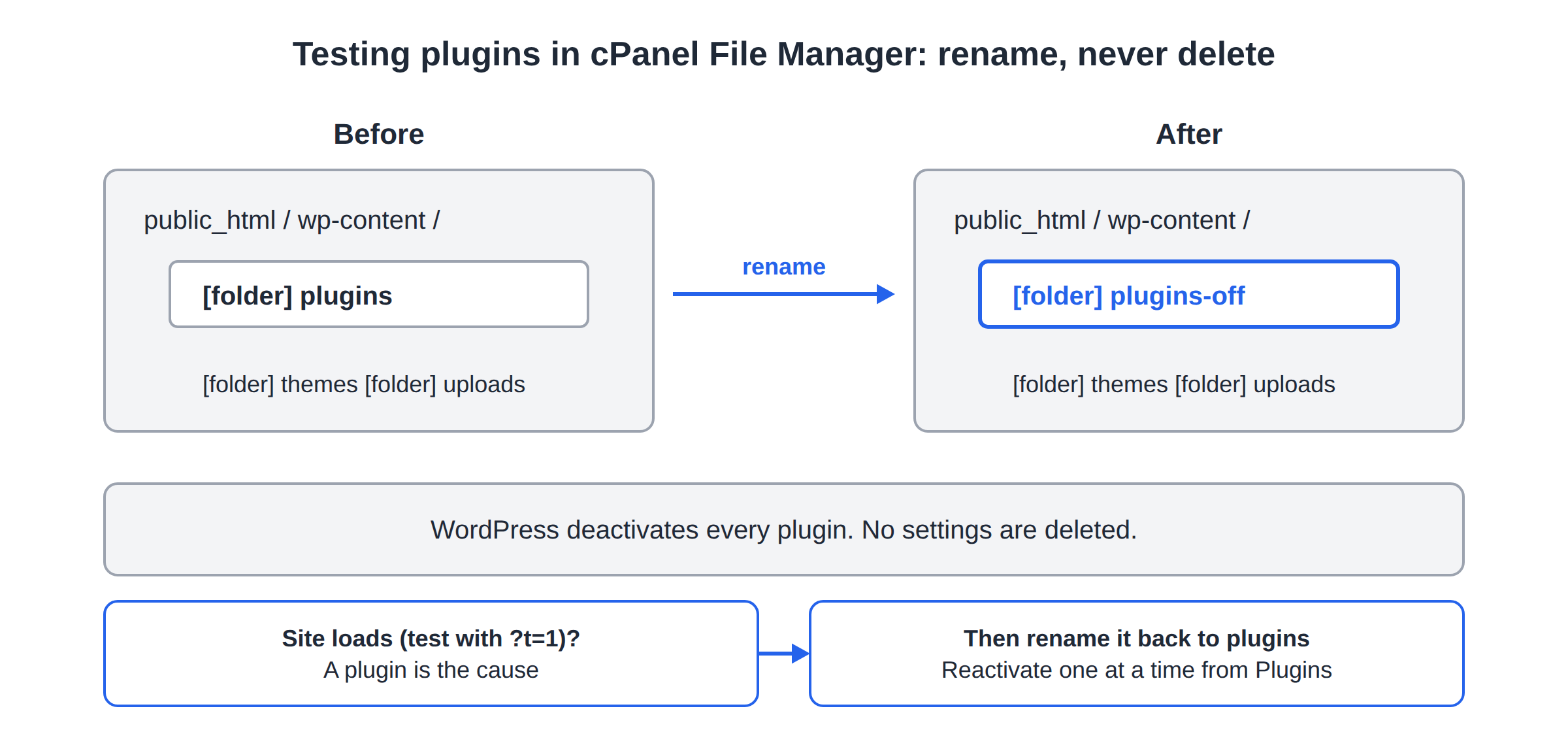
- Rename the plugins folder.In
wp-content, renamepluginstoplugins-off. WordPress deactivates every plugin; no settings are deleted. - Reload with a test parameter.If the site loads, a plugin is the cause.
- Rename the folder back to
plugins;the plugins stay deactivated. - Reactivate them one at a timefrom Plugins in the dashboard, reloading the site after each. The one that brings the 500 back is the cause: leave it off and update or replace it.
4. Test the theme
Rename your active theme's folder in wp-content/themes, for example mytheme to mytheme-off. WordPress falls back to a default theme, one of the "Twenty" themes, if one is installed; if none is, upload one to wp-content/themes first. If the site then loads, the theme is the cause: rename the folder back and update or replace it.
5. Test and regenerate .htaccess
- Show hidden filesin File Manager (Settings › Show Hidden Files), then rename
.htaccessin the WordPress folder to.htaccess-off. Don't delete it. - Reload with
?t=.If the home page loads, the problem is in that file. - Regenerate a clean file.In the dashboard, open Settings › Permalinks and click Save Changes without changing anything. WordPress writes its standard rules to a new
.htaccess. - Copy back only what you needfrom
.htaccess-off, one block at a time, testing after each.
php_value and php_flag lines always give a 500 on our servers, which run PHP through PHP-FPM or CGI rather than as an Apache module. Plugins and old tutorials add them, so don't copy them back: set the value in cPanel instead, as in How to fix "Allowed memory size exhausted" PHP errors. The standard rules are in How to create a default .htaccess file for WordPress.
6. Memory, limits and permissions
Allowed memory size ... exhausted means one script hit PHP's memory_limit; raise it in cPanel, where 256M suits almost every WordPress site. A 500 that comes and goes, at busy times or during an import, usually means your account hit a memory or process limit instead: check the Faults column in Metrics › Resource Usage (how to check your usage). Permissions should be 644 for files and 755 for folders, never 777, which can cause a 500 rather than fix one.
If the files look damaged or unfamiliar, the site may have been hacked: see the security checklist for a hacked or defaced website.
7. Getting help
Open a ticket with the exact URL, the time of the error, the log line and what changed just before it started; please don't send passwords. Support is on 24/7 live chat, and tickets get a first response within 15 minutes. There is no phone support.
How do I fix a 500 error in WordPress without the dashboard?
Use cPanel's File Manager. Rename wp-content/plugins to plugins-off to deactivate every plugin, and rename your theme's folder to test the theme. If the site loads, rename the folder back and reactivate plugins one at a time to find the faulty one.
Should I delete .htaccess to fix a WordPress 500 error?
No. Rename it to .htaccess-off and reload the page. If the site loads, regenerate a clean file from Settings › Permalinks by clicking Save Changes, then copy back only the rules you need. Deleting it loses your redirects and custom rules.
Where is the WordPress debug log?
Once WP_DEBUG and WP_DEBUG_LOG are set to true in wp-config.php, WordPress writes errors to wp-content/debug.log. Keep WP_DEBUG_DISPLAY false on a live site, and turn debugging off and delete the file afterwards: anyone who knows its address can download it.
I fixed it but my site still shows the error. Why?
On Domain India cPanel servers, a caching proxy can keep serving stored copies of pages for up to 120 minutes. Add a unique query string such as ?t=123 to the URL and use a private browser window. If that loads correctly, your fix worked and the old copy will expire.
Ready to fix it? Start with Metrics › Errors, use the full 500 error guide if these steps don't find it, or open a ticket with the URL, the time and the log line.
Send us the page address, the time it happened and the error log line, and we will look at your account's logs with you.
Open a support ticket