A 403 Forbidden error means the web server received your request, understood it, and refused to serve it. Your website is online; something is deciding that this visitor, this file or this request is not allowed. This guide explains what causes a 403 on shared hosting (cPanel, DirectAdmin and Webuzo), how to find the cause in a few minutes, and how to fix each one.
A 403 is almost always one of five things: wrong file or folder permissions, a missing index file, a rule in .htaccess, a security block (firewall, web application firewall or a WordPress security plugin), or a Cloudflare rule. First check whether the error happens only for you or for everyone. Then check permissions (644 for files, 755 for folders), make sure an index file exists, and temporarily rename .htaccess to test. If it is a security block, send support the time, the URL and your IP address.
1. What a 403 error means (and how it differs from 401, 404 and 500)
Servers word the page differently ("403 Forbidden", "Access denied", "You don't have permission to access this resource"), but the code is what matters.
| Code | Name | What it means | Typical fix |
|---|---|---|---|
| 401 | Unauthorized | The page needs a login, and none (or a wrong one) was given | Enter the right username and password, or remove the password protection |
| 403 | Forbidden | The server knows what you asked for and refuses to serve it | Fix permissions, the index file, .htaccess rules or a security block |
| 404 | Not Found | Nothing exists at that address | Check the URL, the file name and the document root |
| 500 | Internal Server Error | The server tried and failed, usually because of broken code or a bad setting | Read the error log; check .htaccess syntax and PHP errors |
The key difference: logging in does not fix a 403. The refusal comes from a rule, a permission or a security system, and that rule has to change.
For the other codes, see Resolving 404 errors and Troubleshooting 500 Internal Server Error.
2. Quick diagnosis: match what you see to the likely cause
Start with one test: open the page on your phone using mobile data, with Wi-Fi turned off. Mobile data gives you a different IP address.
- It works on mobile data but not on your office or home connection: your IP address is being blocked. Go to section 6.
- It fails everywhere, for everyone: the cause is on the website itself (permissions, index file,
.htaccess, document root). Go to sections 3 to 5 and 8.
Then use this table.
| What you see | Likely cause | Fix |
|---|---|---|
| The whole site shows 403 right after you uploaded it | Missing index file, files in the wrong folder, or wrong permissions | Section 3, 4 and 8 |
| Only one folder or file gives 403 | Permissions on that folder or file, or an .htaccess inside it | Section 3 and 5 |
403 started right after you edited .htaccess or installed a plugin | A deny rule or a bad rewrite | Section 5 |
| Images show on your site but break when shared or embedded elsewhere | Hotlink protection | Section 5 |
| 403 only when you save a post, submit a form or upload a file | A web application firewall (ModSecurity) rule matched the request | Section 6 |
| Only you (or your office) get 403; others see the site | Your IP is blocked by the server, a security plugin or Cloudflare | Section 6 and 7 |
| A page mentions Wordfence, Solid Security or a similar plugin | A WordPress security plugin locked you out | Section 7 |
| A Cloudflare-branded page with a Ray ID, or "Error 1020" | A Cloudflare security rule | Section 7 |
| A new addon domain shows 403 or an empty page | Wrong document root, or files uploaded to the wrong folder | Section 8 |
| An "Account Suspended" page instead of your site | The hosting account is suspended (not a 403 problem) | Section 8 |
3. File and folder permissions, and ownership
On Linux hosting, every file and folder has permissions that decide who can read, write and open it. If the web server cannot read a file, or cannot enter a folder, visitors get a 403.
The safe defaults
| Item | Permission | Why |
|---|---|---|
Folders (including public_html) | 755 | The owner can change them; the web server can open and list them |
| Files (HTML, PHP, images, CSS) | 644 | The owner can edit them; the web server can read them |
Sensitive config files (for example wp-config.php) | 600 or 640 | Readable by your account only; test your site after changing |
The most common permission mistakes:
- A folder set to 644, 700 or 600. The web server cannot enter it, so everything inside returns 403.
- A file set to 600 or 000 after an unzip, a restore or a copy from another computer.
public_htmlitself changed. If the whole site is 403 and nothing else explains it, check the permission onpublic_htmlfirst.
Setting files or folders to 777 lets anyone on the server write to them. It is a common way websites get infected, and on most modern shared servers it does not fix a 403: PHP is set to refuse world-writable files, so you can swap a 403 for a 500 error. Use 755 for folders and 644 for files.
Changing permissions in File Manager
In cPanel, open File Manager, right-click the file or folder and choose Change Permissions. In DirectAdmin, open File Manager, select the item and use Permissions (or Set Permission). Webuzo's File Manager has a similar option. Enter the number (755 or 644) and save.
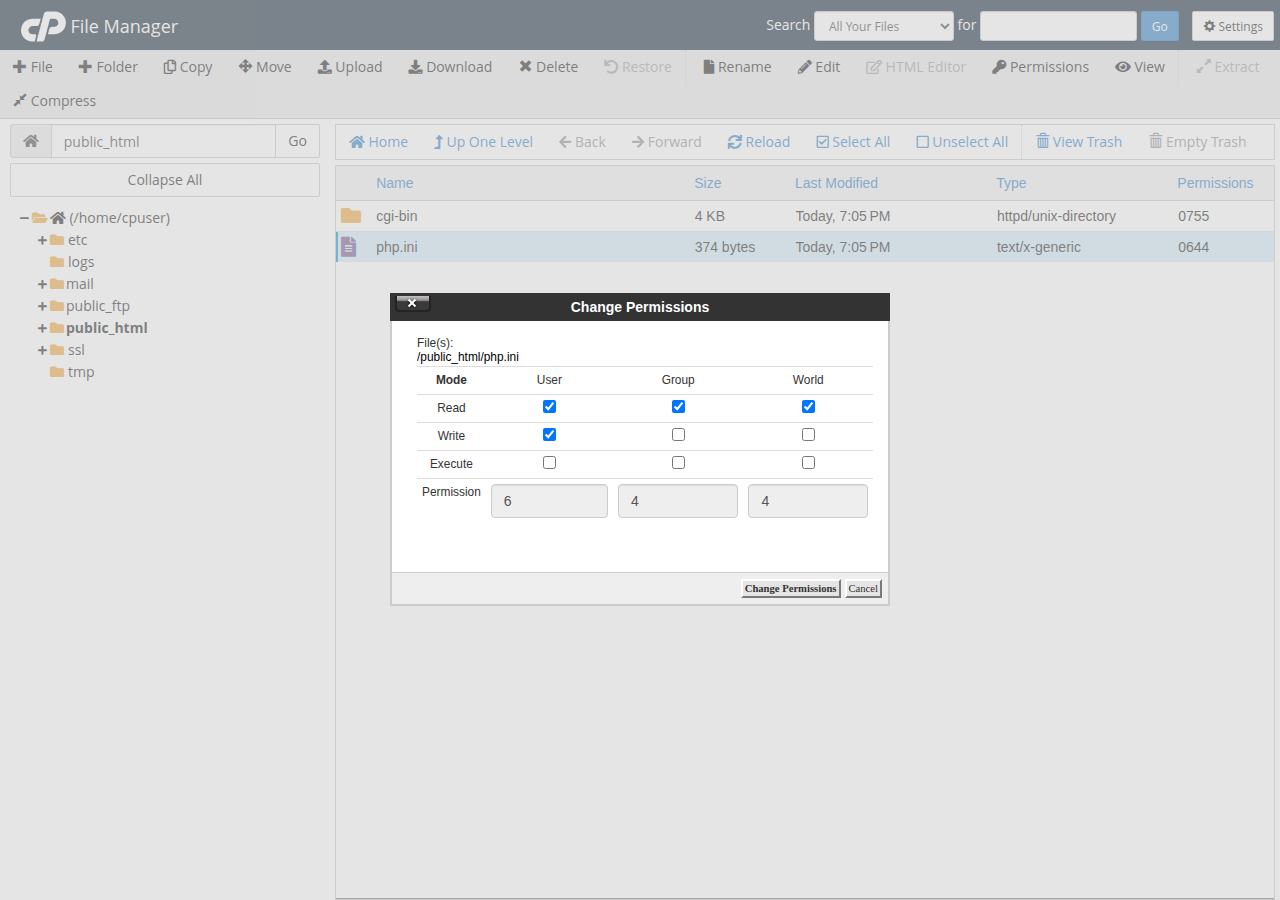
If many files are wrong, fix the folders first, then the files. With SSH access, these two commands reset a whole site from inside its folder:
find . -type d -exec chmod 755 {} \;
find . -type f -exec chmod 644 {} \;
Run them only inside your website folder, and set any sensitive config file back to 600 or 640 afterwards.
Ownership after an upload or restore
Files must also belong to your hosting account's user. Anything you upload through File Manager, FTP or SFTP is owned by your account automatically; problems appear after a server-side migration or restore. You cannot change ownership from File Manager. If permissions look right and the 403 remains, ask support to check file ownership on your account.
For the details, see How to manage file permissions in DirectAdmin.
4. A missing index file, with directory listing disabled
When someone visits https://example.com/ or https://example.com/shop/, the server looks for an index file in that folder: usually index.php or index.html. If it finds none, it would normally show a list of the files in the folder. For security, directory listing is turned off on most hosting, so the server returns 403 instead.
Common reasons:
- The files are one level too deep. You uploaded a folder, so your site is in
public_html/mysite/index.htmlinstead ofpublic_html/index.html. Move the files up intopublic_html. - The upload was a zip file that was never extracted. In File Manager, right-click the zip and choose Extract, then move the contents into place.
- The index file has a different name, such as
Index.htmlorhome.html. Linux file names are case-sensitive: rename it toindex.html. - The site was deleted or not yet installed, for example a WordPress install that failed halfway.
The old advice was to remove Options -Indexes from .htaccess. That makes the 403 go away by showing visitors every file in the folder, including backups and config files. Add an index file instead. For folders that should never be browsed, keep Options -Indexes.
5. .htaccess rules: deny rules, bad rewrites and hotlink protection
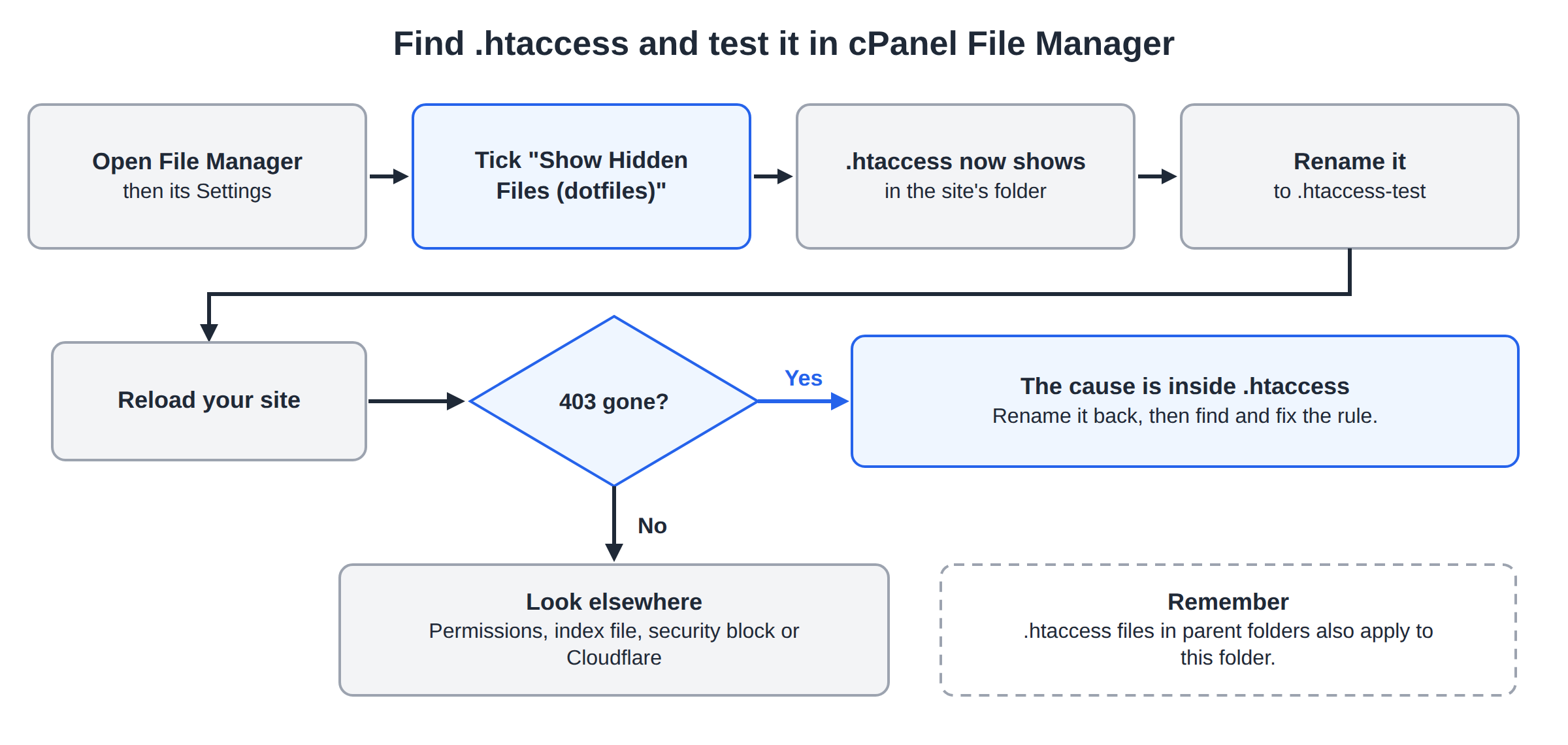
.htaccess is a small configuration file that Apache and LiteSpeed web servers read in each folder. One wrong line can block a whole site. It is a hidden file: in cPanel's File Manager, open Settings and tick Show Hidden Files (dotfiles). DirectAdmin and Webuzo show it by default or have a similar option.
The fastest test: rename it
- In File Manager, rename
.htaccessto.htaccess-test. - Reload your site.
- If the 403 is gone, the cause is inside that file. Rename it back, then find and fix the rule.
Remember that .htaccess files in parent folders also apply. A rule in public_html/.htaccess affects every folder below it.
WordPress sites need their permalink rules to work. If you replace the file, use the standard version from How to create a default .htaccess file for WordPress.
Deny rules to look for
Current servers use Require; older tutorials use Deny from. Both may appear.
# Blocks everyone
Require all denied
Deny from all

# Allows only one IP address: everyone else gets 403
Require ip 203.0.113.10

# Blocks one IP address
Deny from 203.0.113.45

# Blocks certain file types
<FilesMatch "\.(php|zip)$">
    Require all denied
</FilesMatch>
An "allow only my IP" rule is a classic cause after your internet provider changes your IP address. Update the IP or remove the rule.
Some blocks are deliberate, such as rules that protect wp-config.php. Remove only the rule that blocks the page you need.
Bad rewrites
A RewriteRule ending in [F] sends a 403 on purpose:
RewriteCond %{HTTP_USER_AGENT} (curl|wget) [NC]
RewriteRule .* - [F]
Rules copied from "block bad bots" lists can match real visitors or payment gateway callbacks. Put a # at the start of the line and test again.
For how the file works, see Introduction to .htaccess files and .htaccess guide: common rules.
Hotlink protection
Hotlink protection returns 403 for images requested from websites not on its allowed list, so others cannot use your bandwidth. It goes wrong when your own addresses are missing, for example https://www.example.com after a move to HTTPS or a new domain.
In cPanel, open Hotlink Protection and make sure every version of your domain is listed (with and without www, http and https), or turn it off. It also works by writing rules into .htaccess, so the rename test above will reveal it.
6. IP blocks: firewall, WAF and ModSecurity
Shared hosting servers are protected at two levels, and they fail in different ways.
The server firewall blocks your IP address
A firewall such as CSF blocks an IP address after repeated failed logins (to email, FTP, cPanel or WordPress) or other suspicious activity. A firewall block usually looks like the site timing out or "refusing to connect", not like a 403, and it often blocks email and the control panel too. The test in section 2 applies: if everything works on mobile data, your normal IP is probably blocked.
The usual trigger is a device with an old email password saved. Fix it on every device, or the block comes back. See How to diagnose and resolve CSF IP blocks.
A web application firewall rule blocks a request
A web application firewall (WAF) such as ModSecurity inspects each request. If a request looks like an attack, it returns 403 for that request only. That is why the error appears on one action: saving a long blog post, submitting a contact form with code in it, uploading a file, or using a page builder. The rest of the site works fine.
Often it is a false positive: your content happens to look like an attack.
What to do:
- Note the exact time, the URL and what you were doing when it happened.
- Find your public IP address (search "what is my IP" in any search engine).
- Send those three things to support, so the rule that fired can be found in the logs and a precise exception made.
On Domain India cPanel hosting there is no switch to turn ModSecurity off for a domain (see Configuring ModSecurity in cPanel). On DirectAdmin, Advanced Features › Web Application Firewall shows whether the WAF is enabled for each hostname. Open a ticket with the full URL, the exact time and your public IP address, and support will find the rule that fired and decide whether a precise exception is safe. A site without its WAF is easier to attack.
Related guides: Configuring ModSecurity in cPanel and Understanding and implementing a web application firewall.
7. Security plugins and Cloudflare rules
A WordPress security plugin blocked you
Plugins such as Wordfence, Solid Security and All-In-One Security can block an IP address after failed logins, block whole countries, or hide the login page. The block page usually names the plugin.
- Try the unlock option on the block page first. Wordfence, for example, can email an unlock link to the site's admin address.
- If that fails, open File Manager and go to
wp-content/plugins. - Rename the plugin's folder, for example
wordfencetowordfence-off. WordPress deactivates the plugin, and you can log in. - Rename the folder back, log in, and fix the setting that blocked you: remove your IP from the block list or add it to the allow list.
Some security plugins also write rules into .htaccess. If renaming the plugin folder does not help, run the .htaccess test in section 5.
Cloudflare or another CDN is blocking the request
If your domain uses Cloudflare, requests pass through Cloudflare first, and its own rules (custom firewall rules, country blocks, bot protection) can refuse them.
How to tell who returned the 403:
- A Cloudflare-branded page with a Ray ID, or "Error 1020: Access denied": Cloudflare blocked it. In the Cloudflare dashboard, look at the security events for your domain, find the request by time and IP, and adjust the rule that matched.
- A plain server page saying "403 Forbidden": your hosting server refused it, and Cloudflare only passed the answer on. Work through sections 3 to 6.
To test, you can pause Cloudflare for the domain for a few minutes. If the 403 disappears, the cause is a Cloudflare rule. See Setting up Cloudflare with your hosting.
8. Wrong document root, and the "Account Suspended" page
Wrong document root after adding a domain
Every domain on your hosting points to a folder, called its document root. In cPanel an addon domain usually gets its own folder, such as public_html/example.com or example.com. In DirectAdmin each domain has its own domains/example.com/public_html folder.
A 403 on a newly added domain usually means the folder is empty or the files went elsewhere:
- You uploaded the new site into your main
public_htmlinstead of the new domain's folder. - The domain was added with a different folder than you expected.
Check which folder the domain uses (in cPanel under Domains, where the document root is shown for each domain), then put the files there. Also make sure the domain's DNS points to this hosting account. A domain still pointing at an old server shows that server's errors, not yours.
See How to add an addon domain in cPanel or in DirectAdmin.
The "Account Suspended" page
A suspended hosting account shows an "Account Suspended" page rather than a 403, and no file change will fix it. Log in to your client area and check for an unpaid invoice or a message from support, for example about malware or an outdated script.
9. Step-by-step check in File Manager
Not sure which cause applies? Work through these checks in order.
- Confirm who is affected.Open the page on mobile data. If it works there, skip to step 7.
- Read the error log.In cPanel open Errors (under Metrics); in DirectAdmin open System Info & Files › Site summary & logs and click Error log next to the domain. Find the line with the time of your test. It usually names the file and the reason.
- Check the index file.In File Manager, open the site's document root and confirm
index.phporindex.htmlis there, spelled in lowercase, and not inside an extra subfolder. - Check permissions.The document root and every folder above the file should be 755; the file itself 644.
- Test
.htaccess.Rename.htaccessin the site's folder to.htaccess-testand reload. If it works, the cause is inside that file. Rename it back and fix the rule. - Test plugins (WordPress).Rename the security plugin's folder in
wp-content/plugins, or rename the wholepluginsfolder to deactivate them all, then reload. - Check security blocks.Check Cloudflare's security events if you use Cloudflare. If you do not, or nothing is there, contact support with the details in section 10.
What the error log tells you
These are the most common log messages behind a 403 (the exact wording differs between Apache and LiteSpeed):
client denied by server configuration: a deny orRequirerule in.htaccessor the server configuration. Look for it in section 5.Cannot serve directory ... No matching DirectoryIndexorDirectory index forbidden by rule: no index file in that folder. See section 4.Permission deniedorbecause search permissions are missing on a component of the path: a folder or file permission. See section 3.ModSecurity: Access denied with code 403: a WAF rule. See section 6. You may not see these lines in your own log; support can.
For more, read A guide to reviewing error logs in cPanel and DirectAdmin.
10. When to contact support, and what to send
Contact support if the steps above do not find the cause, or if you suspect a firewall block or file ownership. Include:
https://example.com/wp-admin/post.php.Older advice suggested using a web proxy or VPN when you are blocked. It may load the page, but it hides the cause, and repeated attempts from new addresses can look like an attack. Find out why your IP was blocked, and fix the source, usually an old saved password.
Where Domain India fits
Domain India shared hosting comes with a choice of cPanel, DirectAdmin or Webuzo, each with a File Manager and error logs for the checks in this guide, and jailed SSH on request. Our shared hosting servers run a CSF firewall and a ModSecurity web application firewall, so if you are blocked, send us the details from section 10 and our support team will check the logs for your IP and the rule that fired.
If you are choosing a plan for a new site, cPanel Starter covers one website with free SSL and the security stack described above:
- 25 GB NVMe SSD Storage
- 50 GB Monthly Bandwidth
- 1 Website
- 10 Email Accounts
Compare all plans on cPanel hosting, DirectAdmin hosting and Webuzo hosting.
Frequently asked questions
What does 403 Forbidden mean?
It means the web server received your request and refused to serve it. The site is online, but a permission, a rule in the .htaccess file or a security system is blocking that page, that file or your IP address.
What is the difference between a 403 and a 404 error?
A 404 means nothing exists at that address. A 403 means something is there, but the server will not show it to you. A 403 is fixed by changing a permission or a rule; a 404 by fixing the URL or putting the file in the right place.
What permissions should my files and folders have?
On Linux shared hosting, use 755 for folders and 644 for files. Sensitive config files such as wp-config.php can be 600 or 640. Never use 777: it is a security risk and on most modern servers causes errors instead of fixing them.
Why do I get a 403 but other people can see my website?
Your IP address is probably blocked: by the server firewall, a web application firewall, a WordPress security plugin or Cloudflare. Test on mobile data. If the site works there, contact your host with your IP address and the time of the error.
Why does WordPress show 403 when I save a post or submit a form?
A web application firewall such as ModSecurity probably matched something in the content you sent and blocked that one request. Note the time, the URL and your IP address and send them to your host, so they can find the rule and add an exception.
How do I fix a 403 caused by .htaccess?
Rename .htaccess to something else, such as .htaccess-test, and reload the site. If the error goes away, the cause is a rule in that file, often "Deny from all", "Require all denied", an IP allow list or a RewriteRule ending in [F]. Rename the file back and remove or correct that rule.
My new addon domain shows 403. What is wrong?
Usually the domain's document root folder is empty, because the files were uploaded to the main public_html instead. Check which folder the domain uses in your control panel and upload the site there, with an index.php or index.html file.
Ready to fix it? Work through the step-by-step check in section 9, read your error logs, or open a support ticket with the URL, time and your IP address.
Send us the URL, the time it happened and your IP address, and our support team will check the server logs for you.
Open a support ticket