WordPress runs a large share of the world's websites, from one-page business sites to busy online shops. It is free, it is flexible, and almost anything you want to add already exists as a theme or plugin. This guide takes you from a blank domain to a fast, secure WordPress site, then covers the tools experienced users rely on: staging, WP-CLI and fixing common errors.
To run WordPress you need three things: a domain, web hosting and a one-click install from your control panel. Set permalinks, time zone and your home page first, pick a well-maintained block theme, and install only the plugins you need. Keep everything updated, use strong passwords with two-factor login, and keep a backup that is stored away from your hosting account. When something breaks, turn on debug logging and switch off plugins one by one before you change anything else.
1. Before you start: WordPress.org, a domain and hosting
There are two things called WordPress:
| Compare | WordPress.org (self-hosted) | WordPress.com (hosted service) |
|---|---|---|
| What it is | Free software you install on your own hosting | A company that runs WordPress for you |
| Themes and plugins | Any theme or plugin, including your own code | Limited on lower plans |
| Your data | On your hosting account, fully yours to move | On their platform |
| You pay for | A domain, hosting, and any premium themes or plugins | A plan, which sets what you can do |
| Best for | Businesses, developers, anyone who wants full control | Simple personal blogs |
This guide is about self-hosted WordPress (WordPress.org). For that you need:
- A domain name, such as yourbusiness.in. It is rented yearly. Keep it short, easy to spell and easy to say on the phone. Our guide to choosing the right domain name walks through the method.
- Web hosting with PHP and MySQL or MariaDB, which is what WordPress runs on. For most sites, shared hosting with a control panel (cPanel, DirectAdmin or Webuzo) is enough. Move to a VPS only when you need root access or resources that shared hosting cannot give.
For what a full website costs in the first year and after, read How much does it cost to build a website for a small business.
2. Installing WordPress
The one-click way (recommended)
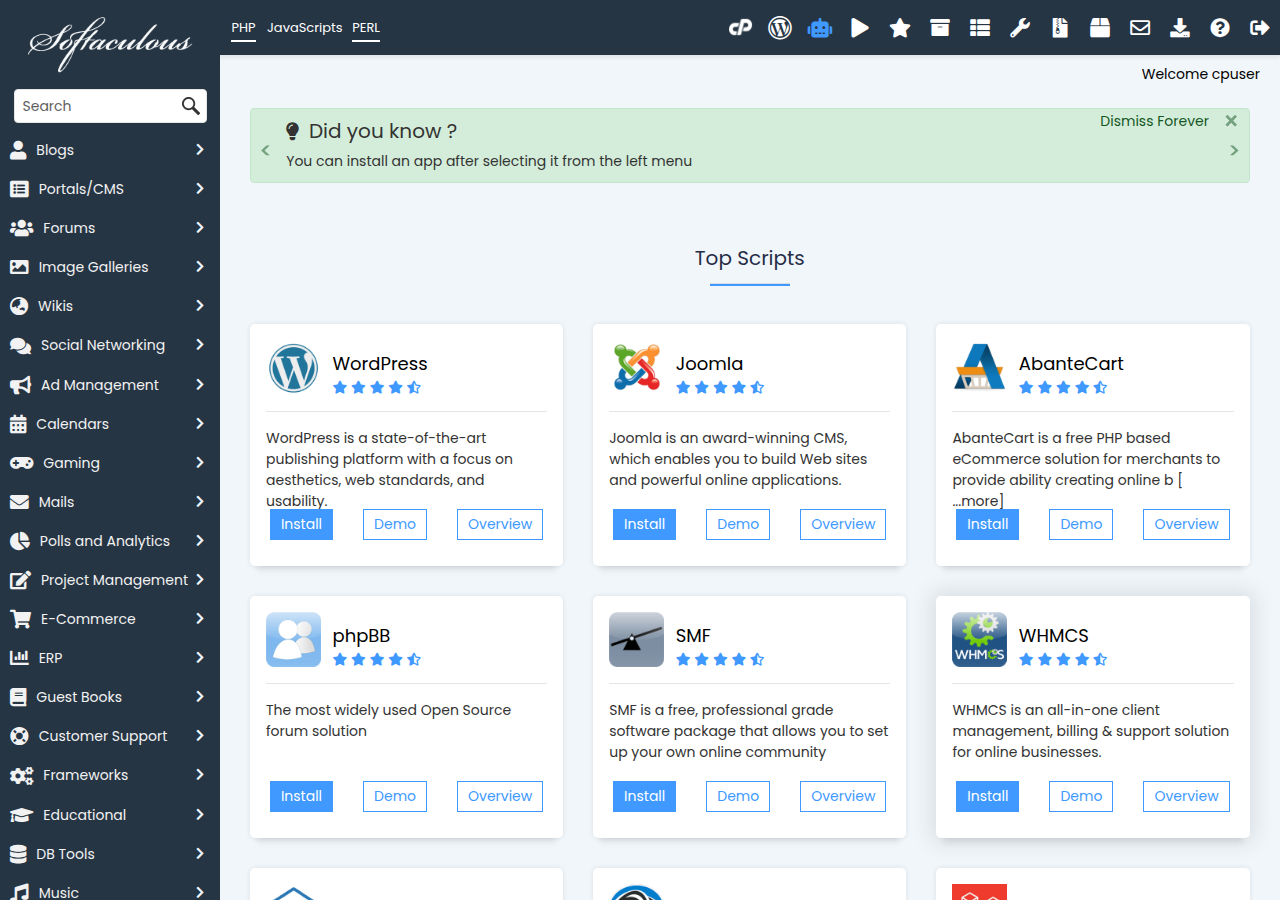
Your control panel has an app installer that sets up WordPress, its database and its admin account in about a minute. On DirectAdmin and Webuzo this is Softaculous. On cPanel, open the app installer listed in your cPanel.
- Point your domain at the hosting.If the domain and hosting are with the same provider, this is usually done for you. Otherwise set the domain's nameservers to the ones in your hosting welcome email, and wait for DNS to update.
- Log in to your control panelfrom your client area.
- Open the app installerand choose WordPress, then Install.
- Choose the domain and folder.Leave the folder (directory) empty to install at yourdomain.in. Type a folder name, such as
blog, only if you want the site at yourdomain.in/blog. - Set the site name and admin account.Do not use
adminas the username. Use a long, unique password and an email address you check. - Click Install.The installer shows your site address and your admin login address when it finishes.
Before your first login, make sure the site opens over https://. If it does not, issue the free SSL certificate from your control panel's SSL section.
The manual way
Installing by hand is useful when you want to understand what the installer does, or when you are moving an existing site:
- Download WordPress from wordpress.org and unzip it.
- Upload the files to your site's folder with the File Manager, SFTP or FTP.
- In your control panel, create a MySQL database and a database user, and give the user all privileges on that database.
- Open your domain in a browser. WordPress asks for the database name, user and password; the host is usually
localhoston shared hosting. - Enter your site title and admin account, then click Install WordPress.
Our step-by-step article How to install WordPress the do-it-yourself way has more detail.
3. First settings to change
Log in at yourdomain.in/wp-admin. Spend ten minutes here before you add content; changing some of these later is harder.
- Settings > General.Set the site title, a short tagline, and the time zone (choose a city, for example Kolkata, rather than a UTC offset). Check that both address fields start with https://.
- Settings > Permalinks.Choose Post name, so addresses read yourdomain.in/contact-us instead of yourdomain.in/?p=12. Set this before you publish, because changing it later changes every address.
- Settings > Reading.For a business site, choose A static page as your home page and pick a separate page for posts if you blog. Make sure Discourage search engines is unticked when the site is ready to go live.
- Settings > Discussion.If you will not use comments, turn them off for new posts. Unmoderated comments attract spam.
- Users > Profile.Set a display name, so posts do not show your login username.
- Delete the samples.Remove the "Hello world!" post, the sample page and any plugins or themes you will not use.
Pages or posts? Pages are for content that rarely changes: Home, About, Services, Contact. Posts are dated articles that appear in your blog, grouped by categories (broad topics) and tags (specific details). Most business sites need Home, About, Services, Contact, and a Privacy Policy page (Settings > Privacy helps you create one).
4. Themes: block themes and the Site Editor
A theme controls how your site looks. WordPress now has two kinds:
| Compare | Block theme | Classic theme |
|---|---|---|
| Where you design | Appearance > Editor (the Site Editor) | Appearance > Customize, plus widgets and menus |
| Header, footer, page layouts | Edited visually with blocks | Set by the theme's code and options |
| Menus | The Navigation block | Appearance > Menus |
| Global colours and fonts | Styles in the Site Editor | Customizer options, if the theme offers them |
| Good for | New sites, editing everything without code | Older sites, themes built around a page builder |
For a new site, start with a block theme. The default WordPress themes are block themes, and the free directory at Appearance > Themes > Add New Theme has a Block themes filter.
Choosing a theme
- Check it is maintained. On the theme's page at wordpress.org, look at "Last updated" and the number of active installs. Avoid themes not updated for a long time.
- Check it on a phone. Open the theme's demo on your phone before you install it.
- Prefer light themes. A theme that loads several sliders, animations and bundled plugins will slow the site down.
- Buy premium themes only from the developer or a reputable marketplace. Never install "nulled" (pirated) themes or plugins: they are a common way malware gets into WordPress sites.
To install a theme, go to Appearance > Themes > Add New Theme, search, then Install and Activate. For a premium theme, use Upload Theme and choose the zip file you bought.
Customising without losing your changes
In a block theme, use Appearance > Editor > Styles for site-wide colours and fonts, and Templates and Patterns for layouts. Your changes are saved in the database, so theme updates do not overwrite them.
If you edit a theme's files, never edit the theme directly: the next update will erase your work. Create a child theme instead. The folder wp-content/themes/yourtheme-child/ needs a style.css that names the parent:
/*
 Theme Name: Your Theme Child
 Template: yourtheme
*/
For a classic parent theme, also add a functions.php that loads the parent's stylesheet with wp_enqueue_style(). Do not use @import for this; it slows pages down. For small CSS changes you do not need a child theme at all: use Additional CSS in the Customizer (classic themes) or the Site Editor's Styles > Additional CSS (block themes).
5. Plugins: what you actually need
Plugins add features. Each one is also more code to update, and a possible way in for an attacker. A good rule: if you cannot say why a plugin is installed, remove it.
Most business sites need one plugin from a few categories:
| Need | What it does | Well-known examples |
|---|---|---|
| SEO | Titles, meta descriptions, sitemaps, social previews | Yoast SEO, Rank Math |
| Security and login protection | Firewall rules, login limits, two-factor login | Wordfence, Two Factor |
| Backups | Scheduled backups to cloud storage | UpdraftPlus |
| Caching | Serves saved copies of pages for speed | LiteSpeed Cache (on LiteSpeed servers), WP Super Cache |
| Forms | Contact and enquiry forms | Contact Form 7, WPForms |
| Online shop | Products, cart, checkout, payments | WooCommerce |
Use one plugin per job. Two caching plugins or two SEO plugins fight each other and cause errors.
Installing: go to Plugins > Add New Plugin, search, then Install Now and Activate. For a premium plugin, use Upload Plugin and enter its licence key so it can receive updates.
Before you install, check: when it was last updated, how many active installs it has, recent support-forum replies, and whether it is tested with your WordPress version.
Removing: deactivate, then delete. A deactivated plugin still has files on the server, and old files can still be attacked.
6. Content and SEO basics
WordPress produces clean, search-friendly pages out of the box. What moves your rankings is what you publish and how you structure it.
- Write for one topic per page. Put the main phrase people search for in the page title, the first paragraph and the address.
- Use headings in order. One main title per page, then H2 sections and H3 subsections. The block editor's Heading block lets you choose the level.
- Set a title and meta description for important pages in your SEO plugin's panel under the editor. Keep titles under about 60 characters and descriptions under about 155.
- Add alt text to images, describing what the image shows. It helps visually impaired visitors and image search.
- Link your own pages together. Link from a blog post to the related service page, and from the service page to your contact page.
- Submit your sitemap. WordPress makes one at yourdomain.in/wp-sitemap.xml; SEO plugins usually replace it with their own, for example sitemap_index.xml. Verify your site in Google Search Console and Bing Webmaster Tools and submit the sitemap address in each.
- Add your business details. For a local business, keep your name, address and phone the same everywhere, and add a Google Business Profile.
Search engines rank the mobile version of your site, so check every new page on a phone before you publish it.
7. Performance: caching, images and a CDN
A slow site loses visitors and ranks lower. Work through these in order; the first three give most of the gain.
- Page caching. Without a cache, WordPress builds every page from the database on every visit. A cache saves the finished page and serves it instantly. If your server runs LiteSpeed, use the LiteSpeed Cache plugin, which works with the server's own cache. On other servers, use a standard caching plugin. Use only one.
- Images. Resize photos before uploading; a 4000-pixel photo from a phone is far larger than any screen needs. WordPress creates smaller copies automatically and lazy-loads images further down the page. Use WebP or AVIF where you can (WordPress supports both), or let an image-optimisation plugin convert them.
- A lighter theme and fewer plugins. Every plugin that adds scripts to every page costs speed. Page builders and slider plugins are common culprits.
- An up-to-date PHP version. Newer PHP versions are faster and still receive security fixes. Choose a current version in your control panel's PHP settings, after checking your theme and plugins support it.
- Object caching. Redis or Memcached object caching reduces database work on busy or logged-in sites such as shops. It needs support from your hosting.
- A CDN (content delivery network). A CDN stores copies of your images, scripts and styles on servers in many cities, so they load from close to each visitor. Cloudflare's free plan is a common starting point; see Setting up Cloudflare with your hosting.
Measure before and after with Google PageSpeed Insights. Test the mobile score, and test a few pages, not only the home page.
8. Security, backups and staging
WordPress itself is secure when kept up to date. Most hacked WordPress sites have an out-of-date plugin or theme, a weak or reused password, or a pirated plugin.
Take a fresh backup of files and database before you update WordPress, a theme or a plugin, and before any big change. If an update breaks the site, restoring takes minutes. Without a backup, the same problem can take days.
Security essentials
- Update everything. WordPress installs minor security releases automatically. Update plugins and themes at least weekly; you can turn on auto-updates per plugin in the Plugins list for plugins you trust.
- Strong, unique passwords for every admin account, kept in a password manager. Never reuse your email password.
- Two-factor login (2FA) for every administrator, using an authenticator app. The Two Factor plugin or Wordfence's login security both add it.
- Fewest admins possible. Give editors and authors the Editor or Author role, not Administrator. Remove accounts of people who have left.
- Limit login attempts to slow down password-guessing attacks.
- Turn off the dashboard file editor by adding this line to
wp-config.php, above the line that says to stop editing:
define( 'DISALLOW_FILE_EDIT', true );- Delete what you do not use: inactive plugins, old themes and forgotten test copies of the site in subfolders.
For the full checklist, read The complete WordPress hardening guide and Why and how your WordPress website gets hacked.
Backups you can rely on
A backup counts only if you can restore it. Aim for:
- Automatic backups of both files and database, daily for a site that changes daily.
- A copy stored away from your hosting account, for example in Google Drive, Dropbox or S3 storage using a plugin such as UpdraftPlus. A backup on the same server is lost with the server.
- A restore test every few months, on a staging copy.
Your hosting's own backups are a useful extra layer, not a replacement for your own. See How can I download a backup of my site.
Staging: test before you touch the live site
A staging site is a private copy of your site where you try updates, new plugins and design changes first. Softaculous can clone an installation to a staging copy, some hosting plans include a staging tool, and you can also build one by hand on a subdomain such as staging.yourdomain.in. Keep staging hidden from search engines and protected by a password. See Creating a staging environment.
9. WP-CLI: WordPress from the command line
WP-CLI is the official command-line tool for WordPress. It is faster than the dashboard for routine work and still works when the dashboard does not load. Connect to your hosting over SSH, go to the folder where WordPress is installed, and run commands that start with wp:
# Where am I, and what is installed?
wp core version
wp plugin list
wp theme list

# Back up the database, then update everything
wp db export before-update.sql
wp core update
wp core update-db
wp plugin update --all
wp theme update --all

# Check core files against the official copies (useful after a hack)
wp core verify-checksums

# Moving from http to https, or to a new domain: preview first
wp search-replace 'http://example.in' 'https://example.in' --skip-columns=guid --dry-run
# Run it for real only after the dry run looks right
wp search-replace 'http://example.in' 'https://example.in' --skip-columns=guid

# Clear the object cache
wp cache flush
Why wp search-replace and not a find-and-replace in a text editor: WordPress stores some settings as serialised data, which records the length of each text value. WP-CLI updates those lengths correctly; a plain text replacement breaks them.
Run wp db export before any command that changes the database, and add --dry-run to wp search-replace to see how many replacements it would make before you run it for real.
Our article How to use WP-CLI on shared hosting covers connecting and more commands.
10. Troubleshooting common errors
Most WordPress errors come from a plugin, a theme, a PHP setting or the database connection. Start by seeing the real error message.
Turn on debug logging. In wp-config.php, above the line that says to stop editing, add:
define( 'WP_DEBUG', true );
define( 'WP_DEBUG_LOG', true );
define( 'WP_DEBUG_DISPLAY', false );
Errors are then written to wp-content/debug.log instead of being shown to visitors. Turn debugging off again when you have finished; the log can grow large and should not stay public.
| What you see | Usual cause | What to try |
|---|---|---|
| A white screen, or "There has been a critical error on this website" | A PHP error in a plugin or theme, often right after an update | Check debug.log and the recovery email WordPress sends the admin. Deactivate plugins by renaming wp-content/plugins to plugins-off, or run wp plugin deactivate --all, then reactivate them one by one |
| 500 Internal Server Error | A broken .htaccess file, a plugin error, or a PHP version the site does not support | Rename .htaccess and resave Settings > Permalinks to create a fresh one. Check the error log in your control panel. Try another PHP version |
| Error establishing a database connection | Wrong database details in wp-config.php, or the database user lost its permissions | Check DB_NAME, DB_USER, DB_PASSWORD and DB_HOST against the database and user in your control panel, and that the user is assigned to the database |
| "Allowed memory size … exhausted" | A task needs more PHP memory than allowed | Add define( 'WP_MEMORY_LIMIT', '256M' ); to wp-config.php. WordPress cannot go above the PHP memory limit set in your control panel, so raise that too if needed |
| "Briefly unavailable for scheduled maintenance" | An update was interrupted | Delete the .maintenance file in the WordPress folder, then run the update again |
| Redirect loop, or login page keeps reloading | Wrong site address, or a mismatch between http and https | Check both addresses in Settings > General, or set them with wp option update home and wp option update siteurl. Clear your caching plugin and browser cache |
If a problem started right after an update, the quickest fix is often to restore the backup you took before it, then update that one component on staging to find the cause.
For detailed walk-throughs, see How to fix the WordPress blank page problem, Troubleshooting HTTP 500 errors in WordPress, Troubleshooting "Error establishing a database connection" and PHP memory limit.
Where Domain India fits
Every Domain India shared hosting plan runs WordPress. Choose by the control panel you prefer and the number of sites you need. Domain India list prices on 19 September 2026, excluding 18% GST:
| Plan | Price | Websites | Storage | Good to know |
|---|---|---|---|---|
| DirectAdmin Starter | ₹100/month | 1 | 10 GB NVMe | Softaculous Premium, weekly backups |
| Webuzo Starter | ₹100/month | 1 | 10 GB NVMe | Softaculous Premium, nightly backups |
| cPanel Starter | ₹125/month | 1 | 25 GB NVMe | 10 email accounts, 5 MySQL databases |
| DirectAdmin Growth | ₹150/month | 5 | 30 GB NVMe | Softaculous Premium, weekly backups |
| cPanel Growth | ₹200/month | 5 | 50 GB NVMe | 50 email accounts, 10 MySQL databases |
- 10 GB NVMe SSD Storage
- 50 GB Monthly Bandwidth
- 1 Website
- 5 Email Accounts
- 25 GB NVMe SSD Storage
- 50 GB Monthly Bandwidth
- 1 Website
- 10 Email Accounts
All of these plans list free SSL, CloudLinux, Imunify360 security, a web application firewall, malware removal, all PHP versions, and the developer tools this guide uses: SSH access, WP-CLI, Git and Composer, and Node.js support.
There are also dedicated WordPress hosting plans, from ₹514/month (WP Starter, 1 site) to ₹772/month (WP Business, 5 sites, with a staging environment and Redis object cache) and ₹1,029/month (WP Enterprise, unlimited sites and Multisite support). They add managed WordPress extras. For a single business site, a shared plan above usually does everything this guide describes.
Not ready to manage WordPress yourself? The AI Website Builder builds and hosts a business website for you, from ₹200 a month, with no themes, plugins or updates to look after.
A domain costs ₹575 to register a .in (₹625 a year to renew), ₹475 for a .co.in (₹525 to renew) or ₹1,150 a year for a .com.
Frequently asked questions
Is WordPress free?
Yes. The WordPress software from WordPress.org is free and open source. You pay for a domain name and web hosting, and optionally for premium themes or plugins.
What is the difference between WordPress.org and WordPress.com?
WordPress.org is the free software you install on your own hosting, with full control over themes, plugins and code. WordPress.com is a hosted service that runs WordPress for you, with fewer options on its lower plans.
How do I install WordPress on my hosting?
Log in to your control panel, open the app installer (Softaculous on DirectAdmin and Webuzo), choose WordPress, pick your domain, set an admin username and a strong password, and click Install. It takes about a minute.
Should I use a block theme or a classic theme?
For a new site, use a block theme. It lets you edit the header, footer, layouts, colours and fonts visually in the Site Editor under Appearance > Editor. Classic themes still work and suit older sites or page-builder workflows.
How many plugins should a WordPress site have?
There is no fixed number, but install only what you need and use one plugin per job. Each plugin adds code to update and can slow the site or open a security hole. Delete plugins you no longer use.
How do I keep my WordPress site secure?
Keep WordPress, themes and plugins updated, use strong unique passwords with two-factor login for every administrator, give other users lower roles, never install pirated themes or plugins, and keep backups stored away from your hosting account.
How do I fix "Error establishing a database connection"?
Open wp-config.php and check that DB_NAME, DB_USER, DB_PASSWORD and DB_HOST match the database and database user in your control panel, and that the user is assigned to that database with full privileges.
What is WP-CLI and do I need it?
WP-CLI is the official command-line tool for WordPress. You run it over SSH to update WordPress and plugins, export the database, and search and replace addresses. Beginners can manage without it; developers and anyone running several sites save a lot of time with it.
Can I run WordPress on Domain India shared hosting?
Yes. DirectAdmin, Webuzo and cPanel shared plans all run WordPress, starting at ₹100 a month excluding GST, and offer jailed SSH with WP-CLI on request (it is off by default; ask support to enable it).
Ready to build your WordPress site? Register your domain, then compare DirectAdmin, Webuzo and cPanel hosting, or see the WordPress hosting plans.
Find the name for your WordPress site, then add hosting and install WordPress in a few clicks.
Search for a domain