The index.php file in your WordPress folder is tiny, but every page of your site passes through it. If it goes missing, gets emptied or is overwritten, the whole site can show a blank page, a 403 error or someone else's content. This guide shows how to tell whether index.php is really the problem, how to restore it from a backup or replace it with a clean copy, and what to check afterwards.
WordPress's root index.php only loads WordPress; it holds none of your content, so replacing it with a clean copy is safe. Restore it from a JetBackup backup, take it from a fresh WordPress download, or paste the standard contents shown below, then set its permissions to 644. If the file was changed by malware, replacing it is not enough: check the rest of the site, because an attacker rarely changes just one file.
1. What index.php does
Your WordPress folder (usually public_html for your main domain) contains an index.php of a few lines. Its only job is to tell WordPress to load the theme and then load wp-blog-header.php, which starts the rest of WordPress. Your posts live in the database and your design lives in the theme, so none of that is inside this file.
Two other kinds of index.php are easy to confuse with it:
- Your theme's
index.php, inwp-content/themes/your-theme/. This is a template, different for every theme. If that one is broken, reinstall or update the theme instead. - "Silence is golden" files in
wp-content,wp-content/pluginsandwp-content/themes. They contain one comment and stop folder listings. Don't replace them with the root file.
This guide is about the root index.php, the one next to wp-config.php.
2. Signs that index.php is the problem
| What you see | Likely cause | Where to look |
|---|---|---|
| 403 Forbidden on the home page only | index.php is missing, so the server has no page to show for the folder | Section 3 |
| Blank white page on every page | index.php is empty, or a PHP error elsewhere | Error log, then section 3 |
| A strange page, spam or a defacement on the home page | index.php was overwritten, or (on DirectAdmin) an index.html is taking priority | Sections 3 and 5 |
| Home page works, other pages give 404 | Usually .htaccess or permalinks, not index.php | Section 6 |
| Folder listing ("Index of /") | index.php is missing and listings are allowed | Section 3 |
On our DirectAdmin servers, Apache looks for index.html before index.php (checked 23 September 2026; on our cPanel servers index.php comes first). So on DirectAdmin, an index.html left in your WordPress folder, from an old site, a "coming soon" page or an attacker, is shown instead of WordPress. Rename or remove it.
Before you change anything, open your error log. A blank page is more often a plugin or theme error than a missing file; see how to review error logs and how to fix the WordPress blank page problem.
3. Restore or replace index.php
- Back up what is there now.In the File Manager, download the current
index.php(if it exists) and anything you are about to change. If the site was hacked, this copy is evidence, not something to restore. - Open your WordPress folder.Use the File Manager in your control panel, or connect with SFTP or FTP; see how to use the File Manager and upload settings.
- Get a clean index.php.Restore it from a backup, take it from a fresh WordPress download, or create it by hand (section 4).
- Replace the file.Upload or save the clean
index.phpin the same folder aswp-config.php, replacing the old one. - Set permissions to 644.In the File Manager, use Permissions (or Change Permissions) on the file.
- Test the site.Open it in a private browser window, check the home page, a post and the admin area.
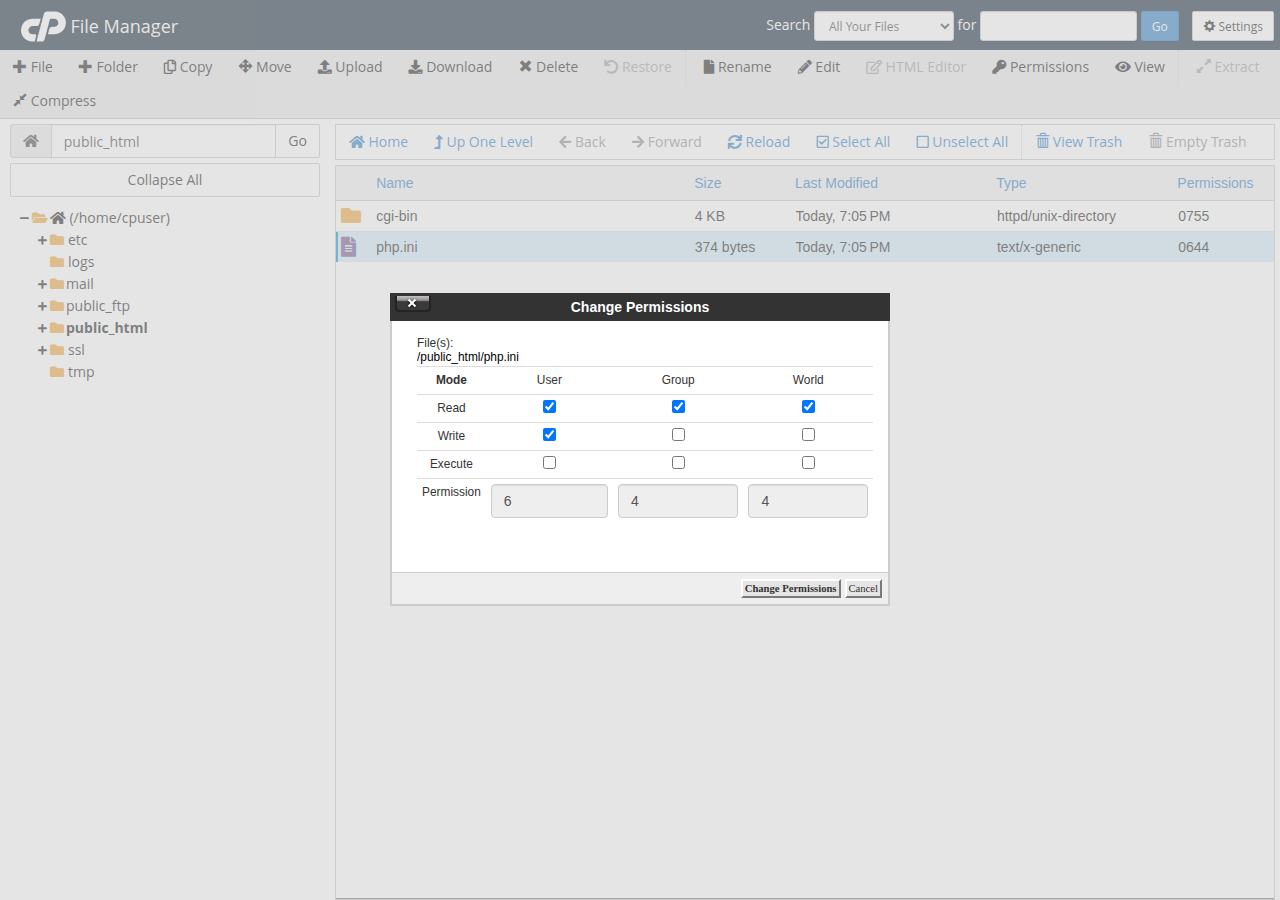
From a JetBackup backup
Our cPanel and DirectAdmin hosting runs weekly JetBackup 5 backups, keeping five copies. JetBackup lets you restore single files as well as whole accounts, so you can bring back just index.php from a backup taken before the problem began. See how to restore or download a backup with JetBackup.
From a fresh WordPress download
Download the latest WordPress from wordpress.org, unzip it on your computer, and upload only the index.php from the top-level wordpress folder. Do not upload the wp-content folder from the download; that would overwrite your themes and plugins.
4. The standard index.php contents
If you prefer to create the file yourself, make a new file called index.php in the File Manager and paste exactly this:
<?php
/**
 * Front to the WordPress application. This file doesn't do anything, but loads
 * wp-blog-header.php which does and tells WordPress to load the theme.
 *
 * @package WordPress
 */

/**
 * Tells WordPress to load the WordPress theme and output it.
 *
 * @var bool
 */
define( 'WP_USE_THEMES', true );

/** Loads the WordPress Environment and Template */
require __DIR__ . '/wp-blog-header.php';
The first line must be <?php exactly. A missing ? is a common copy-and-paste mistake: the server then prints the code as text instead of running it. A space or blank line before <?php can cause "headers already sent" warnings. Save the file as plain text, not from a word processor.
If WordPress lives in a subfolder but runs at your main address, the root index.php is a copy with a changed last line, for example require __DIR__ . '/wordpress/wp-blog-header.php';. Keep that path when you replace the file, or the site will not load.
5. If index.php was changed by malware
Signs of a hacked index.php include long lines of scrambled code at the top, eval, base64_decode or gzinflate calls, links to sites you don't know, or a file much larger than the few hundred bytes of the standard one. Security cleanups can also leave an infected file empty or remove it, which gives a blank page or a 403.
Replacing index.php fixes the symptom, not the cause. Attackers who can change one file have usually added others: extra PHP files in wp-content/uploads, a hidden administrator account, or code in wp-config.php or your theme.
Compare your WordPress core files with the official release. Wordfence's scan does this for you. On cPanel, WP Toolkit can check your WordPress installation's integrity. If jailed SSH is enabled on your account and WP-CLI is available in your jail, wp core verify-checksums does the same. Then follow the security checklist for hacked websites.
To replace every WordPress core file at once, rather than just one, see restoring and resetting WordPress core files.
6. If the site still does not work
- Other pages give 404: in WordPress, open Settings › Permalinks and click Save Changes to rewrite the
.htaccessrules. If that fails, see how to create a default .htaccess file for WordPress. - Still a blank page or a 500 error: rename
wp-content/pluginstoplugins-offto disable every plugin at once, and test again. If the site comes back, rename the folder back and switch plugins off one at a time to find the culprit. See troubleshooting a 500 internal server error. - Still a 403: check that
index.phpis 644 and its folder is 755, and see understanding the 403 Forbidden error. - You see an old version after fixing it: on our cPanel servers a proxy cache can keep serving a page for a while. Add
?t=1to the end of the address to check the live version.
7. Where Domain India hosting fits
On Domain India cPanel and DirectAdmin hosting, you have the File Manager for quick fixes like this one, and weekly JetBackup 5 backups that let you restore a single file from your panel. Jailed SSH is available on every shared hosting plan too: it is off by default, so ask support to enable it for your account; see how to enable and use jailed SSH.
- 25 GB NVMe SSD Storage
- 50 GB Monthly Bandwidth
- 1 Website
- 10 Email Accounts
Plan cards show live Domain India list prices, excluding 18% GST. Support is available on 24/7 live chat, and tickets get a first response within 15 minutes; how long a fix takes depends on the issue. We do not offer phone support.
Is it safe to replace the WordPress index.php file?
Yes. The root index.php only loads WordPress and contains none of your posts, pages or settings. Replacing it with the standard file from wordpress.org does not delete any content, as long as you replace only that file and keep your wp-content folder and database.
What should the WordPress index.php file contain?
A few lines that define WP_USE_THEMES as true and then require wp-blog-header.php from the same folder. The file starts with the line <?php and is only a few hundred bytes. Anything much longer, or with scrambled code, has been changed.
Why does my WordPress site show 403 Forbidden after index.php disappeared?
Without an index file, the server has no page to show for the folder, so it returns 403 Forbidden when directory listings are not allowed. Put a clean index.php back in the WordPress folder with permissions 644.
What permissions should index.php have?
644 for index.php and other files, and 755 for folders. Never use 777.
My index.php keeps getting changed back to malicious code. What do I do?
The attacker still has a way in, usually an outdated plugin, a hidden administrator account or a backdoor file elsewhere. Replacing index.php alone will not stop it. Follow a full hacked-site cleanup: change every password, check your core files against the official release, remove unknown users and files, and update everything.
Can I restore just index.php from a backup?
Yes. JetBackup 5 on Domain India cPanel and DirectAdmin hosting can restore single files from its weekly backups, so you can bring back index.php alone from a backup taken before the problem started.
Ready to fix it? Restore the file using the steps above, check the hacked-site checklist if the change was not yours, or open a support ticket if the site still does not load.
Tell us your domain, what you see and what you have already tried, and we will check the server side of your hosting account with you.
Open a support ticket