SSH (Secure Shell) gives you a command line on your hosting account, so you can move and unpack files in bulk, read logs, check disk usage or tunnel into your database from your own computer. On Domain India shared hosting it is a jailed shell: you work inside your own account and cannot see or change anything else on the server. This guide covers how to get it switched on, how to set up the SSH key you log in with, how to connect, and what the jail allows.
Jailed SSH access is available on every shared hosting plan (cPanel, DirectAdmin, Webuzo). It is off by default; ask support to enable it for your account, by live chat or a ticket. Log in with an SSH key, not a password: add your public key in your control panel or send it to support, then connect to your domain or server IP on port 22 with your control panel username. Windows (Plesk) hosting has no SSH.
1. What a jailed shell is
A normal Linux login can wander around the whole server. A jailed (restricted) shell cannot. Our cPanel and DirectAdmin servers run CloudLinux with CageFS, which gives each account its own view of the file system: your home folder, your websites and a limited set of system files and commands. Other customers' accounts are invisible to you, and yours to them.
So it is not the same as a server of your own:
- There is no root access and no
sudo. You cannot install system packages or change server settings. - Git is available inside the jail on our cPanel servers (measured 23 September 2026). Other tools available inside the jailed shell vary, and we do not publish a fixed list. If you plan to rely on Composer, WP-CLI, Node.js, Python or anything else, ask support whether it is available on your server before you build around it.
- Everything you run counts towards your account's resource limits, just like your website does.
If you need full control of the machine, that is a VPS, not shared hosting (see section 10).
2. Which plans can have SSH
| Hosting type | SSH | How to get it | Port |
|---|---|---|---|
| cPanel shared hosting | Jailed shell | Off by default; ask support to enable it | 22 |
| DirectAdmin shared hosting | Jailed shell | Off by default; ask support to enable it | 22 |
| Webuzo shared hosting | Jailed shell | Off by default; ask support to enable it | 22 |
| Windows (Plesk) hosting | Not available | Use FTP, the Plesk file manager or Web Deploy | 22 is closed |
Port 22 is open on all of our Linux shared servers (measured 20 September 2026). It is closed on the Windows servers, so SSH and SFTP do not work there at all. The full list of open ports is in our port numbers guide.
3. How to ask for SSH to be enabled
SSH is switched on per account, on request. There is nothing to buy.
- Contact support.Use 24/7 live chat, or open a ticket from your client area at /client/support/new (or /support/ticket if you are not signed in).
- Say which account.Give the domain of the hosting account and, if you have it, the control panel username.
- Say what you need it for.For example "unzip a large backup", "run WP-CLI", "an SSH tunnel to MySQL". It helps support tell you whether the tools you need are available inside the jail.
- Wait for confirmation.Support replies on the ticket or in chat once SSH is on. Tickets get a first response within 15 minutes; the change itself may take longer.
- Add your SSH key and connectas shown in sections 5 and 6.
Never send a password or a private key in a ticket or chat. Support will not ask for either.
4. Your connection details
| Setting | What to use | Where to find it |
|---|---|---|
| Host | Your domain, once it points to Domain India; otherwise your server IP or server hostname | Hosting › My hosting › Manage › Access tab, or the "Your Hosting Account is Ready" email |
| Port | 22 | Same on cPanel, DirectAdmin and Webuzo |
| Username | Your control panel username (cPanel, DirectAdmin or Webuzo) | Access tab, Login details card |
| Login | Your own SSH key. Password login is not accepted | Section 5 |
Open /client/services/hosting, click Manage on your hosting account and open the Access tab. The Login details card shows your username, server IP and panel URL, each with a copy button. The server hostname is the part of the panel URL between https:// and the colon. If you cannot find these, see how to find your hosting login details.
Some older guides give 2222 as the SSH port. On our DirectAdmin servers, 2222 is the control panel. SSH is always port 22 on Domain India shared hosting.
5. Set up your SSH key
SSH on our shared servers accepts key login only: password authentication is switched off (measured on our cPanel and DirectAdmin servers, 23 September 2026). Use a key on Webuzo as well. Your control panel password will not work over SSH, so set up a key before you connect. A key is also more secure: the private key stays on your computer and is never sent to the server.
- Create a key on your own computer.Run
ssh-keygen -t ed25519 -C "[email protected]"in Terminal (macOS, Linux) or PowerShell (Windows 10 and 11), and press Enter to accept the default location. Set a passphrase when asked; it protects the key if your laptop is lost. - Copy the public key.It is the file ending in
.pub, for example~/.ssh/id_ed25519.pub. Only ever share the.pubfile. - cPanel: import and authorise it.In cPanel, open Security › SSH Access › Manage SSH Keys, choose Import Key, paste the public key and import it. Then click Manage next to the key and Authorize it. An imported key that is not authorised will not work.
- DirectAdmin and Webuzo: add it to
authorized_keys.With the File Manager, create the folder.sshin your home folder (permission 700) and a fileauthorized_keysinside it (permission 600), and paste the public key as one line. - Or ask support.Send support your public key and ask them to add it to your account. Never send the private key.
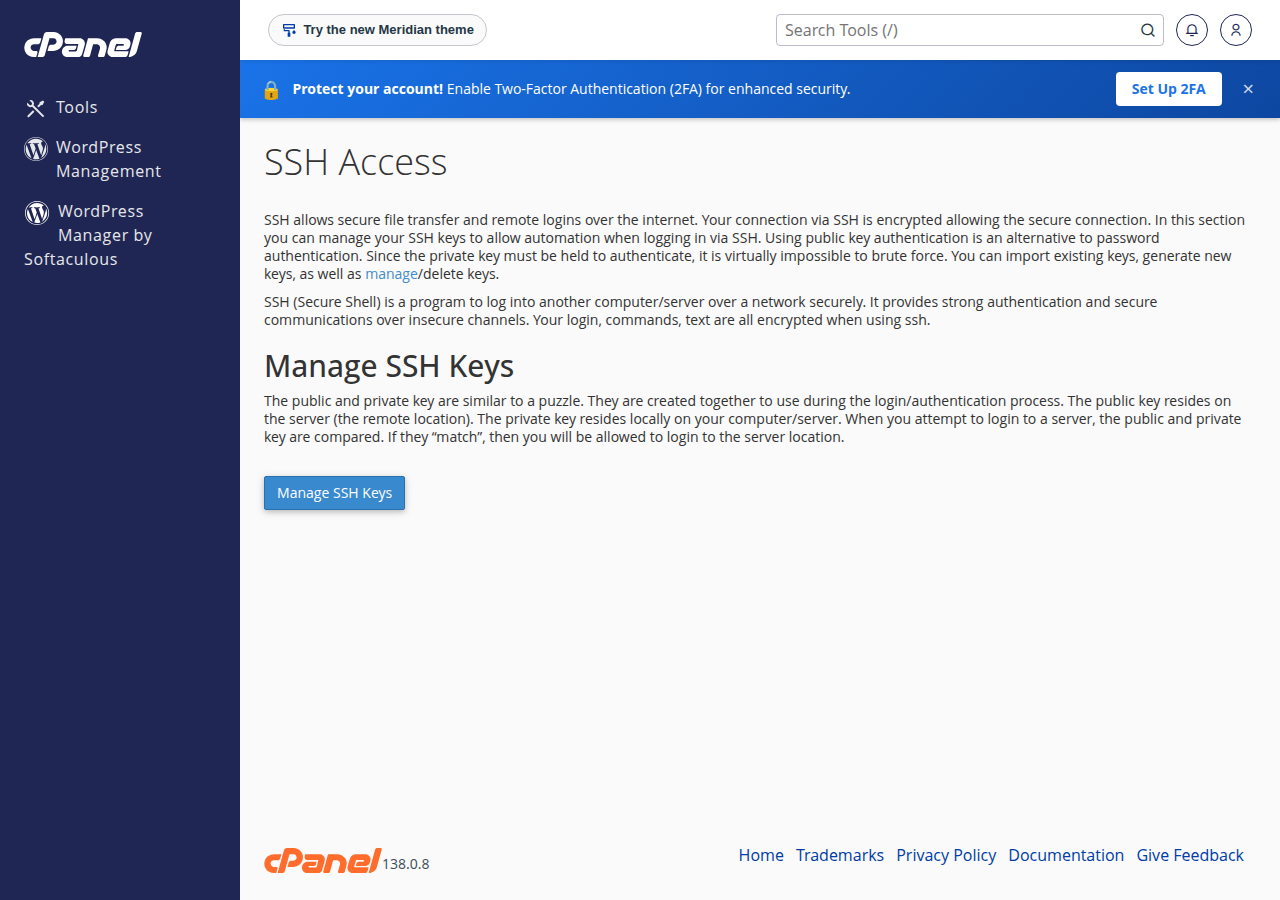
6. Connect from Windows, macOS or Linux
macOS, Linux and Windows 10 and 11
Open Terminal (or Windows Terminal / PowerShell on Windows, which has the same ssh command built in) and run, replacing the username and host with yours:
ssh -i ~/.ssh/id_ed25519 -p 22 [email protected]The first time, type yes to trust the server's fingerprint. If your key has a passphrase, SSH asks for it: that is the key's passphrase, not your panel password.
PuTTY
Enter your domain or server IP as the Host Name, port 22, connection type SSH. Load your private key under Connection › SSH › Auth › Credentials, then click Open and log in with your control panel username. PuTTY uses its own .ppk key format; PuTTYgen converts a normal OpenSSH key into it.
Save the settings
A short entry in the file ~/.ssh/config saves typing:
Host myhosting
    HostName yourdomain.com
    User yourusername
    Port 22
    IdentityFile ~/.ssh/id_ed25519
Now ssh myhosting is enough. SFTP in FileZilla or WinSCP works with the same host, port 22, username and key.
7. What you can and cannot do inside the jail
- Moving, unzipping and deleting many files at once
- Reading error and access logs, and finding what fills your disk
- An SSH tunnel to your MySQL database from a desktop tool
- Running your own scripts and cron-style jobs within your limits
- Git on our cPanel servers; other tools vary (ask support)
- Root access,
sudo, or installing system packages withdnforapt - Seeing or changing other accounts, or server-wide settings
- Opening your own public ports: only the standard ports are open from outside
- Always-on apps such as a Node.js or Python server that must run all day
- PHP functions that are disabled on the server, which apply on the command line too
- Your limits still apply. SSH sessions and anything you start from them count towards your number-of-processes limit and use CPU, memory and I/O, so a heavy job can slow your own website. See understanding hosting resource limits.
- PHP on the command line has the same restrictions as your website. On our cPanel servers about 50 PHP functions, including
proc_openandpopen, are disabled for the web and the command line alike. That breaks some Composer and Laravel tasks. The details are in PHP disabled functions on shared hosting. - Databases stay closed to the internet. Port 3306 is firewalled on our shared servers, so a desktop database tool must connect through an SSH tunnel. The steps are in how to connect to the MySQL database.
8. Troubleshooting
| What you see | Likely cause | What to do |
|---|---|---|
| Connection timed out | Wrong host, or your IP address is blocked by the server firewall | Check the host and port 22; try from mobile data; send support your public IP |
| Connection refused | Wrong port, or wrong server | Use port 22 and the host from your Access tab |
| Permission denied (publickey) | Your key is not on the account, not authorised, or not the one SSH is offering | Add the public key (section 5); in cPanel check it is Authorized; point SSH at the right key with -i |
| No supported authentication methods available (PuTTY) | PuTTY tried a password; password login is off | Load your .ppk key under Connection › SSH › Auth › Credentials |
| Wrong username | The username is not your control panel username | Copy it from the Access tab |
| The login is accepted, then the connection closes at once, or a message says shell access is not enabled | SSH is not enabled for the account | Ask support to enable jailed SSH |
| UNPROTECTED PRIVATE KEY FILE | Your private key can be read by other users on your computer | Run chmod 600 on the private key file |
Repeated failed logins can get your IP address blocked automatically by the server firewall, and then your website, webmail and panel stop loading for you too. If everything works from your phone on mobile data, that is the cause. Read have I been blocked? and send support the blocked IP address.
9. Keep your SSH access secure
.pub file. The private key never goes in an email, ticket or chat.10. Where SSH fits on Domain India
Jailed SSH access is available on every cPanel, DirectAdmin and Webuzo shared hosting plan, on request, for site owners and developers who need a command line alongside the control panel.
- 25 GB NVMe SSD Storage
- 50 GB Monthly Bandwidth
- 1 Website
- 10 Email Accounts
- 10 GB NVMe SSD Storage
- 50 GB Monthly Bandwidth
- 1 Website
- 5 Email Accounts
Prices on the cards are live and exclude 18% GST.
When the jail is too small for the job, move up rather than fighting it:
- The App Platform runs always-on apps such as Node.js and Python without you managing a server.
- A VPS gives you full root access, your own packages and your own open ports.
Does Domain India shared hosting include SSH access?
Yes. Jailed SSH access is available on every shared hosting plan (cPanel, DirectAdmin, Webuzo). It is off by default; ask support by live chat or a ticket to enable it for your account. There is no extra charge. Windows (Plesk) hosting has no SSH.
What port does SSH use on Domain India shared hosting?
Port 22, on cPanel, DirectAdmin and Webuzo servers alike. Port 2222 is the DirectAdmin control panel, not SSH. On Windows (Plesk) hosting port 22 is closed.
What is my SSH username and host?
The username is your control panel username. The host is your domain once it points to Domain India, or otherwise your server IP. Both are on the Access tab: open Hosting, My hosting, click Manage and open Access.
Can I log in to SSH with my control panel password?
No. Password login is switched off for SSH on our cPanel and DirectAdmin servers, and you should use a key on Webuzo too. Create a key pair on your computer and add the public key to your account: in cPanel under SSH Access, Manage SSH Keys, Import and then Authorize; on DirectAdmin or Webuzo in .ssh/authorized_keys; or send the public key to support.
Can I run Git, Composer, WP-CLI or Node.js over SSH?
Git is available inside the jailed shell on our cPanel servers. Other tools vary by server, so ask support whether the tool you need is available before you rely on it. PHP functions disabled on the server also apply on the command line, which affects some Composer and Laravel tasks.
Can I get root access on shared hosting?
No. Shared hosting gives a jailed shell only. For root access, your own packages and open ports, use a Domain India VPS.
Ready to use SSH? Ask support to enable it by opening a ticket or on live chat, create your SSH key and find your username and server IP in My Hosting. If you are setting up a database tunnel, follow how to connect to the MySQL database.
Open a ticket with your domain, what you need SSH for and, if you like, your public key. Support switches on jailed SSH for your account and confirms when it is ready.
Ask support to enable it