WordPress needs a small .htaccess file in its folder to make pretty permalinks such as /about-us/ work. If that file is missing or damaged, every page except the home page returns "Not Found", or the whole site shows a 500 error. This guide gives you the current default file and shows how to recreate it on cPanel, DirectAdmin or Webuzo hosting.
The quickest fix is in WordPress itself: open Settings, then Permalinks, and click Save Changes; WordPress rewrites its own .htaccess block. If that doesn't work, open your File Manager, show hidden files, create a file named .htaccess in the WordPress folder (usually public_html) and paste the default block below. Keep your own rules above the # BEGIN WordPress line, because WordPress may overwrite everything between BEGIN and END.
This page covers the WordPress default only. For redirects, HTTPS, clean URLs and fixing loops, see how to use mod_rewrite and .htaccess and how to redirect non-www to www.
1. What the WordPress .htaccess file does
.htaccess is a configuration file that Apache reads on every request, so changes take effect as soon as you save. WordPress uses it for one job: any request for a file or folder that doesn't exist is handed to index.php, and WordPress then works out which post or page to show.
On Domain India Linux shared hosting (cPanel, DirectAdmin and Webuzo), Apache runs with mod_rewrite already loaded and .htaccess files allowed. There is nothing to switch on. Windows (Plesk) hosting runs IIS, which ignores .htaccess; WordPress there uses a web.config file instead.
2. The default WordPress .htaccess
This is the block current versions of WordPress write for a site installed at the top of its domain:
# BEGIN WordPress
# The directives (lines) between "BEGIN WordPress" and "END WordPress" are
# dynamically generated, and should only be modified via WordPress filters.
# Any changes to the directives between these markers will be overwritten.
<IfModule mod_rewrite.c>
RewriteEngine On
RewriteRule .* - [E=HTTP_AUTHORIZATION:%{HTTP:Authorization}]
RewriteBase /
RewriteRule ^index\.php$ - [L]
RewriteCond %{REQUEST_FILENAME} !-f
RewriteCond %{REQUEST_FILENAME} !-d
RewriteRule . /index.php [L]
</IfModule>

# END WordPress
The HTTP_AUTHORIZATION line passes login headers through to WordPress, which the REST API and application passwords need. Older copies of this block without that line still make permalinks work.
WordPress in a subfolder
If WordPress lives in a folder such as public_html/blog, put the file in that folder and change two lines to match it:
RewriteBase /blog/
RewriteRule . /blog/index.php [L]
WordPress Multisite uses a different block; copy it from the Network Setup screen in your dashboard rather than from here.
3. Let WordPress rebuild it for you
If you can still log in to the dashboard, this is the safest method:
- Log in to WordPressat
yourdomain.com/wp-admin. - Open Settings, then Permalinks.
- Click Save Changeswithout changing anything. WordPress writes its block into
.htaccess, creating the file if it is missing. - Test a pageother than the home page in a private browser window.
If WordPress shows a message asking you to update .htaccess yourself, it could not write the file; create it by hand as in the next section.
4. Create the file by hand in your File Manager
- Open your control panel.In the client area, open Hosting › My hosting and click your panel's button on the domain's row. See how to log in to cPanel if you need help.
- Open File Managerand go to your WordPress folder:
public_htmlon cPanel and Webuzo, ordomains/yourdomain.com/public_htmlon DirectAdmin. - Show hidden files.Files starting with a dot are hidden by default. In cPanel, click Settings and tick "Show Hidden Files (dotfiles)".
- Back up any existing file.If
.htaccessis already there, download it or copy its contents somewhere safe first. - Create the file.Create a new file named exactly
.htaccess, with the leading dot and no extension. - Paste the default blockfrom section 2, save, and test your pages.
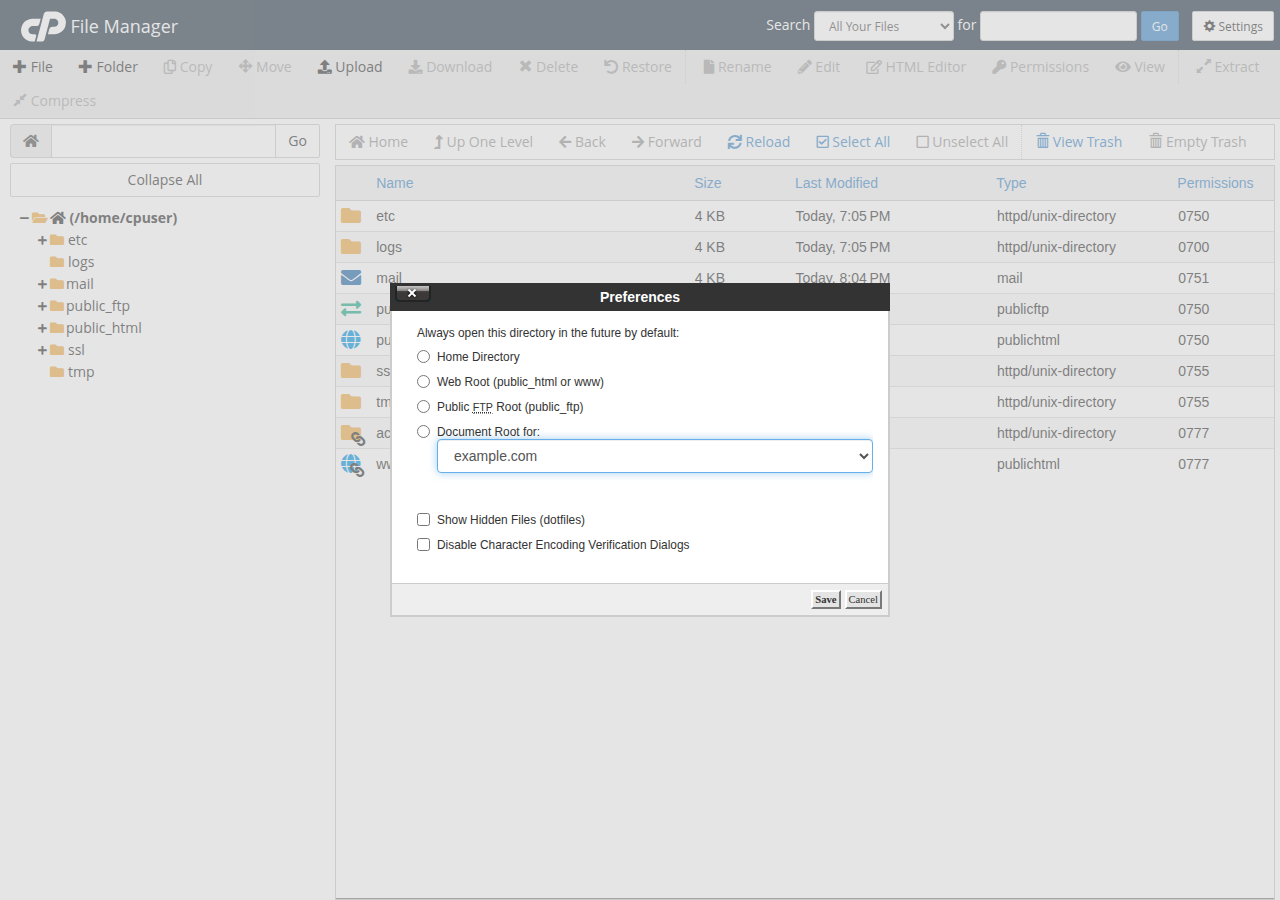
Detailed File Manager guides: cPanel File Manager and DirectAdmin File Manager. You can also upload the file over FTP.
5. Mistakes that cause a 500 error
| Problem | Why it breaks | Fix |
|---|---|---|
| A php_value or php_flag line | PHP on our shared servers does not run as an Apache module, so Apache rejects these lines | Remove them and change PHP settings in your control panel |
| An Options line on DirectAdmin | DirectAdmin allows only Indexes, IncludesNOEXEC, MultiViews, SymLinksIfOwnerMatch, FollowSymLinks and None | Remove the line or use an allowed option |
| Curly quotes or stray text | Copying from a word processor or chat app can change characters | Paste into a plain-text editor first |
| Custom rules inside the WordPress block | WordPress overwrites that section | Put your rules above # BEGIN WordPress |
If the site breaks after an edit, restore your backup copy of .htaccess first, then read the error log for the exact line. See troubleshooting 500 internal server errors.
On cPanel, a caching layer in front of Apache can keep serving pages that loaded before your change, so a broken file may look fine for a while. After saving, test a URL with ?t= and any value added to the end, for example /about-us/?t=123.
6. Security rules: keep them simple
You may see long lists of "security" rules for WordPress .htaccess. Many are outdated, and some break the site. Two that are safe on our servers, placed above the WordPress block:
# Block direct access to wp-config.php
<Files wp-config.php>
Require all denied
</Files>

# Stop directory listings
Options -Indexes
Use Require all denied, the current Apache syntax, not the old Order allow,deny lines. Our cPanel and DirectAdmin servers also run Imunify360 security at server level, so you don't need to copy firewall rules into .htaccess. For hardening beyond this, see why and how WordPress websites get hacked.
7. Hosting WordPress with Domain India
Every Domain India Linux shared hosting plan runs Apache with .htaccess support, includes free SSL and a File Manager, and has one-click WordPress installs. Weekly backups with JetBackup let you restore files, including a working .htaccess, from your panel on cPanel and DirectAdmin.
- 25 GB NVMe SSD Storage
- 50 GB Monthly Bandwidth
- 1 Website
- 10 Email Accounts
- 10 GB NVMe SSD Storage
- 50 GB Monthly Bandwidth
- 1 Website
- 5 Email Accounts
The cards show live Domain India prices, excluding 18% GST. For a full WordPress walkthrough, see mastering WordPress.
What is the default .htaccess file for WordPress?
A block between the lines # BEGIN WordPress and # END WordPress that turns on mod_rewrite and sends any request for a missing file or folder to index.php. The full text is in section 2 of this article.
How do I regenerate the WordPress .htaccess file?
In the WordPress dashboard, open Settings, then Permalinks, and click Save Changes. WordPress rewrites its block, and creates the file if it can.
Where is the .htaccess file for WordPress?
In the folder where WordPress is installed: usually public_html on cPanel and Webuzo, or domains/yourdomain.com/public_html on DirectAdmin. It is hidden, so turn on hidden files in File Manager.
Why do my WordPress pages show Not Found but the home page works?
The permalink rules are missing or damaged. Save the Permalinks settings in WordPress, or recreate .htaccess with the default block.
Can I put php_value lines in .htaccess on Domain India?
No. PHP on Domain India shared servers does not run as an Apache module, so php_value and php_flag lines cause a 500 error. Change PHP settings in your control panel instead.
Do I need to enable mod_rewrite for WordPress?
No. mod_rewrite is already loaded on Domain India cPanel, DirectAdmin and Webuzo hosting, and .htaccess files are allowed.
Ready to fix your permalinks? Open your panel's File Manager from the client area, follow the File Manager guide, or open a support ticket with your domain if the site still shows an error.
One-click WordPress, free SSL, weekly JetBackup backups and a File Manager on every Linux plan.
See WordPress hosting