"Fatal error: Allowed memory size of 134217728 bytes exhausted" is one of the most common PHP errors, and one of the most misunderstood. It means one PHP script asked for more memory than PHP allows a single script to use. This guide explains what that limit is, how to check and raise it on Domain India's cPanel, DirectAdmin and Webuzo hosting, and how to find the real cause when raising it doesn't help.
Check the limit your site really gets with a one-line ini_get('memory_limit') file or WordPress Site Health. On cPanel, try the MultiPHP INI Editor in the Software section; on any panel, a .user.ini file with memory_limit = 256M is the fallback, and support can change it if neither works. Never put php_value in .htaccess: on our servers it causes a 500 error. 256M is enough for almost every WordPress site; if the error continues at 256M or 512M, a plugin, theme or script is the problem, and your plan's RAM is the ceiling for the whole account anyway.
1. What the error means
A typical message looks like this:
PHP Fatal error: Allowed memory size of 134217728 bytes exhausted (tried to allocate 20480 bytes) in /home/user/public_html/wp-includes/class-wpdb.php on line 2349memory_limit is a PHP setting that caps how much memory one PHP request may use. It stops one broken script from taking all the memory on the account. The first number is the limit in bytes. The "tried to allocate" number is only the last small request that didn't fit; it is not how much more memory the script needs.
To read the limit, convert bytes to megabytes:
| Bytes in the error | memory_limit it means |
|---|---|
| 33554432 | 32M |
| 67108864 | 64M |
| 134217728 | 128M |
| 268435456 | 256M |
| 536870912 | 512M |
A related message, Out of memory (allocated 123456789) (tried to allocate 65536 bytes), is different. It usually means the process hit a memory cap outside PHP, such as your account's CloudLinux limit (see section 6), not memory_limit.
2. Check your current PHP settings first
Before you change anything, confirm which limit is actually in force.
- WordPress: go to Tools → Site Health → Info. The Server section shows the PHP memory limit, upload size and maximum execution time, and the WordPress Constants section shows
WP_MEMORY_LIMIT. - Any PHP site: create a file with a hard-to-guess name, such as
check-7f3a9.php, in the folder where your site runs:
<?php
echo 'memory_limit: ', ini_get('memory_limit'), "\n";
echo 'PHP version: ', PHP_VERSION;
Open it in your browser. It prints the value your site really gets, after every panel setting and .user.ini file has been applied. On cPanel, a cache in front of the web server can show an old response for a while, so add ?t=1 (any value) to the address when you check again after a change.
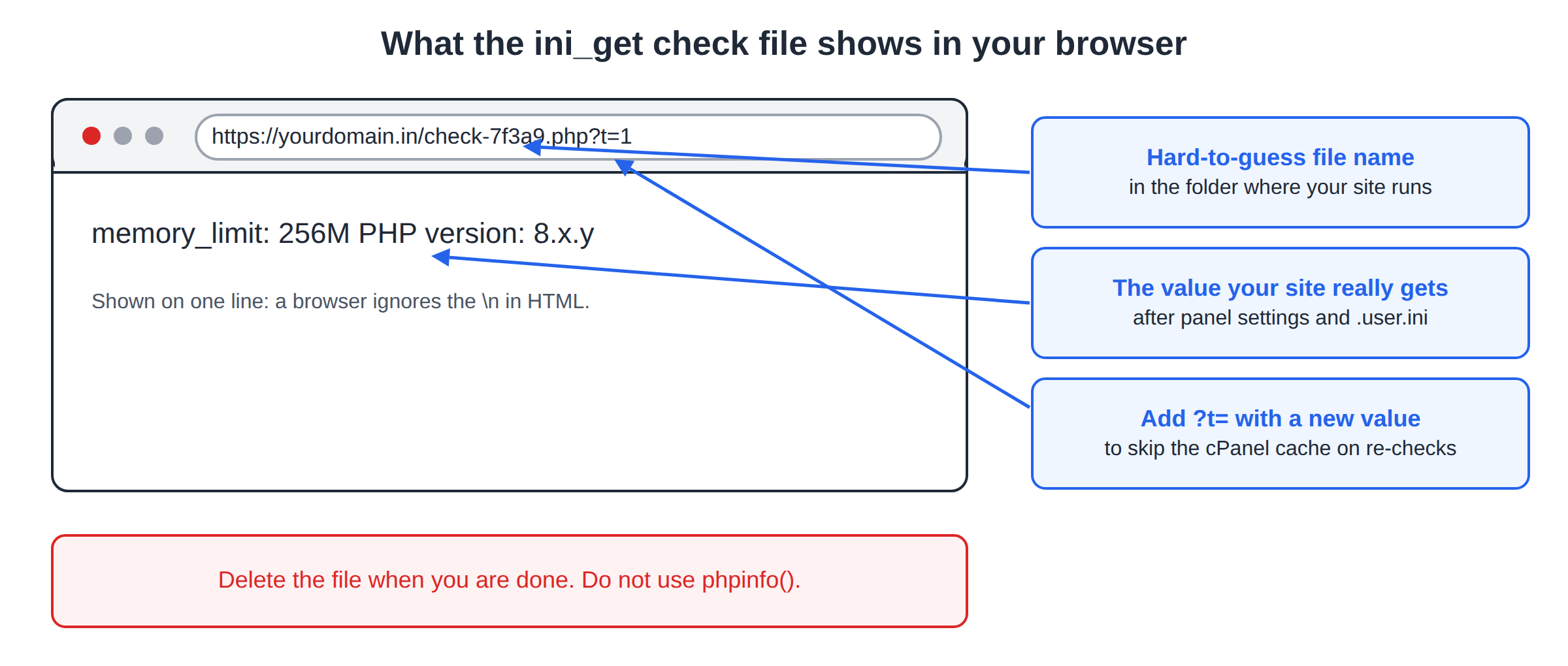
phpinfo() is disabled on our cPanel servers, so a phpinfo page shows nothing useful there, and on any server it publishes paths and settings that attackers scan for. The ini_get file above shows only the values you asked for. Delete it as soon as you're done.
3. Change memory_limit in your control panel
The control panel is the safest method, because it writes the setting in the format your server's PHP handler understands. Menu names can differ between panel versions, and whether memory_limit can be changed from the panel depends on how the server is set up, so if the option isn't there, use section 4 or ask support.
cPanel
- Open the MultiPHP INI Editor.Sign in to cPanel (see how to log in to cPanel) and open MultiPHP INI Editor in the Software section.
- Choose your domain.In Basic Mode, select the domain or folder your site runs from.
- Set memory_limit, for example to 256M, if the editor offers it, and click Apply.
- Reload and test.Reload the page that showed the error, and confirm the new value with Site Health or your
ini_getfile.
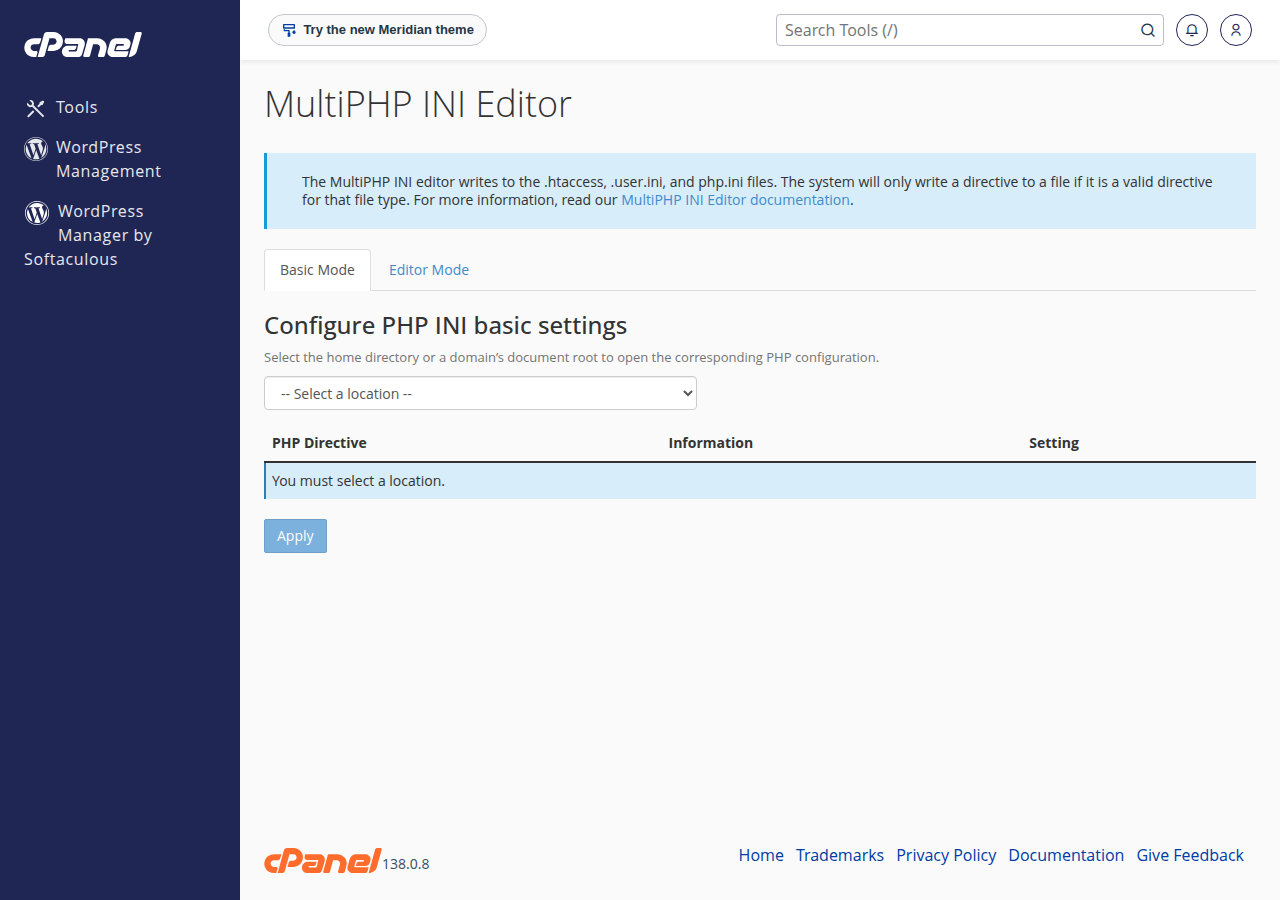
If memory_limit isn't listed or won't change, use a .user.ini file (section 4), or open a ticket with the domain and the value you need.
DirectAdmin and Webuzo
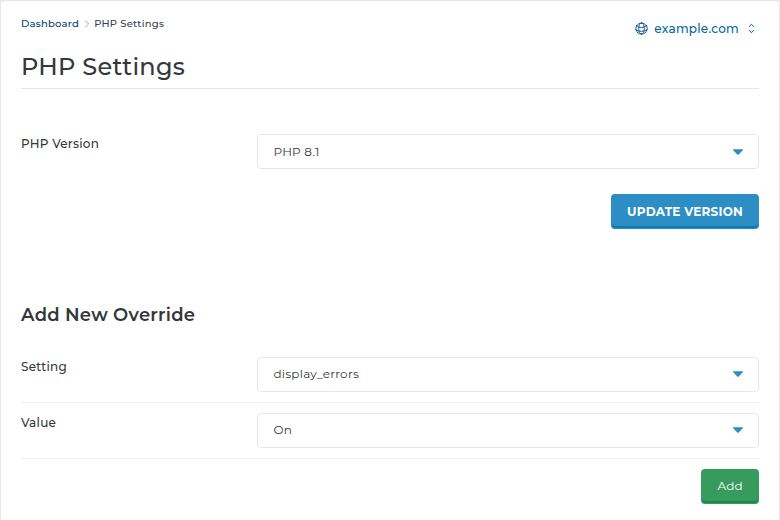
On DirectAdmin, open Account Manager › PHP Settings, choose memory_limit under Add New Override, set the value and click Add. On Webuzo, open the PHP INI Editor page (type its name in the search box at the top of the panel). A .user.ini file works on any panel, or ask support to set the value for you.
| Method | Where it goes | On Domain India shared hosting |
|---|---|---|
| Control panel (cPanel MultiPHP INI Editor) | Set in the panel | First choice where the setting is offered; the panel writes the right file for you |
| .user.ini | Your site's folder, e.g. public_html | Works with PHP-FPM and CGI; applies to that folder and its subfolders |
| php.ini in your folder | Your site's folder | Not reliable; use .user.ini instead |
| .htaccess php_value | Your site's folder | Never: the whole site returns a 500 error |
| ini_set() in code | Inside the PHP script | Can raise memory_limit for that one script, unless the server has locked the value |
Because PHP doesn't run as an Apache module on our shared servers, Apache doesn't recognise php_value or php_flag lines and the whole site returns a 500 Internal Server Error. If you see one after editing .htaccess, remove the line and set the value in .user.ini or your control panel instead. Our 500 Internal Server Error guide covers the other causes.
| Plan level | cPanel | DirectAdmin | Webuzo |
|---|---|---|---|
| Starter | 1 GB | 1 GB | 1 GB |
| Growth (Webuzo: Developer) | 2 GB | 2 GB | 2 GB |
| Business (Webuzo: Agency) | 3 GB | 3 GB | 3 GB |
128M suits a simple PHP site, and 256M covers almost every WordPress and WooCommerce site. Go to 512M only for a known heavy job, such as a large import. If you need more than that for normal page views, look for the cause (section 7) before you raise anything.
- Read the full error.The file path in the message often names the plugin or theme, for example
wp-content/plugins/plugin-name/. Check theerror_logfile in your site folder or your panel's error log for repeated entries; see reviewing error logs in cPanel and DirectAdmin. - Turn on WordPress debug logging.Set
WP_DEBUGandWP_DEBUG_LOGto true to write errors towp-content/debug.log; see how to enable debugging in WordPress. Turn it off again when you're done. - Disable plugins one by one.If you can't reach the dashboard, rename
wp-content/pluginstoplugins-offin File Manager, check whether the site loads, then rename it back and disable plugins one at a time. Switch to a default theme to rule out the theme. - Update or replace the culprit.Update it, check its support forum, or replace it with a lighter alternative.
| Setting | What it controls | Typical value | Error you see when it's too low |
|---|---|---|---|
| upload_max_filesize | Largest single file PHP accepts | 64M | "The uploaded file exceeds the upload_max_filesize directive" |
| post_max_size | Largest whole form or upload request | 64M or more, never less than upload_max_filesize | Upload silently fails or the form arrives empty |
| max_execution_time | Seconds a script may run | 60 to 300 | "Maximum execution time of 30 seconds exceeded" |
| max_input_vars | Number of form fields PHP reads | 3000 to 5000 | Menus or theme options don't save completely |
- 50 GB NVMe SSD Storage
- 100 GB Monthly Bandwidth
- 5 Websites
- 50 Email Accounts
- 30 GB NVMe SSD Storage
- Unmetered Bandwidth
- 5 Websites
- 50 Email Accounts
What does "Allowed memory size of 134217728 bytes exhausted" mean?
A PHP script tried to use more than the 128 MB that PHP's memory_limit allows one request. Raise memory_limit to 256M. If the error continues at 256M or 512M, a plugin, theme or script is using too much memory and needs fixing.
How do I increase the PHP memory limit on cPanel?
Open MultiPHP INI Editor in the Software section of cPanel, choose Basic Mode, select your domain, set memory_limit if it is offered and click Apply. If it isn't offered, put the line memory_limit = 256M in a .user.ini file in your site's folder, or ask support to change it.
Should I use php.ini, .user.ini or .htaccess?
Use your control panel first. If you need a file, use .user.ini, which works with the PHP-FPM and CGI handlers on Domain India shared hosting. Don't use php_value in .htaccess: on our servers it makes the whole site return a 500 error.
How do I check the memory limit my site is really using?
In WordPress, open Tools, Site Health, Info and look under Server. On any PHP site, upload a file containing <?php echo ini_get('memory_limit'); open it in your browser, then delete it. phpinfo() is disabled on our cPanel servers, so don't rely on a phpinfo page.
What memory_limit should I set for WordPress?
256M covers almost every WordPress and WooCommerce site. You can also set WP_MEMORY_LIMIT to 256M and WP_MAX_MEMORY_LIMIT to 512M in wp-config.php, but WordPress can't go above a limit the server has locked or the memory your plan provides.
Can I set memory_limit to -1 or a very high value?
You shouldn't. On shared hosting all your PHP processes share your plan's memory, so an unlimited or very high value lets one faulty script use it all and break the site for other visitors. It doesn't add memory to your plan.
I raised memory_limit but the error still shows the old value. Why?
Another file is probably overriding it, such as an old php.ini or .user.ini in your site folder or a parent folder, or you changed the setting for a different PHP version than the one your site uses. Check the value with an ini_get file, and allow up to 5 minutes for .user.ini changes to apply.
Send us the full error message, the page where it appears and the memory limit you have set. Our team will help you find the cause.
Open a support ticket