An addon domain lets one cPanel hosting account run a second, separate website on its own domain, with its own folder, email addresses and free SSL. Current cPanel has no separate Addon Domains icon: you add it from the Domains page with Create A New Domain and leave Share document root unticked. The site then works as soon as the domain's DNS points to your hosting server.
This page is the short step-by-step. For troubleshooting and the DNS options in more detail, see How to create an addon domain: detailed tutorial. For how addon domains differ from aliases and subdomains, see What is the difference between parked, addon and subdomains.
Open cPanel from the client area, go to Domains › Domains › Create A New Domain, type the new domain, untick Share document root, accept or edit the suggested folder and click Submit. Then point the domain at your hosting using the nameservers or server IP on the Point a domain to this hosting card in the client area. Each addon domain counts towards your plan's website limit.
1. Check three things first
- The domain is registered. It can be registered with Domain India or anywhere else.
- Your plan allows another website. On cPanel, Starter hosts 1 website, Growth 5 and Business 25 (Domain India catalogue, 19 September 2026). On a one-website plan, an addon domain needs an upgrade.
- The domain isn't in another hosting account. If it is, remove it there first, or cPanel will refuse it.
2. Add the addon domain
- Open cPanel.In the client area, open your hosting and click the cPanel button on your domain's row. Other routes are in How to log in to cPanel.
- Open Domains.In the Domains section, click Domains, then Create A New Domain.
- Type the domain.Enter the full name without
www, such assecondbusiness.com. - Untick Share document root.This is what makes it a separate website. Left ticked, the new domain would simply show your main site (an alias).
- Check the folder.cPanel suggests a folder named after the domain. Accepting it is fine; just don't place it inside another site's folder.
- Click Submit.cPanel creates the domain and its DNS zone on the server.
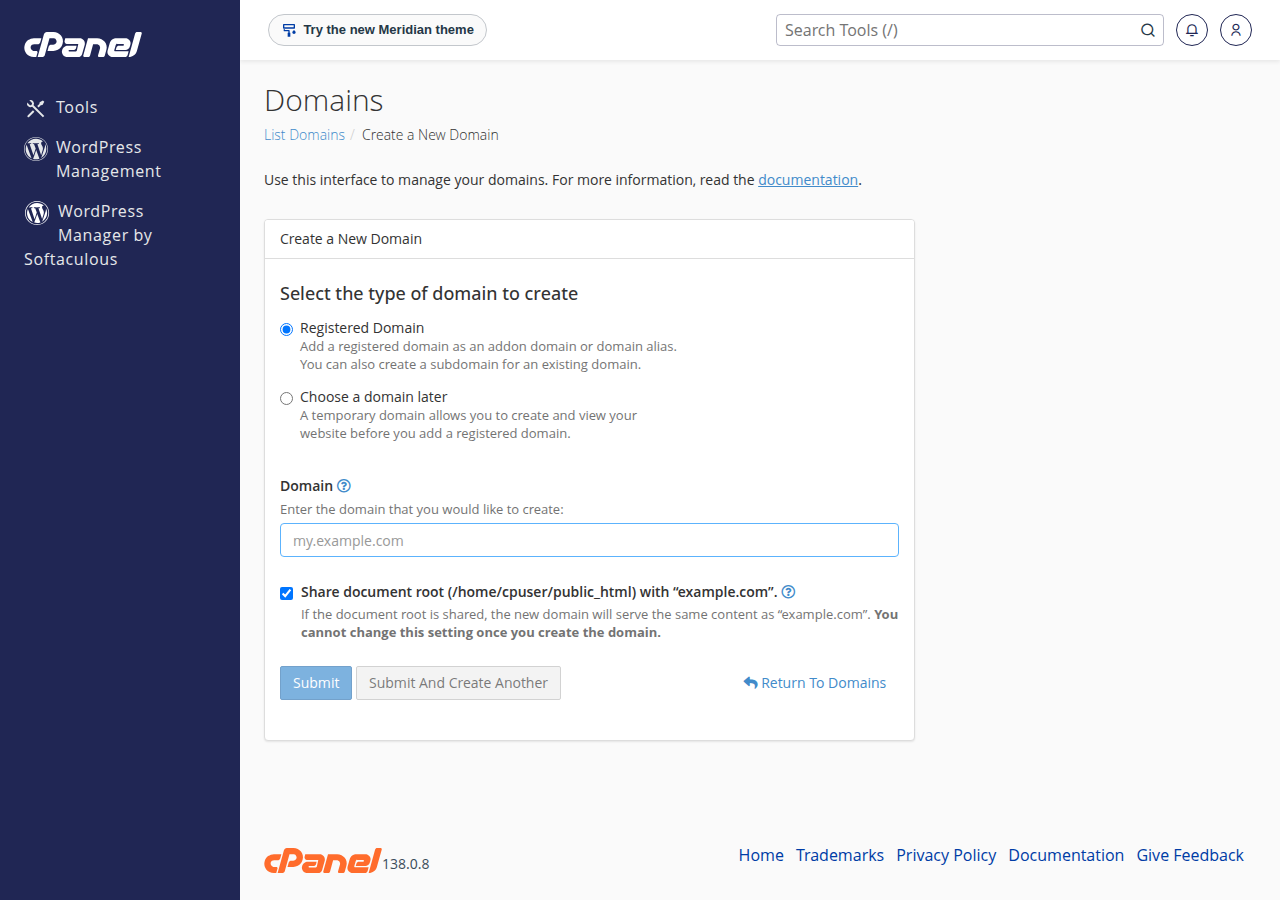
The domain now appears in the list on the Domains page, where you can change its folder or remove it later.
3. Point the domain at your hosting
Adding the domain in cPanel only prepares the server. Visitors reach the new site once the domain's DNS points to your hosting server. Open your hosting service in the client area and use the Point a domain to this hosting card:
- Hosting nameservers: set the domain's nameservers to the ones on the card. Best when the website and email both live on this hosting.
- A records: keep your current DNS and add A records for
@andwwwwith the server IP on the card. Best when your email is elsewhere.
Copy the values from your own card, never from an old article. Step-by-step help is in How do I change my nameservers. DNS changes can take several hours to reach every network.
AutoSSL issues a free Let's Encrypt certificate for the new domain once it points to the server. A certificate warning in the first hours usually means DNS hasn't updated yet.
4. Put the website on it
- WordPress: install it into the new domain's folder with Softaculous or WP Toolkit.
- Your own files: upload them into the new folder with the File Manager or FTP.
- Email: create addresses such as
[email protected]in cPanel's Email section. They share your plan's mailbox limit.
Then open the domain in a browser. If you see a cPanel default page or your old host, DNS isn't pointing at your hosting yet. If cPanel says "A DNS entry for the domain already exists", see fixing the DNS entry already exists error.
Using DirectAdmin rather than cPanel? See adding an addon domain in DirectAdmin.
- 50 GB NVMe SSD Storage
- 100 GB Monthly Bandwidth
- 5 Websites
- 50 Email Accounts
The price on the card is a live Domain India list price and excludes 18% GST.
Frequently asked questions
Where is Addon Domains in the new cPanel?
Current cPanel has no separate Addon Domains icon. Open Domains, click Create A New Domain, enter the domain and untick Share document root. That creates an addon domain with its own folder.
Does an addon domain count against my plan?
Yes. Each addon domain is a separate website and counts towards your plan's website limit. In Domain India's catalogue of 19 September 2026, cPanel Starter hosts 1 website, Growth 5 and Business 25.
Why does my new addon domain not open?
Usually because the domain does not point to your hosting server yet. Set its nameservers, or A records for @ and www, using the values on the Point a domain to this hosting card in the client area, then allow a few hours for DNS to update.
Should I point the domain before or after adding it in cPanel?
Either order works. Adding it in cPanel prepares the server; the site loads and the free SSL certificate is issued once the domain's DNS points to your hosting server.
Can an addon domain have its own email addresses?
Yes. Create mailboxes such as [email protected] in the Email section of cPanel. They count towards your plan's email account limit.
Ready to add your second website? Open your hosting and click the cPanel button. Still need the domain? Register it here. Need room for more sites? Compare cPanel hosting plans.
Growth and Business plans host several websites in one account, each with its own folder, email and free SSL.
See cPanel hosting plans