When a website shows a database error, the message itself usually tells you what is wrong: a wrong password, a user that was never linked to the database, too many connections at once, or a damaged table. This guide goes through the database errors our customers see most on Domain India shared hosting, what each one means, and how to fix it yourself in cPanel, DirectAdmin or Webuzo.
Most database errors on shared hosting come from four settings: host, database name, database user and password. On shared hosting the host is localhost, the names include your account prefix (for example acme_shop), and the password is the database user's password, not your panel password. If those are right, check that the user is added to the database with privileges, then look at connection limits, crashed tables or import settings. If phpMyAdmin itself cannot open your database, open a support ticket.
1. First, find the exact error message
WordPress shows "Error establishing a database connection". Custom PHP code often shows only a blank page or a 500 error, so look in the error_log file in your site's folder. phpMyAdmin shows the error number and text directly, for example #1045 - Access denied for user. Write the message down exactly; it decides which section below applies.
| Error you see | Most likely cause | Go to |
|---|---|---|
| Error establishing a database connection | Wrong details in the config file, or the user is not linked to the database | Section 2 |
| Access denied for user ... (using password: YES) | Wrong password or a user name without the prefix | Section 3 |
| Too many connections / max_user_connections | Too many connections open at the same moment | Section 4 |
| Table ... is marked as crashed and should be repaired | A damaged table, usually after a crash or a full disk | Section 5 |
| Errors during import (#1044, #1227, file too large) | The dump file does not suit shared hosting | Section 6 |
| Unknown collation, or strange characters like é | Character set or collation mismatch | Section 7 |
| Pages load slowly but without errors | Slow queries or heavy plugins | Section 8 |
2. "Error establishing a database connection"
Your website could not log in to its database. On shared hosting this is almost always a settings problem. Check these in order.
- Check the host.For a website on the same hosting account, the host is
localhost. Do not use your domain name, the server IP address or127.0.0.1unless your hosting instructions say so. - Check the database name.Copy it exactly from your control panel's database list. It includes your account username and an underscore at the front, for example
acme_shop, not justshop. Names are case-sensitive. - Check the database user.This also has the prefix, for example
acme_shopuser. It is a separate login from your control panel account. - Check the password.Use the password you set for the database user. Your cPanel, DirectAdmin or client-area password will not work here.
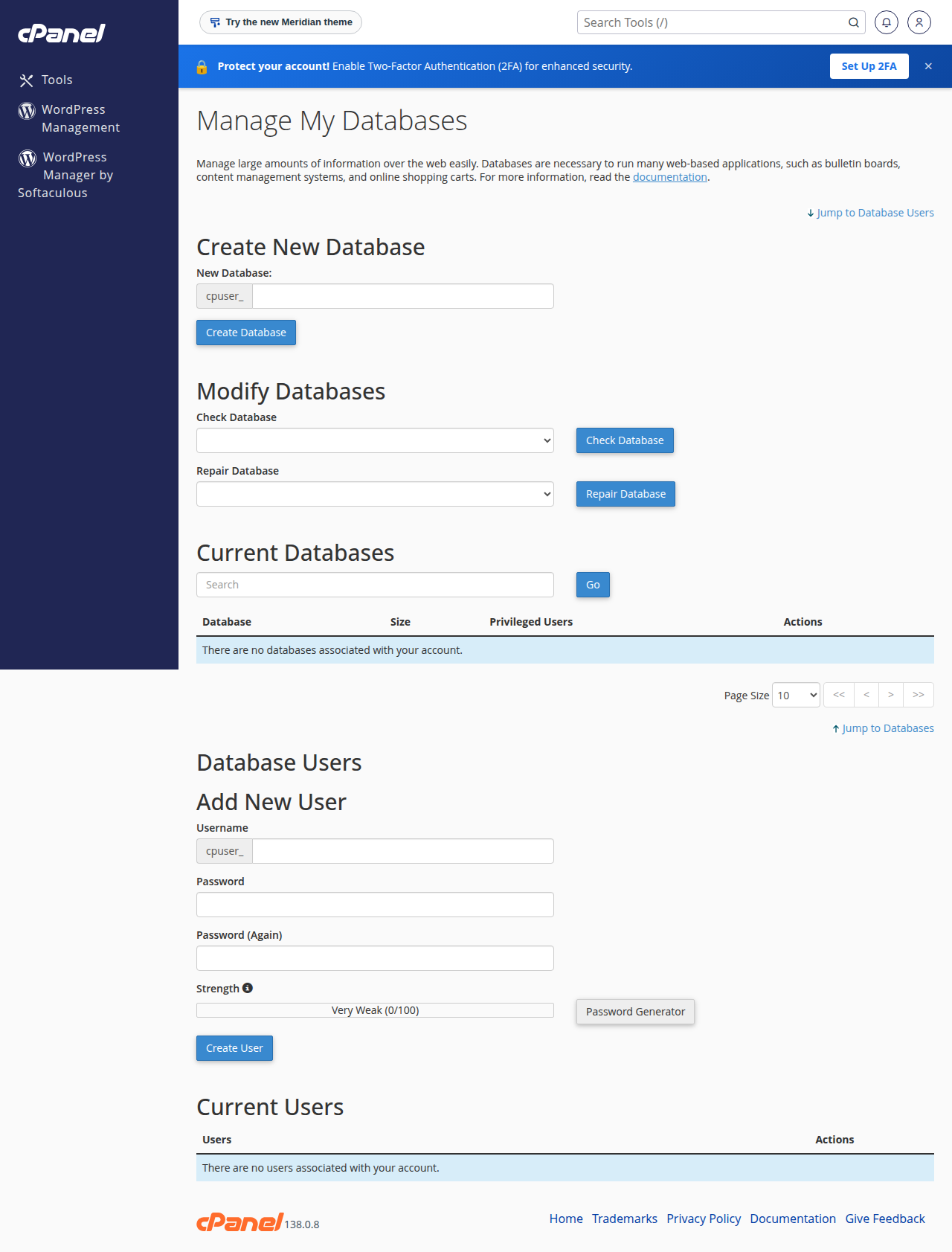
- Check the user is added to the database.Creating a database and a user does not link them. In cPanel, open Manage My Databases, go to Add User To Database, pick the user and the database, and tick ALL PRIVILEGES for a normal website. In DirectAdmin, open Account Manager › Databases and check the database's user list. In Webuzo, check the Database User(s) tab under Database › Manage Databases.
For WordPress, all four values sit in wp-config.php in the site's main folder:
define( 'DB_NAME', 'acme_wp' );
define( 'DB_USER', 'acme_wpuser' );
define( 'DB_PASSWORD', 'the-database-user-password' );
define( 'DB_HOST', 'localhost' );
Did the password change? If you or a developer reset the database user's password in the panel, the website keeps using the old one until you update the config file. The same applies after a migration: the account prefix usually changes with the new username, so all the names change too.
Open phpMyAdmin from your control panel and try the same database user and password. If they work there, the details are right and the mistake is in your config file. If they fail there too, reset the database user's password in the panel and put the new one in the config file.
When it is not your settings. If the details are correct and several sites on your account show the error at once, the database service may have a problem. Open a support ticket with the exact error and the time it started.
To set up a database and user from the start, follow how to connect to the MySQL database.
3. "Access denied for user"
Access denied for user 'acme_shopuser'@'localhost' (using password: YES): the user exists but the password is wrong, or the user is not added to this database. Reset the password in the panel, update your config file, and re-add the user to the database with privileges.(using password: NO): your code sent no password at all. Check that the password line in your config file is filled in and not commented out.Access denied for user 'shopuser'with no prefix: your config file uses the short name. Use the full name shown in the panel.#1044 Access denied for user ... to database ...: the user logged in but has no rights on that database, or the code is trying to reach a database that belongs to another name. Add the user to the correct database.
If a password contains quotes, $ or #, make sure it is quoted correctly in your config file, or generate a new one.
If your installer reports that it could not find the database, see installer could not find database: user is not assigned to database.
4. "Too many connections" and max_user_connections
Each database user on shared hosting may keep only a limited number of connections open at once. Beyond that, visitors see an error such as User acme_shopuser already has more than 'max_user_connections' active connections.
It rarely means you need a bigger plan. It means connections are held open too long or too many requests arrive at once: slow queries, bot floods, pages with no caching, persistent connections (PDO::ATTR_PERSISTENT) that stay open between visits, or cron jobs and imports running at busy hours.
If the error comes with "Resource Limit Is Reached" or 508 errors, your account is also hitting its CloudLinux limits. Check Metrics › Resource Usage in cPanel, as explained in how to check your hosting resource usage.
A plain Too many connections message, without your user name in it, refers to the whole database server rather than your account. If you see that, open a support ticket.
5. "Table is marked as crashed and should be repaired"
A table can be damaged when a write is interrupted, for example when the disk quota fills up during a write or a process is stopped mid-way. The error names the table, for example Table 'acme_wp.wp_options' is marked as crashed and should be repaired.
Back up first: export the database in phpMyAdmin, see how to back up a MySQL database using phpMyAdmin.
Repair in cPanel. Open Manage My Databases. Under Modify Databases, choose the database from Check Database to see which tables are damaged, then choose it from Repair Database and click Repair Database.
Repair in phpMyAdmin (any panel). Open phpMyAdmin, click the database, tick the table named in the error, and choose Repair table from the With selected menu at the bottom. Then reload your site and check that recent content is still there.
WordPress only. You can also add define( 'WP_ALLOW_REPAIR', true ); to wp-config.php and open yourdomain.com/wp-admin/maint/repair.php. Remove the line as soon as you finish, because that page works without a login.
If the repair reports that the storage engine does not support it, or the table stays crashed, don't keep retrying. Open a support ticket with the database and table names. If the disk was full when it happened, free space first, or the table can crash again. Tables that crash repeatedly are often on the older MyISAM engine; converting them to InnoDB (phpMyAdmin, Operations › Storage Engine) makes them far more robust.
6. Import errors
Moving a site usually means importing a .sql file in phpMyAdmin. The common errors:
| Error | Why | Fix |
|---|---|---|
| File too large, or the import stops part-way | The file is bigger than the upload limit, or the import runs out of time | Compress the file, import over SSH if jailed SSH is enabled on your account, or ask support |
| #1044 Access denied ... to database | The dump contains CREATE DATABASE or USE lines for a different name | Delete those lines and import into the database you selected |
| #1227 Access denied; you need SUPER privilege | The dump has DEFINER clauses on views, triggers or procedures | Remove the DEFINER=... parts, or export again without them |
| #1050 Table already exists | You are importing over tables that are still there | Import into an empty database, or export with DROP TABLE statements |
| Unknown collation | The dump came from a newer MySQL version | See section 7 |
Upload limits. phpMyAdmin shows the largest file it accepts on its Import page, next to the file chooser. A dump compresses very well, so export it as .sql.gz (or zip it); phpMyAdmin imports the compressed file directly, which solves most size problems.
Very large databases. If the compressed file is still too big, and jailed SSH is enabled on your account (it is off by default; ask support), you can import from the command line after uploading the file:
gunzip < backup.sql.gz | mysql -u acme_shopuser -p acme_shopIt asks for the database user's password. Tools inside the jailed shell vary, so if mysql is not found, ask support. If you don't have SSH, or the import still fails, open a support ticket and tell us the file name, its size and where you uploaded it. For a full walk-through of creating the database, the user and the import, see importing a MySQL database in cPanel.
7. Character set and collation problems
Unknown collation: 'utf8mb4_0900_ai_ci'. This collation comes from MySQL 8, and MariaDB, which our cPanel and DirectAdmin pages list, does not recognise it in the versions shown there. Search and replace utf8mb4_0900_ai_ci with utf8mb4_unicode_ci in the dump, then import again. phpMyAdmin shows the exact database version on your server.
Garbage characters (é, ’, ????). The data was saved in one character set and read in another. Use utf8mb4 everywhere: in the database and tables, in the export and import settings in phpMyAdmin, and in your code's connection (charset=utf8mb4 in PDO, DB_CHARSET set to utf8mb4 in WordPress). Unlike the old utf8, utf8mb4 also stores emoji and other four-byte characters.
Related: resolving WordPress MySQL charset issues and how to fix the "Row size too large" error.
8. Slow queries and a slow site
If pages load but slowly, the database is often where the time goes: a table without the right index, a WordPress wp_options table full of autoloaded data, or years of post revisions and expired transients.
On WordPress, the free Query Monitor plugin shows the slowest queries on a page and which plugin made them. Clean up revisions, spam comments and expired transients with a fresh backup first. For the full method, read MySQL performance optimisation: diagnosing and fixing slow queries and my website is slow.
9. Connecting from your own computer
Desktop tools such as MySQL Workbench, DBeaver or HeidiSQL cannot connect directly: port 3306 is closed to outside connections on our shared servers (measured September 2026), so a direct connection times out even if you add your IP address under Remote Database Access in the panel.
phpMyAdmin in your control panel works on every plan and needs no setup. Jailed SSH access is available on every shared hosting plan (cPanel, DirectAdmin, Webuzo). It is off by default; ask support to enable it for your account. Once it is on, you can also use an SSH tunnel, logging in with an SSH key rather than a password.
An SSH tunnel carries the database connection inside your SSH login, so MySQL never has to be open to the internet:
ssh -N -L 3307:localhost:3306 [email protected]Leave that window open, then point your tool at host 127.0.0.1, port 3307, with your usual database name, user and password. To get jailed SSH switched on and add your key, see enabling and accessing jailed SSH; for more tunnel options, see securing MySQL access with SSH tunnels. All open ports are listed in our port numbers guide.
10. Where Domain India fits, and when to contact us
Every Domain India cPanel, DirectAdmin and Webuzo plan includes MySQL-compatible databases and phpMyAdmin. Starter plans include 5 databases, the middle plans (Growth, or Developer on Webuzo) include 10, and the higher plans include 50 or more. Prices on the cards below are live and exclude 18% GST.
- 25 GB NVMe SSD Storage
- 50 GB Monthly Bandwidth
- 1 Website
- 10 Email Accounts
- 10 GB NVMe SSD Storage
- 50 GB Monthly Bandwidth
- 1 Website
- 5 Email Accounts
If you need a database server you control yourself, including remote access, a VPS gives you root access. The App Platform includes a managed PostgreSQL database with every plan.
When to open a ticket. Contact us when phpMyAdmin cannot open your database, a repair fails, or an import is too large to finish yourself. Open a ticket at /client/support/new while logged in, or at /support/ticket, with the domain, database name, exact error and when it started. Never send your database password. Support is on 24/7 live chat, and tickets get a first response within 15 minutes; how long a fix takes depends on the problem. We do not offer phone support.
Frequently asked questions
What database host should I use on Domain India shared hosting?
Use localhost for any website or application running on the same hosting account as the database. You do not need the server IP address or your domain name as the database host.
Why does my database name have my username in front of it?
cPanel and DirectAdmin add your account username and an underscore to every database and database user name, for example acme_shop. Your website must use the full name, including the prefix, or the connection fails with "Access denied" or "Unknown database".
How do I fix "max_user_connections" errors?
The error means your database user had too many connections open at once. Add page caching, fix slow queries, slow down bot traffic and turn off persistent connections. Upgrading the plan rarely helps if slow queries are holding connections open.
How do I repair a crashed MySQL table?
Back up the database first. Then in cPanel open Manage My Databases and use Repair Database, or in phpMyAdmin select the table and choose Repair table from the With selected menu. If the repair fails, open a support ticket with the database and table names.
My SQL file is too large to import in phpMyAdmin. What can I do?
Check the maximum size on phpMyAdmin's Import page, then export the database as a compressed .sql.gz file, which phpMyAdmin can import directly. If it is still too large, import it over SSH once jailed SSH is enabled on your account (it is off by default; ask support), or open a support ticket.
Can I connect to my database from MySQL Workbench or another desktop tool?
Not directly, because port 3306 is closed to outside connections on our shared servers. Use phpMyAdmin in your control panel, or an SSH tunnel once jailed SSH is enabled for your account. Jailed SSH is available on every shared plan but is off by default, so ask support to enable it; you log in with an SSH key.
Ready to fix it? Start with how to connect to the MySQL database to check your settings, compare cPanel hosting and DirectAdmin hosting if you need more databases, or open a support ticket if your database still won't work.
Send us the exact error, the database name and when it started, and we will check it with you. Never include your database password.
Open a support ticket