If your domain's email runs on Google Workspace, Microsoft 365, Zoho Mail or another provider and you want it back on the mailboxes included with your Domain India cPanel hosting, the switch is mostly DNS work. You create the mailboxes in cPanel, move your old mail across, then point your MX, SPF and DKIM records back at your hosting. This guide walks through each step in the order that avoids losing mail.
Create the mailboxes in cPanel first and copy your old mail across. Then, wherever your domain's DNS is managed, replace the provider's MX records with your hosting's MX record, rewrite your single SPF record for your hosting server, remove the provider's DKIM record and check cPanel's own DKIM in Email Deliverability. In cPanel, set Email Routing to Local Mail Exchanger. Test sending and receiving, and only then cancel the old provider.
1. Before you start
- Check your plan's mailbox allowance. Every cPanel plan includes email accounts; the number depends on the plan. See cPanel hosting for the current limits.
- Find out where your DNS is managed. Records only work where the internet looks them up. If your domain uses your hosting nameservers, you edit DNS in cPanel's Zone Editor. If it uses another DNS provider, such as Cloudflare, you edit the records there, and changes in cPanel's Zone Editor are ignored. How to change your domain DNS settings shows how to check.
- Don't cancel the old provider yet. You need it running to copy your mail out.
Switching your domain to "Free DNS" in the client area does not make these records work. Keep your domain on your hosting nameservers, or edit the records at your outside DNS provider. See how do I change my nameservers.
2. Create your mailboxes in cPanel
- Open cPanelfrom your hosting service in the client area, or see how to log in to cPanel.
- Open Email Accountsin the Email section and click Create.
- Create each addressyou used with the old provider, with the same spelling, a strong password and a sensible storage quota.
- Repeat for aliases.Addresses that were aliases or groups at the old provider can become Forwarders in cPanel.
The detailed steps are in how to create an email account in cPanel.
3. Copy your old mail across
cPanel mailboxes start empty. To bring your old messages:
- Add both accounts, the old provider's and the new cPanel mailbox, to a desktop mail app such as Thunderbird or Outlook, using IMAP for both.
- Drag the folders you want from the old account to the new one and wait for the copy to finish.
- Export contacts and calendars from the old provider separately; they are not part of IMAP.
Google Workspace and Microsoft 365 may need IMAP enabled for the user, or an app password, before a mail app can connect. For the cPanel side, use the settings in email server details and ports.
4. Point your MX record back to your hosting
Delete every MX record that belongs to the old provider, for example the smtp.google.com or aspmx.l.google.com records, the Microsoft 365 record or the Zoho records. Leaving any of them splits your mail between two places.
Then add your hosting's MX record:
| Your DNS is managed at | MX record to use |
|---|---|
| Your cPanel hosting nameservers | The MX record cPanel creates for the domain: name @, pointing to your domain itself, priority 0. If it was deleted, add it back in Zone Editor. |
| An outside DNS provider (for example Cloudflare) | An MX record for @ pointing to mail.yourdomain.com, plus an A record for mail pointing to your hosting server's IP address. On Cloudflare, set that A record to DNS only, not proxied. |
Your server IP address is on your hosting service's Manage › Access tab in the client area. If you are unsure which value to use, open a ticket before you change anything.
5. Fix SPF, DKIM and DMARC
SPF. A domain may have only one SPF record. Edit the existing TXT record that starts with v=spf1: remove the old provider's include (for example include:_spf.google.com or include:spf.protection.outlook.com) unless you still send mail through that provider. In cPanel, Email Deliverability shows the SPF value your server expects and flags problems.
DKIM. Delete the old provider's DKIM record, for example google._domainkey or Microsoft's selector1._domainkey and selector2._domainkey CNAME records. DKIM is on by default for new cPanel accounts. Open Email Deliverability, check the domain's DKIM status, and follow its instructions if it reports a problem. If your DNS is at an outside provider, copy the DKIM record cPanel shows into that provider's DNS.
DMARC. Keep your _dmarc TXT record if you have one. It is not tied to a provider. If you don't have one, start with monitoring mode:
v=DMARC1; p=none; rua=mailto:[email protected]You can also remove the old provider's domain-verification TXT record once you have left it. For background, see understanding SPF and understanding DKIM.
6. Tell cPanel it handles your mail again
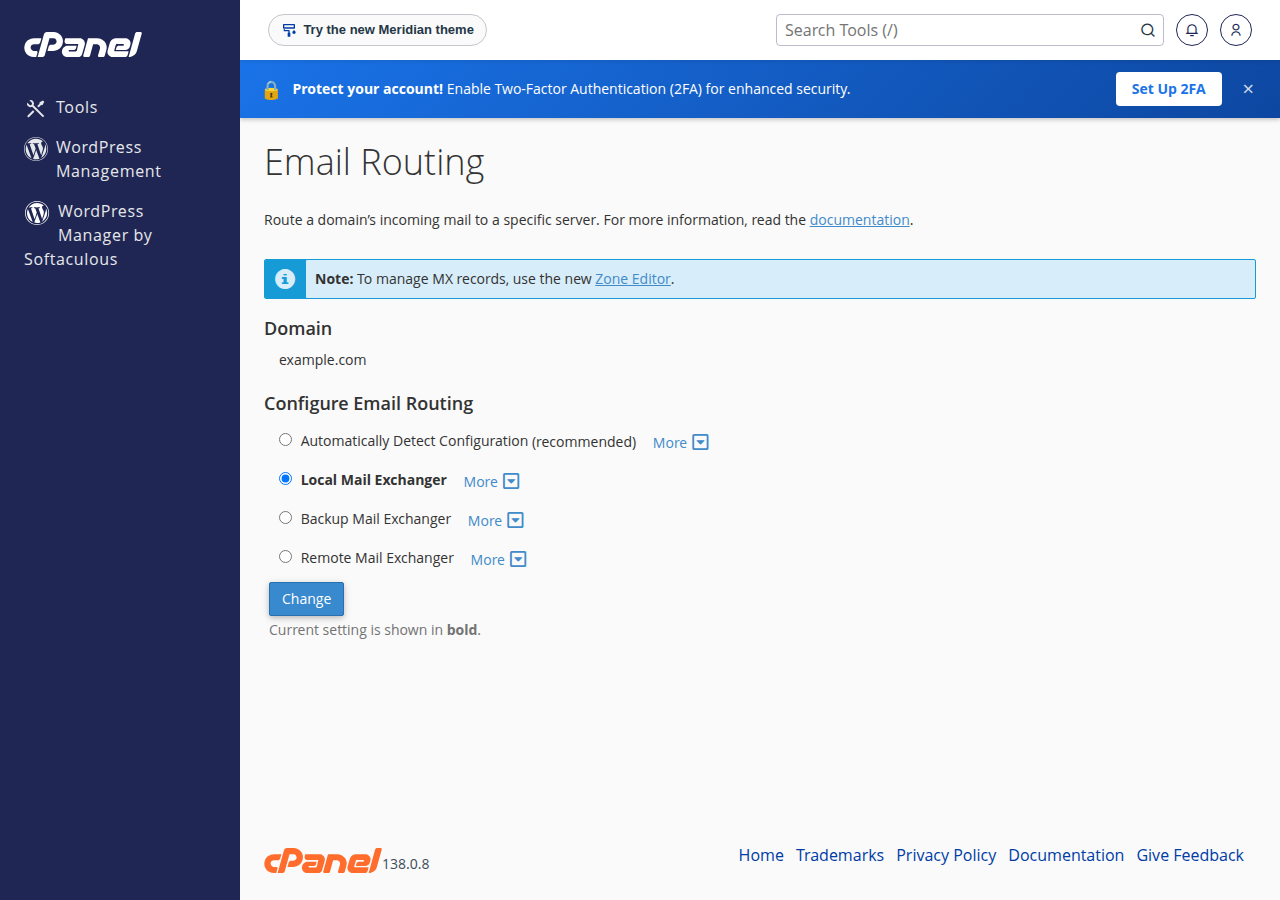
When your mail was elsewhere, cPanel's Email Routing may have been set to Remote Mail Exchanger. In that state, mail your own website sends to your own addresses leaves the server instead of reaching the new mailboxes.
In cPanel, open Email Routing, choose the domain and select Local Mail Exchanger (or Automatically Detect Configuration once your MX record points to the hosting server). Save.
7. Test, then close the old account
DNS changes usually show within an hour and can take up to 24 to 48 hours everywhere. Then:
- Receive.Send a message from an outside address, such as a personal Gmail, to your new mailbox, and check it arrives in cPanel webmail.
- Send and check authentication.Reply from the cPanel mailbox. In Gmail, open the message, choose Show original and check that SPF, DKIM and DMARC say PASS.
- Check your website.Submit your contact form and confirm the notification arrives.
- Reconnect your devices.Remove the old account from phones and mail apps, and add the cPanel mailbox with the settings from the ports guide.
- Cancel the old provideronly when everything works, and after you have copied all the mail you need. Deleting that account usually deletes its mail.
Webmail for cPanel mailboxes opens at https://yourdomain.com/webmail or https://webmail.yourdomain.com; see how to log into webmail.
8. Where Domain India fits
cPanel hosting mail suits most small businesses. Each account can send up to 200 messages per hour, which is plenty for normal business mail but not for newsletters; use a bulk mail service for those. If mail arrives but won't send, see I can receive mail but cannot send it.
If you want mail kept separate from your website hosting, Business Email is a separate mail service priced per mailbox, with webmail at https://mail.yourdomain.com:8443/.
- 25 GB NVMe SSD Storage
- 50 GB Monthly Bandwidth
- 1 Website
- 10 Email Accounts
- Priced per mailbox - start with one
- Email at your own domain ([email protected])
- Add and remove mailboxes yourself
- Webmail with calendar, contacts and tasks
The cards show live Domain India prices, excluding 18% GST.
How do I switch my email from Google Workspace back to cPanel?
Create the mailboxes in cPanel, copy your old mail across with a mail app over IMAP, then replace the Google MX records with your hosting MX record, remove Google from your SPF record, delete the google._domainkey DKIM record and set cPanel Email Routing to Local Mail Exchanger. Test before cancelling Google Workspace.
What MX record should I use for cPanel email?
If your domain uses your hosting nameservers, use the MX record cPanel creates: name @, pointing to your domain itself, priority 0. If your DNS is at an outside provider, point MX to mail.yourdomain.com and add an A record for mail with your hosting server's IP address.
Will I lose emails during the switch?
Not if you create the cPanel mailboxes before changing MX and keep the old provider running until the change has spread. For up to 24 to 48 hours some mail may still arrive at the old provider, so check both until then.
Do I need to change my SPF record?
Yes. A domain can have only one SPF record. Remove the old provider's include unless you still send mail through it, and make sure the record covers your hosting server. cPanel's Email Deliverability page shows the expected value.
Does cPanel sign my mail with DKIM?
DKIM is on by default for new cPanel accounts. Delete the old provider's DKIM record, then check the domain in cPanel's Email Deliverability and follow its instructions if it reports a problem.
Why doesn't mail from my own website reach the new cPanel mailbox?
cPanel's Email Routing is probably still set to Remote Mail Exchanger from when your mail was elsewhere. Set it to Local Mail Exchanger for the domain.
Ready to bring your email home? Check where your DNS is managed in how to change your domain DNS settings, create your mailboxes in cPanel, and if you ever move the other way again, follow configuring third-party email servers with DNS. Stuck on a record? Open a support ticket.
Tell us your domain and where its DNS is managed, and we will check your mail records with you.
Open a support ticket