To set up the email included with your Domain India hosting in any mail app, you need one server name, the right port for each job, and the encryption that goes with that port. This page gives you those settings on one screen. Step-by-step screens for Outlook, Apple Mail, Thunderbird, iPhone and Android are in the full guide.
This page is the quick reference. For app-by-app setup, IMAP vs POP3 and troubleshooting, read Email client settings for popular email clients.
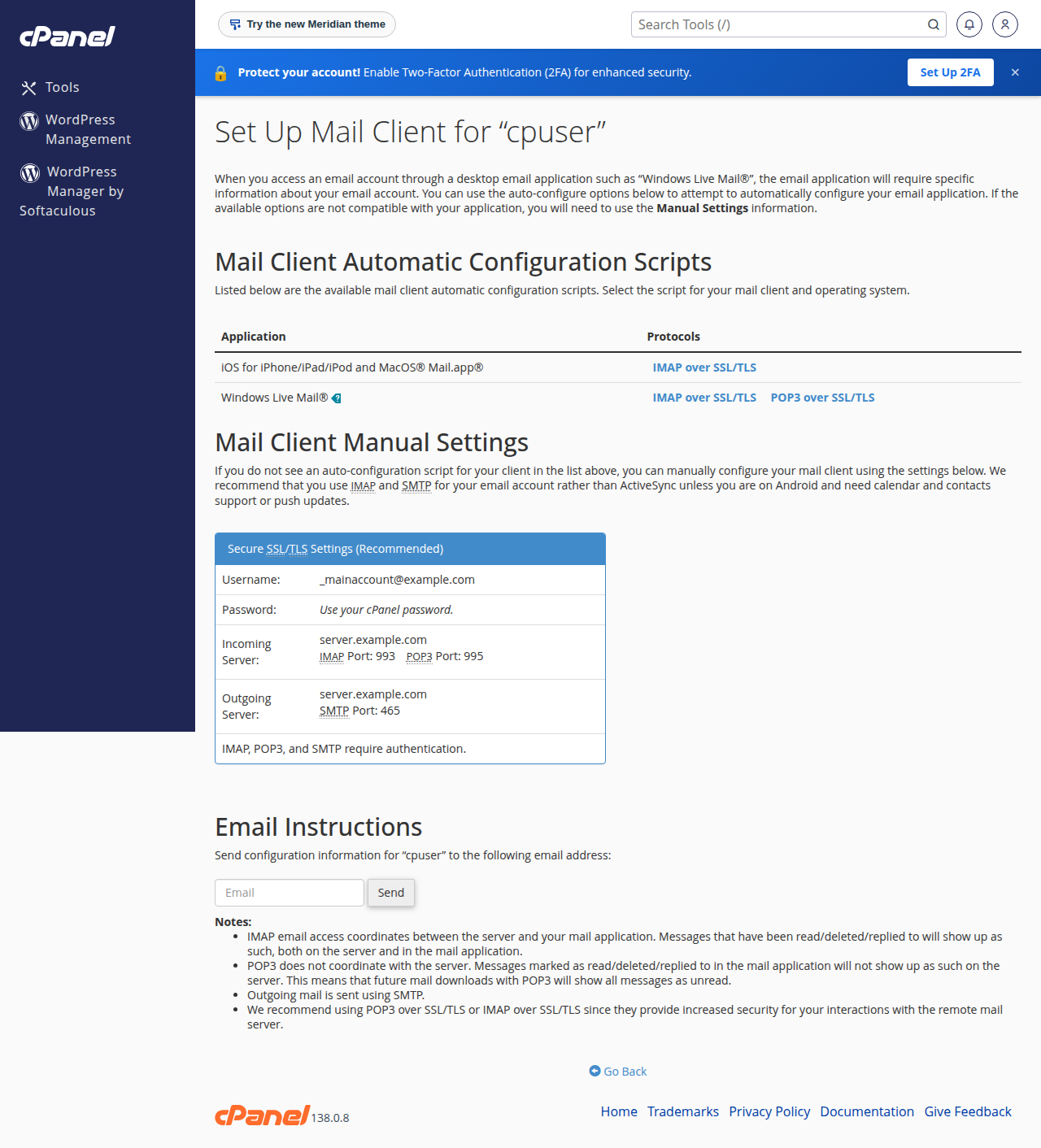
Use mail.yourdomain.com for both incoming and outgoing mail. Choose IMAP on port 993 with SSL/TLS, and send with SMTP on port 465 with SSL/TLS. The username is your full email address and SMTP authentication must be on. Port 587 with STARTTLS also works on cPanel, DirectAdmin and Webuzo, but not on Windows (Plesk). Port 26 is closed on every Domain India server.
1. Check which email you have
These settings are for mailboxes you created in cPanel, DirectAdmin, Webuzo or Plesk as part of a hosting plan.
Domain India Business Email is a separate product with its own settings: it supports IMAP only, with no POP3, and its webmail is at https://mail.yourdomain.com:8443/. If that is what you have, use the Business Email client setup guide instead.
2. Server names and ports
We measured these ports as open on our shared servers on 20 September 2026. Replace yourdomain.com with your own domain.
| Job | Server | Port | Encryption |
|---|---|---|---|
| Incoming, IMAP (recommended) | mail.yourdomain.com | 993 | SSL/TLS |
| Incoming, POP3 | mail.yourdomain.com | 995 | SSL/TLS |
| Outgoing, SMTP (recommended) | mail.yourdomain.com | 465 | SSL/TLS |
| Outgoing, SMTP alternative (not on Windows hosting) | mail.yourdomain.com | 587 | STARTTLS |
Ports and encryption always go together. 993, 995 and 465 pair with SSL/TLS (some apps just say "SSL"). 587 pairs with STARTTLS (some apps say "TLS"). Mixing them, for example 465 with STARTTLS, is the most common reason a new account won't connect.
3. Username, password and authentication
- Username: always your full email address, such as
[email protected]. Don't use any other format. - Password: the mailbox password you set when you created the address. It is not your control panel or client area password. You can change it in your control panel; see managing your email accounts.
- Outgoing authentication: turn on "My outgoing server (SMTP) requires authentication" or the equivalent, using the same username and password as incoming mail.
In cPanel, open Email › Email Accounts and click Connect Devices next to the address. If your app shows a certificate warning for mail.yourdomain.com, use the server name shown on that page instead.
4. Ports to avoid
- 110 (POP3) and 143 (IMAP) without encryption are open, but they send your password across the internet in plain text. Use 995 and 993 instead.
- Port 25 is for servers delivering mail to each other. Many internet providers block it for home and office connections, so don't use it in a mail app.
- Port 26 is closed on every Domain India server. Older guides suggested it; it will time out.
- Port 587 on Windows (Plesk) hosting is closed. Use 465 with SSL/TLS.
The full list of open ports for each server type is in Domain India web hosting port numbers.
5. Quick checks when it won't connect
- Log in to webmail first with the same address and password. If it works there, the problem is in the app's settings. Webmail addresses are in how to log in to webmail.
- Check the port and encryption pair against the table above.
- Receiving works but sending doesn't? SMTP authentication is off, or the outgoing port is wrong. See I can receive mail but I cannot send it.
- Works on mobile data but not on office Wi-Fi? Repeated failed logins from an old password on another device can get that network's IP address blocked. Update the password on every device, then contact support.
Frequently asked questions
What incoming and outgoing mail server should I use for Domain India hosting email?
Use mail.yourdomain.com for both incoming and outgoing mail, replacing yourdomain.com with your own domain. If your app shows a certificate warning, cPanel's Connect Devices page shows the exact server name for your account.
Which ports should I use for IMAP, POP3 and SMTP?
IMAP on port 993, POP3 on port 995 and SMTP on port 465, all with SSL/TLS. On cPanel, DirectAdmin and Webuzo hosting, SMTP on port 587 with STARTTLS also works. Port 587 is closed on Windows (Plesk) hosting.
Can I use port 26 or port 25 to send email?
No. Port 26 is closed on every Domain India server, and port 25 is often blocked by internet providers for mail apps. Send on port 465 with SSL/TLS, or 587 with STARTTLS on Linux hosting.
What username do I enter in my email app?
Your full email address, for example [email protected], with the mailbox password you set in your control panel. It is not your control panel or client area password.
Should I use SSL/TLS or no encryption?
Always use encryption. The unencrypted ports 110 and 143 send your password in plain text. Use 993 for IMAP, 995 for POP3 and 465 for SMTP, all with SSL/TLS.
Do these settings apply to Domain India Business Email?
Not entirely. Business Email is a separate product with its own settings and supports IMAP only, with no POP3. Use the Business Email client setup guide instead.
Ready to set up your devices? Follow the app-by-app steps in Email client settings for popular email clients. If an app still won't connect, open a ticket in the client area or use the public ticket form.
Tell us your email address, the app and device, and the server, port and encryption you entered, and we will check it with you.
Open a support ticket