Split delivery lets one domain keep some mailboxes on one email system and the rest on another: for example, the sales team on Google Workspace and everyone else on the mailboxes that come with your hosting. It is common during a move from one provider to another, or when only some staff need paid mailboxes. This guide explains how it works and how to set it up with Google Workspace and a cPanel hosting account.
A domain can have only one primary mail system: the one your MX records point to. For split delivery, point MX at Google Workspace, create the Google users there, and add a Gmail routing rule that sends mail for addresses Google does not recognise on to your hosting mail server. On the hosting side, set Email Routing to Local Mail Exchanger so the server accepts that mail. Adding a second MX record with a different priority is not split delivery: that only picks a backup server.
1. How split delivery works
Every sender looks up your domain's MX records and delivers to the server with the lowest priority number. That server is the primary. In split delivery:
- All mail for your domain arrives at the primary system.
- The primary delivers mail for the users it knows.
- For any address it does not know, it passes the message on to a secondary server instead of bouncing it.
- The secondary server delivers to its own mailboxes.
Senders see nothing unusual. Each person keeps a normal [email protected] address, whichever system holds the mailbox.
If you list Google and your hosting server as MX records with different priorities, senders use the lowest number and only fall back to the other when it is unreachable. Mail for hosting users that lands at Google is rejected as "user unknown". The routing rule in section 3 is what makes split delivery work.
2. Split, dual or plain: which do you need?
| Setup | What happens | Use it when |
|---|---|---|
| Plain delivery | All mail goes to one system | Everyone uses the same provider |
| Split delivery | Each address is delivered by the system that holds its mailbox | Some users on Google Workspace, the rest on hosting email |
| Dual delivery | Every message is delivered to both systems | Testing a new provider, or keeping a copy during a migration |
This guide covers split delivery with Google Workspace as the primary, which is the setup Google documents and supports. Making hosting email the primary and passing unknown users to Google is possible, but cPanel has no built-in rule for "unknown users go elsewhere", so you would need a forwarder for every Google user.
3. Set up Google Workspace as the primary
Do this before you change MX, so no mail is lost.
- Create the Google users.In the Google Admin console, add a user for every person whose mailbox will live on Google. Anyone not created here will be passed to your hosting.
- Add your hosting server as a mail route.Go to Apps › Google Workspace › Gmail › Hosts, click Add route, and enter your hosting server's host name or IP address with port 25. Your hosting account's server IP is in your client area: open the hosting service at Hosting › My hosting, then the Manage › Access tab. If you are unsure which to use, ask support.
- Add the routing rule.Go to Apps › Google Workspace › Gmail › Default routing and add a setting. Choose All recipients, set the route to the host you added in step 2, and tick Perform this action only on non-recognized addresses. Save.
- Wait a few minutes.Gmail settings can take a short while to apply.
Google moves its Admin console menus from time to time. If a name differs, search Google's help for "split delivery" to find the current path.
4. Point MX at Google
In the DNS for your domain, set the MX record Google shows in your Admin console, currently a single smtp.google.com record with priority 1, and delete every other MX record, including the one pointing to your hosting. Our Google Workspace email configuration guide covers the MX record, domain verification, SPF, DKIM and DMARC in full.
Where you edit DNS depends on your nameservers. If the domain uses your hosting nameservers, edit the zone in your control panel. See how to change your domain's DNS settings.
5. Set up the hosting side
The hosting server must still accept mail for your domain, even though MX now points to Google. In cPanel:
- Open Email Routing in the Email section.
- Select your domain and choose Local Mail Exchanger, not "Automatically Detect". With automatic detection, cPanel sees the Google MX records, treats the domain as remote, and refuses the mail Google passes to it.
- Make sure the mailboxes for your hosting users exist under Email Accounts.
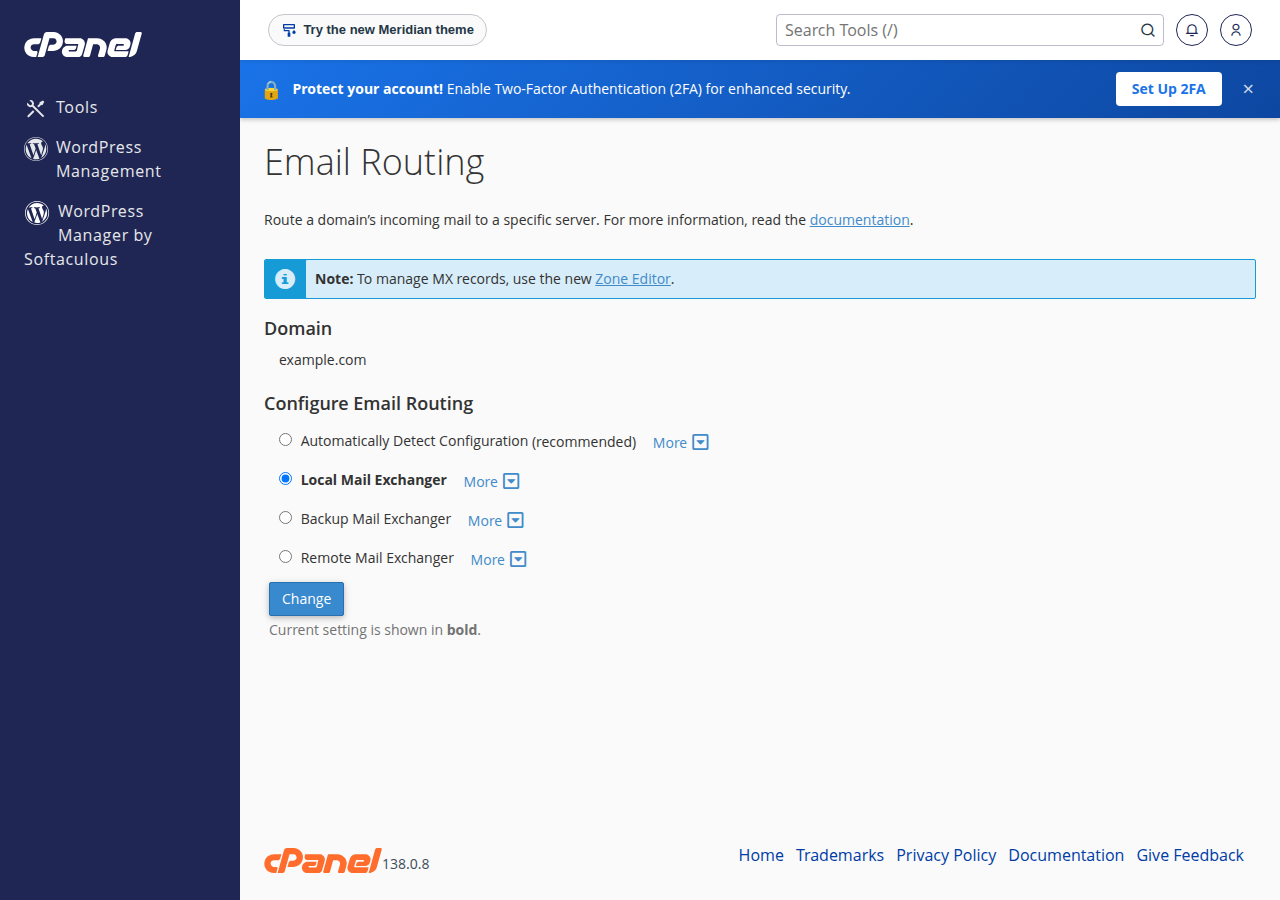
On DirectAdmin and Webuzo, the equivalent setting is named differently; ask support to confirm your domain's mail is set to be handled locally.
With the domain set to local on your hosting, anything sent from the hosting server itself (a hosting mailbox, or your website's contact form) to a colleague whose mailbox is on Google is delivered locally, where that mailbox does not exist, and bounces. Create a forwarder on the hosting side for each Google user, sending to an address Google accepts for them, such as their address on a secondary or alias domain in your Workspace account.
6. SPF when two systems send mail
Both systems now send mail as your domain, so your SPF record must allow both. A domain can have only one SPF record, so combine them:
v=spf1 include:_spf.google.com ip4:SERVER-IP ~allReplace SERVER-IP with your hosting server's IP address from the Access tab, and ask support if you are not sure it is the address your mail leaves from. Set up DKIM on both systems as well. The Google Workspace guide explains the Google side.
7. Test it
- Send a message from an outside address, such as a personal Gmail or Outlook account, to a Google user. It should arrive in Gmail.
- Send one from outside to a hosting user. It should arrive in the hosting mailbox; check through webmail.
- Send from a hosting mailbox to a Google user, to test the forwarder in section 5.
- Send to an address that exists on neither system. It should bounce from your hosting server.
If a hosting user's mail bounces from Google, check the routing rule's "non-recognized addresses" option and the host. If Google says the route was refused, check the hosting side's Email Routing setting.
8. Where Domain India fits
Every Domain India cPanel, DirectAdmin and Webuzo plan includes email accounts on your own domain, so split delivery lets you pay for Google Workspace only for the people who need it. If you would rather keep everyone on one system, Domain India Business Email is priced per mailbox. See Business Email.
- Priced per mailbox - start with one
- Email at your own domain ([email protected])
- Add and remove mailboxes yourself
- Webmail with calendar, contacts and tasks
Prices on the card are Domain India list prices and exclude 18% GST.
What is split delivery in email?
Split delivery lets one domain keep some mailboxes on one email system and the rest on another. All mail arrives at the primary system named in the MX records, which delivers to its own users and passes mail for unknown addresses on to a secondary server.
Can I set up split delivery just by adding two MX records?
No. Senders use the MX record with the lowest priority number and only use the other if the first is unreachable. You need a routing rule on the primary system that sends unrecognised addresses to the secondary server.
Which Email Routing option should cPanel use for split delivery with Google Workspace?
Local Mail Exchanger. Automatic detection sees the Google MX records, treats the domain as remote, and the hosting server then refuses the mail Google passes on to it.
Why does mail from my website to a Google Workspace colleague bounce?
Because the hosting server treats the domain as local and looks for that mailbox on itself. Create a forwarder on the hosting side for each Google user, pointing to an address Google accepts for them.
What is the difference between split delivery and dual delivery?
Split delivery sends each message to the one system that holds the recipient's mailbox. Dual delivery sends a copy of every message to both systems, which is useful for testing or during a migration.
Ready to set it up? Follow the Google Workspace configuration guide for the DNS records, or open a support ticket if you need your hosting server's details or help with Email Routing.
Tell us your domain and which users should be on Google Workspace. We can confirm your hosting server's details and the Email Routing setting.
Open a support ticket