You can create an email address at your own domain, such as [email protected], in about a minute from cPanel. Open Email › Email Accounts, click + Create, choose the name, set a password and a storage limit, and the address works straight away. This page covers the cPanel steps and the settings you need next.
This page covers cPanel only. For DirectAdmin, Webuzo and Business Email, plus DNS records and troubleshooting, read How to create email accounts for your domain.
In cPanel, go to Email › Email Accounts › + Create. Enter the part before the @, pick the domain, set a strong password and a storage quota, then click + Create. The mailbox is ready at once: read mail at https://yourdomain.com/webmail, or add it to a mail app with IMAP on port 993 and SMTP on port 465, using mail.yourdomain.com and the full email address as the username.
1. Create the email account
First log in to cPanel from the Domain India client area; see how to log in to cPanel if you are not sure how.
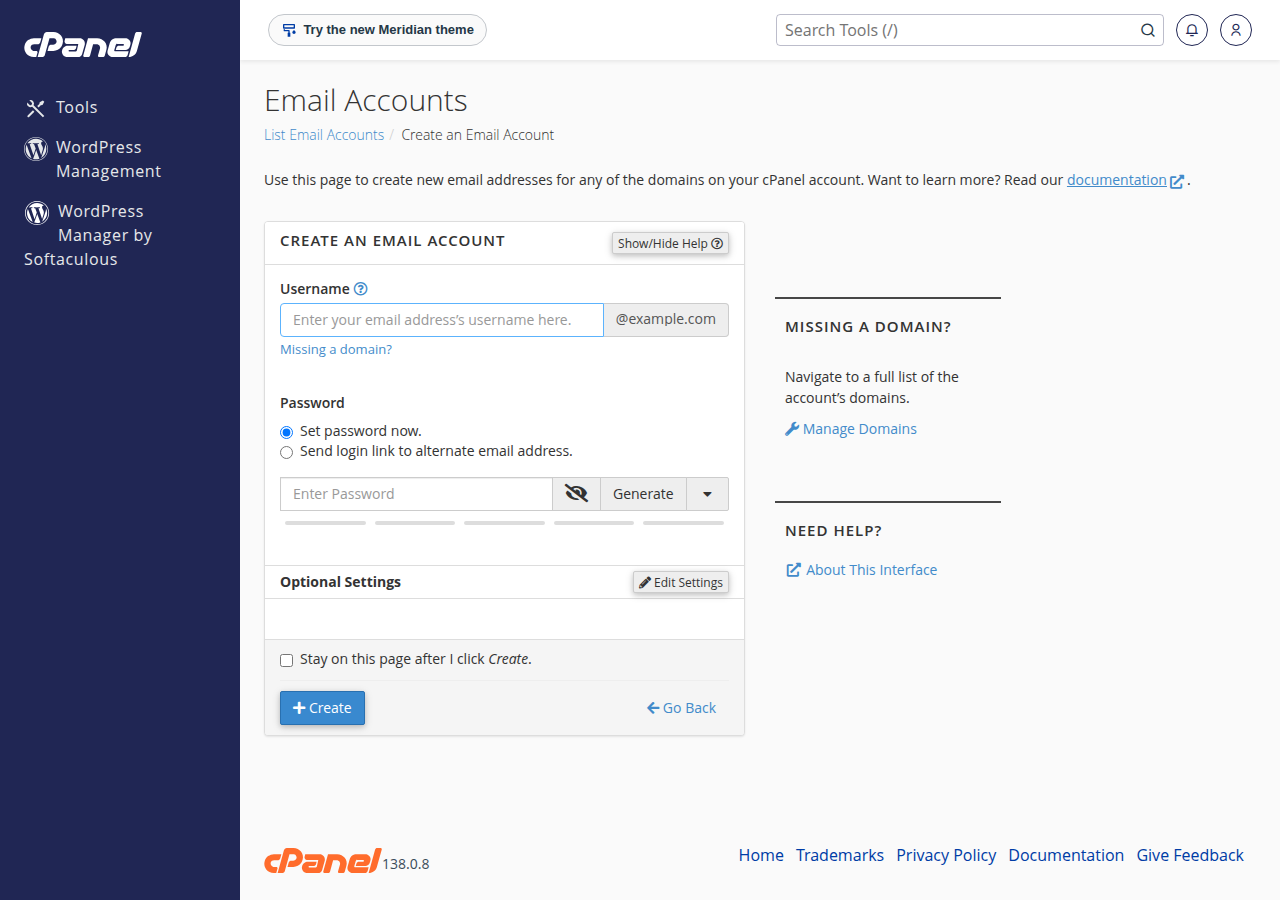
- Open Email Accounts.In the Email section of cPanel, click Email Accounts.
- Click Create.Click the + Create button.
- Choose the address.Type the username, the part before the @, for example
infoorsales. If your account has more than one domain, pick the right one from the list. - Set a password.Type a long, unique password or click Generate. Copy it somewhere safe before you continue.
- Set the storage.Under Storage Space, enter a limit in MB or choose Unlimited. Section 3 explains which to pick.
- Create it.Click + Create. The address works immediately.
The number of email accounts you can create depends on your plan: cPanel Starter includes 10, cPanel Growth 50 and cPanel Business 150 (Domain India plan list, 19 September 2026). If you need more addresses than that, use forwarders or aliases for role addresses, or upgrade the plan.
2. Manage the account later
Back on Email › Email Accounts, each address has buttons of its own:
- Check Email opens webmail for that mailbox.
- Manage lets you change the password, change the storage limit, or restrict the mailbox, for example to pause outgoing mail while you investigate a problem.
- Connect Devices shows the exact server names and ports for mail apps on your account.
- Delete removes the mailbox.
Deleting an email account permanently removes all the mail stored in it. When someone leaves, change the password or set up a forwarder first, and delete the mailbox only after anything important has been saved.
3. Password and storage: what to choose
Password. A mailbox password protects more than the inbox. Anyone who has it can send mail as your business, and a stolen mailbox is the most common way a hosting account starts sending spam. Use a different password for every mailbox and change it when a staff member leaves or a phone is lost.
Storage. Every mailbox shares your plan's disk space with your website, databases and files. A fixed limit per mailbox stops one busy inbox from filling the whole account. When a mailbox reaches its limit, new mail to it bounces back to the sender. See managing your email accounts for changing quotas and cleaning up full mailboxes.
4. Read your mail
Webmail. Any of these addresses opens webmail on our cPanel servers:
https://yourdomain.com/webmailhttps://webmail.yourdomain.comhttps://yourdomain.com:2096
Sign in with the full email address and the mailbox password. More help: how to log in to webmail.
Mail apps. For Outlook, Apple Mail, Thunderbird or a phone, use these settings:
| Setting | Value |
|---|---|
| Incoming server (IMAP) | mail.yourdomain.com, port 993, SSL/TLS |
| Outgoing server (SMTP) | mail.yourdomain.com, port 465, SSL/TLS (or 587 with STARTTLS) |
| Username | Your full email address |
| SMTP authentication | On, with the same username and password |
Choose IMAP rather than POP3, so the same mail appears on every device. If your app warns about the certificate for mail.yourdomain.com, use the server name shown under Connect Devices instead. The full reference is email server details, port numbers and SSL settings.
5. Make sure your mail is delivered
Two checks save most "my email doesn't work" problems:
- MX record. Mail only reaches the mailbox you created if your domain's MX record points to your hosting server. If your domain uses your hosting nameservers, cPanel manages this for you; see how do I change my nameservers.
- SPF and DKIM. In cPanel, open Email › Email Deliverability. It shows whether SPF and DKIM are set up correctly for each domain and offers to install the suggested records. Correct records keep your mail out of recipients' spam folders; for the policy record on top, see setting up DMARC.
Each cPanel account can send 200 messages per hour. Everyday business mail stays well inside that; for newsletters, use a dedicated sending service. See do you limit the amount of mail I can send.
How do I create an email account in cPanel?
Log in to cPanel, open Email › Email Accounts and click + Create. Enter the part before the @, choose the domain, set a strong password and a storage limit, then click + Create. The address works immediately.
How many email accounts can I create on cPanel hosting?
It depends on your plan. On Domain India's plan list of 19 September 2026, cPanel Starter includes 10 email accounts, cPanel Growth 50 and cPanel Business 150. Forwarders and aliases do not count as separate mailboxes.
What is the webmail address for a cPanel email account?
Use https://yourdomain.com/webmail, https://webmail.yourdomain.com or https://yourdomain.com:2096, and sign in with the full email address and its password.
What mail server settings do I use in Outlook or on my phone?
Use mail.yourdomain.com for both incoming and outgoing mail: IMAP on port 993 with SSL/TLS, and SMTP on port 465 with SSL/TLS or 587 with STARTTLS. The username is the full email address, and outgoing authentication must be on.
I created the address, so why does no mail arrive?
Mail goes to whichever server your domain's MX record points to. If it still points to an old provider, new mail goes there. Check the MX record first, then check that the mailbox is not over its storage limit.
How do I change an email account's password in cPanel?
Open Email › Email Accounts, click Manage next to the address, enter the new password and save. Then update the password in every mail app that uses the account.
Ready to set up your address? Log in to cPanel and create it now, or read the full guide to creating email accounts if you use another panel. If you get stuck, open a support ticket and include your domain name.
Tell us your domain and the address you want to create, and our team will help you get it working.
Open a support ticket