Uploading through cPanel's File Manager is the quickest way to get a file onto your hosting, but people often hit a wall with big backups, videos or site archives. The answer depends less on a fixed number than on which route the upload takes and how much disk space your plan has left. This guide gives the limits we measured on our servers and the reliable way to move files of any size.
On Domain India's cPanel server, the File Manager itself sets no fixed per-file cap: an upload only has to leave at least 5 MB free in your plan's disk quota. If you opened cPanel through a cpanel.yourdomain.com address, uploads also pass the web front end, which accepts up to 256 MB per request. In practice, files of a few hundred megabytes and more are more reliable over FTP with TLS, or over SSH if it is enabled for your account. Uploads through your website's own PHP forms are a separate limit: 256 MB on cPanel.
1. The limits we measured
These values were read from our servers on 23 September 2026. Server settings can change, so if a number matters for a project, ask support to confirm it for your account.
| Upload route | Limit on Domain India hosting | What controls it |
|---|---|---|
| cPanel File Manager on the server's cPanel address (port 2083) | No fixed per-file cap; must leave 5 MB free in your disk quota | cPanel's upload settings and your plan's disk space |
| cPanel File Manager opened at cpanel.yourdomain.com | Up to 256 MB per upload request | The web front end in front of cPanel |
| Website uploads through PHP (WordPress media, forms) on cPanel | 256 MB by default | PHP upload_max_filesize and post_max_size, and the same 256 MB front end |
| phpMyAdmin database import on cPanel | 50 MB | phpMyAdmin's own PHP settings |
| DirectAdmin File Manager | 500 MB | DirectAdmin's upload setting |
| Website uploads through PHP on DirectAdmin | 64 MB by default | PHP upload_max_filesize and post_max_size |
| Webuzo | Not measured | Ask support |
| FTP (explicit TLS, port 21) | Your free disk space | Only your quota |
Your plan's disk space is the real ceiling in every case: a cPanel Starter account has 25 GB, Growth 50 GB and Business 100 GB. You can't upload a file bigger than the space you have left.
2. Why a big upload fails even below the limit
A browser upload is one long connection. The bigger the file, the more can go wrong:
- Slow or unstable connection. A 500 MB file on a 10 Mbps upload link takes around seven minutes at full speed; any drop in Wi-Fi or mobile data restarts it from zero.
- Time limits. Browsers, proxies and office firewalls may close a connection that has been open for a long time.
- Disk quota. If the file would leave less than 5 MB free in your quota, cPanel refuses it. Check your disk usage on the cPanel home page before a large upload.
- The browser tab. Closing the tab, or letting the laptop sleep, cancels the upload.
FTP clients handle all of these better: they show progress, retry failed transfers and can resume a partly uploaded file.
3. Upload a whole website: zip first, then extract
If you are moving a website, don't upload hundreds of files one by one. Upload one archive and unpack it on the server.
- Zip the site on your computer.Select the files inside your website folder (not the folder itself) and create a .zip file.
- Open File Manager.Sign in to cPanel (see how to log in to cPanel) and open File Manager under Files.
- Go to the destination.Open public_html, or the folder of an addon domain.
- Upload the zip.Click Upload, choose the file, and wait until the progress bar reaches 100% before you close the tab.
- Extract it.Back in File Manager, select the zip and click Extract. Check that your index file sits directly in public_html.
- Delete the zip.Anyone who guesses its name could download your whole site.
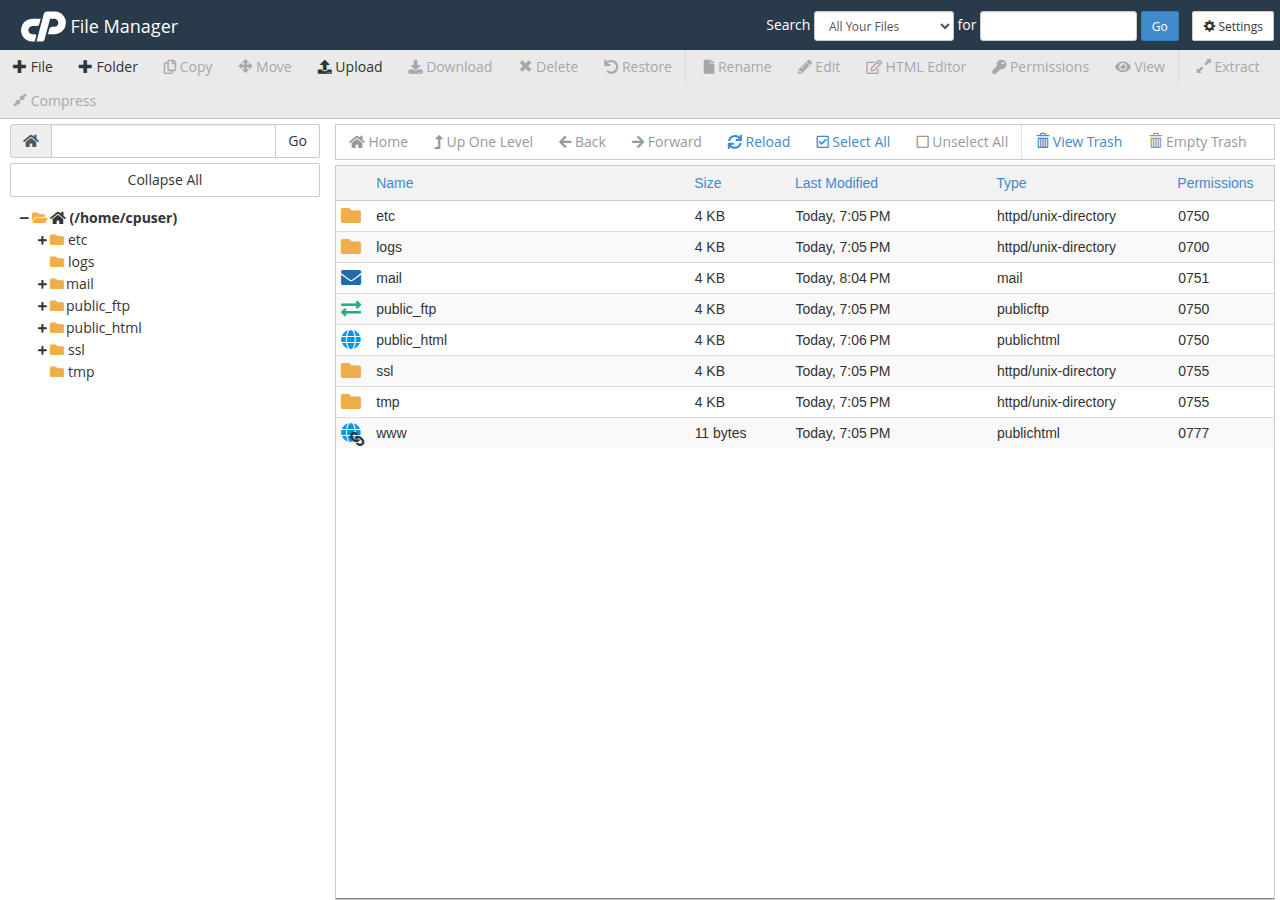
The full walkthrough, including Webuzo and DirectAdmin menus, is in how to use the File Manager.
4. For big files, use FTP with TLS
For files over a few hundred megabytes, or for many files, an FTP client is the reliable route. FileZilla is free for Windows, macOS and Linux.
- Host: your server hostname from the welcome email or the client area (My Hosting › Manage › Access).
- Port: 21, with Require explicit FTP over TLS.
- Username and password: your control panel login, or an extra FTP account.
FTP has no per-file size limit on our servers beyond your disk space, and FileZilla re-queues anything that fails. The settings, certificate checks and common errors are explained in how to use SSL/TLS encryption in FTP clients.
Jailed SSH access is available on every shared hosting plan (cPanel, DirectAdmin, Webuzo). It is off by default; ask support to enable it for your account. Once it is on, you log in with an SSH key and can copy files with scp or SFTP on port 22, and unpack archives on the server. See enabling and accessing jailed SSH.
5. Make the file smaller
Sometimes the easiest fix is a smaller file:
- Compress it. Zip or 7-Zip archives shrink text files such as HTML, CSS, SQL dumps and logs a lot. Images, videos and existing archives barely shrink, because they are already compressed.
- Exclude what you don't need. Cache folders, old backups inside the site and log files often make up most of a site archive.
- Resize media before uploading. A photo straight from a phone can be 5 to 10 MB; resized for the web it is usually well under 500 KB.
- Host long videos elsewhere. Put large videos on a video platform and embed them. They play better for visitors and don't eat your disk space and bandwidth.
6. Large databases need a different route
A database dump is not uploaded through File Manager for import. On cPanel, phpMyAdmin imports files up to 50 MB. For a bigger database:
- compress the .sql file to .sql.gz or .zip, which phpMyAdmin accepts and which is often small enough;
- or, if SSH is enabled for your account, upload the dump by FTP and import it from the command line;
- or open a support ticket with the database name and the file location.
See how to access and manage your MySQL database for the phpMyAdmin steps.
7. Website uploads are a PHP setting, not a File Manager one
If the error appears in WordPress ("The uploaded file exceeds the upload_max_filesize directive") or in your own upload form, the File Manager limit is not involved. That limit belongs to PHP. On our cPanel server the default is 256 MB, and on DirectAdmin it is 64 MB. How to check it and change it for your site is in PHP upload file size limit.
8. Where Domain India hosting fits
If you regularly work with large files, disk space matters more than any upload setting. Every cPanel plan includes File Manager and FTP with TLS; the bigger plans give you more room:
- 50 GB NVMe SSD Storage
- 100 GB Monthly Bandwidth
- 5 Websites
- 50 Email Accounts
- 100 GB NVMe SSD Storage
- Unmetered Bandwidth
- 25 Websites
- 150 Email Accounts
Cards show Domain India list prices on 19 September 2026, excluding 18% GST. You can move to a bigger plan at any time; see can I upgrade my web hosting package. Support is on 24/7 live chat, and tickets get a first response within 15 minutes.
9. Frequently asked questions
What is the maximum file size I can upload in cPanel File Manager?
On Domain India's cPanel server, File Manager has no fixed per-file limit; an upload must leave at least 5 MB free in your disk quota. If you open cPanel through a cpanel.yourdomain.com address, the web front end accepts up to 256 MB per upload. For large files, FTP with TLS is more reliable.
Why does my large upload stop partway?
Browser uploads fail when the connection drops, a firewall closes a long connection, the tab is closed or the file would fill your disk quota. Upload large files with an FTP client such as FileZilla, which retries failed transfers.
How do I upload a file bigger than the File Manager allows?
Use FTP with explicit TLS on port 21, which is limited only by your free disk space, or SFTP on port 22 if jailed SSH has been enabled for your account. You can also compress the file first.
What is the upload limit in DirectAdmin File Manager?
On Domain India's DirectAdmin server the File Manager upload setting is 500 MB, measured on 23 September 2026. Your plan's free disk space still applies.
Is the File Manager limit the same as the WordPress upload limit?
No. WordPress and other PHP applications use PHP's upload_max_filesize and post_max_size. On Domain India's cPanel server both default to 256 MB, and on DirectAdmin to 64 MB.
How big a database can I import with phpMyAdmin?
On Domain India's cPanel server phpMyAdmin imports files up to 50 MB. Compress the .sql file first, or ask support to import a larger database.
Ready to upload? Find your login and FTP details under My Hosting in the client area, or compare cPanel hosting plans if you need more disk space.
Tell us the file size, the method you used and the error you saw, and our support team will help you get the file onto your hosting.
Open a support ticket