cPanel's File Manager lets you upload, delete and edit your website's files straight from your browser, with no FTP program to install. This page covers those three jobs in cPanel, step by step. On a DirectAdmin or Webuzo plan the buttons have different names, but the ideas are the same.
This page covers uploading, deleting and editing. For hidden files, permissions, zipping, moving and the DirectAdmin and Webuzo layouts, read How to use the File Manager.
Open cPanel from the client area (Hosting › My hosting, then the cPanel button on your domain's row), and click File Manager under Files. Open the folder first, usually public_html. To upload, click Upload and drag files in. To edit, select a text file and click Edit, then Save Changes. To delete, click Delete: unless you tick "Skip the trash", the files go to the Trash and you can restore them.
1. Open File Manager in cPanel
- Sign in to the client areaand open Hosting › My hosting.
- Click the cPanel buttonon your domain's row. A new tab opens, already signed in. If nothing opens, allow pop-ups for domainindia.com and click again.
- Click File Managerin the Files section.
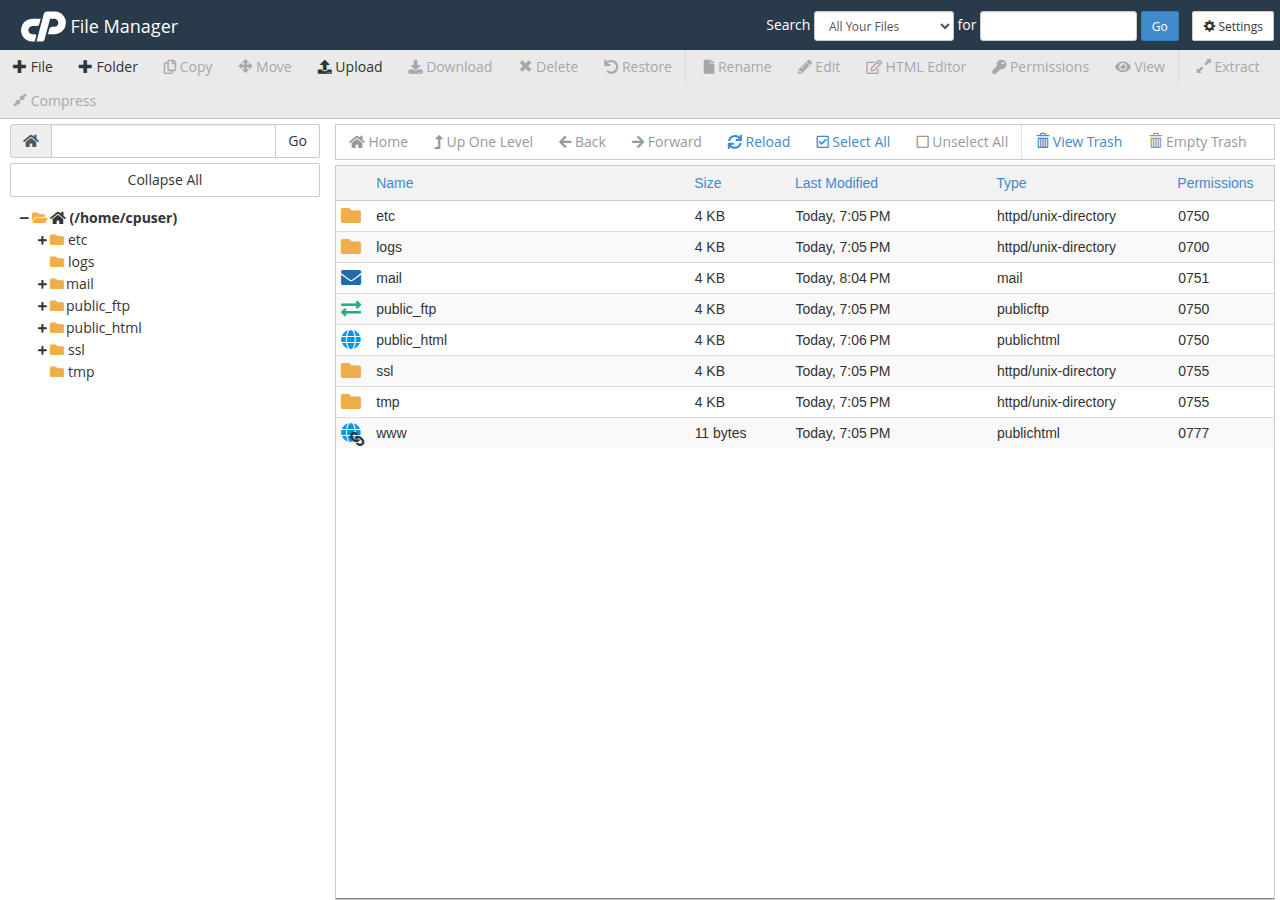
- Open your website folder.Your main website lives in public_html. The folder tree is on the left and the open folder's contents are on the right.
You can also sign in directly at https://yourdomain.com:2083 with the username and password from your welcome email. How to log in to cPanel covers both routes.
2. Upload files
- Open the destination folderfirst, usually public_html. Uploads land in whichever folder is open.
- Click Upload.cPanel opens the upload page in a new tab.
- Drag files in, or click Select File.Tick Overwrite existing files if you are replacing files already on the server.
- Wait for 100%.Each file shows a progress bar. Then click the link back to the folder and refresh it to see the new files.
Browser uploads have a per-file size limit set by the server, and a very large file can time out on a slow connection. You also cannot upload a whole folder tree this way.
Zip your site on your computer (select the files inside the folder, not the folder itself), upload that one zip, then select it and click Extract. Check that your index.html or index.php sits directly inside public_html, not in an extra sub-folder. Delete the zip afterwards, because anyone who guesses its name could download your whole site.
3. Edit a file
Select a text file (.html, .php, .css, .js, .htaccess) and click Edit, or right-click it and choose Edit. cPanel first asks for the character encoding: keep utf-8 unless you know otherwise, then click Edit again. The editor opens in a new tab with line numbers and syntax highlighting. Click Save Changes when you are done.
File Manager cannot edit images or other binary files. Edit those on your computer and upload them again.
One typo in .htaccess, wp-config.php or a theme file can take the whole site offline with a 500 error. Select the file and click Download first, so you keep the original. If the site breaks after you save, put the original back.
4. Delete files and folders
Select the items (hold Ctrl, or Cmd on a Mac, to pick several), then click Delete or right-click and choose Delete. cPanel asks you to confirm.
The confirmation box has a Skip the trash and permanently delete the files option. Leave it unticked and the items go to a Trash folder (.trash in your home folder) instead of disappearing. To bring something back:
- Click View Trashin the toolbar.
- Select what you need back.
- Click Restore.The item returns to the folder it was deleted from.
Items in the Trash still count towards your disk space, so click Empty Trash when you are sure you don't need them. If you ticked "Skip the trash", the file is gone from File Manager, and only a backup can bring it back. See How to back up and restore your website.
5. When to use FTP instead
File Manager suits quick jobs: one upload, a small edit, a zip to extract. For hundreds of files, a very large site, or regular updates, use an FTP client such as FileZilla with encryption turned on. How to download and access files using SSL/TLS in FTP clients has the settings.
Frequently asked questions
How do I upload files in cPanel File Manager?
Open File Manager from the Files section of cPanel, open the destination folder (usually public_html), click Upload, then drag files in or click Select File. Wait for each progress bar to reach 100%, then go back to the folder and refresh it.
Can I recover a file I deleted in cPanel File Manager?
Yes, if you did not tick "Skip the trash and permanently delete the files". Click View Trash, select the file and click Restore. If it was deleted permanently, restore it from a backup.
How do I edit a file in cPanel?
Select the file in File Manager and click Edit, keep the utf-8 encoding and click Edit again. Make your changes in the editor that opens, then click Save Changes. Download a copy of the file first so you can undo a mistake.
Why can't I see my .htaccess file?
Files whose names start with a dot are hidden by default. In cPanel's File Manager, click Settings at the top right, tick Show Hidden Files (dotfiles) and click Save.
How do I upload a whole website through File Manager?
Zip the site on your computer, upload the single zip to public_html, then select it and click Extract. Delete the zip afterwards. For very large sites, use an FTP client instead.
Ready to manage your files? Open your hosting list and click the cPanel button, or read the full File Manager guide. If File Manager shows an error, open a support ticket with your domain name and a screenshot.
Click the cPanel button on your domain's row to go straight in, then open File Manager under Files.
Open My Hosting