An FTP program lets you copy files between your computer and your hosting account: upload a website, download a backup, or edit a single file. Plain FTP sends your username and password across the internet unencrypted, so anyone on the same network path can read them. This guide shows you how to connect securely with FileZilla, WinSCP and Cyberduck, which settings to use on Domain India hosting, and how to fix the errors people hit most often.
Use FTP with explicit TLS on port 21 (FileZilla calls it "Require explicit FTP over TLS"); it works on every Domain India hosting account. SFTP on port 22 is also encrypted, but it needs jailed SSH, which is off by default (ask support to enable it), and it logs in with an SSH key, not a password. For the host, use the server hostname from your welcome email or the client area, keep passive mode on, and never click through a certificate warning without reading it.
1. FTPS or SFTP: which secure option to use
"Secure FTP" can mean two different things. They have similar names but are separate protocols, on separate ports.
| Feature | FTP over TLS (FTPS, explicit) | SFTP |
|---|---|---|
| What it is | Normal FTP, upgraded to an encrypted connection before you log in | File transfer over an SSH connection |
| Port on Domain India hosting | 21 | 22 |
| Setting in your FTP program | FTP, with "Require explicit FTP over TLS" | SFTP - SSH File Transfer Protocol |
| Login | Your control panel username, or an extra FTP account you created | Your control panel username, with your SSH key (password login is off) |
| Where it works | cPanel, DirectAdmin, Webuzo and Windows (Plesk) hosting | cPanel, DirectAdmin and Webuzo, once jailed SSH is enabled for your account |
| Certificate prompt | Yes, it uses an SSL/TLS certificate | No; you confirm the server's SSH key instead |
If you are not sure, use FTPS on port 21. It is available on every hosting account and is just as secure for file transfer.
Two options you should not choose:
- Plain FTP ("Only use plain FTP (insecure)"): your password travels unencrypted.
- Implicit FTP over TLS on port 990: this port is closed on every Domain India server, so the connection simply times out.
On Windows (Plesk) hosting there is no SSH, so SFTP is not available: use FTPS. On cPanel, DirectAdmin and Webuzo, jailed SSH is available on every plan but is off by default, so ask support to enable it for your account. SFTP then logs in with an SSH key only, not your password; see Enabling and accessing jailed SSH.
2. Collect your connection details first
Every FTP program asks for the same four things. Get them right once and save them.
| Setting | What to enter | Where to find it |
|---|---|---|
| Host | Your server hostname | The control panel address in your welcome email, or your hosting service in the client area |
| Port | 21 for FTPS, 22 for SFTP | This guide |
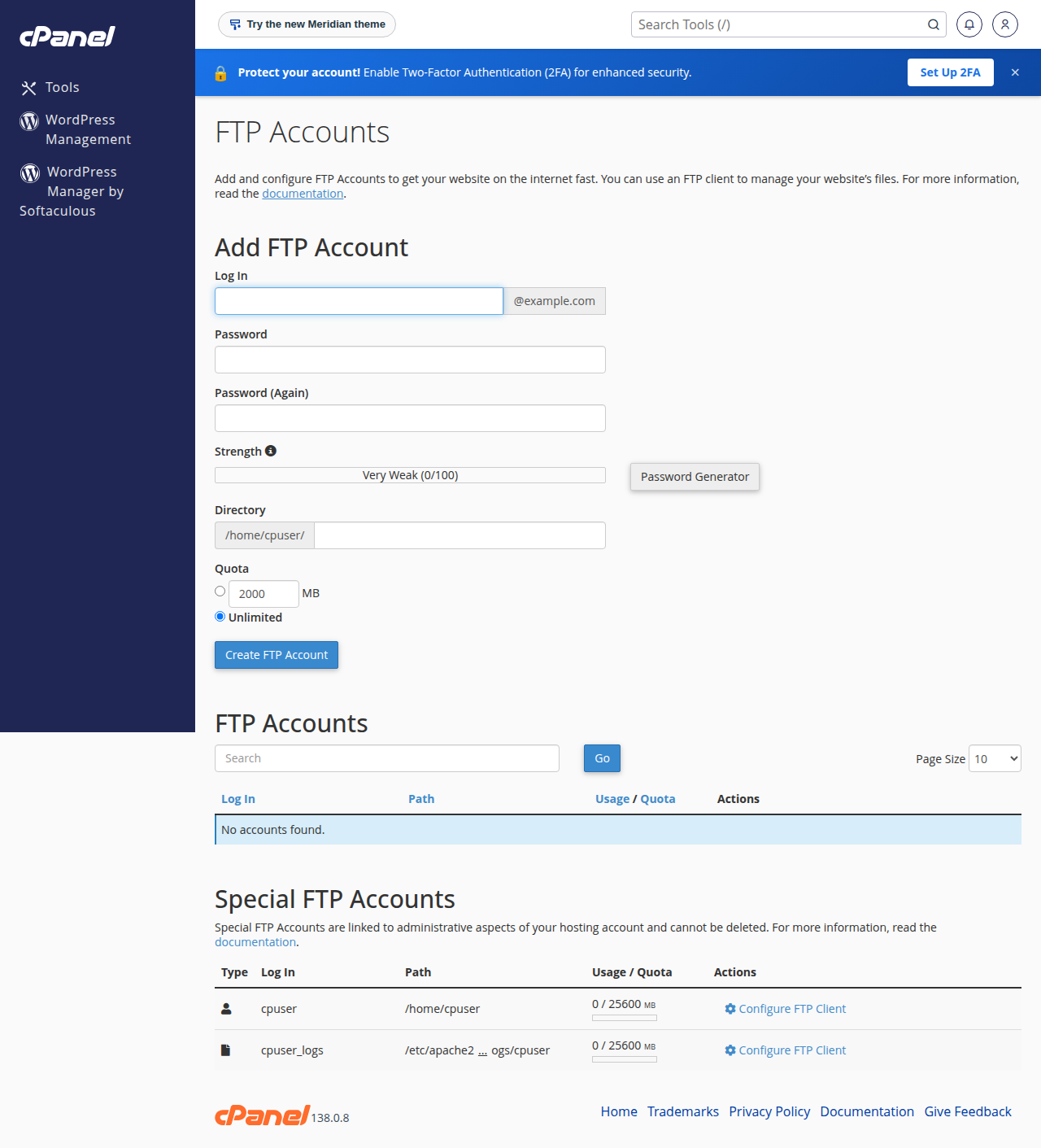
| Username | Your control panel username, or an FTP account such as [email protected] | Welcome email, client area, or the FTP Accounts page in your panel |
| Password | The password for that username (FTPS), or your SSH key instead (SFTP) | Set or reset it in your control panel or client area |
To find them in the client area, open Hosting › My hosting (at /client/services/hosting), then Manage › Access on your service. That tab shows your username, the server IP and the control panel address, and has a button to set a new password. Lost the welcome email? See I didn't get my welcome email or have since lost it.
Why the server hostname and not your domain? The server's TLS certificate is issued for the server's own hostname. If you type your domain or the IP address instead, the connection is still encrypted, but your FTP program warns that the certificate name does not match. Using the hostname avoids that warning, and it also works before your domain points to Domain India.
3. Set up FileZilla (Windows, macOS, Linux)
FileZilla is free and the most widely used FTP program. Download it only from the official site, filezilla-project.org, and untick any extra software the installer offers you.
- Open the Site Manager.Go to File › Site Manager and click New site. Give it a name, such as your domain.
- Choose the protocol.For FTPS, set Protocol to FTP - File Transfer Protocol and Encryption to Require explicit FTP over TLS. For SFTP, set Protocol to SFTP - SSH File Transfer Protocol instead.
- Enter the host and port.Type your server hostname, and port 21 for FTPS or 22 for SFTP.
- Enter your login.Set Logon Type to Normal (saves the password) or Ask for password (safer on a shared computer), then enter your username. For SFTP, choose Key file and select your private key: password login is switched off for SSH.
- Check passive mode.On the Transfer Settings tab, set Transfer mode to Passive. FileZilla's default already uses passive, so this just makes sure.
- Connect.Click Connect. The first time, FileZilla may show the server's certificate (FTPS) or its SSH key fingerprint (SFTP). Read section 6 before you trust it.
Once connected, the left pane is your computer and the right pane is your hosting account. Your website lives in public_html (on DirectAdmin, domains/yourdomain.com/public_html).
- To upload: drag files from the left pane to the right.
- To download: drag files or folders from the right pane to the left, or right-click them and choose Download.
- To check: look at the Failed transfers tab at the bottom of the window. It should be empty; right-click and re-queue anything that failed.
4. Set up WinSCP (Windows)
WinSCP is a free, open-source Windows program. It is a good choice if you prefer a two-pane layout like Windows Explorer.
- Start a new session.Open WinSCP; the Login window appears. Click New Site.
- Choose the protocol.For FTPS, set File protocol to FTP and Encryption to TLS/SSL Explicit encryption. For SFTP, set File protocol to SFTP.
- Enter the details.Type the host name, port 21 (FTPS) or 22 (SFTP), and your username. For FTPS, enter your password. For SFTP, leave the password empty, click Advanced, open SSH › Authentication and select your private key file.
- Check passive mode.Click Advanced, open Connection, and make sure Passive mode is ticked (it is by default).
- Save and log in.Click Save so you do not have to type it again, then Login. If WinSCP asks you to confirm a certificate or host key, read section 6 first.
Download a file by dragging it from the right (server) pane to the left, or select it and press F5 (Copy). WinSCP can also keep a local folder and a server folder in step with Commands › Synchronize, which is handy for updating a site.
5. Set up Cyberduck (macOS and Windows)
Cyberduck is a free program for macOS and Windows with a simple single-window layout.
- Open a connection.Click Open Connection.
- Choose the protocol.From the drop-down at the top, choose FTP-SSL (Explicit AUTH TLS) for FTPS, or SFTP (SSH File Transfer Protocol) for SFTP.
- Enter the details.Type the server hostname, port 21 or 22, and your username. For FTPS, enter your password; for SFTP, choose your private key under SSH Private Key instead.
- Connect.Click Connect. If Cyberduck says it cannot verify the certificate, read section 6 before you continue.
- Save it as a bookmark.Use Bookmark › New Bookmark while connected. In the bookmark's More Options, you can set Connect Mode to Passive if listings hang.
Double-click a file to download it, or drag it to your desktop or a Finder window. Drag files into the Cyberduck window to upload them.
Other programs work too, as long as they offer explicit FTP over TLS or SFTP: for example Transmit on macOS. Use the same host, port and encryption settings.
6. Certificate and key warnings: what they mean
The first time you connect, your FTP program may show the server's certificate (FTPS) or its host key fingerprint (SFTP) and ask whether to trust it. This is a security check, not a formality. Do not simply click "OK" or "Always trust". Read what the warning says.
| What the warning says | What it means | What to do |
|---|---|---|
| The certificate is valid, in date and issued for the server hostname you typed | Normal first-time check | You can trust it, and tick "always trust" so it is not asked again |
| The name does not match: the certificate is for a different hostname than the one you typed | You typed your domain or the IP address, and the server answered with its own hostname's certificate | Cancel, change the Host to the server hostname shown in your welcome email or client area, and connect again |
| The certificate has expired, or is not trusted, for the server hostname from your welcome email | Something is wrong on our side, or the connection is being intercepted | Do not accept it. Open a support ticket with a screenshot of the warning |
| The certificate or key names something you do not recognise at all | You may have typed the wrong host, or someone is intercepting your connection | Stop, check the host you typed, and contact support |
A certificate warning is how your FTP program tells you it cannot prove it is talking to the real server. If you accept a bad certificate, and someone on your network is intercepting the connection, they receive your hosting password. If the warning names our server's hostname and says the certificate is expired or untrusted, tell us rather than clicking through.
For SFTP, the first connection shows the server's host key fingerprint. That is expected once. If your program later says the host key has changed, do not connect; contact support first.
7. Passive mode, firewalls and why listings hang
FTP uses two connections: one for commands on port 21, and a second one for each file listing and transfer. In passive mode your computer opens both connections outward to the server, which works through home routers, office firewalls and mobile networks. In active mode the server tries to connect back to your computer, which most routers block.
So keep your FTP program on passive. If you are on passive and a directory listing still hangs:
- Try another network, such as a mobile hotspot. If it works there, your office or college firewall is blocking the data connections; ask your IT team, or use SFTP if SSH is enabled for your account.
- Pause antivirus "FTP scanning" or a VPN and try again. Some of them interfere with encrypted FTP.
- Reduce simultaneous connections. In FileZilla, Edit › Settings › Transfers, lower the maximum simultaneous transfers to 2. Servers limit how many connections one address may open.
SFTP does not have this problem, because it uses only one connection on port 22.
8. Fix common errors
| Error or symptom | Likely cause | Fix |
|---|---|---|
| 530 Login incorrect / Authentication failed | Wrong password, or an FTP account entered without @yourdomain.com | Copy the username exactly from your panel, reset the password there, and try again. Stop after a few attempts: repeated failures get your IP blocked |
| Connection timed out before login | Wrong host or port, your IP is blocked, or your network blocks the port | Check the host and port, try mobile data, and read I can't reach my server: have I been blocked? |
| Connected, but "Failed to retrieve directory listing" | Data connection blocked: active mode, a firewall or antivirus | Switch to passive mode, pause antivirus FTP scanning, try another network (section 7) |
| "Server did not properly shut down TLS connection" or a GnuTLS error in the log | The encrypted session closed untidily at the end of a transfer | Usually harmless if the file arrived. Check the file size, and update FileZilla if it repeats |
| Timeout on port 990, or "implicit TLS" fails | Implicit FTPS is not offered | Use explicit TLS on port 21 |
| SFTP on port 22 fails, or keeps asking for a password | Jailed SSH is not enabled for your account yet, your public key is not added, or you are on Windows (Plesk) hosting, which has no SSH | Ask support to enable jailed SSH and add your key, or use FTPS on port 21 |
| 421 Too many connections | Too many simultaneous connections from your address | Lower the simultaneous transfers to 2 and reconnect |
| 550 Permission denied, or you cannot see public_html | An FTP account locked to a different folder, or file permissions | Log in with the main account, or check the FTP account's folder in your panel |
More FileZilla messages are explained in FileZilla error messages and solutions, and the full port list is in Domain India hosting port numbers.
9. Good habits for secure file transfer
No FTP program to hand? Your control panel's File Manager does the same job in the browser, over HTTPS. See How to use the File Manager in cPanel, DirectAdmin and Webuzo. For a full upload walkthrough, including where files must go and how to import a database, read What settings do I need to upload my website.
10. Secure FTP on Domain India hosting
Every Domain India shared hosting plan includes FTP with explicit TLS on port 21, extra FTP accounts you can lock to a folder, and a browser File Manager. SFTP on port 22 needs jailed SSH, which is available on every shared plan but off by default; ask support to enable it, as explained in section 1. The cards below show today's price for each starting plan; they are Domain India list prices, excluding 18% GST.
- 25 GB NVMe SSD Storage
- 50 GB Monthly Bandwidth
- 1 Website
- 10 Email Accounts
- 10 GB NVMe SSD Storage
- 50 GB Monthly Bandwidth
- 1 Website
- 5 Email Accounts
- 10 GB NVMe SSD Storage
- 50 GB Monthly Bandwidth
- 1 Website
- 5 Email Accounts
If a connection still fails after this guide, our support team is available on 24/7 live chat, and tickets get a first response within 15 minutes. Include your server hostname, the program you use and a screenshot of the error or certificate warning.
What is the difference between FTPS and SFTP?
FTPS is normal FTP protected with TLS encryption, and on Domain India hosting it uses port 21 with explicit TLS. SFTP is a different protocol that transfers files over an SSH connection on port 22. Both encrypt your password and files. FTPS works on every Domain India hosting account; SFTP works on cPanel, DirectAdmin and Webuzo once jailed SSH is enabled for your account; it is off by default, so ask support, and it logs in with an SSH key.
Which port do I use for secure FTP on Domain India hosting?
Use port 21 with "Require explicit FTP over TLS" for FTPS, or port 22 for SFTP if SSH is enabled for your account. Port 990 (implicit FTPS) is closed on every Domain India server, so do not use it.
What host name should I enter in my FTP program?
Enter the server hostname shown in your hosting welcome email or in the client area under Hosting, My hosting, Manage, Access. The server's certificate is issued for that hostname, so using it avoids a certificate name warning, and it works even before your domain points to Domain India.
My FTP program shows a certificate warning. Should I accept it?
Only if the certificate is valid, in date and issued for the server hostname you typed. If it names a different hostname, change the Host to the server hostname and reconnect. If it is expired or untrusted for our server's hostname, do not accept it; open a support ticket with a screenshot.
Can I use SFTP on DirectAdmin or Windows hosting?
Not on Windows (Plesk) hosting, which has no SSH. On DirectAdmin hosting, yes: jailed SSH is available but off by default, so ask support to enable it, then connect on port 22 with your SSH key. Until then, use FTP with explicit TLS on port 21. Both are encrypted.
Why does FileZilla connect but fail to list the folder?
The listing uses a second data connection, which firewalls and routers often block. Set the transfer mode to Passive, pause any antivirus FTP scanning or VPN, and try a different network such as a mobile hotspot to find out whether your office network is the cause.
How do I download files from my hosting to my computer?
Connect with your FTP program, find the file or folder in the server pane on the right, and drag it to a folder on your computer in the left pane. In FileZilla you can also right-click and choose Download. The transfer is encrypted if you connected with FTPS or SFTP.
Is it safe to use plain FTP?
No. Plain FTP sends your username, password and files unencrypted, so anyone who can see your network traffic can read them. Always choose explicit FTP over TLS or SFTP.
Ready to connect? Find your hosting details under My Hosting in the client area, or open a support ticket if something will not connect. Looking for hosting? Compare cPanel, DirectAdmin and Webuzo plans.
Send us your server hostname, the FTP program you use and a screenshot of the error, and our support team will help you connect securely.
Open a support ticket