Yes. Every Domain India shared web hosting plan, Linux or Windows, includes a File Manager that runs in your web browser, so you can upload, edit and delete your website's files without installing an FTP program. This page shows where to find it on each control panel, how to upload, and when an FTP client is the better tool.
For editing, permissions, zipping, the Trash and more, read How to use the File Manager. DirectAdmin users can also follow Using the File Manager in DirectAdmin.
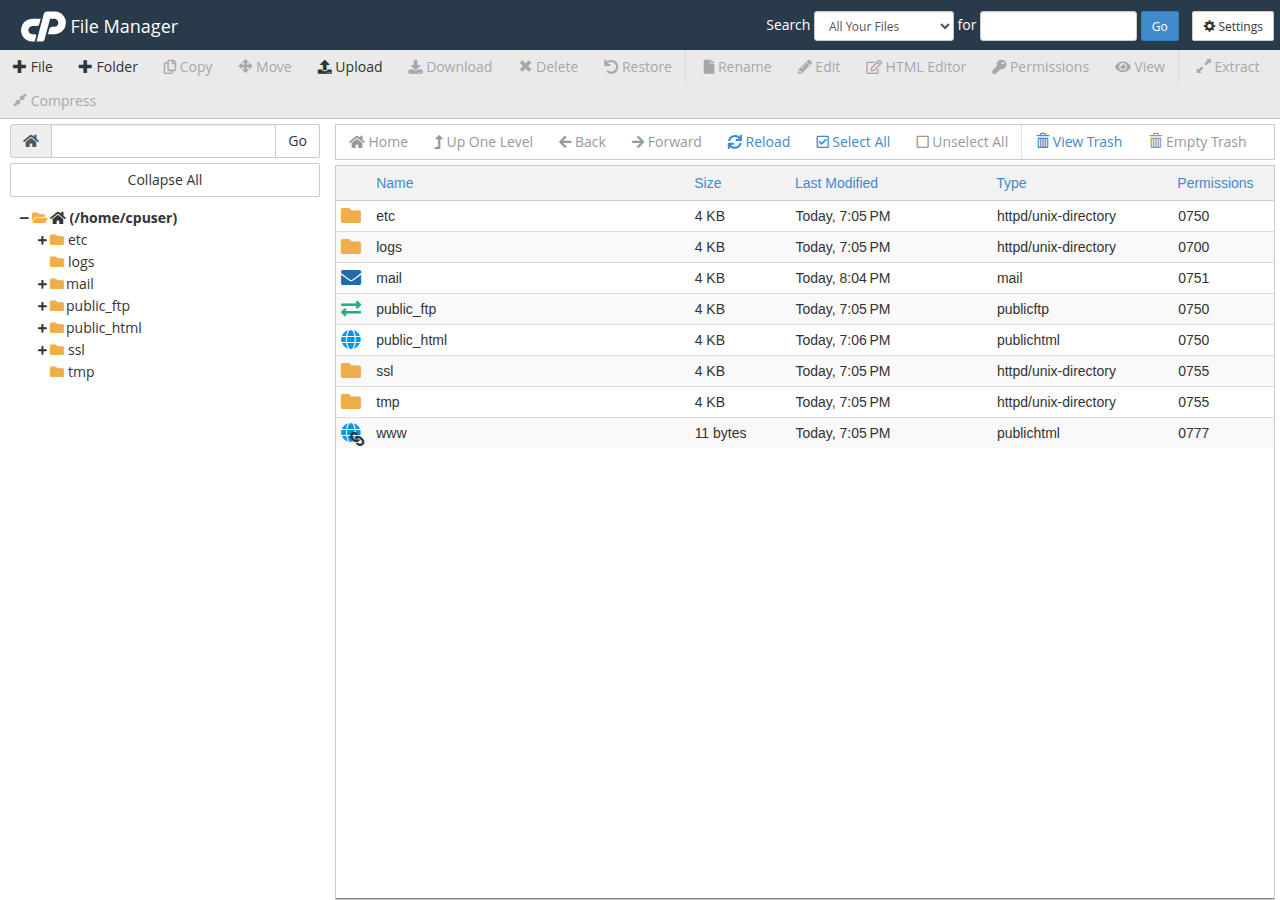
Yes. cPanel, DirectAdmin and Webuzo (our Linux hosting panels) and Plesk (our Windows hosting panel) each have a File Manager. Open your panel from the client area under Hosting › My hosting, open File Manager, go to your website folder (usually public_html) and click Upload. Browser uploads have a per-file size limit, so use an FTP client with encryption for large sites or many files.
1. Which File Manager you have
| Control panel | Hosting type | Where File Manager is |
|---|---|---|
| cPanel | Linux shared hosting | Files section › File Manager |
| DirectAdmin | Linux shared hosting | System Info & Files › File Manager |
| Webuzo | Linux shared hosting | File Manager on the dashboard, or search "file" |
| Plesk | Windows hosting | Files, or File Manager under your website |
Not sure which panel you have? The button on your hosting row is labelled with its name.
2. Open it from the client area
- Sign inand open Hosting › My hosting.
- Click the panel buttonon your domain's row, for example cPanel or DirectAdmin. A new tab opens. If nothing opens, allow pop-ups for domainindia.com and click again.
- Open File Managerfrom the place shown in the table above.
- Go to your website folder.On cPanel and Webuzo the main site is in
public_html; on DirectAdmin it isdomains/yourdomain.com/public_html.
The one-click button signs you straight in on cPanel and DirectAdmin, and usually on Plesk. On Webuzo, log in at https://yourdomain.com:2003 with the username and password from your welcome email. If you no longer have your Webuzo password, open a support ticket rather than using the client-area reset.
For every login route and port, see How to log in to cPanel.
3. Upload files in cPanel
- Open the destination folderfirst, usually public_html. Uploads land in whichever folder is open.
- Click Upload.cPanel opens the upload page in a new tab.
- Drag files in, or click Select File.Tick Overwrite existing files if you are replacing files already on the server.
- Wait for 100%.Then go back to the folder and refresh it to see the new files.
In DirectAdmin, open the folder and click Upload files to current directory. Webuzo and Plesk also have an Upload button in their file manager toolbars.
Zip the site on your computer (the files inside the folder, not the folder itself), upload the one zip, then select it and click Extract. Make sure index.html or index.php ends up directly inside public_html. Delete the zip afterwards, because anyone who guesses its name could download your site.
4. Upload size limits
Browser uploads have a per-file size limit set by the server, and a very large file can also time out on a slow connection. You cannot upload a whole folder tree in one go either. If an upload stalls or fails, zip the files into smaller archives, or switch to FTP.
5. When to use FTP instead
File Manager suits quick jobs. Use an FTP client such as FileZilla when you:
- move hundreds of files or a very large site;
- update the same files often and want to sync folders;
- need to resume a transfer that was interrupted.
Connect with explicit FTP over TLS on port 21, so your password is encrypted. How to download and access files using SSL/TLS in FTP clients has the settings for FileZilla, WinSCP and Cyberduck.
Typing an ftp:// address into your browser no longer works: the major browsers removed FTP support in 2021. How to use Web FTP explains the alternatives, and why third-party "online FTP" sites are a bad place to type your hosting password.
Frequently asked questions
Can I upload files without an FTP program?
Yes. Every Domain India shared web hosting plan includes a browser-based File Manager in its control panel: cPanel, DirectAdmin and Webuzo on Linux hosting, and Plesk on Windows hosting. Open it, go to your website folder and click Upload.
Where is File Manager in cPanel?
Log in to cPanel and open the Files section, then click File Manager. Your main website's files are in the public_html folder.
Is there a limit on upload size in File Manager?
Yes. Browser uploads have a per-file size limit set by the server, and very large files can time out. For large files or whole sites, upload one zip and extract it on the server, or use an FTP client with encryption.
The Webuzo button only shows a login page. What do I do?
Webuzo always needs your Webuzo username and password, from your welcome email. Log in at https://yourdomain.com:2003; if the button doesn't open the panel, use that address. If you no longer have that password, open a support ticket.
Can I use ftp:// in Chrome or Firefox instead?
No. Chrome, Edge and Firefox removed FTP support in 2021. Use your control panel's File Manager in the browser, or an FTP client such as FileZilla with explicit FTP over TLS on port 21.
Ready to upload your site? Open your hosting list and click your panel's button, then follow What settings do I need to upload my website? for FTP and database settings. If an upload keeps failing, open a support ticket with your domain name and a screenshot.
Click your control panel's button on your domain's row, then open File Manager and click Upload.
Open My Hosting