Most Webuzo problems come down to a handful of causes: a login that goes to the wrong place, an app install that runs out of room, a database password that doesn't match, a domain that doesn't point to the server yet, or a PHP setting in the wrong file. This guide covers the common errors and their fixes. What you can fix yourself depends on where Webuzo runs, so start by checking which kind of Webuzo you have.
On Webuzo shared hosting, you fix things inside your panel and your files; you can't restart services or change the server, so anything server-side goes to support. On a VPS where you installed Webuzo yourself, you are the administrator and can restart services, open firewall ports and read the logs. Most errors on both are DNS not pointing to the server, a full disk quota, wrong database details in the app's config file, or PHP settings placed in .htaccess, which gives a 500 error on our servers.
1. First, which Webuzo do you have?
| Question | Webuzo shared hosting | Webuzo on your own VPS |
|---|---|---|
| Who runs the server | Domain India | You (the VPS is self-managed) |
| Restart services, change firewall | No, ask support | Yes, as root |
| Panel login | yourdomain.com:2003 (Webuzo login page) | The admin address from your Webuzo install |
| Where to get help | Live chat or a ticket | Webuzo's documentation; support for VPS-level issues |
Sections 2 to 8 apply to shared hosting and mostly to a VPS too. Section 9 is only for a VPS you manage yourself.
2. The panel won't open, or the password is rejected
- Use the right address. Log in at
https://yourdomain.com:2003with your Webuzo username and password. If the Webuzo button in your hosting services doesn't open the panel, use this address. Your username is on the Manage › Access tab. - Bookmarked an old panel address? Bookmark
https://yourdomain.com:2003instead. Typed or bookmarked addresses with another port number may not match the current panel. - Forgot the password? The Reset password button on the Access tab doesn't work for Webuzo accounts yet. Contact support by live chat or a ticket and we will reset it. Never send your password in a ticket.
- The page times out from one network only? Repeated failed logins, often from a phone or FTP app with an old saved password, can get your IP address blocked by the server firewall. Contact support with your public IP address; see I can't reach my server: have I been blocked?.
Your Webuzo password and your client-area password are separate. See Webuzo panel login and A complete guide to Webuzo.
3. "Unable to install application" in Softaculous
- Check your disk space.A full quota stops the download and the install. Delete old backups, logs and unused apps, then try again.
- Check the target folder is empty.Softaculous may refuse to install into a folder that already has files, for example a
public_htmlwith an oldindex.html. Remove them or pick another folder. - Check your plan's limits.Each install needs a database. If you have used all the databases or websites your plan allows, the install fails; delete an unused one or upgrade.
- Check the app's PHP requirement.Our Webuzo server offers only PHP 8.0 and 8.1, both past end of life. An app that needs PHP 8.2 or newer will not install there. Check the app's requirements, and ask support if you are unsure.
- Retry once, then ask.Note the exact error message and open a ticket with the domain and app name.
More install-specific fixes are in Webuzo app install issues.
4. "Error establishing a database connection"
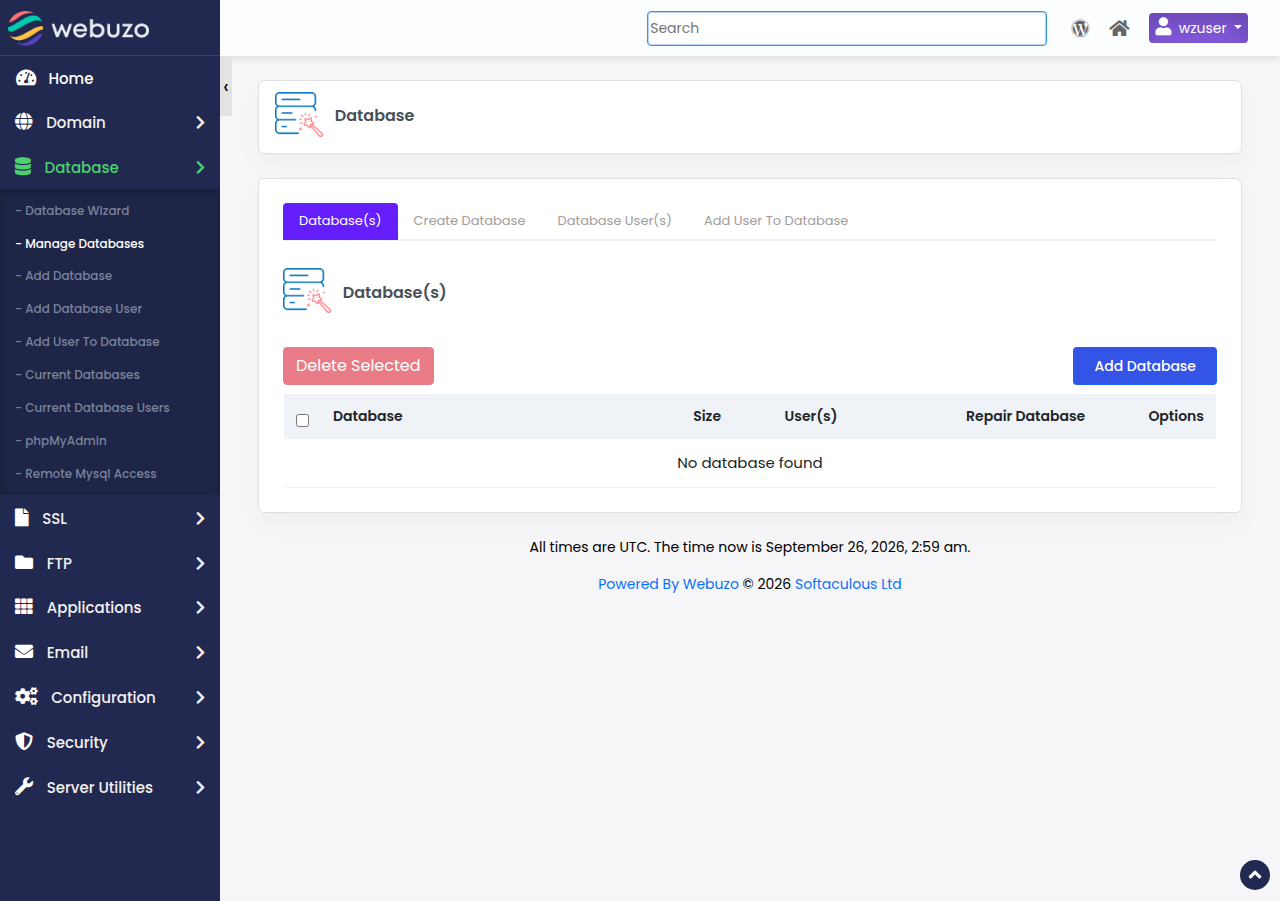
The app can't log in to its database. On shared hosting the database server is running, so the cause is almost always the details in the app's configuration file (for WordPress, wp-config.php).
- Compare the four values in the config file with the panel's database section: database name, database user, password and host. The host is normally
localhost. - Reset the database user's password in the panel, then put the same new password in the config file.
- Check the user is attached to the database with all privileges.
- Moved the site from another host? Create the database and user in the panel first, then copy their exact names into the config file; they may differ from the old host's.
Remote database connections from outside are closed on our shared servers. Use phpMyAdmin, or an SSH tunnel if jailed SSH is enabled on your account. See Database troubleshooting.
5. Email doesn't send or arrive
- Nothing arrives: the domain's MX record must point to your hosting. If your DNS is at Cloudflare or another provider, the MX and
mailrecords must be there too. See How to set up MX records. - Mail app can't connect: use the settings in Incoming/outgoing mail server settings: IMAP and SMTP with SSL/TLS, and your full email address as the username. The ports are listed in the port numbers guide.
- Webmail: open
https://yourdomain.com/webmail, which opens Webuzo Email. There is nowebmail.yourdomain.comaddress on Webuzo hosting. - Contact form mail doesn't arrive: send from an address on your own domain, and test a plugin's SMTP setting on your plan before relying on it.
6. SSL problems and "Not secure" warnings
- The certificate won't issue: the domain and
wwwmust point to your Webuzo hosting. A proxy such as Cloudflare, or a rule blocking/.well-known/, also stops free certificates. See Domain validation process. - Mixed content: the certificate is fine but the page loads images or scripts over
http://. Update the site's URL tohttps://(in WordPress, under Settings › General) and fix hard-coded links. - Force HTTPS: turn on the domain's Force HTTPS switch in Domain › Manage Domains, or use a
.htaccessrule. The web server is Apache andmod_rewriteworks, so this rule redirects every visitor:
RewriteEngine On
RewriteCond %{HTTPS} off
RewriteRule ^ https://%{HTTP_HOST}%{REQUEST_URI} [L,R=301]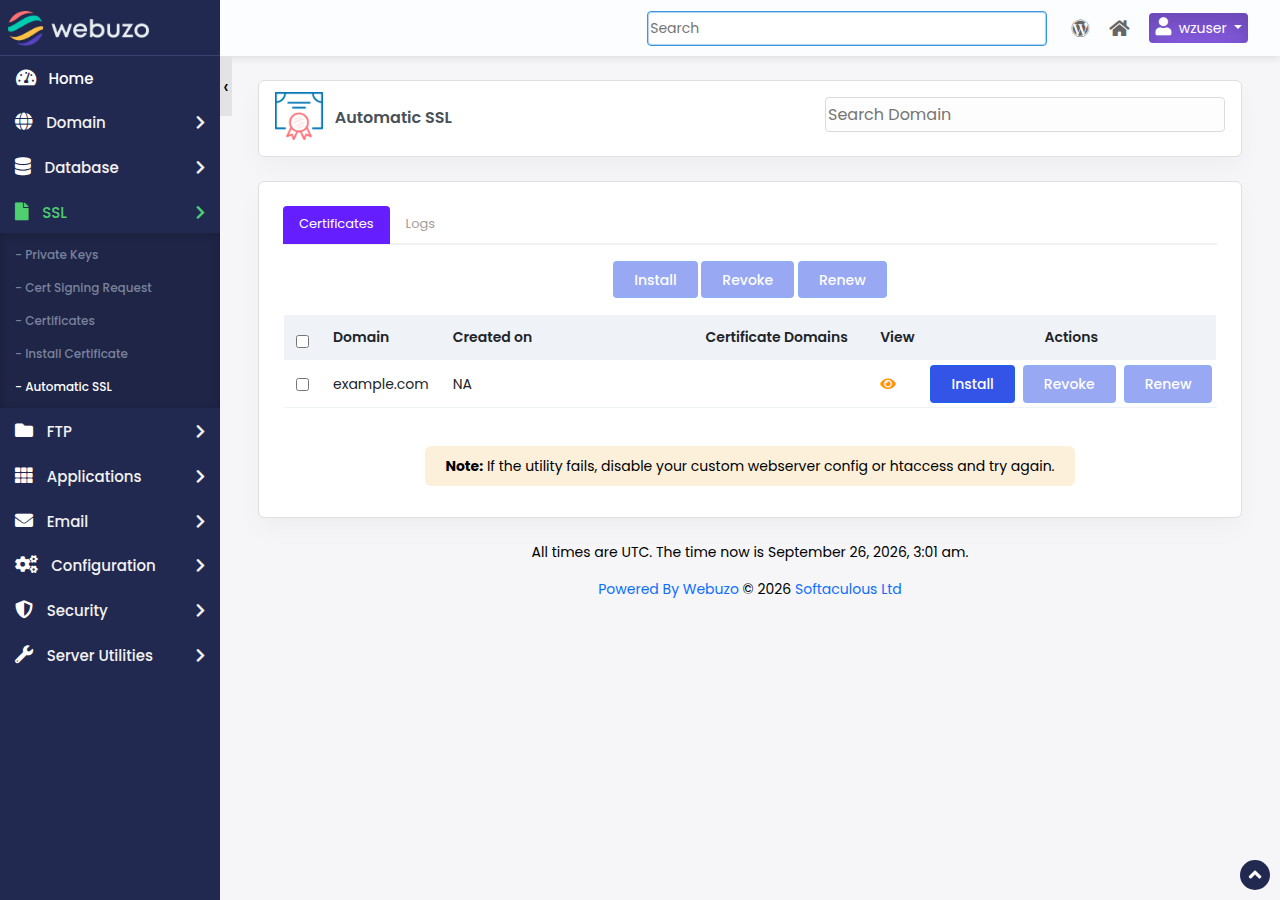
7. 500 errors, blank pages and PHP settings
Lines such as php_value memory_limit 256M or php_flag display_errors on in .htaccess cause a 500 Internal Server Error on our servers, because PHP doesn't run as an Apache module. Remove them. Use a .user.ini file in the site's folder for PHP settings instead.
- Find the real error. Check the app's own error log, and in WordPress turn on
WP_DEBUG_LOGbriefly. Don't leave errors displayed on a live site: they reveal file paths and settings. - A blank page after an update is usually a plugin or theme error: rename the plugin's folder to disable it.
- A newer PHP version needed? Our Webuzo server offers only PHP 8.0 and 8.1, both past end of life. If your app or a plugin needs PHP 8.2 or newer, it will fail on Webuzo hosting; ask support about moving to cPanel or DirectAdmin hosting, which offer newer PHP versions.
The general 500-error checklist is in Troubleshooting 500 Internal Server Error.
8. 403 Forbidden and permission errors
Use 644 for files and 755 for folders. Never set 777. A 403 can also come from a missing index.php or index.html, or from a Deny rule in .htaccess. On shared hosting you can't change file ownership; if files show an owner other than your account, ask support. See Understanding and resolving HTTP error 403.
9. On your own VPS with Webuzo
A Domain India VPS is self-managed: you have root access and you are responsible for the software on it, including Webuzo. None of these commands work on shared hosting.
- Panel doesn't load: check the server is up and the panel's port is reachable.
sudo ss -tlnplists listening ports; the admin and user panel addresses were shown at the end of your Webuzo install. Find the service name withsystemctl list-units | grep -i webuzo, then check it withsudo systemctl status SERVICE(using the name you found) and restart it if it has stopped. - Firewall: open only the ports you use, taking the panel ports from your Webuzo install output or Webuzo's documentation. With firewalld:
sudo firewall-cmd --permanent --add-port=PORT/tcp && sudo firewall-cmd --reload. With ufw:sudo ufw allow PORT/tcp. Limit panel ports to your own IP address where you can. - Installs fail: check disk space with
df -h, and that the database service is running withsudo systemctl status mariadbormysql, whichever your install uses. - Updates fail: update Webuzo from its admin panel and keep the operating system patched. Take a copy of your sites and databases first. Follow Webuzo's own documentation for its update and log locations, which change between versions.
- Server not responding at all: see VPS not responding. Starting, stopping or reinstalling a VPS is done through a ticket.
10. Where Domain India fits
Webuzo shared hosting suits a small site when you want a simple panel and don't want to run a server. It includes free SSL and jailed SSH on request (off by default; ask support to enable it). Two things to know before you choose it: PHP is limited to 8.0 and 8.1, and restores from Domain India's nightly backups go through support rather than the panel. If you need newer PHP or panel backups you can restore yourself, choose cPanel hosting or DirectAdmin hosting. Choose a VPS with Webuzo only if you need root access and are comfortable running the server yourself. Compare plans on Webuzo hosting and VPS.
- 10 GB NVMe SSD Storage
- 50 GB Monthly Bandwidth
- 1 Website
- 5 Email Accounts
Prices on the cards exclude 18% GST.
Frequently asked questions
How do I log in to Webuzo on Domain India hosting?
Log in at https://yourdomain.com:2003 with your Webuzo username and password; if the Webuzo button in the client area doesn't open the panel, use that address. Your username is on the hosting account's Access tab.
I forgot my Webuzo password. How do I reset it?
The Reset password button in the client area doesn't work for Webuzo accounts yet. Contact support by live chat or a ticket and we will reset it for you. Never send a password in a ticket.
Why does Softaculous say it is unable to install the application?
Usually the disk quota is full, the target folder already has files, the plan's database or website limit is reached, or the app needs PHP 8.2 or newer, which our Webuzo server does not offer (it has PHP 8.0 and 8.1 only). Fix the cause and retry; if it still fails, open a ticket with the exact error.
Why do I get a 500 error after adding php_value to .htaccess?
On our servers PHP doesn't run as an Apache module, so php_value and php_flag lines in .htaccess cause a 500 error. Remove them and put PHP settings in a .user.ini file instead.
Does Webuzo hosting include backups?
Yes. Domain India backs up every Webuzo account every night to a separate backup server, and support restores from those backups on request. Keeping your own copies, especially before updates, is good practice too.
Can I restart Webuzo or Apache myself?
On shared hosting, no. The server is managed by Domain India, so contact support for anything server-side. On your own VPS with Webuzo, yes, as root.
Ready to fix it? Open your hosting services to reach the Webuzo panel, read A complete guide to Webuzo, or open a ticket with the exact error message.
Tell us the domain, what you were doing and the exact error, and we will check it with you. Support is on 24/7 live chat, and tickets get a first response within 15 minutes.
Open a support ticket