When a one-click install fails in Webuzo, the cause is nearly always one of a few things: the target folder isn't empty, the account has run out of disk space or databases, the app needs a newer PHP version than the account has, or the domain doesn't point to the server yet. This guide shows how to find which one it is and fix it on Domain India Webuzo hosting, and how to clean up after a half-finished install.
Read the exact error Softaculous shows, then check four things: an empty target folder, free disk space, a free database slot in your plan, and the app's PHP requirement. Remove a failed install from Softaculous's installations list before retrying. On Webuzo shared hosting you can't restart services or change server settings, so anything server-side goes to support. Keep your own copy of anything important before you reinstall.
For errors outside app installs (logins, email, SSL, 500 errors), see common Webuzo errors and fixes. For a normal WordPress install, see installing WordPress with Webuzo.
1. Which Webuzo do you have?
| Question | Webuzo shared hosting | Webuzo on your own VPS |
|---|---|---|
| Who runs the server | Domain India | You (the VPS is self-managed) |
| Restart services, change PHP builds, read server logs | No, ask support | Yes, as root |
| What you can fix | Folders, files, databases, app settings | Everything, including the server |
Sections 2 to 7 are for shared hosting and mostly apply to a VPS too. Section 8 is only for a VPS you manage yourself.
2. Start with the exact error
Softaculous stops with a message that names the problem. Copy it word for word before you change anything; support will ask for it.
| Error mentions | Most likely cause | Go to |
|---|---|---|
| The directory is not empty, or an installation already exists | Old files or an earlier install in the target folder | Section 3 |
| Disk quota, no space, could not extract | Account out of disk space | Section 4 |
| Database could not be created, database limit | All database slots used, or a leftover database | Section 4 |
| PHP version, required extension | The app needs a newer PHP than the account has | Section 5 |
| Install completes but the site shows another page | DNS, or an old index file | Section 6 |
3. "Directory not empty" or "installation already exists"
Softaculous refuses to install over existing files, so an old index.html, a previous site or a half-finished install blocks it.
- Check Softaculous's installations list.If an earlier install of the same app is listed for that domain and folder, remove it there. Softaculous asks whether to delete its files and database too.
- Check the folder in the File Manager.Open the target folder (usually
public_htmlfor the main domain) and look for leftover files, including hidden ones such as.htaccess. - Move, don't delete, if unsure.Download anything you might need, or move it into a folder like
old-site, then retry. - Or install somewhere else.Choose a subfolder such as
/blogin the install form if the main folder must keep its files.
4. Out of disk space or databases
Every install needs room to download and unpack the app, and nearly every app needs its own database.
| Plan | Disk | Websites | MySQL databases |
|---|---|---|---|
| Webuzo Starter | 10 GB NVMe | 1 | 5 |
| Webuzo Developer | 30 GB NVMe | 5 | 10 |
| Webuzo Agency | 100 GB NVMe | 50 | 50 |
These are Domain India plan limits on 19 September 2026.
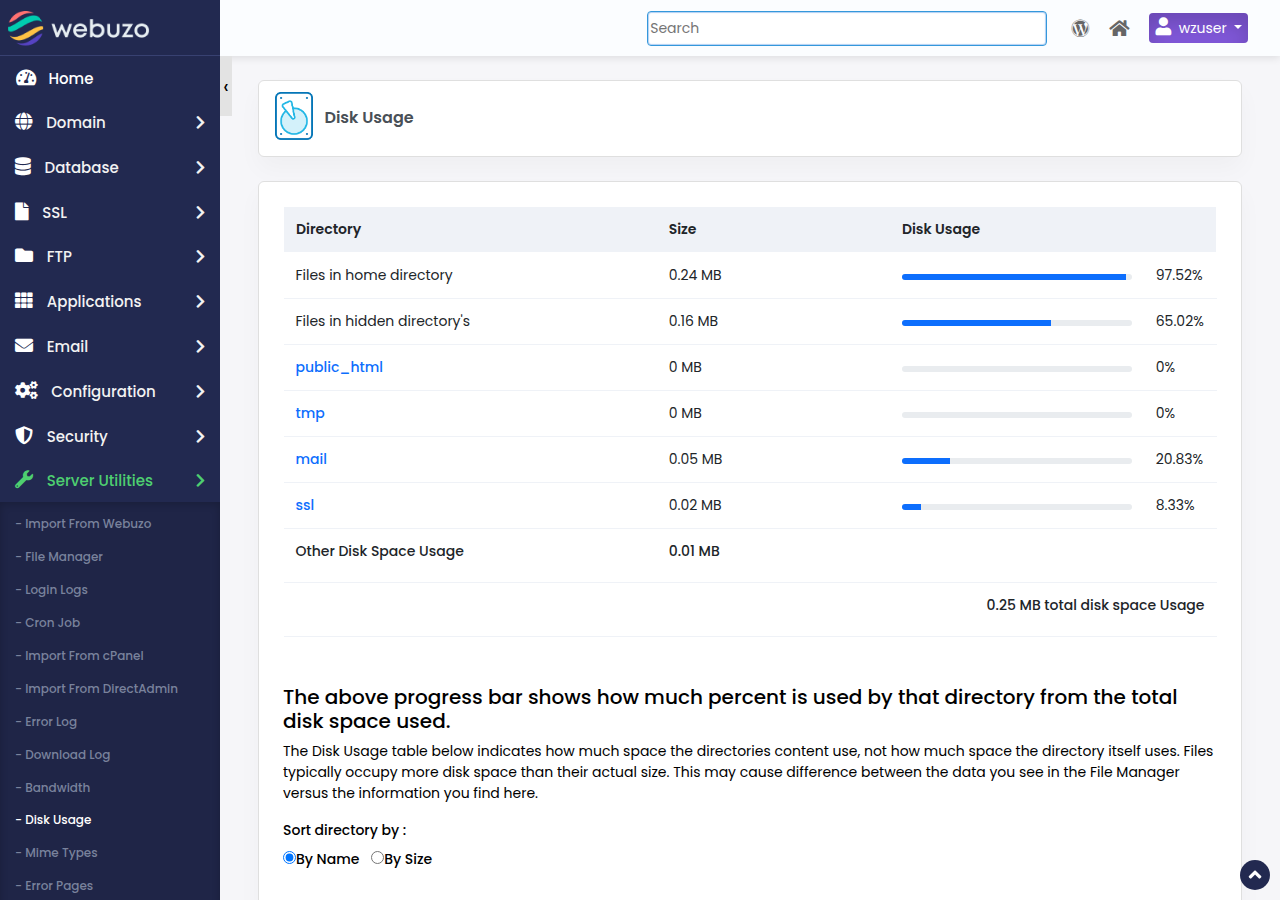
- Free up space. Delete old backup archives, logs and apps you no longer use. Large mailboxes count towards the same disk space.
- Free a database slot. Failed installs often leave an empty database behind. Delete unused ones in the panel's database section; see creating and managing MySQL databases in Webuzo.
- Still short? Move to a bigger plan; see can I upgrade my hosting package.
5. PHP version or extension errors
Each app in Softaculous lists the PHP version and extensions it needs, and current releases of some apps need recent PHP. If the app needs a newer version than your account offers, the install stops or the site fails straight after installing.
- Read the requirement first. It is on the app's page in Softaculous, before you click Install.
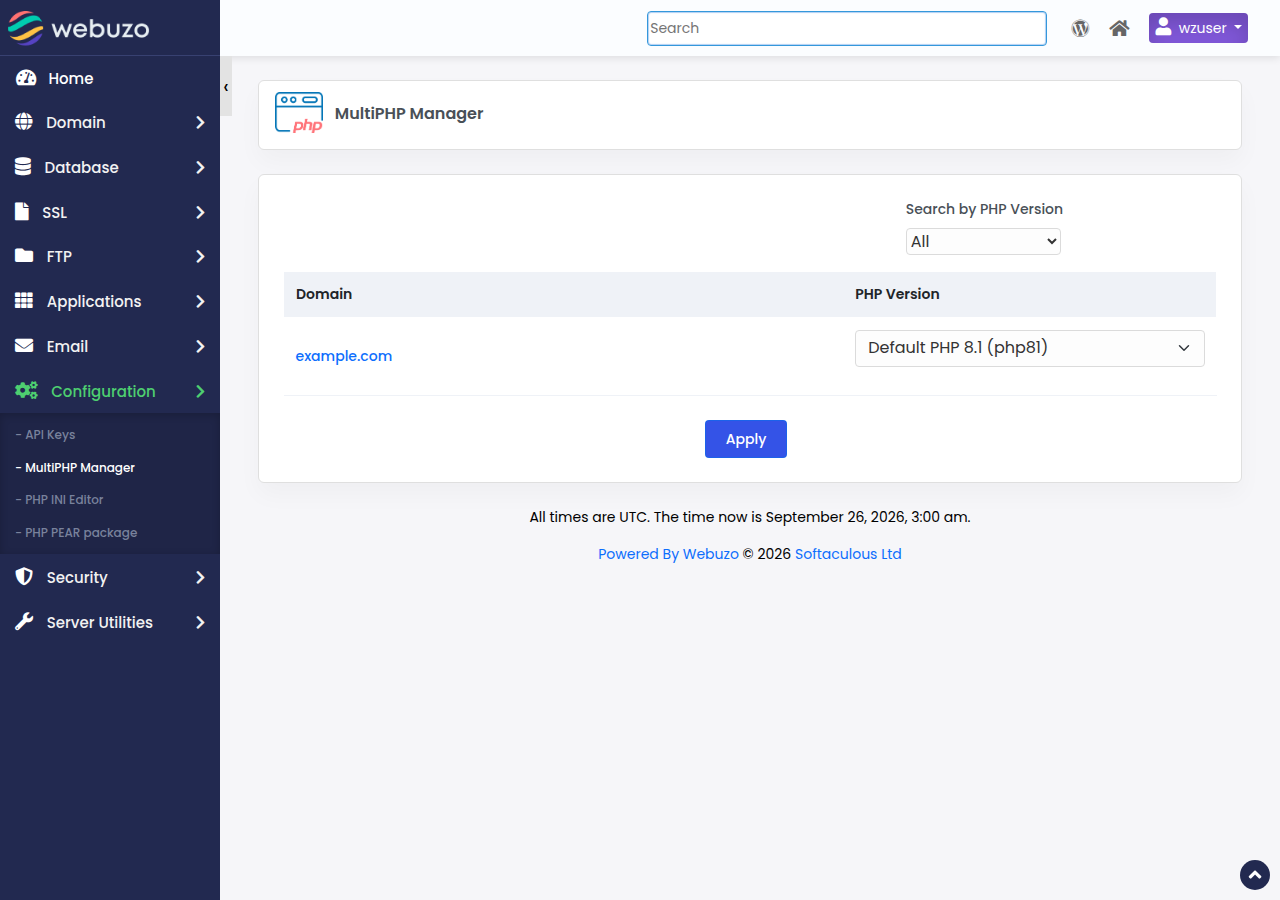
- Our Webuzo server offers PHP 8.0 and 8.1. Switch between them in MultiPHP Manager; an app that needs PHP 8.2 or newer won't run on Webuzo hosting. Don't try to change PHP with
php_valuelines in.htaccess: that gives a 500 error on our servers. - Consider an older release only if it is still supported by the app's developers. Never install an end-of-life version on a public site.
If you need a modern PHP stack for frameworks such as Laravel, cPanel hosting or a VPS is usually a better fit; ask support before you order.
6. The install finished but the site doesn't show
- The domain doesn't point here yet. Until the domain's DNS points to your Webuzo hosting, visitors see the old host or an error. See how do I change my nameservers. DNS changes can take a few hours.
- An old index file wins. If
index.htmlis still in the folder, the web server may show it instead of the app. Remove or rename it. - You installed into a subfolder by mistake. Check the URL Softaculous shows at the end of the install.
- "Error establishing a database connection". The database name, user, password or host in the app's config file (for WordPress,
wp-config.php) doesn't match the panel. See installer could not find database and database troubleshooting. - A blank page or a 500 error. Check the app's error log in its folder. For WordPress, turn on
WP_DEBUG_LOGbriefly, and turn it off again when you are done.
7. Clean up and retry a failed install
- Remove the failed installfrom Softaculous's installations list, if it appears there, and let it delete the files and database.
- Check what's left.In the File Manager, remove leftover files in the target folder. In the database section, delete any empty database the install created.
- Fix the causeyou found in sections 3 to 6.
- Retry once.If it fails again with the same message, stop and contact support.
Removing an install deletes its files and database. Download a copy of any site or database that matters before you remove or reinstall it. Domain India also backs up your account every night, and support can restore from those backups on request.
8. On your own VPS with Webuzo
A Domain India VPS is self-managed: you have root access and you are responsible for Webuzo and everything else on it. None of these commands work on shared hosting.
- Disk space:
df -hshows free space on each filesystem. - Database service:
sudo systemctl status mysqldormariadb, whichever your install uses; start it if it has stopped. - Webuzo service: find its exact name with
systemctl list-units | grep -i webuzo, then check it withsudo systemctl statusfollowed by that name. - PHP versions: install and select newer PHP builds from the Webuzo admin panel, following Webuzo's own documentation.
Starting, stopping or reinstalling the VPS itself is done by opening a ticket.
9. Where Domain India fits
Webuzo shared hosting suits a small site or a single WordPress install when you want a simple panel and don't want to run a server. For frameworks that need the newest PHP, or for several busy sites, compare cPanel hosting or a self-managed VPS. See the Webuzo plans on Webuzo hosting.
- 10 GB NVMe SSD Storage
- 50 GB Monthly Bandwidth
- 1 Website
- 5 Email Accounts
Prices on the cards exclude 18% GST.
Frequently asked questions
Why does Softaculous say the directory is not empty?
The target folder already has files, often an old index.html, a previous site or a half-finished install. Remove the old install from Softaculous's installations list, move or delete the leftover files, or install into a different folder, then try again.
Why does an app install fail with a database error on Webuzo?
Usually your plan's database limit is reached, often because failed installs left empty databases behind. Delete unused databases in the panel and retry. Webuzo Starter includes 5 MySQL databases, Webuzo Developer 10 and Webuzo Agency 50.
The app needs a newer PHP version. What do I do?
Check the app's PHP requirement on its Softaculous page before installing. Our Webuzo server offers PHP 8.0 and 8.1, which you can switch in MultiPHP Manager; an app that needs PHP 8.2 or newer needs cPanel or DirectAdmin hosting. PHP cannot be changed with php_value lines in .htaccess; that causes a 500 error.
Can I restart Apache, MySQL or Webuzo on shared hosting?
No. Domain India runs the server for Webuzo shared hosting, so contact support by live chat or a ticket for anything server-side. On your own VPS with Webuzo, you can restart services as root.
The install finished but I still see my old site. Why?
Either the domain's DNS still points to your old host, or an old index.html in the folder is being shown instead of the app. Check your nameservers or A record, and remove or rename old index files.
Should I take a backup before reinstalling an app?
Yes. Removing an install deletes its files and database. Download a copy of the site and database to your own computer first. Domain India also backs up your Webuzo account every night, and support can restore from those backups on request.
Ready to try again? Log in to Webuzo at https://yourdomain.com:2003, or open a ticket with the app name, the domain and the exact error message.
Tell us the app, the domain and folder, and the exact error Softaculous showed, and we will check it with you.
Open a support ticket