cPanel's File Manager lets you upload, edit, move and delete your website's files in a web browser, with no FTP program to install. This quick guide covers opening it from your Domain India account and the jobs people use it for most. For every task in detail, and for DirectAdmin and Webuzo, see our main File Manager guide.
Open cPanel from the client area (Hosting › My hosting, then the cPanel button), then click File Manager under Files. Your website lives in public_html. Use the toolbar to upload, edit, compress, extract and change permissions; turn on Show Hidden Files in Settings to see .htaccess. Download a copy of a file before you edit it, and upload big sites as one zip and extract it on the server.
Every File Manager task, the file locations on each control panel, and restoring deleted files are covered in How to use the File Manager in cPanel, DirectAdmin and Webuzo. DirectAdmin users can also read the DirectAdmin File Manager guide.
1. Open File Manager
- Sign in to the client areaand open Hosting › My hosting.
- Click the cPanel buttonon your domain's row. cPanel opens in a new tab, already signed in. If nothing opens, allow pop-ups for domainindia.com and click again.
- Click File Managerin the Files section of cPanel.
- Open public_html.The folder tree is on the left and the open folder's contents on the right.
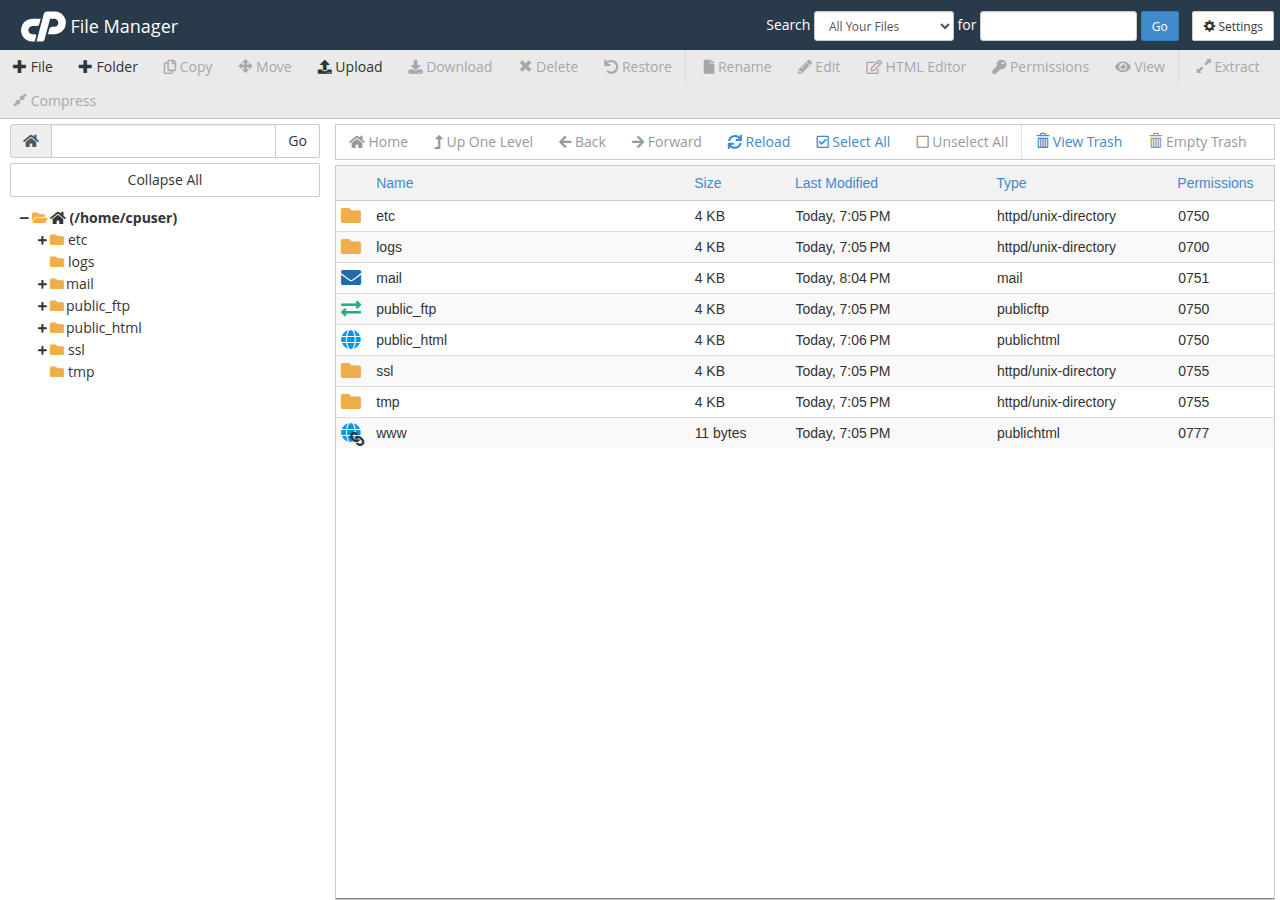
You can also sign in to cPanel directly at https://yourdomain.com:2083 with the username and password from your welcome email; see How to log in to cPanel.
Your main website's files belong in /home/username/public_html. An addon domain uses the document root you chose when you added it. Files outside the document root are not visible on the web.
2. The jobs people do most
| Task | In cPanel File Manager | Tip |
|---|---|---|
| Upload files | Open the folder, click Upload, drag files in | Tick Overwrite existing files to replace old copies |
| Create a file or folder | + File or + Folder | Names are case-sensitive: Index.html is not index.html |
| Edit a file | Select it, click Edit, keep utf-8 | Download a copy first |
| Change permissions | Select it, click Permissions | 644 for files, 755 for folders |
| Zip files | Select them, click Compress, choose Zip Archive | Zip a folder before downloading it |
| Unzip | Select the archive, click Extract | Check the destination folder first |
| Move or copy | Select, click Move or Copy, type the path | You can drag items onto a folder in the tree |
| Delete and restore | Delete, then View Trash › Restore | Works only if "Skip the trash" was not ticked |
3. Show hidden files such as .htaccess
Files whose names start with a dot, such as .htaccess and .user.ini, are hidden until you ask for them. Click Settings at the top right of File Manager, tick Show Hidden Files (dotfiles) and click Save.
One typo in .htaccess or wp-config.php can take the whole site offline with a 500 error. Select the file and click Download before you change it, so you can put the original back in seconds.
4. Upload a whole website
Browser uploads go one file at a time and cannot recreate a folder tree. For a full site, zip it on your computer (select the files inside the folder, not the folder itself), upload that one zip to public_html, then select it and click Extract. Check that index.html or index.php sits directly inside public_html, not in an extra sub-folder, and delete the zip afterwards.
Opened on port 2083, the File Manager on our cPanel servers sets no fixed per-file cap as long as your disk quota has room, but a very large upload over a slow connection can still fail. For files of a few hundred megabytes or more, use FTP with TLS instead. See the maximum file size you can upload for the measured limits.
5. Permissions: 644 and 755
Use 644 for files and 755 for folders. Configuration files that hold passwords, such as wp-config.php, can be 640 or 600 if the site still works. Never set 777: it lets anything on the server change your files, and it is a common way sites get infected. Wrong permissions are a frequent cause of 403 Forbidden errors.
6. When File Manager is not enough
- Many files, or regular updates: an FTP client such as FileZilla, over FTP with TLS.
- Developers: jailed SSH is available on every shared hosting plan; it is off by default, so ask support to enable it, then sign in with an SSH key. See enabling and accessing jailed SSH.
- A file deleted for good: cPanel accounts get weekly JetBackup backups (taken on Sunday, 5 copies kept) that you can restore from cPanel. See backing up and restoring with JetBackup.
Frequently asked questions
Where is File Manager in cPanel?
Sign in to cPanel and look in the Files section, then click File Manager. It opens in a new tab. Your main website's files are in the public_html folder.
How do I open cPanel without a password?
Sign in to the Domain India client area, open Hosting, My hosting, and click the cPanel button on your domain's row. It opens cPanel already signed in.
Why can't I see my .htaccess file?
Files whose names start with a dot are hidden by default. In File Manager, click Settings at the top right, tick Show Hidden Files (dotfiles) and click Save.
How do I upload a folder with File Manager?
File Manager uploads files, not folder trees. Zip the folder on your computer, upload the zip, then select it and click Extract. For very large sites, use FTP with TLS instead.
What permissions should my files have?
Use 644 for files and 755 for folders. Never use 777.
Can I recover a file I deleted?
If you did not tick Skip the trash, click View Trash, select the file and click Restore. Otherwise restore it from a JetBackup backup in cPanel.
Ready to manage your files? Open your hosting list and click the cPanel button, or read the full File Manager guide. If File Manager shows an error, open a support ticket with your domain and a screenshot.
Every Domain India cPanel plan includes File Manager, free SSL, weekly JetBackup backups and jailed SSH on request.
See cPanel hosting plans