Softaculous, the one-click app installer in your control panel, keeps its own email address for notifications. It is separate from your Domain India client-area email, your control panel's contact email and the admin email inside WordPress, so changing one does not change the others. This guide shows where each address lives and how to update it, so install details, backup notices and update alerts reach an inbox you actually read.
Open Softaculous from your control panel, click the envelope icon (Email Settings) at the top, enter the new address and choose which notices you want. Leave update notifications on: they are how you hear that an app you installed needs a security update. If you installed WordPress with WP Toolkit on cPanel instead, keep your cPanel contact email current, and change the WordPress admin email separately under Settings › General.
1. Which email address does what
Several different addresses can receive mail about the same website. Knowing which is which saves a lot of confusion.
| Address | What it receives | Where to change it |
|---|---|---|
| Softaculous email | Install, backup, restore, clone, removal and update-available notices for apps installed with Softaculous | Softaculous › Email Settings (envelope icon) |
| Control panel contact email | Notices from the control panel itself, such as disk-quota warnings | Your control panel's contact or account settings page |
| WordPress administration email | Password-reset links, new-user and core-update notices from WordPress | WordPress › Settings › General |
| Domain India client-area email | Invoices, renewal notices and support-ticket replies | Your profile in the client area |
If you are receiving update alerts for a site you thought was removed, or not receiving them for a site you run, the Softaculous address is usually the one to check.
2. Where Softaculous is on Domain India hosting
Softaculous is installed on our cPanel and DirectAdmin servers (checked 22 and 23 September 2026), and our Webuzo hosting uses Softaculous as its app installer. The Email Settings page is part of Softaculous itself, so it looks much the same on every panel; only the way you open Softaculous differs.
- cPanel: find Softaculous Apps Installer on the cPanel home page, or type "Softaculous" in the search box.
- DirectAdmin: open Softaculous from your DirectAdmin panel; the search box finds it by name.
- Webuzo: the app installer in Webuzo is Softaculous. If you cannot find its Email Settings page, ask support.
To reach your control panel from the client area, see How to login to cPanel.
3. Change the Softaculous notification email
- Log in to your control paneland open Softaculous.
- Click the envelope iconat the top of the Softaculous page. It opens the Email Settings page.
- Enter the new addressin the Email Address field. This is where Softaculous sends all its notices for your account.
- Choose the notices you want.Tick or untick each type (see section 4).
- Savethe settings. Softaculous confirms that your email settings were saved.
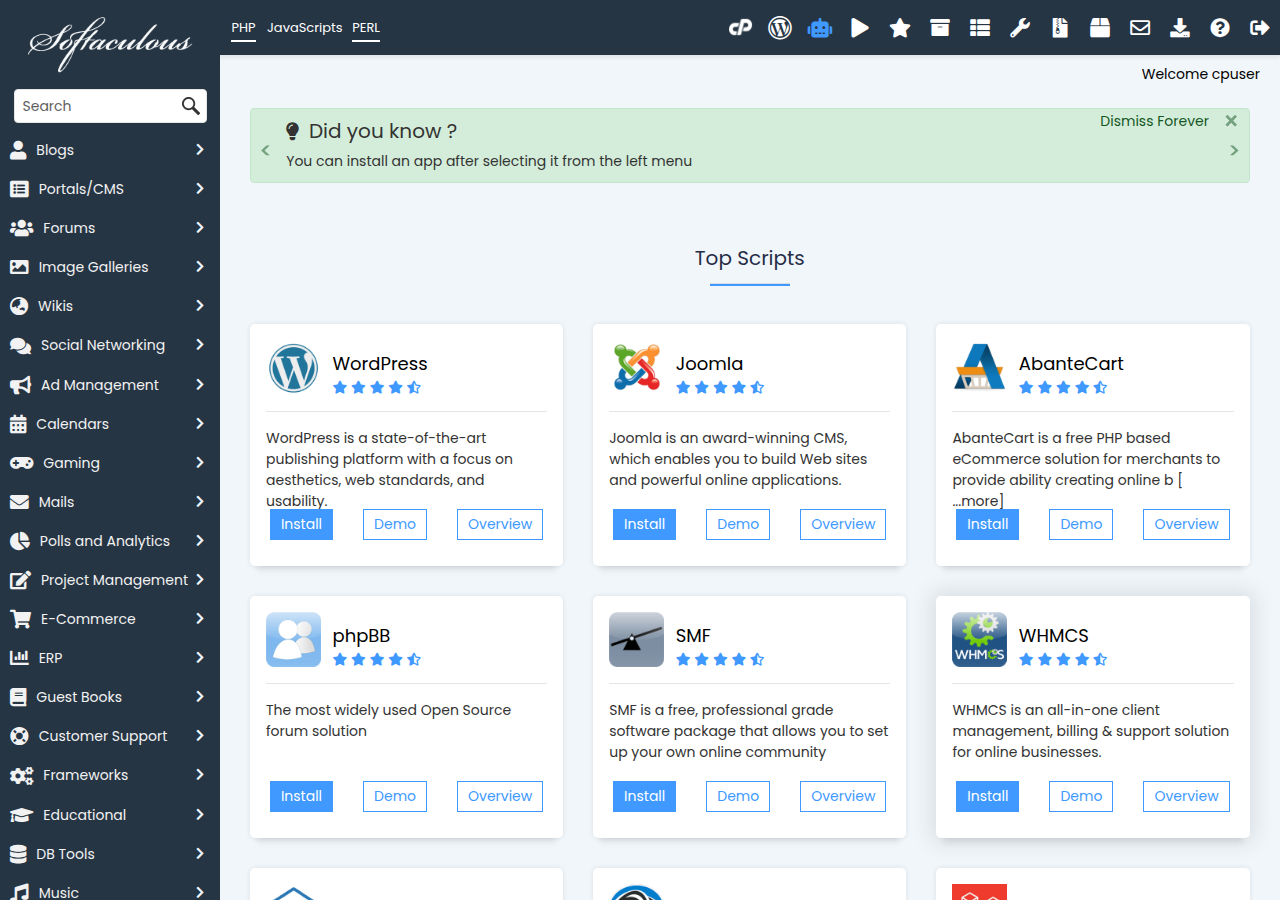
The change covers every app you installed through Softaculous on that hosting account. If you have more than one hosting account, repeat it in each.
Mail from Softaculous is sent by your hosting server. If notices go to a mailbox on the same domain and never arrive, check that mailbox first; see I can receive mail but I cannot send it for common mail problems.
4. Which notices to keep on
The Email Settings page on our cPanel server lists a checkbox for each kind of event. Your server administrator can hide some of them, so your list may be shorter.
Outdated apps are the most common way websites get hacked, and accounts running outdated, insecure scripts can be suspended. The update-available email is often the only reminder you get for a site you rarely log in to. If the emails are too frequent, update the apps or delete the ones you no longer use rather than switching the alerts off.
There is also a setting called Email password in plain text. Leave it unticked, so admin passwords are not sent to your inbox in readable form.
5. If you use WP Toolkit on cPanel
Our cPanel servers also have WP Toolkit, a WordPress-only manager. Sites you installed or added in WP Toolkit are managed there, not in Softaculous, and WP Toolkit does not use the Softaculous email address.
WP Toolkit can email you about automatic updates and about installations it has quarantined. cPanel sends account notices to the contact email on your cPanel account, so keep that address current: in cPanel, open Contact Information (search for it by name) and update it. For how the two installers compare, see WP Toolkit compared with Softaculous.
Use one installer per site. Managing the same WordPress site from both tools can lead to confusing, duplicated notices and conflicting update settings.
6. Change the WordPress admin email too
Neither Softaculous nor WP Toolkit changes the email WordPress itself uses for password resets and security notices. To change it:
- Log in to WordPress and open Settings › General.
- Change Administration Email Address and save.
- WordPress emails a confirmation link to the new address. The change takes effect only after you click it.
Your own user account has a separate email under Users › Profile. Update that too if it still points to an old mailbox, or you will not receive password-reset emails.
7. Keeping your installations healthy
Changing the address is a good moment to look at what is installed:
- Delete apps you no longer use, including old test and staging copies. Softaculous's Remove option can delete the files and the database together.
- Turn on automatic updates where Softaculous or WP Toolkit offers them, and take a backup before major version upgrades.
- Check the admin users of each site for accounts you do not recognise.
Our cPanel and DirectAdmin hosting also keeps weekly JetBackup 5 backups you can download or restore from the panel; see how to restore or download a backup with JetBackup. For more on staying secure, see useful tips to secure WordPress.
8. Where Domain India hosting fits
Every Domain India shared hosting panel comes with Softaculous for one-click installs: cPanel, DirectAdmin and Webuzo. cPanel adds WP Toolkit for managing WordPress sites. Plan cards show live Domain India list prices, excluding 18% GST.
- 25 GB NVMe SSD Storage
- 50 GB Monthly Bandwidth
- 1 Website
- 10 Email Accounts
- 10 GB NVMe SSD Storage
- 50 GB Monthly Bandwidth
- 1 Website
- 5 Email Accounts
Compare every plan on cPanel hosting, DirectAdmin hosting and Webuzo hosting. Support is available on 24/7 live chat, and tickets get a first response within 15 minutes; how long a fix takes depends on the issue. We do not offer phone support.
How do I change the email address Softaculous sends notifications to?
Open Softaculous from your control panel, click the envelope icon at the top to open Email Settings, enter the new address in the Email Address field and save. The change applies to every app installed through Softaculous on that hosting account.
Is the Softaculous email the same as my hosting account email?
No. Softaculous keeps its own notification address. Your control panel contact email, your WordPress administration email and your Domain India client-area email are all separate and are changed in different places.
Can I turn off Softaculous update notification emails?
The Email Settings page has a checkbox for update notification emails, but we recommend leaving it on. It tells you when an installed app has a new version, and outdated apps are the most common way websites get hacked.
Does changing the Softaculous email change my WordPress admin email?
No. Change the WordPress administration email under Settings › General in WordPress. WordPress sends a confirmation link to the new address, and the change takes effect only after you click it.
Where do WP Toolkit notifications go on cPanel?
WP Toolkit does not use the Softaculous address. cPanel sends account notices to the contact email on your cPanel account, so keep that address current under Contact Information in cPanel.
Is Softaculous available on DirectAdmin and Webuzo hosting?
Yes. Softaculous is installed on our cPanel and DirectAdmin servers, and Webuzo uses Softaculous as its app installer. The Email Settings page is part of Softaculous, so the steps are much the same on each panel.
Ready to tidy up your notifications? Update the Softaculous address today, check your WordPress security basics, or open a support ticket if you cannot find Email Settings in your panel.
Tell us your domain and which control panel you use, and we will point you to the right Softaculous or WP Toolkit setting for your account.
Open a support ticket