A slow or resource-hungry WordPress site is rarely a mystery. The time goes on pages built from scratch on every visit, plugins that do too much, an untidy database and bots loading pages nobody reads. This guide covers the fixes that matter most on Domain India shared hosting, in the order worth doing them.
Take a backup, update WordPress, your plugins and your PHP version, then add one page-caching plugin: WP Super Cache or W3 Total Cache, because our shared hosting runs the Apache web server. OPcache is already on for websites on our cPanel servers. After that, find and replace heavy plugins with Query Monitor, trim the database, move WP-Cron to a real cron job and keep spam bots out. If your account still shows resource faults after all that, it is time for a bigger plan.
1. Measure first, then back up
Write down how the site performs now, so you know whether each change helped. Run the slow page through PageSpeed Insights or WebPageTest and note the time to first byte (TTFB), and in cPanel check Metrics › Resource Usage for faults, which mean your account hit a CPU, memory or process limit. The full diagnosis order is in My website is slow.
Then take a backup. Our cPanel and DirectAdmin hosting keeps weekly JetBackup 5 backups you can restore yourself, but a fresh copy taken just before you start is safer. Download your files and a database export, or use a plugin such as UpdraftPlus.
2. Update WordPress, plugins, themes and PHP
Updates are the cheapest speed fix: WordPress, plugins and PHP all get faster over time, and old versions stop receiving security fixes.
- Update WordPress, then every plugin and theme, from Dashboard › Updates.
- Choose the newest PHP 8 version your site works with. On our cPanel servers you can pick any version from PHP 5.1 to 8.5 per account (measured 20 September 2026), so a site left on an old version for years is common. See How to change PHP versions in cPanel using MultiPHP Manager.
A very old theme or plugin can break on a newer PHP version. Switch, then check your key pages, forms and checkout. If something breaks, switch back and replace what failed.
3. Add page caching (Apache, not LiteSpeed)
Without page caching, WordPress runs PHP and dozens of database queries for every visitor. A page-caching plugin saves each page as finished HTML and serves that copy instead, so PHP and the database are skipped.
Domain India shared hosting (cPanel, DirectAdmin and Webuzo) runs the Apache web server, not LiteSpeed. That decides which plugin to use:
| Plugin | Works on our shared hosting? | Good for |
|---|---|---|
| WP Super Cache | Yes | Simple sites; very few settings to get wrong |
| W3 Total Cache | Yes | Sites that also want browser caching, minification and object-cache options in one plugin |
| LiteSpeed Cache | No page caching | Its page cache needs a LiteSpeed web server, which our shared hosting does not use |
Install one from Plugins › Add New, turn on page caching, then open your site in a private browser window to check it still looks right. Run only one page-caching plugin at a time; two caching plugins fighting each other often make a site slower or break it.
Logged-in users, carts and checkout pages are not cached, by design; sections 4 and 5 help those.
OPcache is already on
OPcache keeps compiled PHP code in memory, so each request skips compiling your scripts again. It is not a page cache, and you do not install it. We measured on 20 September 2026:
- cPanel: enabled for websites.
- DirectAdmin: enabled on every PHP version we offer, except PHP 8.3.
- Webuzo: not measured; ask support.
To check your own site, and for why tuning snippets found online do nothing on shared hosting, see the PHP OPcache guide.
4. Find and remove heavy plugins
Every active plugin runs on every page load, and a few do far more work than the rest. Types that often cause high load:
- Related-posts plugins that search the database for matches on every page view.
- Statistics and visitor-logging plugins that write to the database on every visit. Use an external service such as Google Analytics instead.
- Auto-posters and content scrapers that fetch and import content on a schedule.
- Broken-link checkers and security plugins set to scan on every request.
- Page builders that load their full script library on pages that don't use them.
- Note a baseline.Record the TTFB of a slow page.
- Install Query Monitor.This free plugin shows the slowest database queries, and which plugin made them, for any page you load as an administrator.
- Deactivate suspects one at a time.Re-test after each. When TTFB drops, you have found a culprit.
- Replace or delete it.Find a lighter plugin, or drop the feature. Delete deactivated plugins rather than leaving them installed.
Remove Query Monitor when you are done. Themes can be heavy too: if pages stay slow with plugins off, check the error log for repeated warnings (how to review error logs), ask the theme's developer, or move to a lighter, maintained theme.
5. Clean up the database
Over the years a WordPress database collects post revisions, spam, expired transients and "autoloaded" options left by plugins you removed long ago. Autoloaded options are read on every page load, so a bloated wp_options table slows every page.
- Limit revisions. Add this line to
wp-config.php, above "That's all, stop editing":
define( 'WP_POST_REVISIONS', 5 );- Empty spam and trash in Comments and Posts.
- Clean up with a maintained plugin such as WP-Optimize, which removes old revisions, expired transients and orphaned data. Take a database backup first.
For slow queries beyond WordPress's own tables, see MySQL performance optimisation.
6. Move WP-Cron to a real cron job
WordPress runs its scheduled tasks on the back of visitor page loads. On a busy site that adds work to real visits; on a quiet one, scheduled posts run late. Run it on a schedule instead:
- Add this line to
wp-config.php:
define( 'DISABLE_WP_CRON', true );- In your control panel's Cron Jobs page, add a job that runs every 15 minutes and requests your site's cron URL:
curl -s "https://yourdomain.com/wp-cron.php?doing_wp_cron" > /dev/null 2>&1Running it every minute only adds load. More in WordPress cron and scheduled tasks.
7. Lighten the pages
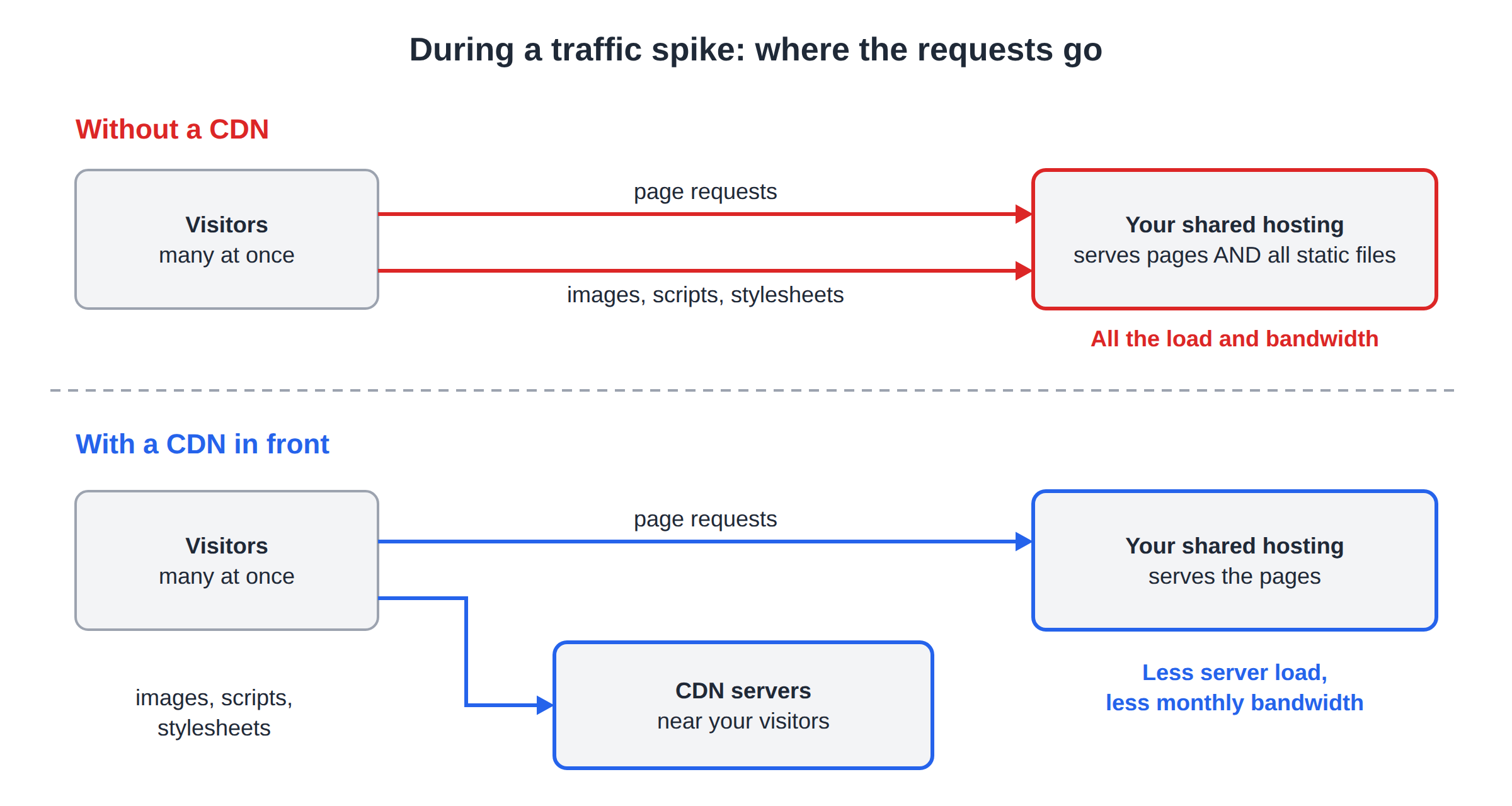
See Cloudflare for Indian websites for the CDN setup.
8. Keep spam bots and bad crawlers out
Bots that post comments, guess passwords or crawl thousands of pages use your account's CPU just like real visitors.
- Comment spam: use Akismet or Antispam Bee, or add a CAPTCHA such as Cloudflare Turnstile to comment and contact forms. If you don't need comments, turn them off in Settings › Discussion.
- Login attacks: limit login attempts with a security plugin, and block
xmlrpc.phpif nothing you use needs it. See useful tips to secure WordPress. - Aggressive crawlers: Google no longer offers a crawl-rate setting, and ignores
Crawl-delayinrobots.txt, although some other search engines honour it. For crawlers you don't want at all, block them inrobots.txtor with Cloudflare's bot settings.
On our cPanel servers, Imunify360's WordPress protection and AI bot protection are on by default (measured 20 September 2026), which filters much of this traffic before it reaches WordPress.
9. When optimising is not enough
Upgrade when Resource Usage still shows regular faults after caching, plugin clean-up and database work, or when traffic has genuinely grown. A bigger plan does not fix a plugin that runs a slow query on every page.
You can upgrade an active cPanel or DirectAdmin plan from your services and pay only the difference for the rest of your term; see Can I upgrade my web hosting package at any time?
- 50 GB NVMe SSD Storage
- 100 GB Monthly Bandwidth
- 5 Websites
- 50 Email Accounts
A VPS suits a busy WooCommerce shop that needs its own PHP, web server and database tuning. You get dedicated resources and root access, and you look after the server yourself.
- 1 vCPU
- 2 GB DDR4 RAM
- 64 GB NVMe SSD Storage
- 2 TB Monthly Bandwidth
Plan cards show live Domain India list prices, excluding 18% GST. Support is available on 24/7 live chat, and tickets get a first response within 15 minutes; how long a fix takes depends on the issue. We do not offer phone support.
Which caching plugin should I use on Domain India shared hosting?
Use WP Super Cache or W3 Total Cache. Domain India shared hosting runs the Apache web server, not LiteSpeed, so LiteSpeed Cache cannot provide page caching there. Keep only one page-caching plugin active at a time.
Is OPcache enabled for WordPress on Domain India hosting?
On our cPanel servers OPcache is enabled for websites. On our DirectAdmin servers it is enabled for every PHP version except PHP 8.3 (measured 20 September 2026). On our Webuzo server it is enabled for PHP 8.0 and 8.1 (measured 30 September 2026). You cannot change OPcache memory settings from a shared hosting account.
Which WordPress plugins cause high CPU usage?
The usual suspects are related-posts plugins, on-server statistics and visitor-logging plugins, auto-posters and scrapers, broken-link checkers and page builders that load everywhere. Use the free Query Monitor plugin to see which plugin makes the slowest queries, then replace or remove it.
Should I disable WP-Cron?
On busy sites, yes. Add define( 'DISABLE_WP_CRON', true ); to wp-config.php and create a cron job in your control panel that requests your site's wp-cron.php every 15 minutes. Scheduled tasks then run on time without adding work to visitor page loads.
Does changing my permalink structure make WordPress faster?
No. Older guides advised against starting permalinks with the post name or category, but WordPress fixed that performance problem many years ago. Choose the structure that suits your readers, and avoid changing it on an established site, because it changes every URL.
Ready to speed things up? Start with a backup and a caching plugin, work through the My website is slow checklist, compare plans on cPanel hosting if you have outgrown yours, or open a support ticket with your slow page's URL and test results.
Send us the slow page's URL, when it happens and what you have already tried, and we will check your account's resource usage and logs with you.
Open a support ticket