In cPanel, you change a website's PHP version in MultiPHP Manager: tick the domain, pick a version and click Apply. The change applies to that domain only, so each site in your account can run a different version. This page covers the cPanel steps and how to check that the switch worked.
Our main guide, How to change your PHP version, also covers DirectAdmin, Webuzo, choosing a version, extensions and what to do if your site breaks after a switch. This page is the short cPanel version.
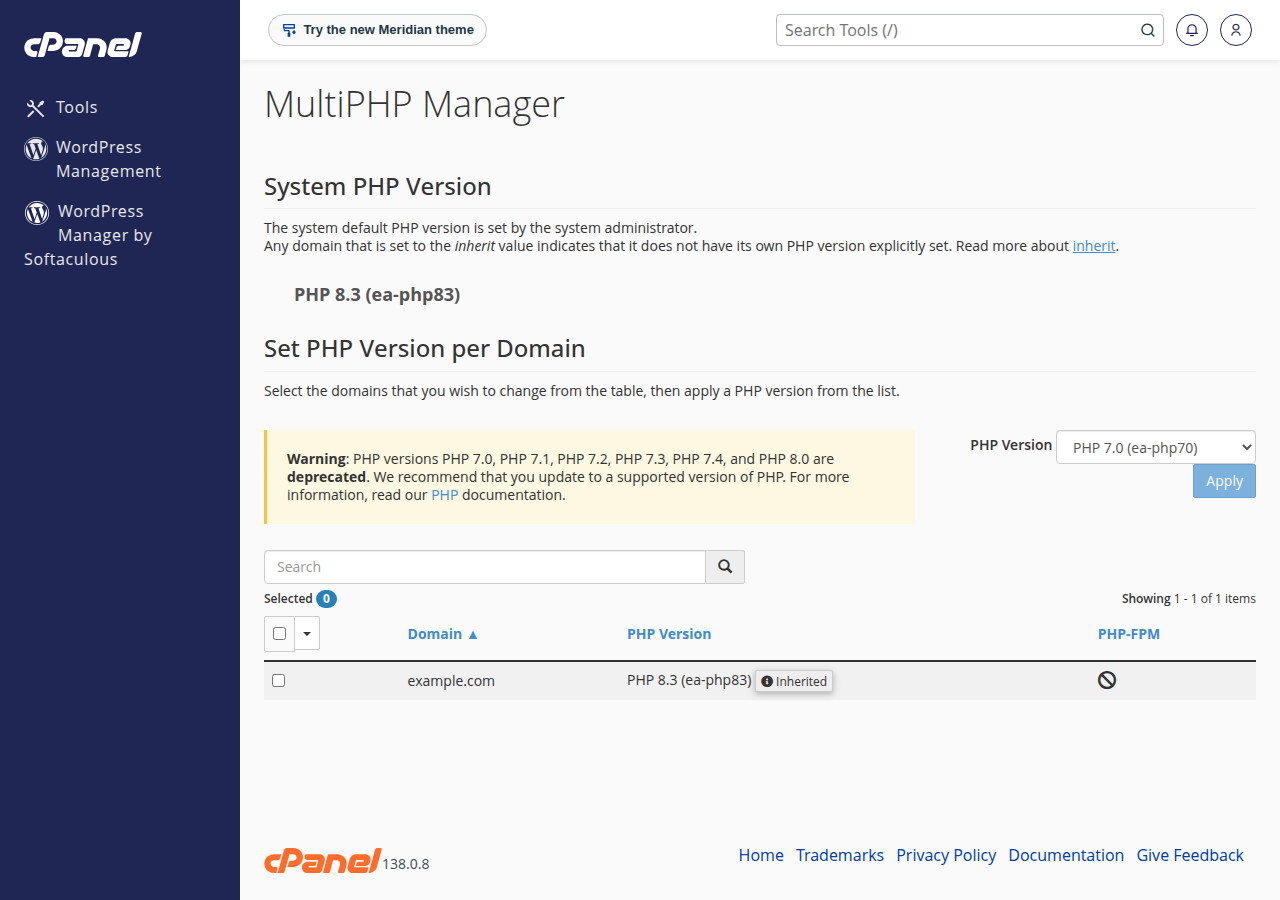
Open MultiPHP Manager in the Software section of cPanel, tick your domain, choose a version from the PHP Version dropdown and click Apply. Our cPanel servers offer PHP 5.1 to 8.5, and new accounts use 8.3 by default. Confirm the change with a one-line <?php echo PHP_VERSION; file, not a phpinfo page: phpinfo() is disabled on our cPanel servers.
1. Change the PHP version in MultiPHP Manager
- Open cPanel.In the client area, open your hosting services and click the cPanel button on your domain's row. See How to log in to cPanel for other routes.
- Open MultiPHP Managerin the Software section. It lists every domain in your account with its current PHP version.
- Tick the domainyou want to change. You can tick several at once.
- Choose the versionfrom the PHP Version dropdown and click Apply.
- Check your sitestraight away, and confirm the version as described in section 3.
A domain shown as inherit follows the account's default version. Setting a version on one domain doesn't affect your other domains.
2. Which PHP versions are available
Measured on Domain India's cPanel servers in September 2026, you can choose PHP 5.1 to 8.5, and new accounts start on 8.3. Servers are updated, so the MultiPHP Manager dropdown is always the final word.
Older versions are kept so legacy sites keep running, but they no longer get security fixes. For anything new, PHP 8.3 or newer is the safe choice in 2026. PHP 8.2 gets security fixes only until 31 December 2026, and every version older than 8.2 is already out of support. Check your application's requirements before a big jump, and take a copy of your files and database first.
3. Check which version your site is using
- Create a small filein your site's folder, for example
public_html, with a hard-to-guess name such asv-7f3a9.php, containing one line:<?php echo PHP_VERSION; - Open it in your browser, for example
https://yourdomain.com/v-7f3a9.php. It shows only the version number. If you still see the old one, add?t=1to the address: a cache in front of the web server can keep an old response for a while. - Delete the filewhen you're done.
Older guides, including an earlier version of this page, used a phpinfo() file for this. Don't: phpinfo() is disabled on our cPanel servers, and a phpinfo page left online publishes your server details. In WordPress you can also check Tools › Site Health › Info › Server.
4. After you switch
- PHP settings are kept per version. A
memory_limitor upload size you raised on the old version may need setting again, in the MultiPHP INI Editor or a.user.inifile. Don't usephp_valuein.htaccess: on our servers it causes a 500 error. See how to fix PHP memory errors and change memory_limit. - If the site breaks, switch back to the previous version first so it is up again, then read the error log to find the plugin, theme or script that failed.
- Some functions are disabled on shared hosting whatever version you choose; see PHP disabled functions on shared hosting.
Frequently asked questions
How do I change the PHP version in cPanel?
Open MultiPHP Manager in the Software section of cPanel, tick the domain, choose a version from the PHP Version dropdown and click Apply. The change applies to that domain only.
Which PHP versions can I use on Domain India cPanel hosting?
Measured in September 2026, our cPanel servers offer PHP 5.1 to 8.5, with 8.3 as the default for new accounts. The MultiPHP Manager dropdown shows what your server offers today.
Can different domains in my cPanel account use different PHP versions?
Yes. MultiPHP Manager sets the version per domain, so each website in your account can run the version it needs.
How do I check my PHP version without phpinfo?
Upload a file containing the single line <?php echo PHP_VERSION; to your site's folder, open it in your browser, then delete it. phpinfo() is disabled on our cPanel servers.
Ready to switch? Open your hosting services to reach cPanel, read the full PHP version guide, or open a support ticket if your application needs a version you can't find.
Tell us the domain, the application and the PHP version it needs, and we will confirm what your server offers and help you switch.
Ask our support team