You created a database and a database user, started your application's installer, and it stopped with a message such as "could not find database", "user is not assigned to database" or "Access denied for user". In almost every case the database and the user both exist, but the user was never added to the database, or the installer was given a name without its prefix. This guide shows how to find which one it is and fix it in a few minutes.
The installer can log in only if the database user is added to the database with privileges. In cPanel, open Manage My Databases › Add User To Database, choose your user and database, click Add, tick ALL PRIVILEGES and click Make Changes. Then give the installer the full names including your account prefix (for example acme_shop), the database user's password and host localhost.
1. What the error means
A web installer (for WordPress, Joomla, OpenCart, PrestaShop, a Laravel app or a script you bought) connects to MySQL with the four details you type in: host, database name, user name and password. The message changes from one installer to another, but the causes are the same.
| What the installer says | What it usually means |
|---|---|
| Could not find database / Unknown database | The database name is wrong or missing its prefix |
| User is not assigned to database / Access denied ... to database | The user exists but was never added to this database |
| Access denied for user ... (using password: YES) | Wrong password, or a user name without the prefix |
| Can't connect / Connection refused | The host is wrong; use localhost |
2. The usual cause: the user was never added to the database
Creating a database and creating a user are two separate steps in cPanel. Neither one links them. Until you add the user to the database, the user can log in to MySQL but cannot see or use your database, so the installer reports that it cannot find it.
- Log in to cPanel.See how to log in to cPanel if you need the link or password.
- Open Manage My Databases.It is in the Databases section.
- Check Current Databases.Find your database in the list. The Privileged Users column shows which users are added to it. If your user is not listed there, that is the problem.
- Add the user.Scroll to Add User To Database, choose your user and your database from the two lists, and click Add.
- Grant privileges.On the Manage User Privileges page, tick ALL PRIVILEGES and click Make Changes.
- Run the installer again.Go back to the installer and submit the same details.
cPanel's Database Wizard creates the database, creates the user and adds the user with privileges in one flow, so this step cannot be missed. See how to create a MySQL database and user.
3. Check the names: the prefix matters
On our cPanel servers, every database and database user name starts with your cPanel username and an underscore. If your username is acme and you typed shop, the real database is acme_shop and the real user might be acme_shopuser.
Installers need the full names. Copy them from Current Databases and Current Users on the Manage My Databases page rather than typing them from memory. Names are case-sensitive, and an extra space at the end is enough to break them.
4. Check the password and the host
Password. Use the password you set for the database user. Your cPanel password and your client-area password do not work here. If you are not sure of it, reset it: on Manage My Databases, under Current Users, click Change Password next to the user, set a new password, and use that in the installer.
Host. For an installer running on the same hosting account, the host is localhost. Do not use your domain name or the server IP address. The database user is set up for localhost, and port 3306 is closed to outside connections on our shared servers, so another host name usually fails.
5. Confirm the link and the login
In cPanel, phpMyAdmin opens with your cPanel login rather than the database user's, so the quickest test of the user is the Manage My Databases page itself:
- Check that the user appears under Privileged Users for the database (section 2). If it does, with ALL PRIVILEGES, the link is right.
- If the installer still fails, the password or a name is wrong. Reset the user's password, copy both full names again, and retry.
For a WordPress site that is already installed, the same details live in wp-config.php; see troubleshooting "Error establishing a database connection".
6. Other installer database errors
The database is not empty. Some installers refuse to install into a database that already has tables, or ask for a different table prefix. Use a new, empty database, or change the table prefix in the installer.
Access denied during import. If the installer loads a large .sql file and fails with #1044 or #1227, the file contains lines that shared hosting does not allow, such as CREATE DATABASE or DEFINER. See the import section of database troubleshooting.
Too many connections. A max_user_connections error during install usually clears on a retry. If it keeps happening on a live site, read section 4 of database troubleshooting.
7. DirectAdmin and Webuzo
DirectAdmin. When you create a database under Account Manager › Databases, DirectAdmin creates the user and links it in the same step, so this error is rarer. If it happens, click the database name on the Databases page and check that your user is listed with privileges. Add it there if it is missing, and copy the full prefixed names DirectAdmin shows.
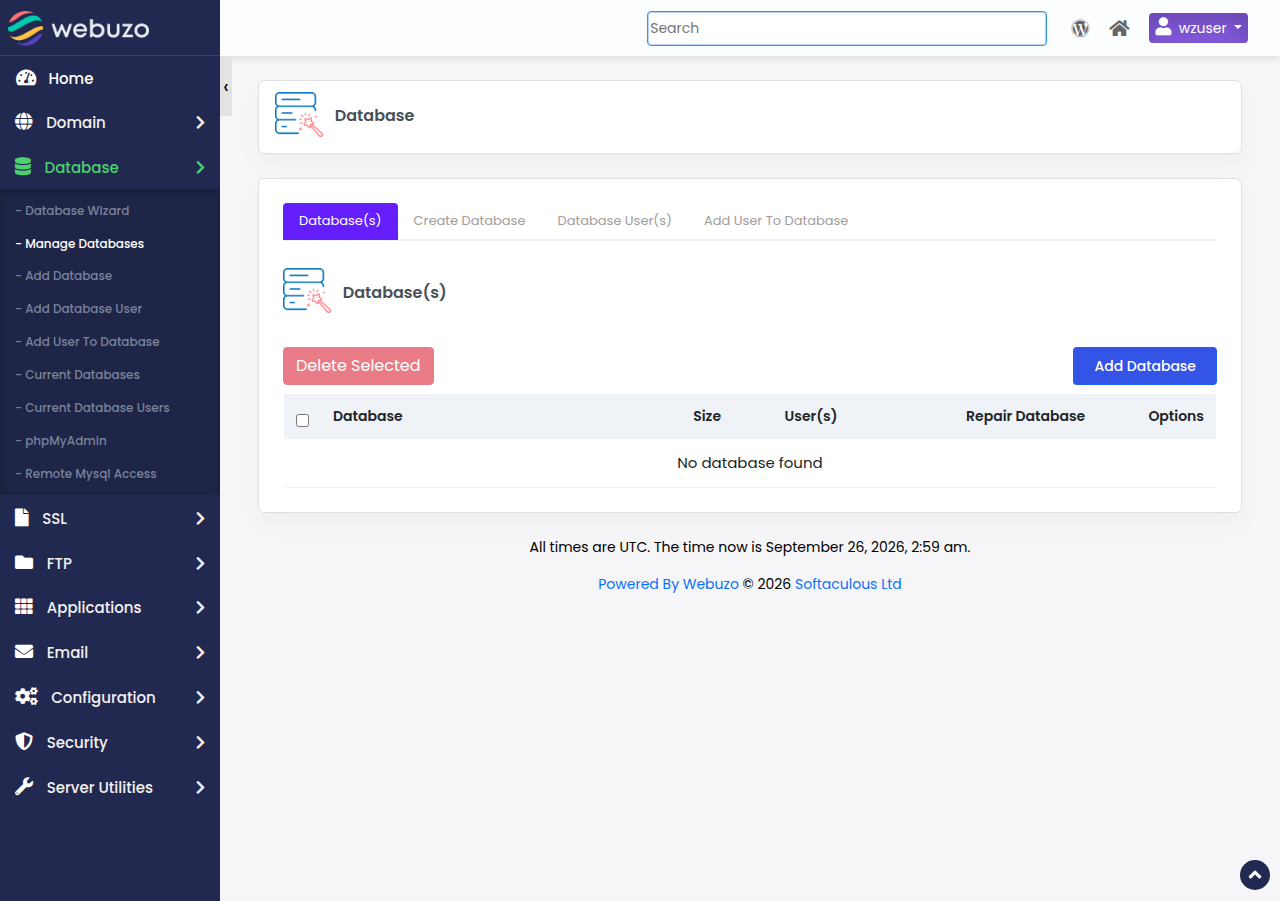
Webuzo. Go to Database › Manage Databases and check that the user is added to the database with privileges. Copy the full names Webuzo shows. If a menu differs from this description, ask support.
8. Let the installer do it for you
The easiest way to avoid this error is not to create the database by hand at all. On Domain India cPanel hosting, Softaculous and WP Toolkit install WordPress and hundreds of other applications and create the database, the user, the privileges and the configuration file automatically.
9. Where Domain India fits, and when to contact us
Every Domain India cPanel, DirectAdmin and Webuzo shared hosting plan includes MySQL-compatible databases, phpMyAdmin and one-click installers. Prices on the cards below are live and exclude 18% GST.
- 25 GB NVMe SSD Storage
- 50 GB Monthly Bandwidth
- 1 Website
- 10 Email Accounts
- 10 GB NVMe SSD Storage
- 50 GB Monthly Bandwidth
- 1 Website
- 5 Email Accounts
If the user is added with ALL PRIVILEGES, the names and password are right, and the installer still fails, open a ticket at /client/support/new while logged in, or at /support/ticket. Include the domain, the installer, the exact error and the database name. Never send your database password. Support is on 24/7 live chat, and tickets get a first response within 15 minutes; how long a fix takes depends on the problem. We do not offer phone support.
Frequently asked questions
What does "user is not assigned to database" mean?
The database user exists but has not been added to the database, so it has no rights there. In cPanel, open Manage My Databases, use Add User To Database to add the user to the database, tick ALL PRIVILEGES and click Make Changes.
I created the database and the user. Why does the installer still fail?
Creating them does not link them. The user must also be added to the database with privileges. Check the Privileged Users column next to your database on the Manage My Databases page in cPanel.
What database host should the installer use?
Use localhost for any installer or website running on the same Domain India hosting account as the database. Do not use the domain name or the server IP address.
Which database name do I type in the installer?
Type the full name as cPanel lists it, including your cPanel username and underscore at the front, for example acme_shop. The same applies to the database user name.
Can I use my cPanel password for the database?
No. The installer needs the password of the database user, which you set when you created that user. If you have lost it, set a new one with Change Password under Current Users on the Manage My Databases page.
How do I avoid this error completely?
Install through Softaculous or WP Toolkit in cPanel, which create and link the database and user for you, or use the Database Wizard, which adds the user to the database as part of the flow.
Ready to finish your install? Recheck your details with how to connect to the MySQL database, or open a support ticket if the installer still cannot find your database.
Send us the domain, the installer, the exact error and the database name, and we will check it with you. Never include your database password.
Open a support ticket