If your website runs on WordPress, WooCommerce or almost any PHP application, its posts, orders, users and settings live in a MySQL database, not in your files. phpMyAdmin, included in your control panel, lets you export that database to a single .sql file you can keep on your computer, and import it again when you need it. This guide shows both, step by step.
Open phpMyAdmin from your control panel, click your database on the left, open the Export tab, keep Quick and SQL, and click Export to download a .sql file. To restore, click the database, open the Import tab, choose the file and click Import. Export before every update or migration, compress large exports as .sql.gz, and keep copies off the server.
1. When to export your database
- Before any big change: a WordPress or plugin update, a theme switch, a bulk edit or a cleanup plugin.
- Before moving a site to a new account, a new domain or another host.
- On a regular schedule, in addition to the weekly backups included with your hosting. A weekly backup can be days old; your own export is as fresh as the moment you take it.
- Before deleting or repairing a database or a table.
2. Open phpMyAdmin
| Control panel | Where to find phpMyAdmin |
|---|---|
| cPanel | Databases › phpMyAdmin. It opens logged in and shows every database on your account. |
| DirectAdmin | Account Manager › Databases › phpMyAdmin, and sign in with a database user if asked |
| Webuzo | Database › phpMyAdmin |
If you need your cPanel login first, see how to log in to cPanel.
3. Export a database: the quick method
The quick method exports every table in the database with sensible defaults. It is the right choice for most backups.
- Select the database.In the left-hand list, click the database name, for example
acme_wp. Make sure you clicked the database itself, not one table inside it. - Open Export.Click the Export tab at the top.
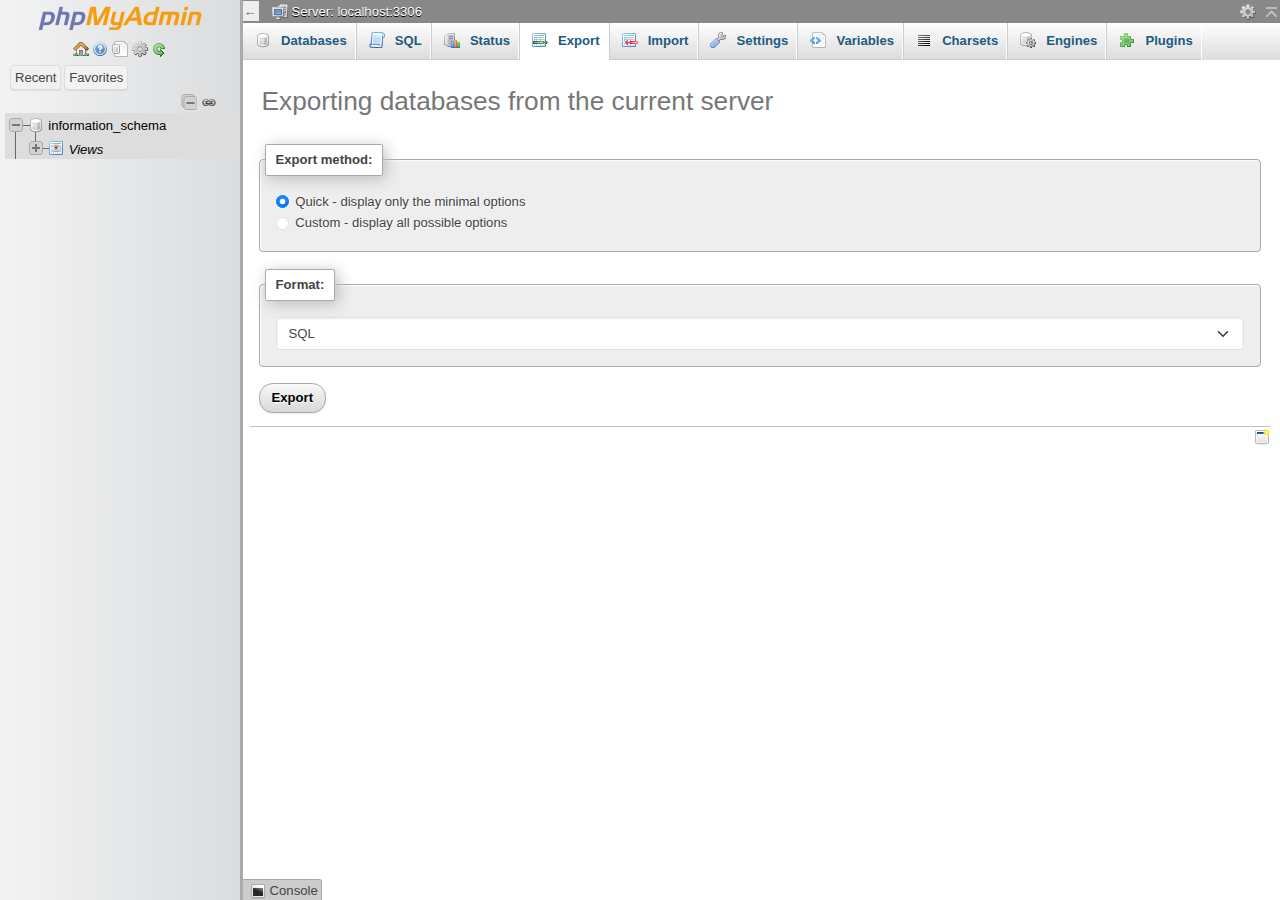
- Keep the defaults.Leave Export method on Quick and Format on SQL.
- Download.Click Export. Your browser downloads a file named after the database, such as
acme_wp.sql. - Store it safely.Move the file to a folder on your computer or your own cloud storage, and add the date to its name.
Not sure which database your site uses? For WordPress, open wp-config.php in the File Manager and look at the DB_NAME line.
4. Export with custom options
Choose Custom under Export method when you need more control. The options that matter most:
| Option | What it does | When to use it |
|---|---|---|
| Tables | Tick only the tables you want | Backing up part of a large database |
| Compression: gzipped | Saves a much smaller .sql.gz file | Any database over a few MB |
| Add DROP TABLE statement | Replaces existing tables on import | Restoring over a database that still has the old tables |
| Data creation options | Controls how rows are written | Leave the defaults unless you know you need a change |
Then click Export at the bottom of the page.
SQL text compresses very well, often to a small fraction of its size. A gzipped export downloads faster, and phpMyAdmin imports a .sql.gz file directly, which also helps you stay under the import size limit.
5. Restore (import) a database
Importing runs every statement in your .sql file against the database you select. If tables with the same names already exist, the import fails unless the file drops them first, so decide what you want before you start.
- Export the current state first.Even a broken database may hold something you need later.
- Choose the target.Import into an empty database for a clean restore, or empty the existing one: click the database, tick all tables with Check all, and choose Drop from With selected. Dropping tables cannot be undone.
- Open Import.Click the database name on the left, then the Import tab.
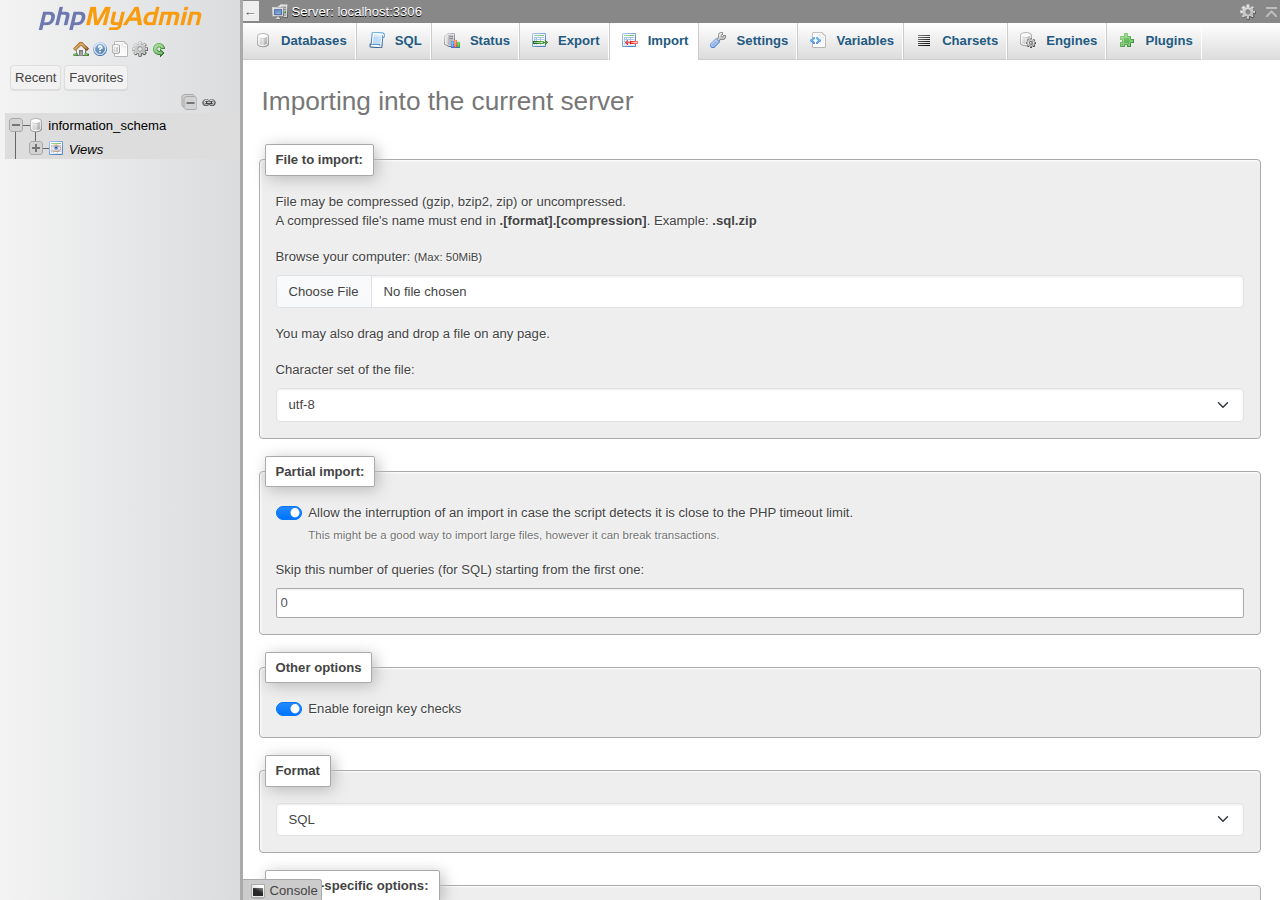
- Choose the file.Click Browse or Choose File and select your
.sqlor.sql.gzfile. The page shows the largest file it accepts next to the file chooser. - Import.Leave Format on SQL and click Import. Wait for the green success message before you leave the page.
- Check the site.Open your website and confirm recent content is there.
If you imported into a new database, update your site's configuration file, such as wp-config.php, with the new database name, and make sure the database user is added to it. See how to create a MySQL database and user.
6. When the import fails or the file is too large
On our cPanel servers, phpMyAdmin accepted files up to 50 MB when we checked in September 2026; the Import page always shows the current limit. If your file is larger:
- Compress it as
.sql.gz, which is usually enough. - Import over SSH if jailed SSH is enabled on your account. Jailed SSH is available on every shared hosting plan (cPanel, DirectAdmin, Webuzo); it is off by default, so ask support to enable it. Tools inside the jailed shell vary; ask support if
mysqlis not found. - Ask support with the file name, its size and where you uploaded it.
The most common import errors, such as #1044 Access denied, #1227 about DEFINER, #1050 Table already exists and unknown collations, are explained with fixes in the import section of database troubleshooting.
7. Other ways to back up your database
The full picture, including files and email, is in how to download a backup of your site. Why some backup plugins fail is explained in PHP disabled functions on shared hosting.
An export contains everything in your database: customer names, email addresses, orders and password hashes. Never leave .sql files in public_html, where anyone could download them, and delete any export you uploaded to the server once the import is done.
8. Where Domain India fits
Every Domain India cPanel, DirectAdmin and Webuzo shared hosting plan includes MySQL-compatible databases, phpMyAdmin and backups (weekly on cPanel and DirectAdmin, nightly on Webuzo), with no separate backup product to buy. Prices on the cards below are live and exclude 18% GST.
- 25 GB NVMe SSD Storage
- 50 GB Monthly Bandwidth
- 1 Website
- 10 Email Accounts
- 10 GB NVMe SSD Storage
- 50 GB Monthly Bandwidth
- 1 Website
- 5 Email Accounts
Support is on 24/7 live chat, and tickets get a first response within 15 minutes; how long a restore takes depends on its size. We do not offer phone support.
Frequently asked questions
How do I back up a MySQL database in phpMyAdmin?
Open phpMyAdmin from your control panel, click the database name in the left-hand list, open the Export tab, keep the Quick method and SQL format, and click Export. Save the downloaded .sql file somewhere off the server.
How do I restore a database from a .sql file?
In phpMyAdmin, click the target database, open the Import tab, choose your .sql or .sql.gz file and click Import. Import into an empty database, or drop the old tables first, otherwise the import can fail with "Table already exists".
My SQL file is too large to import. What can I do?
Check the limit shown on phpMyAdmin's Import page, then export the database again as a gzipped .sql.gz file, which phpMyAdmin imports directly. If it is still too large, import over SSH once jailed SSH is enabled on your account, or open a support ticket.
Does a phpMyAdmin export include my website files?
No. It contains only the database. For a complete backup, also download your files with the File Manager, FTP or JetBackup 5, and keep the file and database copies from the same day together.
Does Domain India back up my databases?
Domain India shared hosting includes backups: weekly on cPanel and DirectAdmin, and nightly on Webuzo, where support restores a database on request. On cPanel and DirectAdmin you can download or restore a database from them yourself with JetBackup 5. Keep your own exports as well, because a weekly backup can be several days old.
Should I choose Quick or Custom export?
Quick is right for most backups: it exports all tables as SQL with sensible defaults. Choose Custom when you want only some tables, a compressed .sql.gz file, or DROP TABLE statements for restoring over existing tables.
Ready to protect your data? Export your database now, then read how to download a backup of your site for your files, or open a support ticket if an import will not finish.
Tell us the domain, the database name, the file size and the error you see, and we will help you finish it. Never include your database password.
Open a support ticket