Moving a website to new hosting, or restoring one, usually comes down to five jobs: create an empty database, create a database user, link the two, import your .sql file with phpMyAdmin, and point your application at the new details. This guide walks through all five in cPanel, in order, with the fixes for the errors people actually hit.
In cPanel, use the Database Wizard to create the database and user and grant ALL PRIVILEGES in one flow. Then open phpMyAdmin, click the new database, and use Import to upload your .sql or .sql.gz file (50 MB limit on our cPanel servers; compress larger dumps). Finally put the full prefixed names, the password and the host localhost into your app's config file. If the import fails, the error message tells you which fix to apply.
1. Before you start
- Your database dump, as
.sqlor compressed.sql.gz. A compressed dump is often a tenth of the size, and phpMyAdmin imports it directly. - Your cPanel login. The quickest route is the client area: open your hosting services and click the cPanel button for your domain. See how to log in to cPanel for other routes.
- Five minutes for a small site. Large dumps take longer.
If you are installing WordPress or another application from scratch, use Softaculous or WP Toolkit in cPanel. The installer creates the database, the user and the config file for you. The manual steps below are for migrations, restores and custom code.
2. Understand the name prefix
On our cPanel servers, every database and database user name starts with your cPanel username and an underscore. If your username is acme and you type shop, the real database name is acme_shop. Your application must use the full names. Keep the part you type short, because names have a length limit.
3. Create the database, the user and the link
- Open the wizard.In cPanel, under Databases, click Database Wizard.
- Name the database.Type a short name such as
shopand click Next Step. - Create the user.Type a user name such as
shopuser, click Password Generator for a strong password, copy it somewhere safe and click Create User. - Grant privileges.Tick ALL PRIVILEGES and click Next Step. WordPress and most PHP applications create and change their own tables, so they need full rights on their own database.
- Note the details.You now have the full database name, the full user name and the password.
If you prefer the Manage My Databases page, do the same three jobs separately: create the database, create the user, then use Add User To Database. That last step is the one people miss; without it, the import and your site fail with "Access denied". The full guide is how to create a MySQL database and user.
4. Import your dump with phpMyAdmin
- Open phpMyAdminfrom the Databases section of cPanel. It opens already signed in.
- Click your new databasein the left-hand list. It should be empty.
- Open the Import taband choose your
.sqlor.sql.gzfile. - Check the limitshown next to the file chooser. On our cPanel servers it was 50 MB when we checked in September 2026.
- Leave Format on SQL and click Import.Wait for the green success message before you leave the page.
Import into an empty database. If tables with the same names already exist, the import stops with "Table already exists" unless the dump drops them first.
5. When the file is too large
- Compress it as
.sql.gz. SQL text compresses very well, so this solves most size problems. - Import over SSH. Jailed SSH access is available on every shared hosting plan (cPanel, DirectAdmin, Webuzo). It is off by default; ask support to enable it for your account. Login is by SSH key. Upload the file, then run:
gunzip < backup.sql.gz | mysql -u acme_shopuser -p acme_shopIt asks for the database user's password. Tools inside the jailed shell vary, so if mysql is not found, ask support.
- Ask support. Open a ticket with the file name, its size, where you uploaded it and the target database name.
Do not split a dump by hand in a text editor unless you know where statements end: a cut in the middle of an INSERT breaks the import.
6. Connect your application
Your app needs four values. The host is localhost, because the website and the database run on the same server; port 3306 is closed to the outside world.
| Setting | Example | Where it comes from |
|---|---|---|
| Host | localhost | Always localhost for a site on the same account |
| Database name | acme_shop | The full prefixed name from the wizard |
| User | acme_shopuser | The full prefixed user name |
| Password | the database user's password | Not your cPanel or client-area password |
For WordPress, edit wp-config.php:
define( 'DB_NAME', 'acme_shop' );
define( 'DB_USER', 'acme_shopuser' );
define( 'DB_PASSWORD', 'the-database-user-password' );
define( 'DB_HOST', 'localhost' );
For Laravel and similar frameworks, edit .env:
DB_CONNECTION=mysql
DB_HOST=localhost
DB_DATABASE=acme_shop
DB_USERNAME=acme_shopuser
DB_PASSWORD=the-database-user-password
For plain PHP with PDO or mysqli, see connecting to a MySQL database with PHP. Clear your application's cache after changing the settings, then load the site.
7. Fix common import errors
Our cPanel and DirectAdmin servers run MariaDB; phpMyAdmin shows the exact version under Database server. Most errors come from dumps made on a different server.
| Error | Why | Fix |
|---|---|---|
| #1044 Access denied to database | The dump has CREATE DATABASE or USE lines for another name | Delete those lines and import into the database you selected |
| #1045 or Access denied for user | Wrong user or password, or the user is not added to the database | Check the names and use Add User To Database |
| #1227 you need SUPER privilege | The dump has DEFINER clauses on views, triggers or procedures | Remove the DEFINER=... parts, or export again without them |
| #1050 Table already exists | Importing over existing tables | Import into an empty database |
| Unknown collation utf8mb4_0900_ai_ci | The dump came from MySQL 8, which MariaDB does not understand | Replace it with utf8mb4_unicode_ci in the dump and import again |
Garbled characters after import (é, ’) mean the character set changed on the way. Use utf8mb4 everywhere: when exporting, importing and in your app's connection. More detail is in database troubleshooting and resolving MySQL charset issues.
Before you point your domain at the new site, open a few key tables in phpMyAdmin to confirm the row counts look right, log in to the application and submit a test form. Keep the original dump until the new site has run cleanly for a while.
8. DirectAdmin and Webuzo
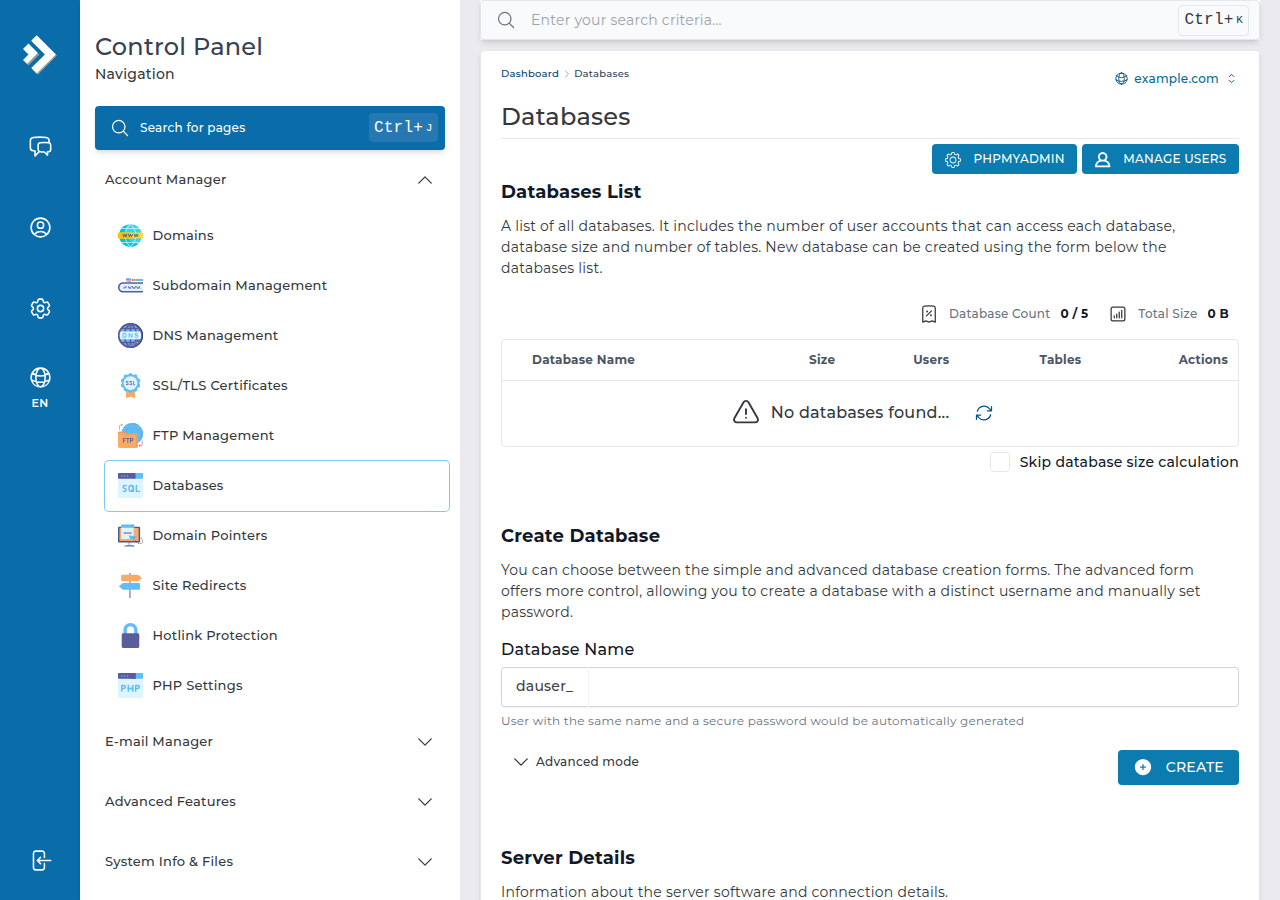
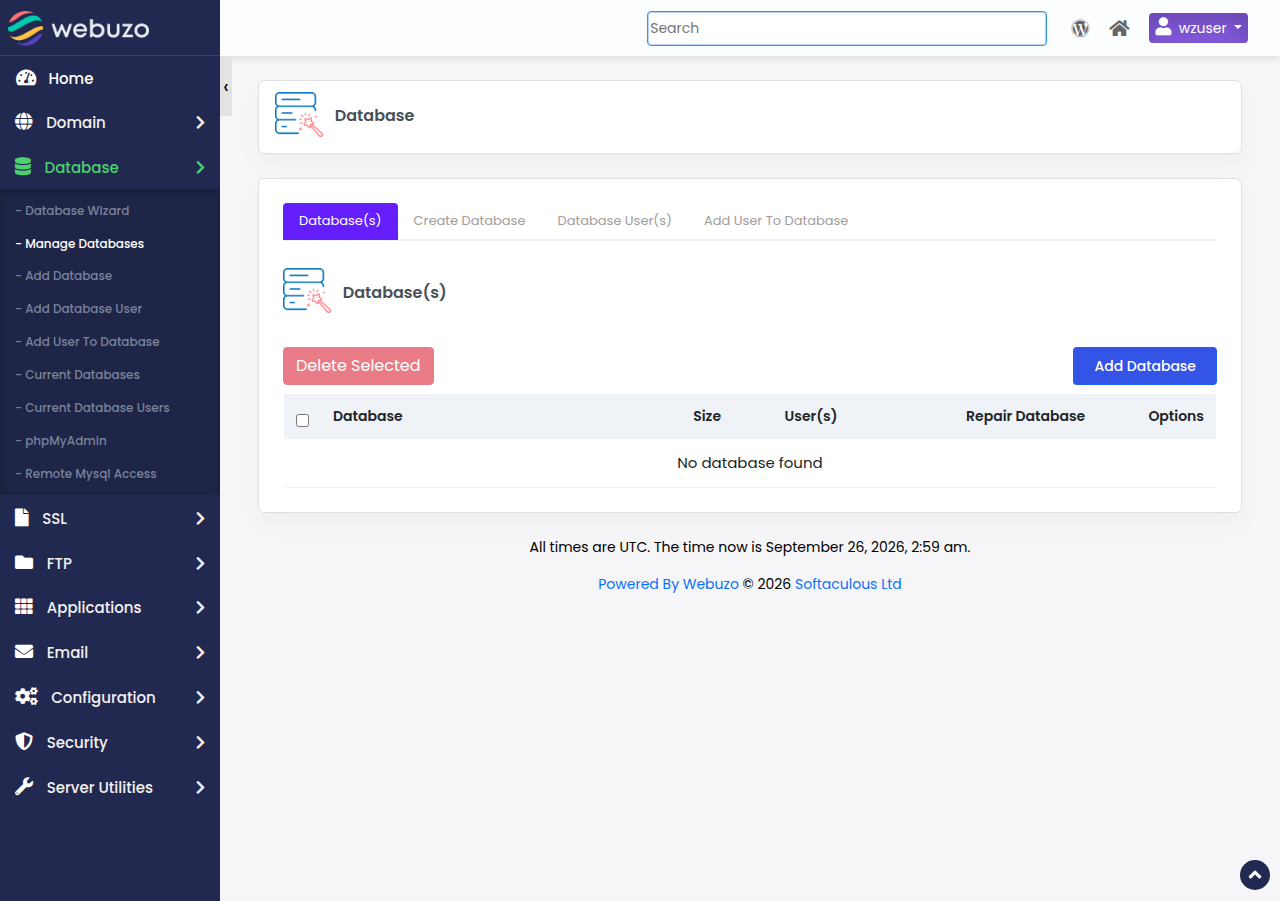
The steps are the same idea. In DirectAdmin, open Account Manager › Databases, type a name in the Create Database form, click CREATE and copy the name, user and password it shows. In Webuzo, use Database › Manage Databases. Both add your username as a prefix. phpMyAdmin may ask you to sign in there; use the database user, not your panel login. On DirectAdmin the PHP upload limit is 64 MB. If a menu looks different, ask support.
9. Where Domain India fits
Every Domain India shared hosting plan (cPanel, DirectAdmin and Webuzo) includes MySQL-compatible databases and phpMyAdmin. On cPanel and DirectAdmin, JetBackup keeps weekly account backups, so you can roll back a database if an import goes wrong: see restoring with JetBackup. Export your current database first anyway; a weekly backup may be several days old. Compare plans on cPanel hosting and DirectAdmin hosting.
Frequently asked questions
What is the MySQL host name on Domain India cPanel hosting?
Use localhost. Your website and its database run on the same server, and port 3306 is closed to outside connections on Domain India shared servers.
How big a file can I import in phpMyAdmin on cPanel?
phpMyAdmin accepted files up to 50 MB on Domain India cPanel servers when checked in September 2026, and the Import page always shows the current limit. Compress larger dumps as .sql.gz, or import over SSH if jailed SSH is enabled on your account.
Why does my import fail with "Unknown collation utf8mb4_0900_ai_ci"?
The dump was made on MySQL 8, and Domain India shared servers run MariaDB, which does not recognise that collation. Replace utf8mb4_0900_ai_ci with utf8mb4_unicode_ci in the dump file and import again.
Why does my site say "Access denied for user" after the import?
Usually the database user was never added to the database, or the config file uses the short name instead of the full prefixed name. Add the user to the database with ALL PRIVILEGES and use the full names, such as acme_shop.
Which password goes in wp-config.php?
The database user's password that you set in the Database Wizard. It is not your cPanel or client-area password.
Can I import a database without SSH?
Yes. phpMyAdmin in cPanel imports .sql and .sql.gz files without SSH. SSH is only needed for files above the upload limit, and jailed SSH is off by default; ask support to enable it.
Ready to move your site? Open your hosting services to reach cPanel, read database troubleshooting if an import fails, or open a support ticket for a very large import. Support is on 24/7 live chat, and tickets get a first response within 15 minutes.
Tell us the file name, its size, where you uploaded it and the target database, and our support team will help.
Open a support ticket