Moving a WordPress site to a new address, whether a new domain, http to https, or a subfolder to the main domain, is mostly a database job. WordPress stores its own address, and every link and image path in your content, inside the database. This guide shows how to change all of them safely on Domain India hosting, keep your search rankings with 301 redirects, and check the result.
Back up the files and the database first. Make sure the new domain is added to your hosting and points to it. Then change the WordPress Address and Site Address, and replace the old URL everywhere in the database with a tool that understands serialized data: WP-CLI's wp search-replace if it is available in your jailed shell, otherwise a search-and-replace plugin. Don't use a plain SQL REPLACE on the whole database. Finish with a 301 redirect from the old domain in .htaccess, re-save permalinks, and test with ?t=123 added to the URL.
1. Know which move you are making
| Your move | What changes | Files move? |
|---|---|---|
| Old domain to a new domain, same hosting account | The URL only | Only if the new domain has its own folder |
http:// to https:// on the same domain | The URL scheme only | No |
A subfolder (/blog) to the main domain, or the reverse | The URL and the folder | Yes |
| To a new hosting account or provider | The server, and perhaps the URL | Yes, plus a database export and import |
This guide covers the URL change, which every one of these needs. If you are also moving to Domain India from another host, read the website migration guide for the file and database transfer.
2. Back up before you touch anything
A URL change touches every page of your site, so a bad replace can break everything at once. Take two copies:
- The database. In phpMyAdmin, select the WordPress database and use Export. See how to back up a MySQL database using phpMyAdmin.
- The files. At least
wp-contentandwp-config.php. Compress the site folder in the File Manager and download the archive.
Our shared hosting keeps weekly backups, but a copy you take minutes before the change is the one you will want if something goes wrong. Keep it on your own computer.
3. Get the new address ready
The new domain must reach your hosting before WordPress can use it.
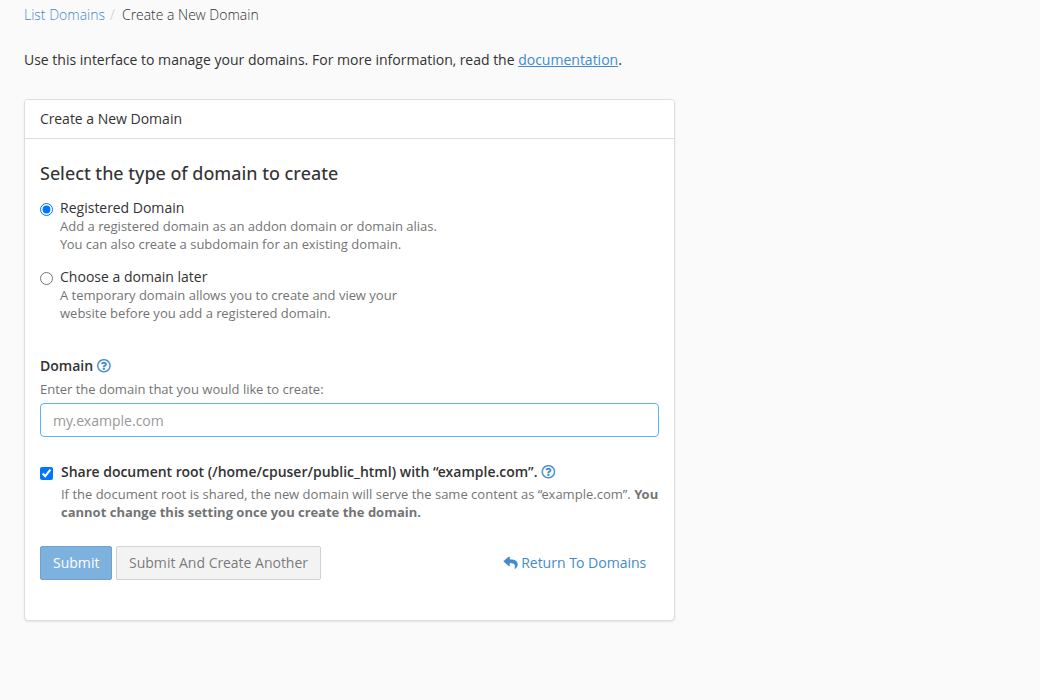
- Add the domain to your hosting.In cPanel open Domains › Create A New Domain. If the site should move to the new domain's own folder, untick Share document root. See adding more than one domain.
- Point the domain at your hosting.Use the hosting nameservers or A records shown on your hosting service in the client area, as explained in how do I change my nameservers. DNS changes can take several hours to reach every network.
- Wait for SSL.The free certificate for the new domain is issued once its DNS points to the server. Open
https://newdomain.inand check there is no certificate warning before you go on. - Move the files if needed.If the new domain has its own folder, copy the WordPress files into it with the File Manager or FTP. If the domain shares the old folder, nothing moves.
Moving between hosting accounts? Import the database into the new account and update DB_NAME, DB_USER, DB_PASSWORD and DB_HOST in wp-config.php. The account prefix changes with the username, so all the names change too. See how to connect to the MySQL database.
4. Change the WordPress and Site addresses
If you can still log in to the dashboard, go to Settings › General, set WordPress Address (URL) and Site Address (URL) to the new address, for example https://www.newdomain.in, and save. You will be logged out; log in again at the new address.
If the dashboard is not reachable, edit the two values in phpMyAdmin instead. They are the only two you should change with plain SQL:
UPDATE wp_options
SET option_value = 'https://www.newdomain.in'
WHERE option_name IN ('siteurl', 'home');
Use your own table prefix if it is not wp_. A third way is to add these lines to wp-config.php, above the line that says to stop editing. They override the database, and the Settings fields become greyed out while they are there:
define( 'WP_HOME', 'https://www.newdomain.in' );
define( 'WP_SITEURL', 'https://www.newdomain.in' );
5. Replace the old URL in your content, safely
Changing the two addresses does not fix links, images and settings that still point at the old domain. Those need a search and replace across the database.
Older guides give SQL like UPDATE wp_postmeta SET meta_value = replace(...). Many plugins, page builders and widgets store settings as serialized data, which records the length of every text value. When the new URL is a different length, a plain SQL replace leaves the recorded length wrong, and WordPress quietly discards the setting: widgets vanish, page-builder layouts break, theme options reset. Use one of the two tools below, which recalculate those lengths.
Option A: WP-CLI, if it is available in your jail
Jailed SSH access is available on every shared hosting plan (cPanel, DirectAdmin, Webuzo). It is off by default; ask support to enable it for your account. Tools inside the jailed shell vary, so check that wp --info works first. From the site's folder, do a dry run, then the real run:
cd ~/public_html
wp search-replace 'https://olddomain.in' 'https://www.newdomain.in' --all-tables-with-prefix --skip-columns=guid --dry-run
wp search-replace 'https://olddomain.in' 'https://www.newdomain.in' --all-tables-with-prefix --skip-columns=guid
wp cache flush
The dry run lists how many replacements each table would get, without changing anything. Run it again for other forms of the old address, such as http://olddomain.in and https://www.olddomain.in. Leave the guid column alone: it is a permanent ID for each post, used by feed readers, not a link. More in using WP-CLI on shared hosting.
Option B: a search-and-replace plugin
Without SSH, install a maintained search-and-replace plugin from the WordPress plugin directory, such as Better Search Replace. Enter the old and new URL, select all tables, tick the dry-run option first and read the report, then run it for real. Deactivate and delete the plugin afterwards, so it can't be misused.
Tips for either tool: replace the full URL with the scheme (https://olddomain.in), not just olddomain.in, so you don't change email addresses by accident. For a subfolder move, include the folder: https://site.in/blog to https://site.in.
6. Redirect the old address with a 301
A 301 redirect sends visitors and search engines from each old page to the same page on the new domain, and passes the old page's ranking to the new one. Keep the old domain registered and pointing at your hosting for as long as it has visitors, at least a year.
The old domain can stay on your hosting as an alias (the old "parked domain"), which doesn't use up a website on your plan. Put this at the top of the .htaccess file in the folder the old domain serves, above the WordPress block:
RewriteEngine On
RewriteCond %{HTTP_HOST} ^(www\.)?olddomain\.in$ [NC]
RewriteRule ^ https://www.newdomain.in%{REQUEST_URI} [R=301,L]
The RewriteCond line limits the rule to the old domain, so it can't loop on the new one. mod_rewrite and .htaccess work on our cPanel, DirectAdmin and Webuzo servers. For more patterns and how to test them, see how to enable the mod_rewrite module.
7. Finish and test
- Re-save permalinks.In the dashboard open Settings › Permalinks and click Save Changes without editing anything. This rewrites WordPress's own
.htaccessrules. - Clear every cache.Empty your caching plugin's cache and any CDN cache, so visitors don't get pages with old links.
- Test past the server cache.Our cPanel servers have a caching proxy in front of Apache that can keep serving a stored copy of a page or redirect for up to two hours. Add a unique query string when you test, such as
https://olddomain.in/contact/?t=123. - Check with curl.
curl -sIL "https://olddomain.in/contact/?t=124"should show one301followed by a200on the new domain. - Click through the site.Check the home page, a few posts, images, forms, the shop checkout and the login page. Look for mixed-content warnings in the browser.
8. Tell the outside world
- Google Search Console: add and verify the new domain, submit its sitemap, and use the Change of Address tool on the old property.
- Analytics, ads and payment gateways: update the site URL in Google Analytics, ad accounts, and gateway callback or webhook settings.
- Email: a new domain doesn't move your mailboxes. Create the addresses you need on the new domain and keep the old ones until mail to them stops.
9. Where Domain India fits
To redirect the old domain, it must stay on your hosting, and as an alias it doesn't use up a website on your plan. If you want to keep two full sites running, you need a plan with more than one website, such as cPanel Growth. Prices on the card are live and exclude 18% GST.
- 50 GB NVMe SSD Storage
- 100 GB Monthly Bandwidth
- 5 Websites
- 50 Email Accounts
Need the new domain first? Register it here. If the move goes wrong, restore your backup and contact us. Support is on 24/7 live chat, and tickets get a first response within 15 minutes; there is no phone support.
Frequently asked questions
Can I change my WordPress URL by running SQL in phpMyAdmin?
Only for the two address settings, siteurl and home, in the wp_options table. For links in posts, widgets and plugin settings, use WP-CLI's search-replace or a search-and-replace plugin, because a plain SQL replace breaks serialized data when the URL length changes.
I changed the Site Address and now I can't log in. What do I do?
Set the correct address in phpMyAdmin by updating siteurl and home in the wp_options table, or add WP_HOME and WP_SITEURL lines to wp-config.php. Then log in at the new address and clear your browser cookies if the login page keeps reloading.
How long should I keep the old domain after moving?
Keep it registered and redirecting with a 301 for at least a year, and longer if it still gets visitors or has links from other sites. If the old domain expires, those links and its ranking are lost.
Why does the old domain still show the old site after I added the redirect?
Your browser or the cPanel caching proxy may be serving a stored copy for up to two hours. Test in a private window and add a unique query string such as ?t=123 to the URL, so the request reaches the server and your new rule.
Is WP-CLI available on Domain India shared hosting?
WP-CLI needs SSH. Jailed SSH access is available on every shared hosting plan but is off by default, so ask support to enable it. Tools inside the jailed shell vary, so run wp --info to check before you rely on it; otherwise use a search-and-replace plugin.
Ready to move? Take your backup, open your hosting services to add the new domain, and keep the complete WordPress guide at hand for the rest.
Tell us the old and new domain and what you have changed so far, and we will help you finish it.
Open a support ticket