If you see "PHP Fatal error: Allowed memory size of 134217728 bytes exhausted", one PHP script asked for more memory than PHP's memory_limit allows a single request. On Domain India shared hosting you raise it in your control panel or with a .user.ini file, never with php_value in .htaccess, which causes a 500 error on our servers.
This page is the quick fix. The complete guide, covering WordPress settings, your plan's memory ceiling and how to find the plugin or script behind the error, is How to fix "Allowed memory size exhausted" PHP errors.
On cPanel, open MultiPHP INI Editor, choose your domain and set memory_limit to 256M. On any panel, a .user.ini file in your site's folder containing memory_limit = 256M also works. Don't use php_value in .htaccess or a php.ini in your folder. If the error continues at 256M or 512M, a plugin, theme or script is the real problem.
1. Read the number in the error
The first number is the current limit in bytes. The "tried to allocate" number is only the last small request that didn't fit, not how much more the script needs.
| Bytes in the error | memory_limit it means |
|---|---|
| 67108864 | 64M |
| 134217728 | 128M |
| 268435456 | 256M |
| 536870912 | 512M |
2. Raise the limit
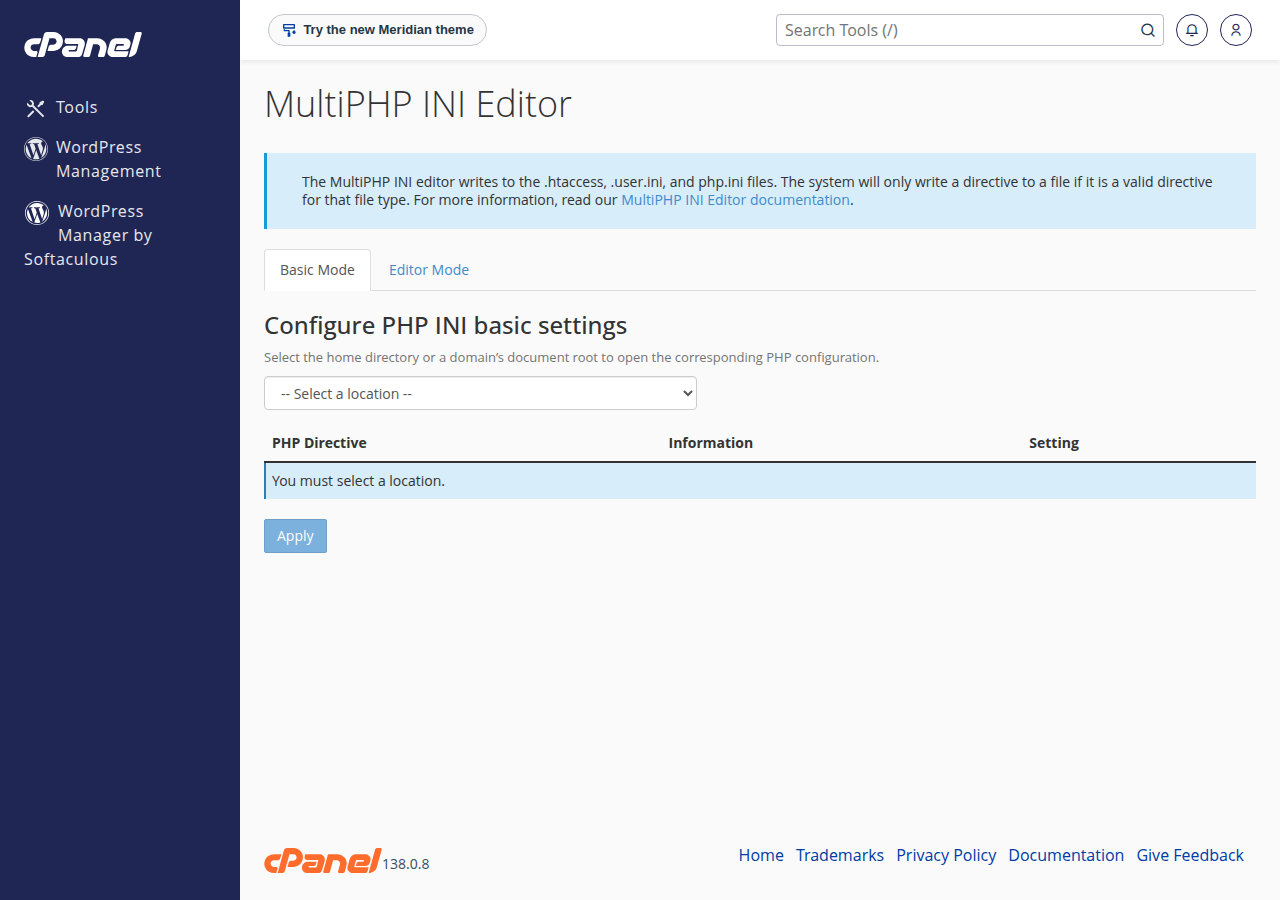
- cPanel:sign in, open MultiPHP INI Editor in the Software section, choose Basic Mode, select your domain, set
memory_limit(for example 256M) and click Apply. - Any panel, or if the editor doesn't offer it:create a file called
.user.iniin the folder your site runs from, such aspublic_html, with one line:memory_limit = 256M. Use the File Manager. The change can take up to 5 minutes to apply. - Check it worked.In WordPress, see Tools › Site Health › Info › Server. On any site, upload a file with a hard-to-guess name containing
<?php echo ini_get('memory_limit');, open it, then delete it.
On DirectAdmin, open Account Manager › PHP Settings, choose memory_limit under Add New Override, set the value and click Add. On Webuzo, open the PHP INI Editor page from the panel's search box. Or use .user.ini, or ask support to set the value for you.
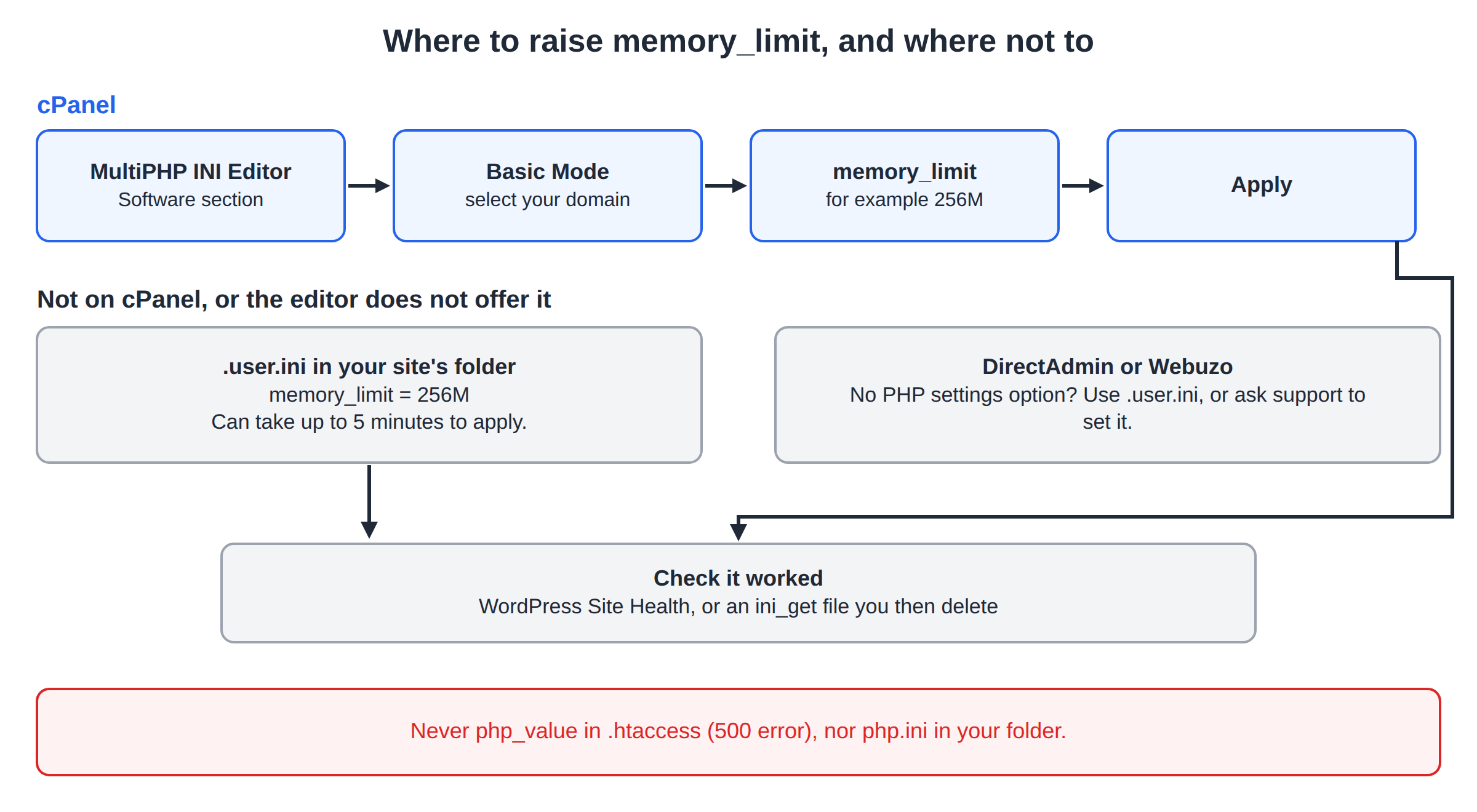
Older guides, including an earlier version of this page, said to add php_value memory_limit to .htaccess. Our shared servers run PHP through PHP-FPM or CGI, not as an Apache module, so that line makes the whole site return a 500 error. If you added it, remove it. A php.ini file in your folder is not reliable either, and you can't restart the web server on shared hosting.
3. How high should you go?
- 128M suits a simple PHP site.
- 256M covers almost every WordPress and WooCommerce site.
- 512M only for a known heavy job, such as a large import.
Don't set -1 or a very high value. memory_limit applies to each request, and all the PHP processes on your account share your plan's memory, so a huge limit just lets one faulty script take the whole account down. If the error keeps coming back at 256M or 512M, find the cause: the file path in the error often names the plugin or theme. See Understanding hosting resource limits.
WordPress also has its own WP_MEMORY_LIMIT setting in wp-config.php; the full guide explains how it works with memory_limit.
4. When your plan is the limit
If your resource usage page shows the account regularly reaching its memory limit even with sensible settings, a larger plan gives the account more RAM. See how to check hosting resource usage.
- 50 GB NVMe SSD Storage
- 100 GB Monthly Bandwidth
- 5 Websites
- 50 Email Accounts
The card shows the current list price; 18% GST is added at checkout.
How do I increase the PHP memory limit on Domain India hosting?
On cPanel, open MultiPHP INI Editor, select your domain in Basic Mode, set memory_limit to a value such as 256M and click Apply. On any panel, you can instead put the line memory_limit = 256M in a .user.ini file in your site's folder.
Can I set memory_limit with php_value in .htaccess?
No. Domain India shared servers run PHP through PHP-FPM or CGI, so php_value and php_flag lines in .htaccess make the site return a 500 Internal Server Error. Use the control panel or a .user.ini file.
What memory_limit should I use for WordPress?
256M is enough for almost every WordPress and WooCommerce site. If the error continues at 256M or 512M, a plugin or theme is using too much memory and needs updating or replacing.
I changed memory_limit but the error still shows the old value. Why?
Wait up to 5 minutes for a .user.ini change to apply, check that you changed the setting for the PHP version your site actually uses, and look for an old php.ini or .user.ini in the site folder or a parent folder that overrides it.
Should I set memory_limit to -1?
No. On shared hosting your PHP processes share your plan's memory, so an unlimited value lets one faulty script use all of it. It does not add memory to your plan.
Still stuck? Read the full memory-limit guide, or open a support ticket with the full error message and the page where it appears.
Send us the full error message, the page where it appears and the memory limit you have set, and we will help you find the cause.
Open a support ticket