Hardening means changing the default settings that make WordPress easier to attack: locking down configuration files, adding browser security headers, tightening the database user and switching off features you do not use. This checklist covers those hardening steps in order, with code that is correct for 2026. The everyday security habits, such as updates, passwords and two-factor authentication, have their own guides, linked below.
Most hacks come through outdated plugins and stolen passwords, and those fixes are covered in Common WordPress security issues and simple steps to prevent them and Why and how WordPress websites get hacked. Do those first; this page adds the hardening layer on top.
Harden WordPress in this order: keep everything updated and use 2FA; turn off the dashboard file editor; protect wp-config.php and set its permissions to 640 or 600; switch off directory listing and PHP in the uploads folder; force HTTPS and add security headers; give each site its own database user; and keep your own backups. On Domain India cPanel hosting, the server adds a web application firewall and automatic malware cleanup, but the site-level steps are yours.
1. The hardening checklist at a glance
| Step | Where you do it | Effort |
|---|---|---|
| Updates, 2FA, login limits, fewer administrators | WordPress dashboard and a security plugin | Covered in the main guides |
| Turn off the file editor | wp-config.php | 1 minute |
| Protect wp-config.php | .htaccess and file permissions | 5 minutes |
| Stop directory listing and PHP in uploads | .htaccess | 5 minutes |
| Force HTTPS | Control panel and WordPress settings | 5 minutes |
| Security headers | .htaccess | 15 minutes, then testing |
| Database user per site | Control panel | 10 minutes |
| Block XML-RPC if unused | Security plugin or .htaccess | 2 minutes |
| Monitoring and your own backups | Security plugin and backup plugin | 30 minutes |
Before you edit any file, download a copy of it. A typing mistake in .htaccess gives a 500 error until you undo it; see troubleshooting 500 internal server errors.
2. Harden wp-config.php
wp-config.php holds your database password and security keys, so it gets the most protection.
Turn off the dashboard code editor. Add this line above "That's all, stop editing":
define( 'DISALLOW_FILE_EDIT', true );Anyone who steals an administrator login can then no longer paste malicious code into a theme or plugin from the dashboard. You can still edit files through the File Manager, SFTP or Git.
Block web access to the file. Add this to the .htaccess file in your WordPress folder:
<Files wp-config.php>
    Require all denied
</Files>
Older guides show order allow,deny and deny from all. That is Apache 2.2 syntax; use Require all denied.
Tighten its permissions to 640, or 600 if the site still loads. Folders stay at 755 and files at 644; never use 777. You can change permissions in the File Manager.
Refresh the security keys after any incident. Replace the eight AUTH_KEY to NONCE_SALT lines with a new set from the official WordPress secret-key generator. Everyone, including any attacker, is logged out.
Moving wp-config.php one folder above the WordPress folder also works, because WordPress looks there automatically. It adds little once the file is blocked as above, so it is optional.
3. Lock down folders with .htaccess
.htaccess files work on Domain India cPanel, DirectAdmin and Webuzo hosting, and mod_rewrite is available on all three.
Switch off directory listing. On our cPanel servers, directory listing is on by default, so a folder without an index file shows every file in it. Add this line to .htaccess:
Options -IndexesThe folder then shows a 403 Forbidden error instead of a file list.
Stop PHP running in the uploads folder. Images never need to run as code, but a malicious upload does. The rule and the test for it are in common WordPress security issues, section 7.
You do not need a rule to hide .htaccess itself. Apache refuses requests for .ht files by default.
Our servers run PHP through PHP-FPM or CGI, not as an Apache module, so a php_value or php_flag line in .htaccess causes a 500 error. Change PHP settings in your control panel instead.
4. Force HTTPS and add security headers
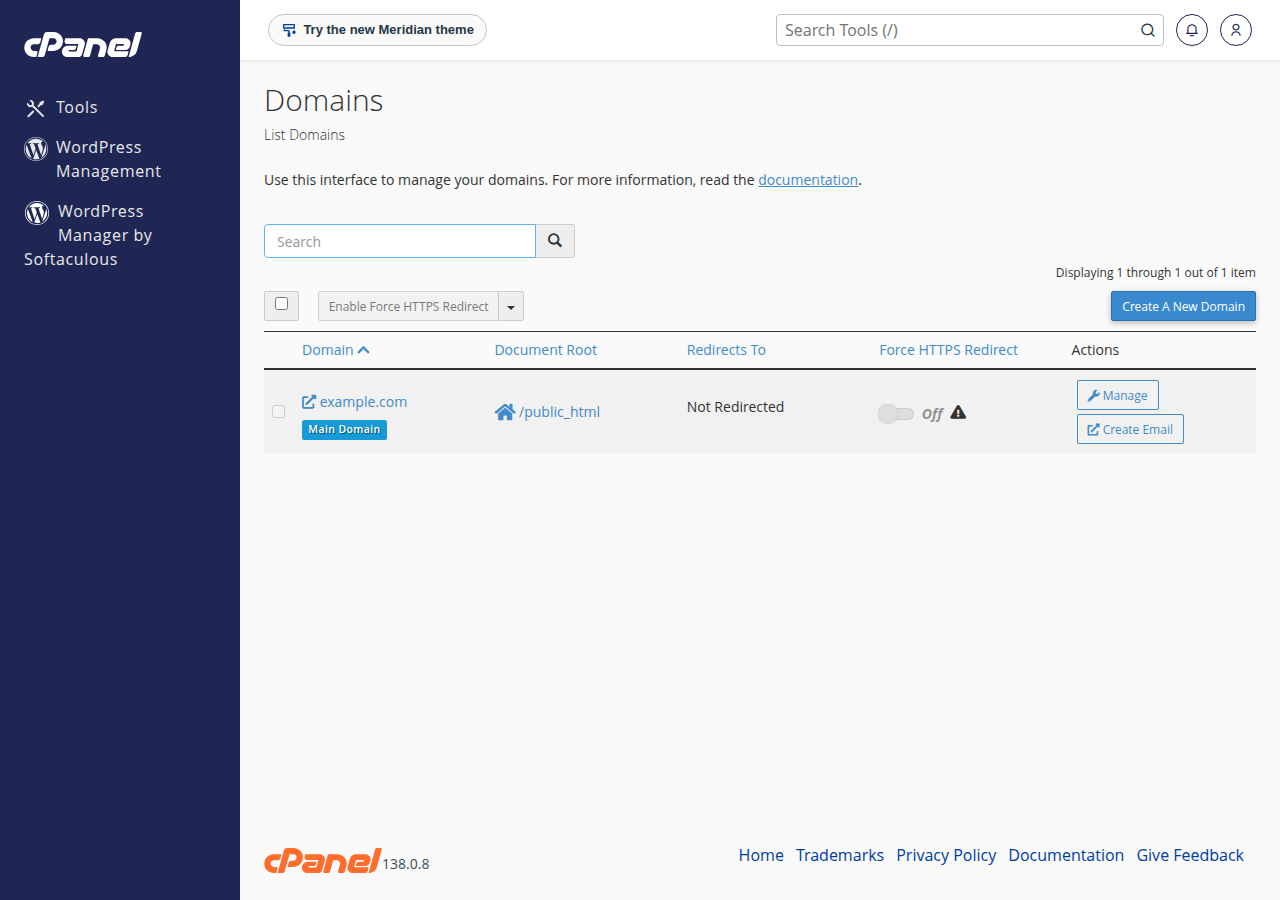
Free SSL is included with Domain India hosting. On cPanel, certificates are issued and renewed automatically, and the Domains page has a Force HTTPS Redirect switch for each domain. Then set both addresses in WordPress Settings › General to https://.
Security headers tell the browser how to treat your pages. The mod_headers module is loaded on our cPanel and DirectAdmin servers, so you can add them in .htaccess:
<IfModule mod_headers.c>
    Header always set X-Content-Type-Options "nosniff"
    Header always set X-Frame-Options "SAMEORIGIN"
    Header always set Referrer-Policy "strict-origin-when-cross-origin"
    Header always set Permissions-Policy "camera=(), microphone=(), geolocation=()"
</IfModule>- X-Frame-Options stops other sites showing yours in a frame (clickjacking).
- X-Content-Type-Options stops the browser guessing file types.
- Leave out X-XSS-Protection. Older guides recommend it, but modern browsers removed the feature it controlled.
Add these two with care:
- Strict-Transport-Security (HSTS) tells browsers to use HTTPS only. Add it only when every subdomain works over HTTPS, start with a short
max-age, and do not addpreloadunless you understand that it is hard to undo. - Content-Security-Policy (CSP) limits where scripts may load from. WordPress themes and plugins use many inline and third-party scripts, so a strict policy breaks sites easily. Start with
Content-Security-Policy-Report-Only, watch the browser console, and tighten it gradually.
Check the result in your browser's developer tools under Network, then the response headers. On cPanel hosting, pages can be cached for up to two hours, so add ?t=1 to the address when you test a change.
5. Tighten the database
- One database user per site. Give each WordPress site its own database and its own user, with privileges on that database only. A leaked password for one site then cannot reach another.
- Do not cut the user down to SELECT, INSERT, UPDATE and DELETE. Older guides suggest it, but WordPress and plugin updates need to create and alter tables, so updates fail. Limit the user's reach to one database, not the privileges inside it.
- Table prefix: choose something other than
wp_when you install a new site. Changing it on a live site gains little and can break it. - Remote database access: port 3306 is closed from outside on our shared servers. If you need to reach the database from your computer, use an SSH tunnel.
6. Firewall, monitoring and backups
Web application firewall (WAF). On our cPanel servers, Imunify360 runs a web application firewall with its full ruleset and WordPress protection on by default, so many injection and brute-force attempts are blocked before they reach WordPress. A security plugin's firewall or a service such as Cloudflare adds another layer; see the Cloudflare setup guide.
XML-RPC. If you do not use Jetpack or an app that publishes through xmlrpc.php, block it. The rule is in the main guide, section 3.
Monitoring. Install one security plugin, such as Wordfence, Solid Security (formerly iThemes Security) or Sucuri Security, with email alerts for new administrators, changed files and vulnerable plugins. Two security plugins together often conflict.
Backups. Domain India cPanel and DirectAdmin hosting runs weekly JetBackup 5 backups and keeps five copies, which you can restore or download from the panel; see backup and restore with JetBackup. Keep your own copies off the server as well, because malware can sit unnoticed for longer than a week.
7. Where Domain India hosting fits
The server side is handled for you. On our cPanel servers, CloudLinux CageFS keeps each account's files isolated, Imunify360 cleans malicious code from infected files automatically and keeps the original for 14 days, and WP Toolkit is available to manage WordPress installations. The same protection applies to every plan, so choose by resources.
- 25 GB NVMe SSD Storage
- 50 GB Monthly Bandwidth
- 1 Website
- 10 Email Accounts
- 10 GB NVMe SSD Storage
- 50 GB Monthly Bandwidth
- 1 Website
- 5 Email Accounts
Plan cards show live Domain India list prices, excluding 18% GST. Hosting cannot update your plugins or stop someone who logs in with your real password, so the steps above are still yours. If your site has already been hacked, follow the security checklist for hacked websites.
What does hardening WordPress mean?
Changing default settings that make WordPress easier to attack, such as turning off the dashboard file editor, blocking web access to wp-config.php, switching off directory listing, adding security headers and limiting the database user to one database. It adds to updates and strong logins; it does not replace them.
How do I disable the file editor in WordPress?
Add define( 'DISALLOW_FILE_EDIT', true ); to wp-config.php above the line that says "That's all, stop editing". The theme and plugin editors disappear from the dashboard.
Should I use the X-XSS-Protection header?
No. Modern browsers removed the filter it controlled. Use X-Content-Type-Options, X-Frame-Options, Referrer-Policy and, carefully, a Content-Security-Policy instead.
Should I change the wp_ database table prefix?
Choose a different prefix when you install a new site. On an existing site it adds little protection and can break the site if one table or option is missed.
Why does my site show a 500 error after I edited .htaccess?
A rule has a typing mistake, or the file contains a php_value or php_flag line, which our servers do not support. Restore the copy you downloaded before editing, then add rules one at a time.
Does Domain India harden WordPress for me?
The server side is covered: account isolation, a web application firewall and automatic malware cleanup on cPanel hosting, and weekly JetBackup backups on cPanel and DirectAdmin. Settings inside WordPress, such as plugins, users and wp-config.php, are managed by you.
Ready to harden your site? Start with updates and 2FA from common WordPress security issues, work through the checklist above, and open a support ticket if something on your hosting account looks wrong.
CloudLinux account isolation, Imunify360 with automatic malware cleanup, a web application firewall and free SSL on Domain India cPanel hosting.
See cPanel hosting plans