Every shared hosting plan has a fixed amount of disk space, shared by your website files, databases and every mailbox on the account. When it runs out, uploads fail, new email bounces and database writes break, often all at once. This guide shows how to see what is using your space, what usually fills an account, and how to clean it up safely before you pay for a bigger plan.
In cPanel, open Files › Disk Usage to see which folders and databases are largest, and Email › Email Disk Usage to clear old mail in bulk. The usual culprits are old backup and zip files, mailboxes with years of attachments, log archives, the File Manager Trash and cache folders. Download anything you want to keep, then delete it. If the account is still genuinely full, upgrade from Change plan on your hosting service.
1. Why a full disk breaks more than uploads
Your plan's disk space is one pool. The website, its databases and all mailboxes draw from it together, so a single mailbox full of attachments can stop your WordPress site saving posts. A full account typically shows up as:
- uploads and plugin updates failing;
- email senders getting "mailbox full" or "quota exceeded" bounces, even for mailboxes with room of their own;
- database errors, because MySQL can't write;
- a site that stops working after a backup or import fills the last of the space.
There is a second limit to know about: inodes, the number of files and folders. A cache folder with tens of thousands of tiny files can hit this limit while plenty of megabytes are still free.
2. Check your usage
In cPanel:
- Open cPanelfrom your hosting list in the client area.
- Look at the statistics panel.It shows disk usage against your plan's limit.
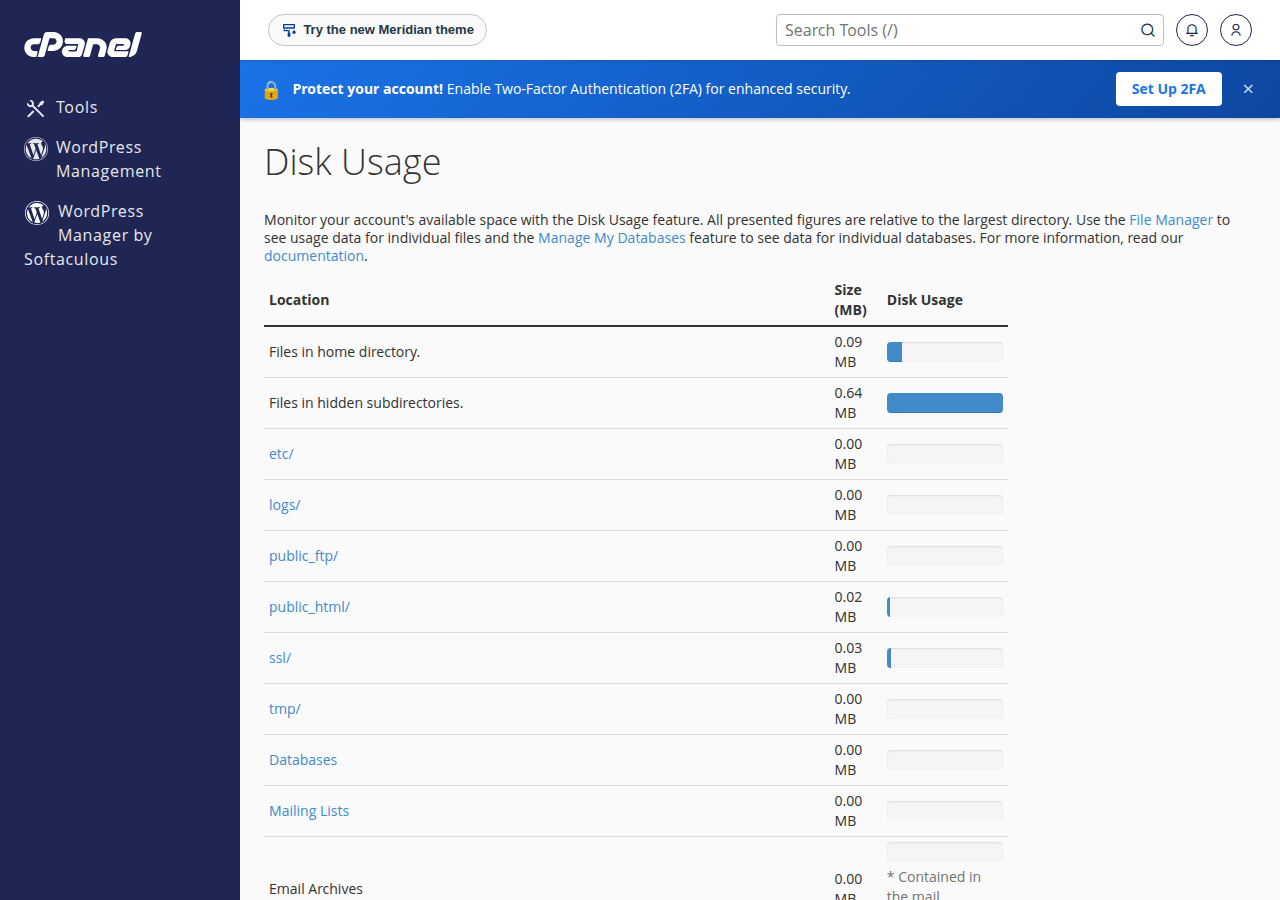
- Open Files › Disk Usage.It lists your home folder's contents by size, with a separate figure for databases and mail. Click through the folder tree to find what is large.
In DirectAdmin and Webuzo: the account's disk usage is shown in the panel, but menu names differ between versions. If you can't find it, open a ticket and we will read your account's usage for you. DirectAdmin users with SSH can follow Managing disk space with jailed SSH in DirectAdmin.
For CPU, memory and other limits, see Check hosting resource usage.
3. What usually takes the space
| Where to look | What you find | Safe way to clean it |
|---|---|---|
| Mailboxes | Years of mail and attachments, full Trash and Junk folders | Save what you need, then delete old mail or empty the folders |
| Home folder and website folder | Old site copies, .zip and .tar.gz archives, manual backup files | Download anything you want to keep, then delete |
| Installer backups | Backups made by Softaculous or WP Toolkit before updates | Delete old ones from the installer, keep the latest |
logs folder | Archived web server logs, one file per month | Delete old archives you don't need |
| File Manager Trash | Files deleted in cPanel's File Manager | View Trash › Empty Trash, once you are sure |
| Cache folders | Page and image caches from WordPress plugins | Clear the cache from the plugin's own settings |
| Databases | Old revisions, spam comments, expired transients, log tables | Clean up inside the app, then optimise the tables |
4. Clean up email
Mail is often the biggest single user of space, and it is easy to miss because it lives outside your website folder.
- Check each mailbox. In cPanel, Email › Email Accounts shows each address's usage and quota. See Manage email quotas for setting sensible sizes.
- Delete in bulk. cPanel's Email Disk Usage tool removes messages from a chosen folder by age or size, which is much faster than deleting in webmail.
- Empty Trash and Junk. In webmail, emptying these folders frees the space straight away.
- Keep an archive if you need one. If you must keep old mail, set the mailbox up in an email program with IMAP and move the old messages to a local folder on your computer first.
5. Remove old backups, archives and logs
Archives and backup files. Look in your home folder and website folder for .zip, .tar.gz and .sql files left over from migrations, manual backups or plugin exports. Download anything you want to keep to your own computer, then delete it from the server. An archive left inside public_html is also a security risk, because anyone who guesses its name can download your whole site.
Installer backups. Softaculous and WP Toolkit can keep a backup before each update. Open the installer, find your site's backups and delete the older ones.
Log archives. On cPanel, the logs folder in your home directory holds monthly archives of your web server logs. You can delete old archives there. In cPanel's Metrics › Raw Access, you can also choose whether to archive logs and whether to remove the previous month's archive automatically.
The Trash. Files deleted in cPanel's File Manager go to a Trash folder and still count towards your space. Open File Manager, click View Trash and Empty Trash when you are sure. DirectAdmin's File Manager keeps deleted files in its Trash Bin for 30 days.
cPanel and DirectAdmin accounts are backed up weekly by JetBackup (Sunday, 5 copies kept), which you can restore from in the panel. Those are not the backup files in your own folders, and you don't need to delete anything to make room for them. See backup and restore with JetBackup.
6. Slim down databases
A WordPress database grows with post revisions, spam and trashed comments, expired transients and the log tables some plugins create.
- Clean up inside the app first. Empty spam and trash comments, delete old revisions, and remove tables left behind by plugins you no longer use.
- Optimise the tables. In phpMyAdmin, select the database, tick all tables and choose Optimize table from the menu. This rebuilds the tables and releases unused space.
- Watch for runaway log tables. Security, form and statistics plugins can log every request. Limit their retention in the plugin's settings.
For larger database problems, see Managing high disk usage of MySQL and Database troubleshooting.
7. Find large files with SSH
Jailed SSH is available on every shared hosting plan. It is off by default; ask support to enable it for your account, and log in with an SSH key. See enabling and accessing jailed SSH. Once you are in, these commands list the biggest folders and files:
# biggest folders in your home directory
du -h --max-depth=1 ~ 2>/dev/null | sort -h

# files over 50 MB
find ~ -type f -size +50M -exec ls -lh {} + 2>/dev/null
Check what a file is before you delete it. Never delete folders outside your website folder that you don't recognise, such as mail, etc or .cpanel: they hold your email and panel settings.
8. When cleaning up isn't enough
If your site and mail genuinely need more room, upgrade. An active cPanel or DirectAdmin plan can move to a bigger plan at any time: open your hosting service and click Change plan. You pay only the difference until your renewal date, plus 18% GST, and nothing needs to be moved. Webuzo and Windows customers should contact support first. See Upgrading your hosting plan.
If a site has outgrown shared hosting, a VPS gives you your own disk allocation, managed by you.
- 50 GB NVMe SSD Storage
- 100 GB Monthly Bandwidth
- 5 Websites
- 50 Email Accounts
Prices on the cards exclude 18% GST.
Frequently asked questions
How do I check how much disk space my hosting account is using?
In cPanel, the statistics panel shows disk usage against your plan's limit, and Files › Disk Usage breaks it down by folder, databases and mail. On DirectAdmin or Webuzo, if you can't find the usage page, open a ticket and support will read it for you.
Why does email bounce when my disk is full?
Your plan's disk space is shared by the website, databases and every mailbox. When the account is full, incoming mail can be refused even for a mailbox that has room under its own quota. Free up space or raise the plan, and ask senders to resend.
What usually fills up a hosting account?
Old email with attachments, backup and zip files left in your folders, installer backups, monthly log archives, the File Manager Trash, cache folders and large databases.
Do Domain India's weekly backups use my disk space?
The weekly JetBackup backups on cPanel and DirectAdmin are not files in your own folders, so there is nothing of theirs for you to delete. Backup files you or your plugins made inside your account do count, and can be removed.
How do I get more disk space?
Clean up first, then upgrade if you still need room. Open your hosting service in the client area and click Change plan. You pay only the difference until your renewal date, plus 18% GST.
Ready to reclaim your space? Open your hosting list to reach your control panel, compare plans on cPanel hosting, or open a ticket and we will help you find what is filling the account.
Open your hosting service to reach your control panel, or click Change plan to move to a bigger plan.
Go to my hosting