An autoresponder sends a fixed reply to everyone who emails a particular address. You can use it for an out-of-office message, to confirm that an enquiry arrived, or to give people your business hours and another way to reach you. This guide shows how to set one up in cPanel, how to stop it replying to mailing lists, and what to do if your email is on DirectAdmin, Webuzo or Domain India Business Email.
In cPanel, open Email › Autoresponders, click Add Autoresponder, pick the address, write the subject and message, set an Interval (hours between replies to the same sender) and optional Start and Stop times, then click Create. Use an interval of at least a few hours so you don't flood people or start a reply loop. Autoresponders only work for email hosted in your cPanel account. Business Email is a separate platform with its own auto-reply support.
1. Before you start
You need three things:
- Hosting email on cPanel. The address must be an email account (or a forwarder) on your cPanel hosting. If your domain's MX records point to Google Workspace, Microsoft 365 or Domain India Business Email, set the auto-reply there instead, because your cPanel server never receives that mail.
- Access to cPanel. The quickest way in is the one-click button on your hosting service in the client area, at /client/services/hosting. For other ways to log in, see How to log in to cPanel.
- The address you want to reply from. Create the email account first if it doesn't exist yet.
The email included with cPanel, DirectAdmin and Webuzo hosting is set up in your control panel. Domain India Business Email is a separate product with its own webmail at https://mail.yourdomain.com:8443/. To tell them apart, see Business Email vs the email included with your hosting.
2. Create an autoresponder in cPanel
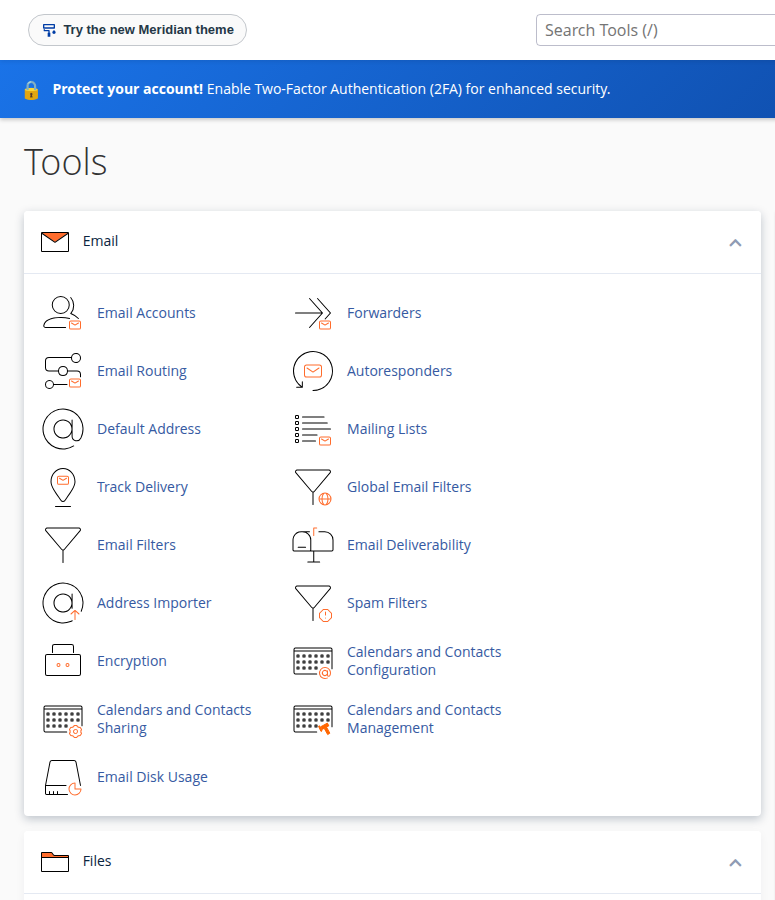
- Open Autoresponders.In cPanel, go to the Email section and click Autoresponders. If your account has several domains, choose the right one from the domain menu at the top.
- Click Add Autoresponder.A form opens with all the settings on one page.
- Leave the character set as utf-8.This handles Hindi, Tamil and other scripts as well as English. Change it only if you have a specific reason.
- Set the interval.Enter the number of hours cPanel waits before it replies again to the same sender. A value of 8 to 24 suits most out-of-office messages. Avoid 0, which replies to every message.
- Choose the address.Type the part before the @ in Email and pick the domain from the menu beside it.
- Fill in From and Subject.From is the name people see, such as "Priya Sharma" or "Sales Team". Subject is the subject line of the reply, for example "Out of office until 15 October: Re: %subject%".
- Write the body.Keep it short. Say when you will reply and give an alternative contact for urgent matters. Tick HTML only if you paste in HTML markup yourself; plain text is safer and shows correctly everywhere.
- Set Start and Stop.Start can be immediately or a custom date and time. Stop can be never or a custom date and time. For leave or a holiday, set both, so the reply switches itself off when you return.
- Click Create.The autoresponder appears in the Current Autoresponders list, where you can edit or delete it later.
Personalise the reply with tags
cPanel replaces these tags when it sends the reply. You can use them in the subject and the body:
| Tag | Replaced with | Example use |
|---|---|---|
| %subject% | The subject of the email you received | Re: %subject% |
| %from% | The sender's name | Dear %from%, |
| %email% | The sender's email address | We will reply to %email% shortly. |
A sample out-of-office message
Subject: Out of office until 15 October: Re: %subject%

Hello %from%,

Thank you for your email. I am away until 15 October and will reply when I am back.

For anything urgent, please write to [email protected].

Priya Sharma
Your Company Name
3. Edit, pause or remove an autoresponder
Go back to Email › Autoresponders. Every autoresponder on the domain is listed under Current Autoresponders.
- Edit opens the same form. Change the message, the interval or the dates, then save.
- To pause it without losing the text, edit it and set Stop to a time that has already passed. When you need it again, set a new Start and Stop.
- Delete removes it for good, including the message. Copy the text somewhere first if you'll reuse it.
4. Out-of-office reply or autoresponder: which one do you need?
They use the same cPanel feature. The difference is how long it runs and what it says.
| Use | Typical setting | What the message says |
|---|---|---|
| Out of office (leave, travel, holiday) | Start and Stop dates set; interval 24 hours | When you are back, and who to contact meanwhile |
| Enquiry acknowledgement (sales@, info@) | Stop set to never; interval 8 to 24 hours | That the message arrived, and when to expect a reply |
| Business hours notice | Stop set to never; interval 24 hours | Your hours and the fastest way to reach you |
Some email programs also offer their own automatic replies or rules. On a normal IMAP account, a rule inside a desktop program usually runs only while that program is open. A cPanel autoresponder runs on the server, so it works even when every device is switched off.
5. Avoid reply loops and mailing list trouble
A reply loop happens when two automatic systems keep answering each other. It can send hundreds of messages in minutes, fill your mailbox and count against your account's outgoing mail limit.
With an interval of 0, every incoming message gets a reply. If the other side is also automatic, such as another autoresponder, a ticket system or a no-reply notification address, the two can bounce messages back and forth until one of them is stopped.
Follow these rules to stay safe:
- Keep a real interval. An interval of 8 hours or more means each sender gets at most a few replies a day, whatever happens.
- Don't autoreply on an address subscribed to mailing lists or newsletters. Well-run lists mark their mail as bulk, and autoresponders are designed to skip it, but not every list does this. Your reply can go to the whole list, or get your address unsubscribed. The same goes for a list you run yourself (see How do I set up a new mailing list): never put an autoresponder on the list address.
- Don't autoreply on a catch-all or default address. Spam sent to made-up addresses on your domain would all get replies, which harms your domain's sending reputation.
- Check your forwarders. If the address forwards to another mailbox that also has an autoresponder, senders may get two replies. Keep one autoresponder per path.
To test, email the address from a different account, such as a personal Gmail.
6. DirectAdmin and Webuzo
DirectAdmin has its own autoresponder feature under E-mail Manager › Autoresponders. It works like the cPanel one: choose the address, write the message, optionally set dates, and save. Webuzo has one under Email › Autoresponders. For DirectAdmin, see How to configure autoresponders in DirectAdmin.
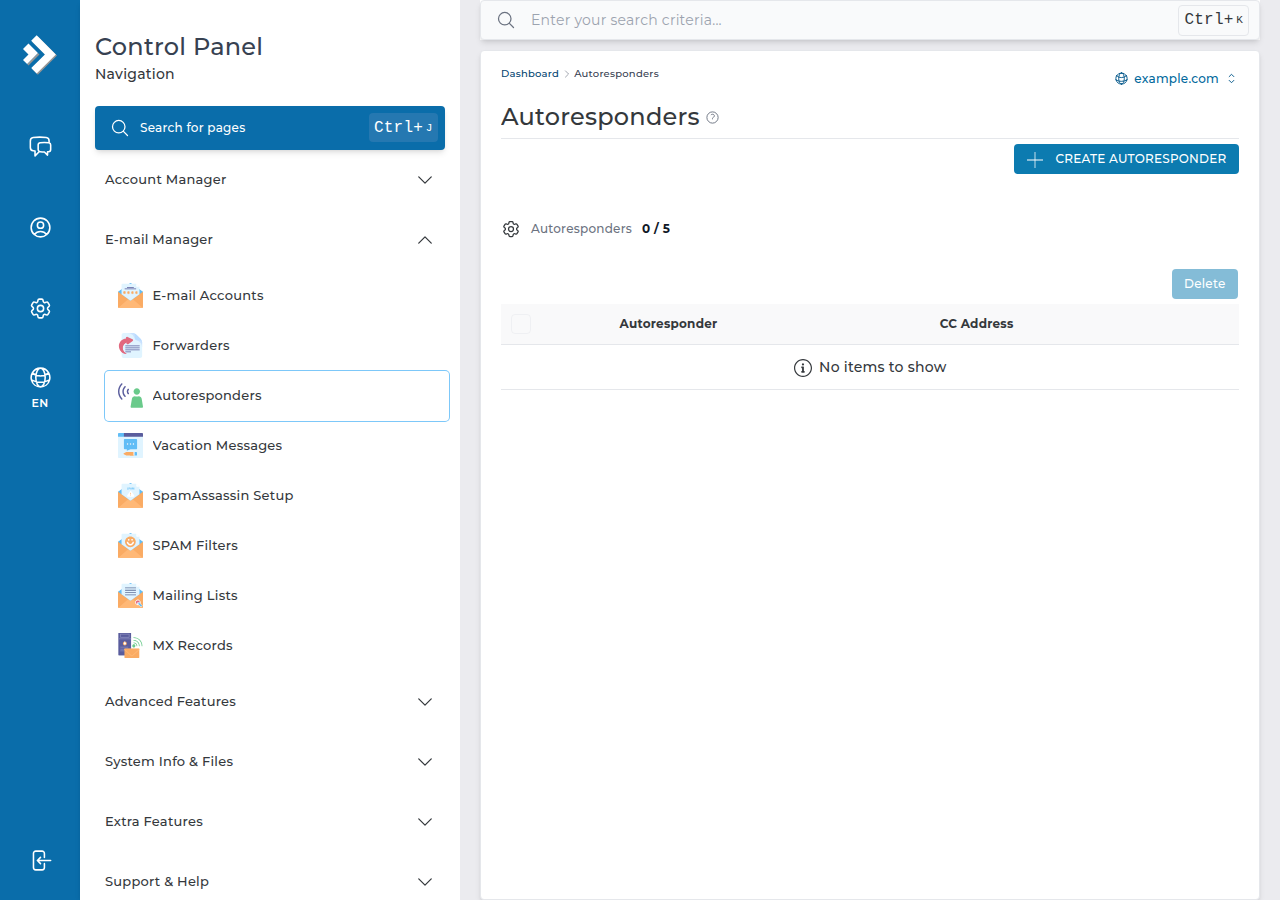
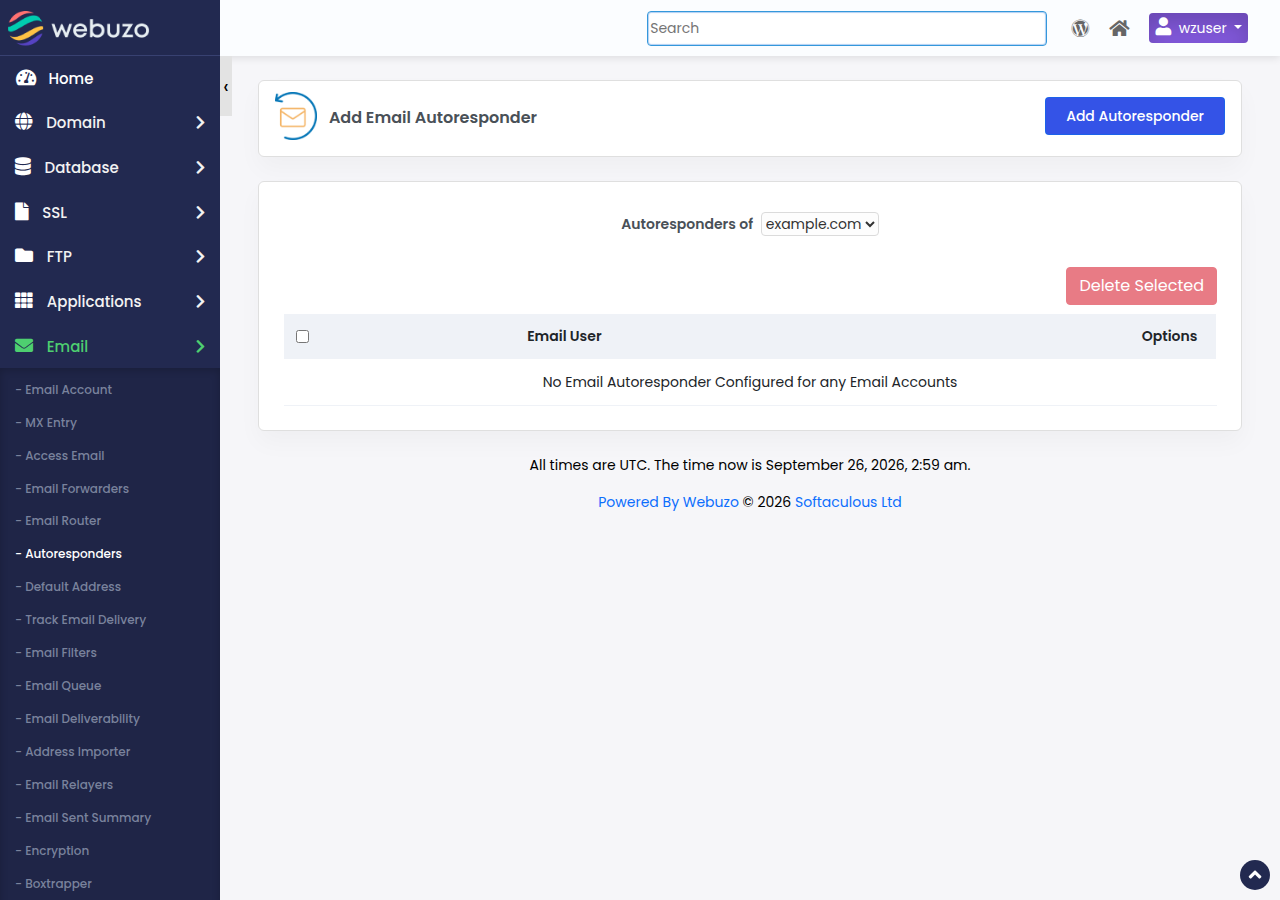
The rules in section 5 apply on every panel. If you can't find the option, open a support ticket and tell us which address the reply should go on.
7. Business Email
Domain India Business Email runs on a separate mail platform, not in cPanel, so cPanel's Autoresponders page can't see those mailboxes. The Business Email mail server supports vacation auto-replies, and its webmail at https://mail.yourdomain.com:8443/ has server-side filters and rules. If you can't find the option you need there, open a ticket and we will walk you through it.
For a first login to Business Email, see Business Email: first sign-in.
8. Where Domain India fits
Every Domain India cPanel, DirectAdmin and Webuzo hosting plan includes email accounts on your own domain, managed from the control panel, with webmail. If you would rather keep email separate from your website, Business Email is priced per mailbox, and you can start with one.
- 25 GB NVMe SSD Storage
- 50 GB Monthly Bandwidth
- 1 Website
- 10 Email Accounts
- Priced per mailbox - start with one
- Email at your own domain ([email protected])
- Add and remove mailboxes yourself
- Webmail with calendar, contacts and tasks
Prices on the cards are live and exclude 18% GST. For help with webmail, see How to log in to webmail.
Where is the autoresponder option in cPanel?
Log in to cPanel, go to the Email section and click Autoresponders. Click Add Autoresponder to create a new one, or use Edit or Delete in the Current Autoresponders list to change an existing one.
What interval should I set for a cPanel autoresponder?
The interval is the number of hours cPanel waits before replying again to the same sender. 8 to 24 hours suits most out-of-office and acknowledgement messages. Avoid 0, which replies to every message and can start a reply loop with another automatic system.
Can I schedule an autoresponder for my leave dates?
Yes. Set Start to a custom date and time when your leave begins and Stop to the date and time you return. The autoresponder switches itself on and off at those times.
What do %subject%, %from% and %email% do in an autoresponder?
cPanel replaces them when it sends the reply: %subject% with the subject of the email you received, %from% with the sender's name and %email% with the sender's address. You can use them in the subject line and the body.
How do I turn off an autoresponder without deleting it?
Edit it and set the Stop time to a moment that has already passed. The message stays saved, and you can set new Start and Stop times whenever you need it again. Delete removes it permanently.
Will my autoresponder reply to mailing lists and spam?
Autoresponders are designed to skip mail marked as bulk, but not every mailing list or spammer marks messages correctly. Don't use an autoresponder on an address subscribed to lists, or on a catch-all address, and always keep an interval of several hours.
Does the cPanel autoresponder work for Domain India Business Email?
No. Business Email runs on a separate platform, so cPanel cannot see its mailboxes. Its mail server supports vacation auto-replies, and its webmail at https://mail.yourdomain.com:8443/ has server-side filters and rules. Ask support if you can't find the option.
Ready to set up your reply? Log in from your hosting services, or if something doesn't work as described, open a support ticket with the address and the message you want to send.
Tell us the email address and what the automatic reply should say, and we will help you set it up on your control panel or on Business Email.
Open a support ticket