"My hosting password" can mean four different things, and changing the wrong one is the most common reason a new password "does not work". This guide shows which password belongs to what, where to change each one in your Domain India client area or control panel, and the one habit that keeps your stored login details correct.
Your Domain India account has separate passwords: the client-area password (change it at /client/security/password), the control panel password for cPanel, DirectAdmin, Webuzo or Plesk (reset it in the client area under Hosting › My hosting › Manage › Access; on Webuzo, support resets it), and the passwords of each email, FTP and database user (changed inside the control panel). Changing one never changes the others. Reset your control panel password from the client area rather than inside cPanel, so the details we hold for you stay current.
1. Which password do you actually need to change?
Start here. Each password opens a different door, and each is changed in a different place.
| Password | What it signs you in to | Where to change it |
|---|---|---|
| Client-area password | Your Domain India account: services, invoices, domains, tickets | Client area, Change password page |
| Control panel password | cPanel, DirectAdmin, Webuzo or Plesk, plus the main FTP account and SSH | Client area, Manage › Access › Reset password (Webuzo: ask support) |
| Email account password | One mailbox, in webmail and in mail apps such as Outlook or your phone | Control panel, email accounts section |
| FTP and database users | Extra FTP logins you created, and the MySQL users your website uses | Control panel, FTP and database sections |
A new client-area password does not change your cPanel password, and a new cPanel password does not change any mailbox password. If a login fails straight after a change, check that you changed the password for that login and not a neighbouring one.
2. Change your client-area password
This is the password you use with your email address to sign in at domainindia.com.
- Sign into the client area.
- Open the Change password page.Go straight to /client/security/password.
- Enter your current password,then the new one twice. A strength meter and a list of requirements update as you type: at least 8 characters, upper and lower case letters, a number and a special character.
- Click Change password.You are signed out and asked to sign in again with the new password.
The page will not accept a weak password. Aim for 12 or more characters, which also scores higher on the meter.
3. Forgotten your client-area password?
You do not need to contact support for this.
- Open the reset pageat /client/forgot.
- Enter the email addresson your Domain India account and click Send Reset Link.
- Open the emailand follow the link. Check spam and the Promotions tab if it is not in your inbox. The link expires after 1 hour, so request a new one if it has lapsed.
- Set a new passwordand sign in.
The reset page may also offer a one-time code by WhatsApp or SMS instead of email. If you see those options, the code goes to your registered mobile number and expires after 10 minutes.
If the email address on your account is one you can no longer read, the reset link cannot reach you. Open a ticket at /support/ticket from the address you want to use, with your name and domain, and support will help you verify the account.
4. Reset your control panel password from the client area (recommended)
This is the method we recommend for cPanel, DirectAdmin and Plesk. You do not need to know the old control panel password. On Webuzo, the Reset password button does not work yet: contact support and we will reset it for you.
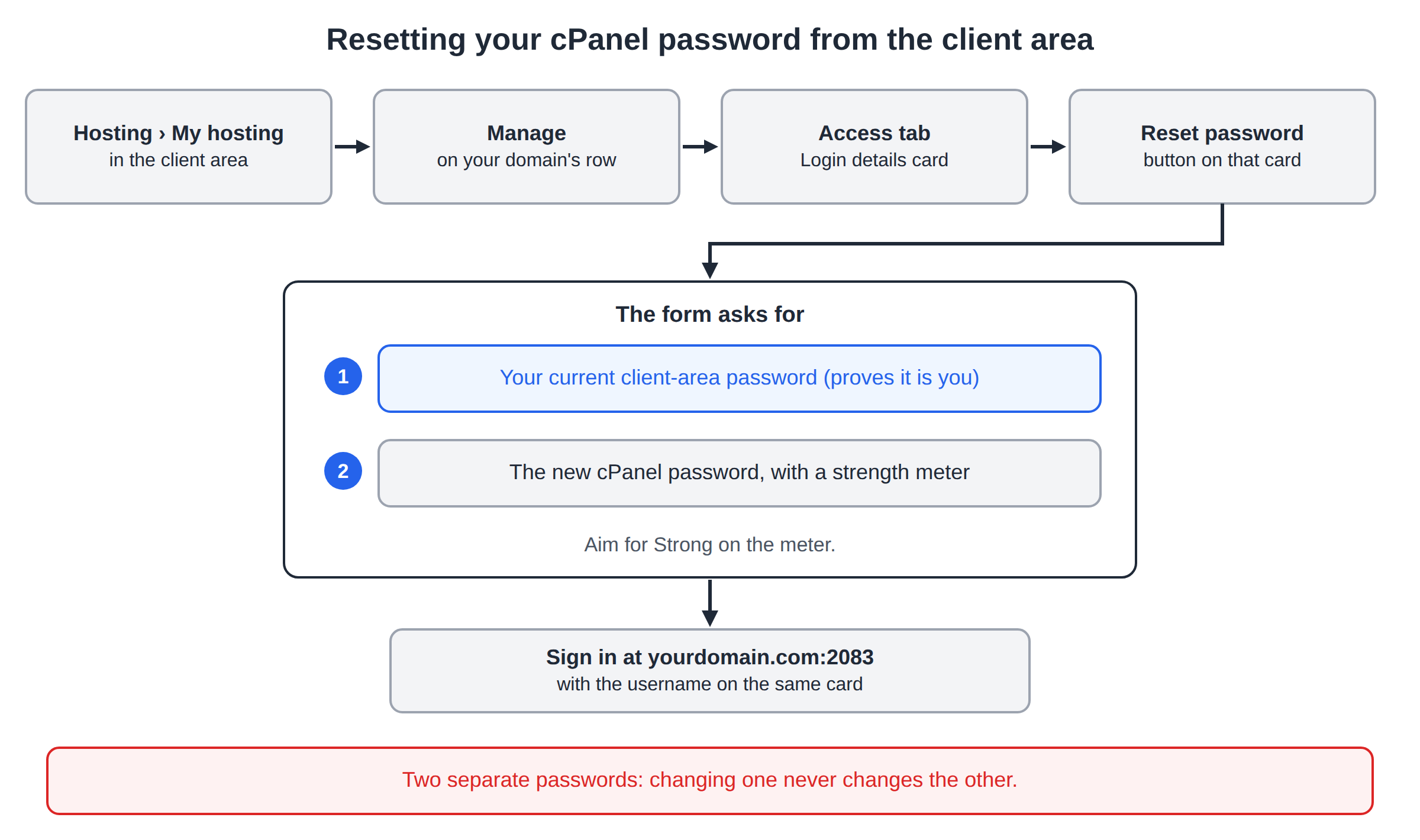
- Open your hosting list.In the client area choose Hosting › My hosting, or go to /client/services/hosting.
- Click Manageon the row for your domain.
- Open the Access tab.The Login details card shows your username, server IP and panel address, and has a Reset password button. The same action is in the buttons at the top of the page.
- Confirm it is you.Enter your client-area password first, then the new control panel password. Aim for a password the strength meter rates Strong.
- Log in with the new passwordusing the username on the same card.
On cPanel, the account password also opens the main FTP account and SSH password logins, so update any FTP program or SSH client that has the old one saved.
The panel button on your domain's row in Hosting › My hosting signs you in to cPanel or DirectAdmin with one click and no panel password; on Plesk it usually does, and on Webuzo you log in at https://yourdomain.com:2003 with your password. If you only need to get in, use that. How to log in to cPanel covers every route in.
5. Changing it inside cPanel instead, and why we suggest you don't
cPanel lets you change the account password yourself: open Password & Security in the Preferences section, enter the old password and the new one, and save. It works, and the new password takes effect straight away.
The catch is that the change happens only on the server. The welcome email carries the password set when your account was created, and it does not learn about later changes. So if you later ask support to resend your welcome email, it may carry an old password that no longer works.
This applies whichever way you change it, including a reset from the Access tab. Nothing is broken: just remember that a resent welcome email may not show your current password, and reset it again rather than relying on it. For more on that email, read I didn't get my welcome email.
6. Change an email account password
Each mailbox has its own password, set when the mailbox was created. It is used in webmail and in every mail app on every device.
In cPanel:
- Open Email Accountsin the Email section.
- Click Managenext to the address.
- Enter the new passwordunder Security, or use the generator.
- Click Update Email Settings.
In DirectAdmin, use E-mail Manager › E-mail Accounts and change the password on that mailbox. On Webuzo, use Email › Email Account.
Then update the password in every place the mailbox is used: Outlook, Thunderbird, Apple Mail, the mail app on each phone, and any website form or plugin that sends mail through it. Until you do, those apps keep retrying the old password, and repeated failures can get your connection blocked by the server firewall (see section 9).
Signing in to webmail afterwards is covered in How to log into webmail.
7. FTP and database user passwords
Extra FTP accounts
FTP accounts you created for a developer or a folder have their own passwords. In cPanel, open FTP Accounts in the Files section, find the account in the list and use Change Password. In DirectAdmin, use FTP Management. Give the new password to whoever uses that login, and remove FTP accounts nobody needs any more.
The main FTP account is different: on cPanel it uses the control panel password, so it changes when you reset that (section 4).
Database (MySQL) users
Your website connects to its database with a database username and password, not with your control panel login. In cPanel, open Manage My Databases, go to Current Users and use Change Password on the user. In DirectAdmin, use Account Manager › Databases.
The moment a database password changes, your website can no longer reach its database and shows a connection error until you update its configuration. For WordPress, edit DB_PASSWORD in wp-config.php with the File Manager. Other applications keep it in their own config or .env file.
define( 'DB_PASSWORD', 'your-new-database-password' );For database connections in general, see How to connect to the MySQL database.
8. Choose a strong password
The same rules apply to every password on this page.
Avoid your name, your domain name, your business name, dates of birth and keyboard patterns such as qwerty123. They are the first guesses any attacker tries.
Change a password straight away if you shared it with a developer who no longer works on the site, if you typed it on a computer you do not trust, or if you see logins or emails you do not recognise.
9. Add two-factor authentication
A password alone can leak. Two-factor authentication (2FA) adds a six-digit code from an app on your phone, so a stolen password is not enough on its own.
For your client area: open Account › Security, or go to /client/security/2fa. You confirm with your current password, scan a QR code with an authenticator app such as Google Authenticator or Authy, and enter the code it shows. Save the recovery codes the page gives you somewhere safe, and keep the authenticator app backed up; if you lose your phone and cannot get a code, contact support. See Two-factor authentication for the full steps. You are then signed out, and every future sign-in asks for a code.
For cPanel: cPanel has its own Two-Factor Authentication page in the Security section, where it is available on your server. It works the same way with the same kind of app, and protects direct logins to cPanel.
Our shared servers block an IP address automatically after repeated failed logins. A mail app still using an old mailbox password is a common cause. If your website, webmail and panel all stop loading at once but work on mobile data, read have I been blocked? and send us your IP address.
10. Where Domain India fits
Every hosting plan we sell, whether cPanel, DirectAdmin, Webuzo or Windows (Plesk), is managed from the same client area: your hosting list, the one-click panel button and the Access tab with your login details are in the same place whichever panel you have, and your client-area password and 2FA protect all of it. For a first website we suggest cPanel Starter.
- 25 GB NVMe SSD Storage
- 50 GB Monthly Bandwidth
- 1 Website
- 10 Email Accounts
Prices on the card are live and shown before GST.
If you are stuck, support is available by 24/7 live chat, and tickets get a first response within 15 minutes; how long a fix takes depends on the issue. There is no phone support. Open a ticket at /support/ticket, or from the client area at /client/support/new, and never include a password in it.
Frequently asked questions
How do I change my cPanel password with Domain India?
Sign in to the client area, open Hosting, My hosting, click Manage on your domain and open the Access tab. Click Reset password, confirm with your client-area password and set the new cPanel password. You can also change it inside cPanel under Password & Security. Either way, a resent welcome email may show the old password, so keep the new one in a password manager.
Is my client-area password the same as my cPanel password?
No. The client-area password signs you in to your Domain India account; the control panel password signs you in to cPanel, DirectAdmin, Webuzo or Plesk. They are separate, and changing one never changes the other.
I forgot my Domain India client-area password. What do I do?
Go to domainindia.com/client/forgot, enter the email address on your account and click Send Reset Link. The link in the email is valid for 1 hour. If you no longer have access to that email address, open a support ticket.
Does changing my cPanel password change my email passwords?
No. Each email account has its own password, changed in cPanel under Email Accounts, Manage. Changing the cPanel password does change the main FTP account and SSH password logins, because on cPanel they use the account password.
I changed my cPanel password inside cPanel. Will support's resent welcome email show it?
No. A change made inside cPanel happens only on the server, so a resent welcome email carries the old password. Reset the password from the Access tab in the client area instead, and use the new one you set.
My WordPress site shows a database connection error after I changed a password. Why?
You probably changed the password of the database user the site uses. Update DB_PASSWORD in wp-config.php to the new password and the site reconnects. Changing your cPanel or client-area password does not cause this error.
Does the Domain India client area support two-factor authentication?
Yes. Go to Account, Security, or domainindia.com/client/security/2fa, confirm your password and scan the QR code with an authenticator app such as Google Authenticator or Authy. Keep the backup codes it gives you in a safe place.
Will Domain India support ask for my password?
No. Support never needs your password. If you need a new control panel password, you set it yourself from the Access tab in the client area.
Ready to update a password? Change your client-area password at /client/security/password, reset a control panel password from My Hosting, and turn on two-factor authentication while you are there. If something still will not let you in, read How to log in to cPanel or open a ticket.
Click Manage on your domain, open the Access tab and use Reset password. No ticket and no old password needed.
Open My Hosting