When your hosting account is created, Domain India emails you its login details in a message titled "Your Hosting Account is Ready". If that email never arrived, or you deleted it months ago, you are not locked out. Everything it contained is also in your client area, and you can usually be back in your control panel within a couple of minutes without waiting for anyone.
You do not need the welcome email to get into your hosting. Sign in to the client area, open Hosting › My hosting, and click the panel button on your domain's row to log in with one click; the Manage › Access tab shows your username, server IP and panel address, and lets you set a new control panel password. If you still want the email itself, check spam and promotions first, then ask support by live chat or a ticket and we will resend it. Forgotten your client-area password too? Reset it at domainindia.com/client/forgot.
1. What the welcome email contains
The hosting welcome email is sent once, when your account is created on the server. It carries four things:
None of this is lost if the email is. The username, server IP and panel address are always shown in your client area, and the password is something you can reset yourself at any time. That is why the quickest fix is rarely "resend the email".
Most hosting accounts are created automatically within a couple of minutes of payment, and the email goes out as soon as the account exists. If you have only just paid and nothing has arrived, read How long does it take for my account to be set up first: a payment still clearing or an order under review means there is no email yet to find.
2. First, look for it in the right places
Automated emails that carry a username and password are exactly the kind that spam filters hold back. Before anything else:
- Search your mailbox for the subject.Search for
Your Hosting Account is Readyor for your domain name, across all folders, not just the inbox. - Check spam and junk.If it is there, mark it Not spam so future emails from us land in your inbox.
- Check the Promotions or Updates tab.Gmail files a lot of automated email there, out of sight of the Primary inbox.
- Check the right mailbox.The email goes to the address on your Domain India account, which may not be the one you check every day.
Add our sending address to your contacts
Domain India's emails are sent from [email protected]. Adding it to your contacts or safe-senders list is the most reliable way to keep our emails, including invoices and renewal reminders, out of spam.
| Mail service | Where to allow our address |
|---|---|
| Gmail | Add [email protected] to Contacts, or create a filter for it (Settings, See all settings, Filters and Blocked Addresses) and tick "Never send it to Spam" |
| Outlook.com and Microsoft 365 | Settings, Mail, Junk email, then add it under Safe senders and domains |
| Yahoo Mail | Add it to your contacts, and mark any of our emails in Spam as "Not spam" |
| Your own business mailbox | Add it to your mail app's safe-senders or whitelist, or ask whoever runs your mail server |
Menu names change from time to time, so if a path above has moved, search your mail service's help for "safe senders".
3. Get your login details from the client area instead
This works whether or not the email ever arrived, and it needs no ticket.
- Sign in.Open the client area sign-in page with your Domain India account's email address and password.
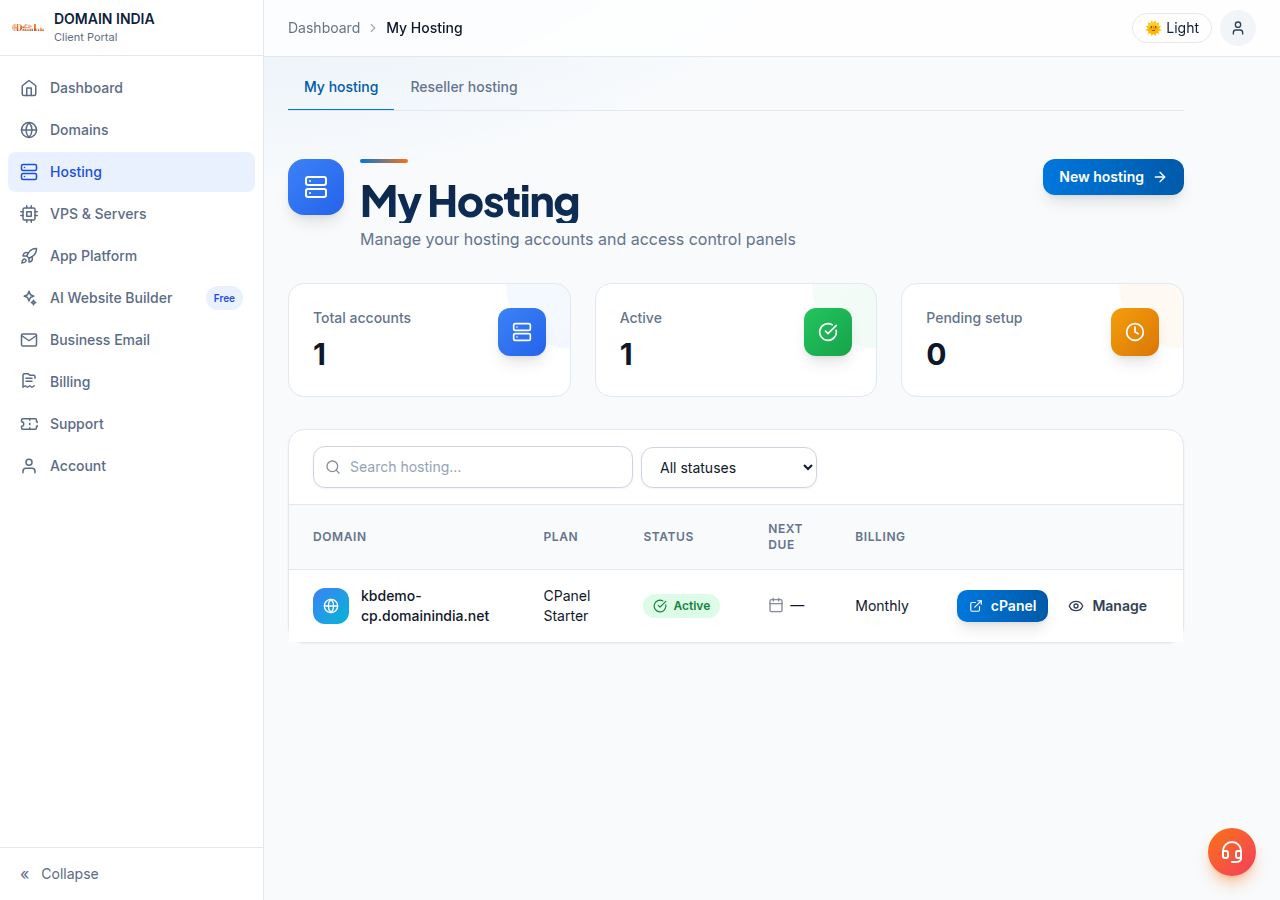
- Open your hosting list.In the menu choose Hosting › My hosting, or go straight to /client/services/hosting. Each hosting account is listed with its domain, plan and status.
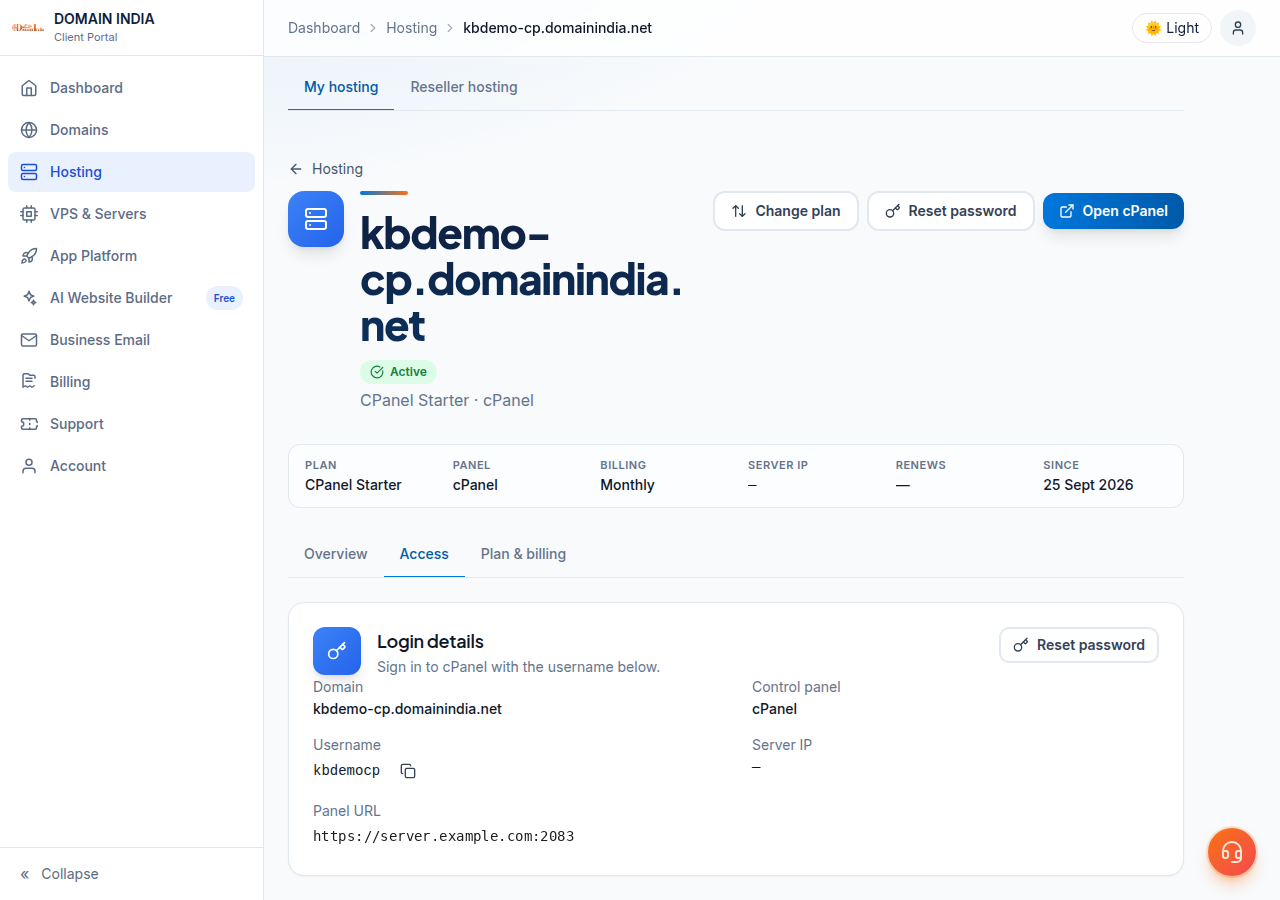
- Log in with one click.On your domain's row, click the button labelled after your control panel (cPanel, DirectAdmin, Webuzo, Plesk, or WHM on a reseller account). It opens the panel in a new tab, already signed in on cPanel and DirectAdmin (and usually on Plesk), with no panel password needed. On Webuzo, log in at
https://yourdomain.com:2003with your password instead. The button appears once the account is Active. - Or see the details.Click Manage, then open the Access tab. The Login details card shows your username, server IP and panel URL, each with a copy button.
The full walk-through, including direct logins by port and what to do when the domain does not point at us yet, is in How to log in to cPanel.
The panel opens in a new tab, so a pop-up blocker can stop it. Allow pop-ups for domainindia.com and click the button again.
4. Set a new control panel password
The client area does not display your control panel password, and it should not: the safe fix is to set a new one.
- Open the account.Go to Hosting › My hosting and click Manage.
- Choose Reset password.It is on the Login details card in the Access tab, and in the buttons at the top of the page.
- Confirm it is you.Enter your current client-area password, then the new control panel password. Aim for a password the strength meter rates Strong.
- Log in with it.Use the username from the same card at your panel address.
Step-by-step with more detail: Reset cPanel password.
Your client-area password signs you in to Domain India's client area. Your control panel password signs you in to cPanel, DirectAdmin, Webuzo or Plesk. Changing one never changes the other.
5. Forgot your client-area password as well?
If you cannot sign in to the client area either, reset that password first.
- Open the reset page.Go to /client/forgot.
- Enter your account email.Type the email address your Domain India account uses and click Send Reset Link.
- Follow the link in the email.Check spam for it too. It is sent from the same address as all our emails.
- Sign in and carry onwith section 3.
If you are already signed in and just want a new client-area password, use Change password on your Profile page.
6. Is the email going to the wrong address?
Every email we send, including the welcome email, invoices and password reset links, goes to the email address on your Domain India account. A typo there, or an old address you no longer read, is a common reason a welcome email "never arrived".
To check and correct it:
- Sign into the client area.
- Open your Profilefrom the account menu, or go to /client/profile.
- Click Edit profile,correct the Email address under Personal information, and click Save changes.
If you cannot sign in because the old address is the problem, you will not be able to receive a reset link. Open a ticket at /support/ticket from the address you want to use, with your name, the domain and any invoice number, and support will help you from there.
If a web designer or developer placed the order for you, the hosting may sit under their Domain India account, and every email went to them. Ask them first. If the domain is not in your client area at all, that is usually why.
7. Can I see old emails in the client area?
Partly. The client area has an Email history page, in the account menu or at /client/emails. It lists the emails we have sent to your account, such as invoices, payment receipts, reminders and ticket updates, with the subject and date, and you can open many of them to read the content again.
For security, emails that carry passwords or reset links, including the welcome email with your hosting login details, are not kept there. You cannot reopen your login details from Email history. Use the Access tab (section 3) and Reset password (section 4) instead. Email history has no resend button.
8. Asking us to resend it
If you would still like the welcome email itself, for your records or to forward to a colleague, support can send it again to the email address on your account. It carries the password set when the account was created, so if you have changed it since, reset it rather than relying on the resent copy.
- Start a live chat, available 24 hours a day, or open a ticket at /support/ticket, or from the client area at /client/support/new if you are signed in.
- Tell us the domain name of the hosting account. That is all we need to find it.
- Tickets get a first response within 15 minutes. How long a fix takes depends on the issue.
- There is no phone support. Tickets and chat give you a written record.
Two things to know before asking. The email is resent to the address on your account, so fix that first (section 6) if it is wrong. And if you have already changed your control panel password, a resent email will not tell you the new one: reset it yourself instead (section 4).
Support will never ask you for a password, in chat or in a ticket.
For most people the answer is not the email at all: sign in, open Hosting › My hosting, and click the panel button. You are in within seconds.
9. Where each detail lives in your Domain India client area
| Detail from the welcome email | Where to find it now |
|---|---|
| Control panel login | One-click button on your row in Hosting › My hosting |
| Username | Manage › Access, Login details card |
| Server IP | Manage › Access, Login details card |
| Panel address | Manage › Access, Login details card |
| Password | Not shown; set a new one with Reset password |
| Pointing your domain at us | How to change your domain DNS settings |
For email accounts on your hosting, once they are set up, see How to log into webmail.
Frequently asked questions
I never received my Domain India hosting welcome email. What should I do?
Search every folder for "Your Hosting Account is Ready" and check spam and the Promotions tab. You do not actually need the email: sign in to the client area, open Hosting, My hosting, and click the panel button on your domain's row to log in with one click. Manage, Access shows your username, server IP and panel address.
Can I resend the welcome email myself from the client area?
No. There is no self-service resend. Everything the email contains is available in the client area, and you can set a new control panel password there. If you still want the email itself, ask support by live chat or a ticket and it will be resent to the email address on your account.
Which email address does Domain India send from?
Our emails are sent from [email protected]. Add it to your contacts or safe-senders list so welcome emails, invoices and reminders reach your inbox.
Where can I find my control panel password?
The client area does not display it. Open Hosting, My hosting, click Manage, then Reset password on the Access tab. You confirm with your client-area password and choose a new control panel password.
I forgot my client-area password too. How do I get back in?
Go to the reset page at domainindia.com/client/forgot, enter the email address on your account and click Send Reset Link. Follow the link in the email, then sign in.
How do I change the email address on my Domain India account?
Sign in, open your Profile, click Edit profile, correct the Email address and click Save changes. All future emails, including password reset links, go to the new address. If you cannot sign in because the old address no longer works, open a support ticket.
Does the Email history page show my old welcome email?
Email history lists the emails sent to your account and lets you reopen many of them, but emails that carry passwords or reset links, including the welcome email with your hosting login details, are not kept there. Use the Access tab and Reset password instead.
Ready to get back in? Sign in to the client area, open Hosting › My hosting, and click your panel button. If anything is missing, see How to log in to cPanel or open a ticket.
Tell us the domain name of your hosting account and we will resend the welcome email or help you back in. Live chat is open 24 hours a day if you would rather ask there.
Open a support ticket