On a WordPress site, "Resource Limit Is Reached" usually means too many PHP requests were running at once: uncached pages, bots hammering the login page, WP-Cron firing on visits, or a plugin waiting on a slow outside service. Each of those has a WordPress-specific fix, and none of them needs a bigger plan first.
For how the limits work and how to read your logs, see Understanding and troubleshooting the "Resource Limit Is Reached" error. This page is the WordPress checklist.
A 508 "Resource Limit Is Reached" page means your account hit its entry-process limit: PHP requests running at the same moment. On WordPress, cache your pages with WP Super Cache or W3 Total Cache, stop attacks on wp-login.php and xmlrpc.php, move WP-Cron to a real cron job, and use Query Monitor to find slow plugins. Check the faults in cPanel's Metrics › Resource Usage before and after each change.
1. Confirm which limit was hit
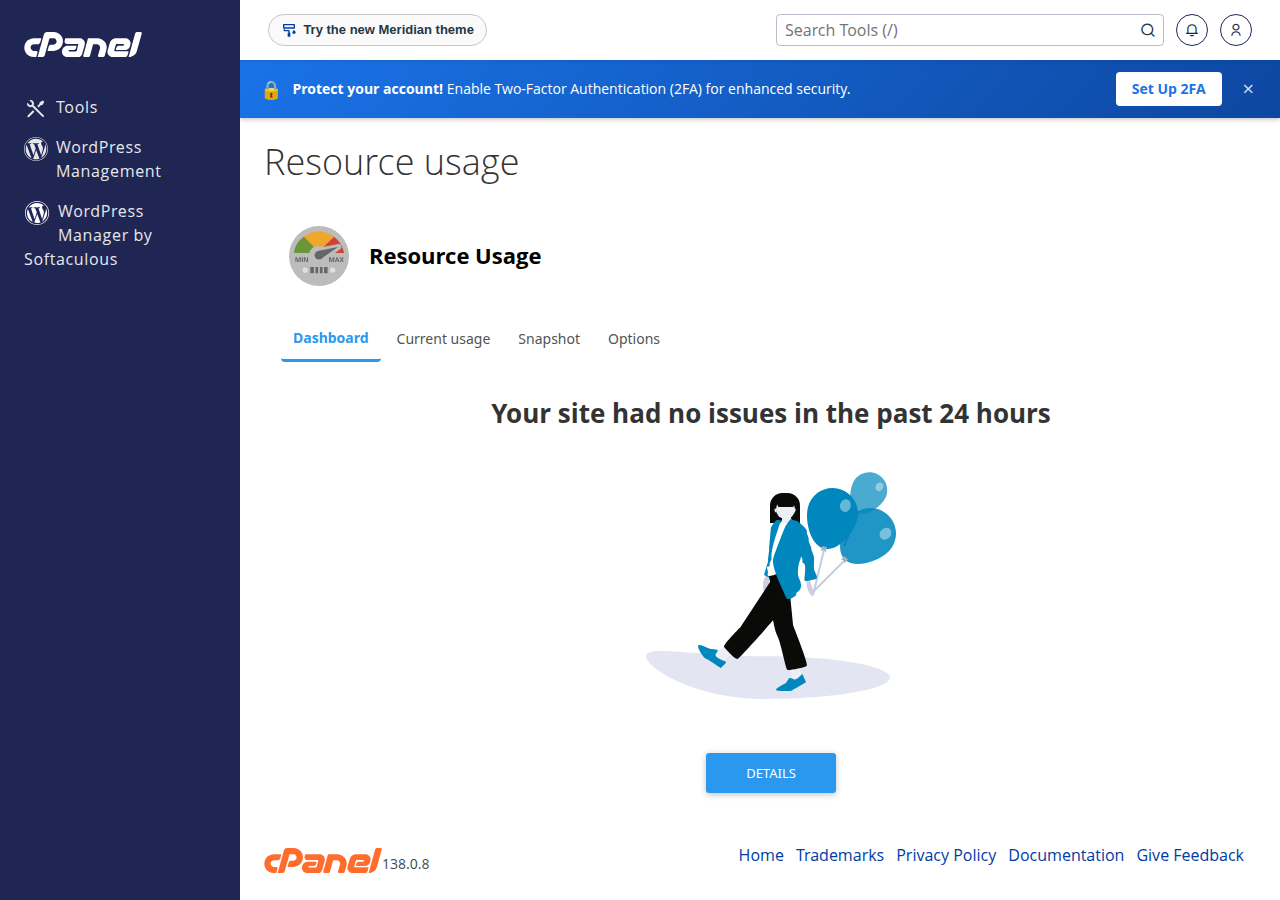
Open Metrics › Resource Usage in cPanel and choose the day the error happened. The Faults column shows which limit was reached and when. Entry-process faults give the 508 page; memory and process faults give 500 or 503 errors instead. See How to check your hosting resource usage. On DirectAdmin or Webuzo, if you cannot find the usage page, open a ticket and we will read it for you.
Entry-process faults with low CPU and memory mean requests were waiting, not working. Jump to section 5.
2. Cache your pages
A cached page is served without running PHP, so it never takes an entry-process slot. This is the biggest single fix.
- Domain India shared hosting runs the Apache web server, so use WP Super Cache or W3 Total Cache. Don't rely on a plugin that only works with LiteSpeed.
- Keep one page-caching plugin active. Two caching plugins fight each other.
- Cart, checkout and account pages can't be cached, so keep them light.
3. Stop login and XML-RPC attacks
Automated password guessing against wp-login.php and xmlrpc.php runs PHP and a database query on every attempt, and one XML-RPC request can carry hundreds of guesses.
- Disable XML-RPC if you don't use it. Only the WordPress mobile app and a few older plugins need it. Add this to
.htaccess:
<Files xmlrpc.php>
    Require all denied
</Files>- Limit login attempts with a security plugin, and give every administrator a strong, unique password.
- Turn off open registration under Settings › General › Membership unless you need it.
Our cPanel servers also run Imunify360 with a web application firewall and bot protection turned on server-wide (measured 20 September 2026). It stops many attacks, but not every crawler, so your own settings still matter. For crawlers, see the bot-blocking rules in the full guide.
4. Move WP-Cron to a real cron job
WordPress runs its scheduled tasks (WP-Cron) when pages are visited, so a busy moment can also be the moment backups, update checks and email digests start.
- Turn off the visit-triggered cron.Add
define('DISABLE_WP_CRON', true);towp-config.php, above the line that says to stop editing. - Add a real cron job.Run
wp-cron.phpevery 15 minutes from your control panel's cron page. The exact command is in WordPress cron and scheduled tasks. - Schedule heavy plugins for quiet hours.Set backup, import and export plugins to run at night.
5. Find the slow plugin
- Install the free Query Monitor plugin, load the slow pages while logged in as an administrator, and look at which plugin or theme makes the slowest database queries and outside HTTP calls.
- Outside calls without a timeout are the usual reason for faults with low CPU.
wp_remote_get()andwp_remote_post()default to a 5-second timeout; check that no plugin has raised it. In custom code using cURL, setCURLOPT_CONNECTTIMEOUTandCURLOPT_TIMEOUT;0means "wait forever". - Deactivate suspects one at a time and watch Resource Usage over the next busy period. The number of plugins matters less than what each one does.
Some PHP network functions are disabled on shared hosting, which can make a plugin fail or hang. See PHP disabled functions on shared hosting.
Our servers run PHP through PHP-FPM or CGI, so a php_value or php_flag line in .htaccess gives every visitor a 500 error. It would not change your account's limits anyway.
6. When an upgrade is the right answer
Upgrade when faults continue after caching, attack blocking and plugin fixes, or when genuine traffic has grown. An active cPanel or DirectAdmin plan can be upgraded at any time: open Hosting › My hosting, select your hosting service and choose Change plan. You pay only the difference for the time left until your renewal date, plus 18% GST, and the new limits apply as soon as that invoice is paid. Webuzo and Windows customers should contact support before changing plan.
- 50 GB NVMe SSD Storage
- 100 GB Monthly Bandwidth
- 5 Websites
- 50 Email Accounts
The price on the card is live and excludes 18% GST.
Which caching plugin should I use on Domain India shared hosting?
Use WP Super Cache or W3 Total Cache. Domain India shared hosting runs the Apache web server, so a plugin that only works with LiteSpeed will not cache your pages. Keep only one page-caching plugin active.
Can xmlrpc.php cause "Resource Limit Is Reached" on WordPress?
Yes. Password-guessing attacks through xmlrpc.php run PHP on every request, and one request can carry hundreds of guesses. If you don't use the WordPress mobile app or a plugin that needs XML-RPC, refuse xmlrpc.php in .htaccess.
Should I disable WP-Cron?
On a busy site, yes, but only together with a real cron job that runs wp-cron.php every 15 minutes. Otherwise scheduled posts, update checks and plugin backups stop running.
How do I find which WordPress plugin is causing the error?
Install Query Monitor and load the slow pages as an administrator to see which plugin makes the slowest queries and outside calls. Then deactivate suspects one at a time and watch the Faults column in Resource Usage over the next busy period.
Does having many plugins cause this error?
Not by itself. Your account's limits count CPU, memory and simultaneous PHP requests, not plugins. A few heavy plugins can cause faults while many light ones may not.
Ready to fix it? Start with How to check your hosting resource usage, read My website is slow for a wider WordPress speed check, or open a ticket and we will read your usage and logs with you.
Tell us the page, the error you saw and when it happened, and we will check your account's usage and logs with you.
Open a support ticket