Yes. Every Domain India shared hosting plan lets you put a username and password in front of any folder on your website. In cPanel the tool is called Directory Privacy; DirectAdmin and Webuzo have their own password-protected directories feature. It is a quick way to hide a staging copy, a client preview or a folder of private downloads from the public and from search engines.
WordPress needs one extra rule, or contact forms and carts break. Follow the detailed guide: how to password protect the WordPress wp-admin directory in cPanel.
In cPanel, open Files › Directory Privacy, browse to the folder, click Edit, tick Password protect this directory, save, then create a user with a strong password. Everything in that folder and its subfolders then asks for the password. Use it only over HTTPS, and test in a private browser window.
1. What directory protection is good for
Directory Privacy uses HTTP basic authentication: the browser shows a small login box, and the web server checks the password before any file in the folder is sent. It suits:
- a staging or test copy of your site that should not be public or indexed by Google;
- a client preview you want to share with one person;
- private downloads such as price lists, reports or installers;
- admin tools such as a database manager script you uploaded yourself.
It is not a user system. Everyone who knows the username and password sees the same content, and there is no "forgot password" link. For customer accounts, use your application's own login.
2. Protect a folder in cPanel
- Log in to cPanel.From the client area, open your hosting service and use the login button, or see how to log in to cPanel.
- Open Directory Privacy.It is in the Files section.
- Browse to the folder.Click folder names to move down into them, starting with
public_html. - Click Edit next to the folderyou want to protect.
- Turn protection on.Tick Password protect this directory, type a label such as "Private area" (it appears in the browser's login box) and click Save.
- Create a user.On the same page (click Go Back if cPanel shows a confirmation first), under Create User, enter a username and a strong password, confirm it and click Save. Repeat for each person who needs access.
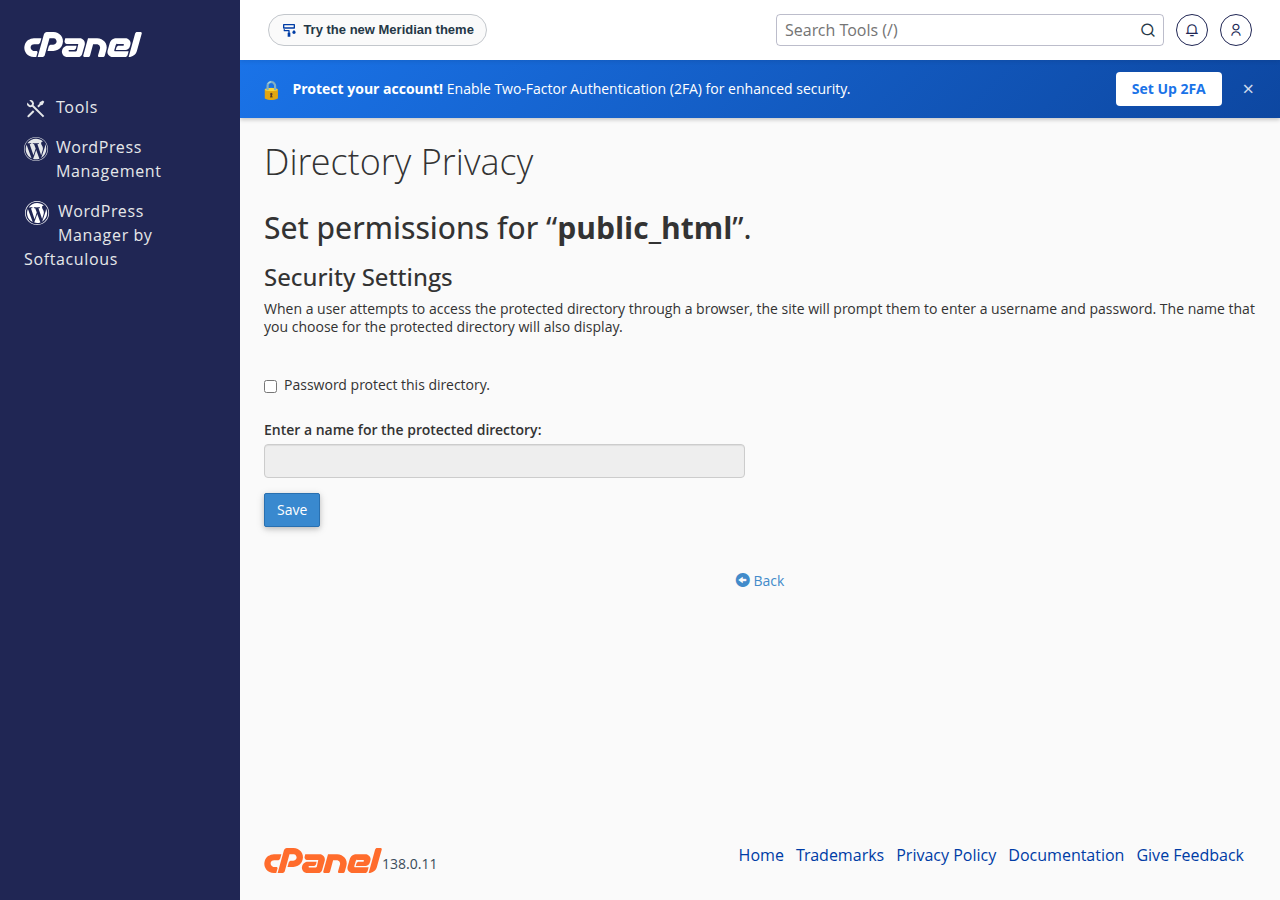
Protection covers the folder and everything inside it, including subfolders. cPanel writes the rules into the folder's .htaccess file and keeps the password file outside your website, in the .htpasswds folder in your home directory, so it cannot be downloaded.
3. Test it
Open a private browser window and visit the folder's address, for example https://yourdomain.com/private/. A login box should appear. Cancel it and you should see a 401 "Unauthorised" message.
If a page you visited before still opens without a login box, add ?t=1 to the end of its address. If that version asks for the password, you were seeing an older cached copy, and the protection itself is working.
On our cPanel server, the firewall is configured to block an IP address for an hour after 10 failed logins to protected folders (measured 23 September 2026). Test carefully, and if you lock yourself out, open a ticket from another connection with your IP address.
4. Manage users or remove protection
- Change a password: in Directory Privacy, click Edit next to the folder, and enter the same username with a new password under Create User.
- Remove a user: in the same screen, select the user in the list of authorised users and delete it.
- Remove protection: untick Password protect this directory and save. The folder is public again straight away.
5. Good practice
public_html altogether when you can. Folders above public_html cannot be requested over the web.For the wider picture, see the guide to securing web applications.
6. DirectAdmin and Webuzo
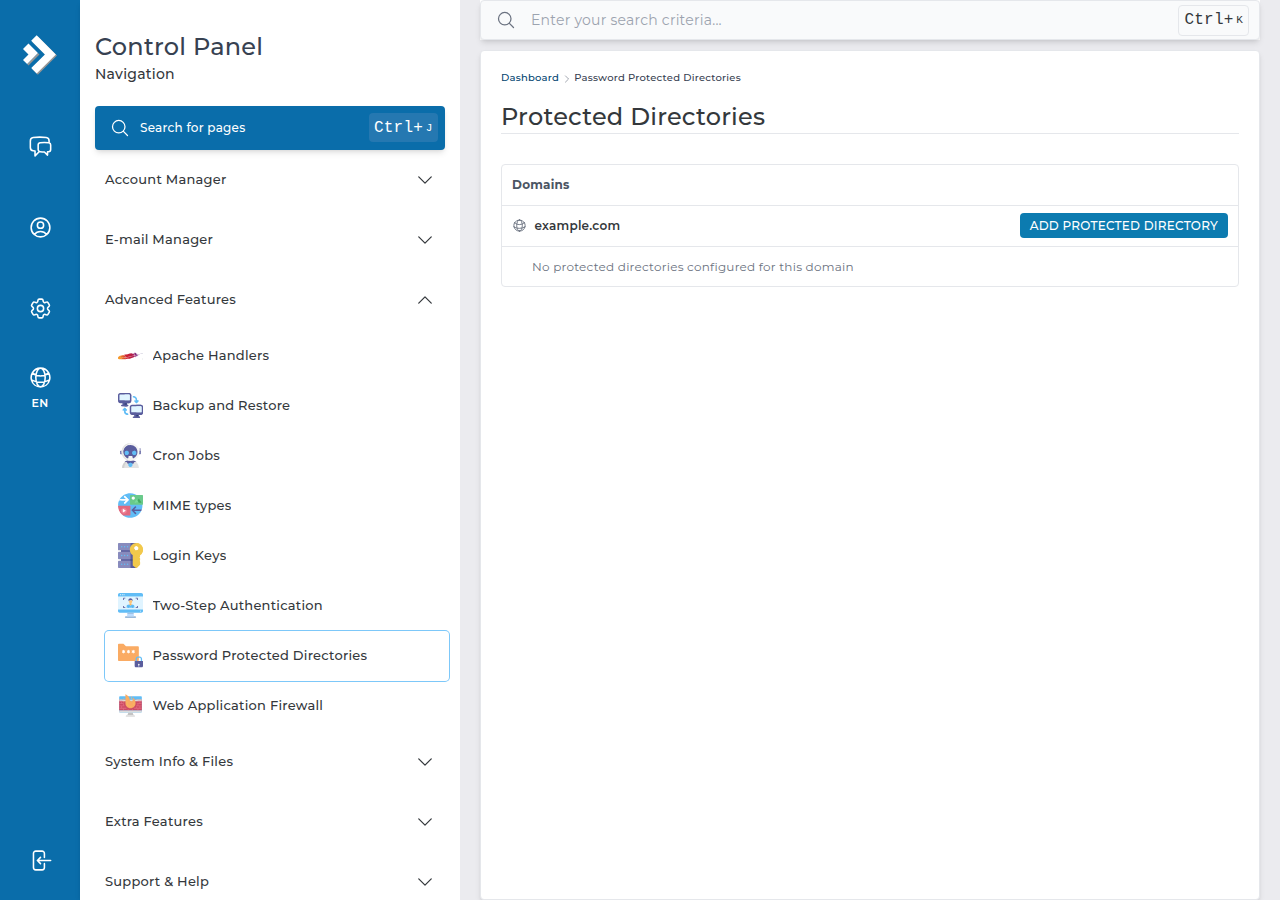
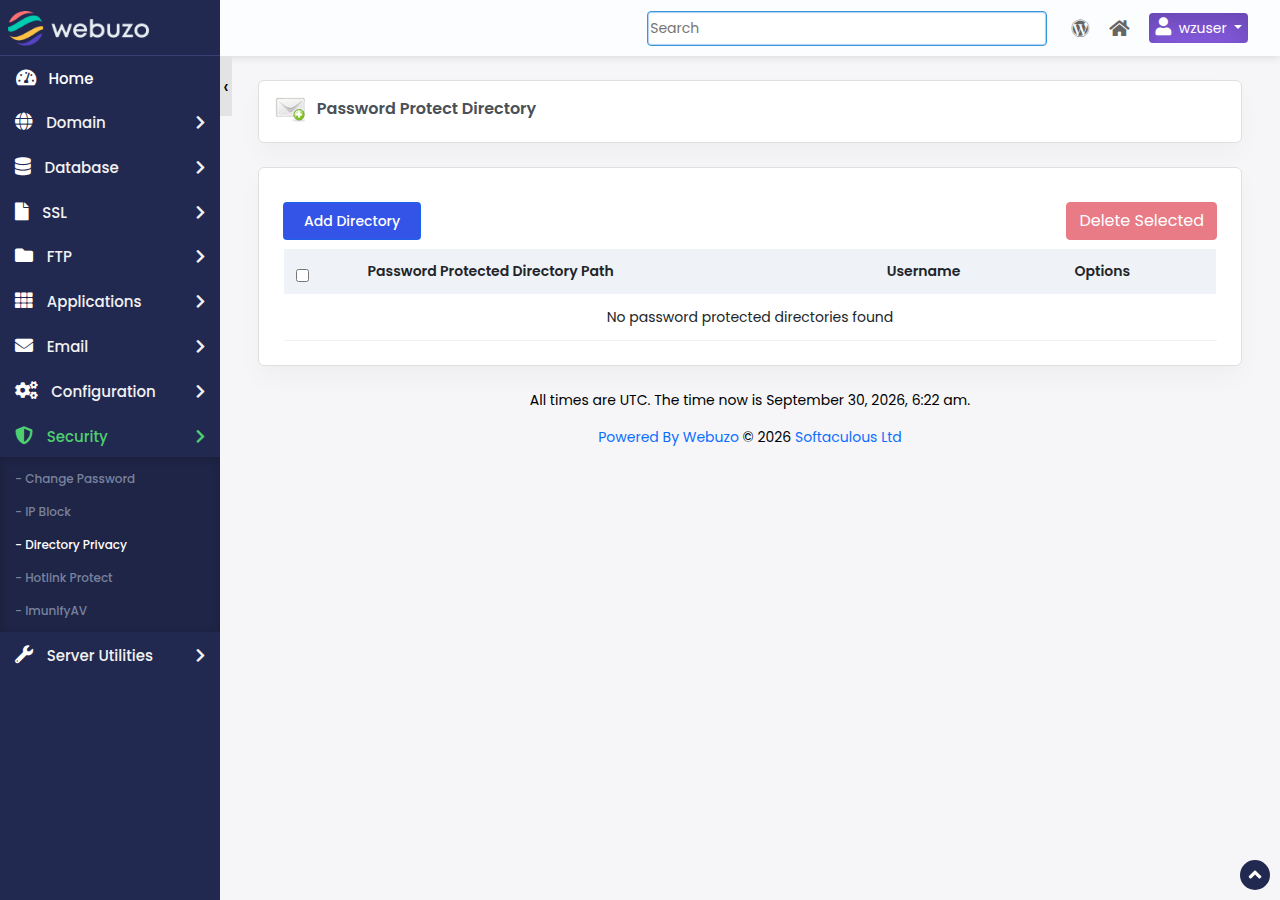
DirectAdmin and Webuzo work the same way: choose a folder, turn protection on and add a user. In DirectAdmin, open Advanced Features › Password Protected Directories and click Add protected directory next to your domain. In Webuzo, open Security › Directory Privacy and click Add Directory.
- 25 GB NVMe SSD Storage
- 50 GB Monthly Bandwidth
- 1 Website
- 10 Email Accounts
The plan card shows the Domain India list price on 19 September 2026, excluding 18% GST. Compare all plans on cPanel hosting and DirectAdmin hosting.
Frequently asked questions
Can I password protect a folder on my website?
Yes. In cPanel, open Directory Privacy in the Files section, click Edit next to the folder, tick Password protect this directory, save, and create a user. In DirectAdmin use Advanced Features, Password Protected Directories; in Webuzo use Security, Directory Privacy.
Does protecting a folder also protect its subfolders?
Yes. Every file and subfolder inside the protected folder asks for the same username and password.
Can search engines index a password-protected folder?
No. Search engine crawlers cannot pass the login box, so they cannot read the content. Pages that were indexed before may take time to drop out of search results.
Where does cPanel store the passwords for protected directories?
In a password file inside the .htpasswds folder in your home directory, outside public_html, so it cannot be downloaded over the web. The passwords are stored hashed, not in plain text.
How do I password protect the WordPress admin area?
Use Directory Privacy on the wp-admin folder, then add a rule that keeps admin-ajax.php open so forms and carts keep working. The WordPress wp-admin guide in our knowledge base covers each step.
Ready to lock a folder? Log in from the client area and open Directory Privacy, or for WordPress follow the wp-admin protection guide. If something does not work, open a support ticket.
Directory Privacy, free SSL and File Manager are included with every Domain India cPanel hosting plan.
See cPanel hosting plans