You have ordered Webuzo hosting from Domain India. This guide covers what happens after you pay, where your login details are, and the first things to do: point your domain, sign in to Webuzo, install your first app, secure it with SSL and create an email address. It also covers PHP versions, which need extra care on Webuzo, and how backups and restores work.
Once your invoice is paid, most hosting accounts are created automatically within a couple of minutes; a few need a manual check and take longer. Then log in at https://yourdomain.com:2003 with the Webuzo username and password from your welcome email. Point your domain at the hosting, install your app with Softaculous after checking its PHP requirement (our Webuzo server offers PHP 8.0 and 8.1), and keep your own backups.
1. What happens after you pay
Your Webuzo account is created by our system after the invoice is paid. Most hosting accounts are ready within a couple of minutes; a small number need a manual check and take longer. A setup usually waits for one of three reasons:
- The payment is still clearing. Check the invoice status on your invoices: it must show Payment Received.
- The domain is not pointing at us yet. The account can exist, but the website will not load until the domain points to it (section 3).
- The order was flagged for a manual review. Support will contact you if anything is needed.
If your account is still not active a while after the invoice is paid, contact support by live chat or a ticket.
2. Find your login details
Your Webuzo details are in two places:
- The welcome email ("Your Hosting Account is Ready"), sent when the account is created. It carries the password set at creation. Check your spam folder if you cannot find it.
- The client area. Open your hosting services, click Manage on the Webuzo row and open the Access tab. It shows your username, the server IP and the panel URL.
Login and welcome emails are not kept in the client area's email history, so use the Access tab if the email is lost. See I didn't get my welcome email.
The Reset password button in the client area does not work for Webuzo accounts yet. If you have lost your Webuzo password, contact support by live chat or ticket and we will reset it. Never paste a password into a chat or ticket.
3. Point your domain at your hosting
Your website, email and free SSL only work once your domain points to the Webuzo server.
- Domain registered with Domain India: open the domain in the client area and set its nameservers to your hosting nameservers, shown on your hosting service page. Don't type nameserver names from memory or from an old guide.
- Domain registered elsewhere: change the nameservers at that registrar, or add an A record for the server IP shown on the Access tab.
Changes usually take effect within a few hours, and occasionally up to a day. The full steps are in how do I change my nameservers.
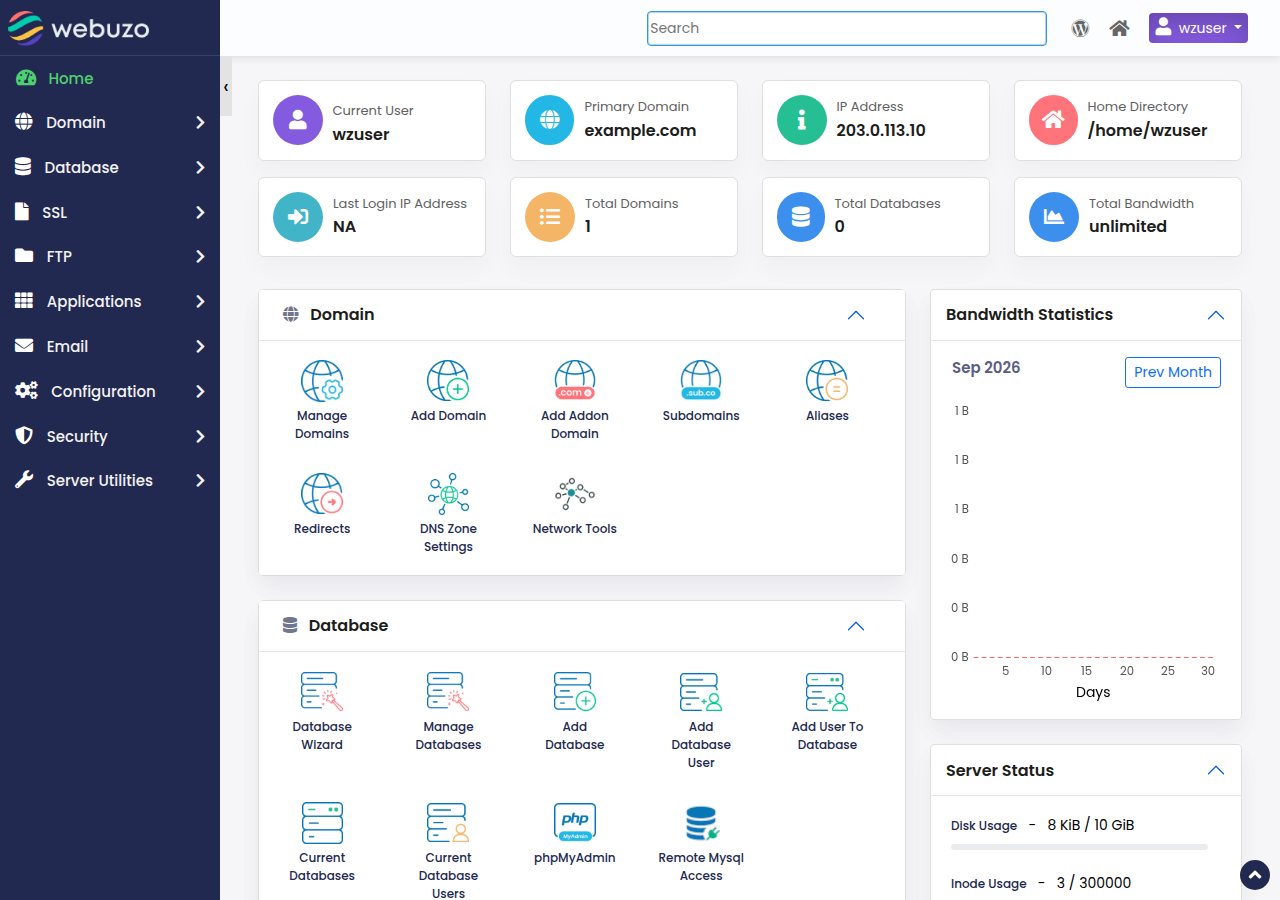
4. Sign in to Webuzo
- Sign in to the client areaand open your hosting services.
- Open the Webuzo login page.Once the account is Active, go to
https://yourdomain.com:2003. If the Webuzo button on your domain's row doesn't open the panel, use this address. - Enter your Webuzo username and password.They are in your welcome email; the username is also on the service's Manage › Access tab.
Your Webuzo password and your client-area password are separate; changing one never changes the other. More help: how to log in to Webuzo.
5. Install your first application
Webuzo includes Softaculous, which installs WordPress and hundreds of other apps in a few clicks.
- Check the PHP requirement first.Open the app's page in Softaculous and read the PHP version it needs. Our Webuzo server currently offers PHP 8.0 and 8.1 only. Apps or versions that need PHP 8.2 or later will fail to install or break after installing. If you are unsure, ask support before you install.
- Click Install.Choose
https://and your domain. - Choose the folder.Leave the directory empty for the root of the domain, or type a folder name such as
blog. The folder must be empty. - Set the admin account.Use a username other than
admin, a long unique password and an email address you check. - Click Install.Softaculous shows the site and admin addresses when it finishes.
Detailed guides: installing WordPress with Webuzo and installing other applications with Softaculous. If an install fails, see Webuzo app install issues.
Both versions no longer receive security fixes from the PHP project. For a new site that needs a current PHP version, such as a recent Laravel or Nextcloud release, cPanel hosting (PHP up to 8.5) or a VPS is a better fit. Ask support before you order if you are unsure.
6. Turn on SSL
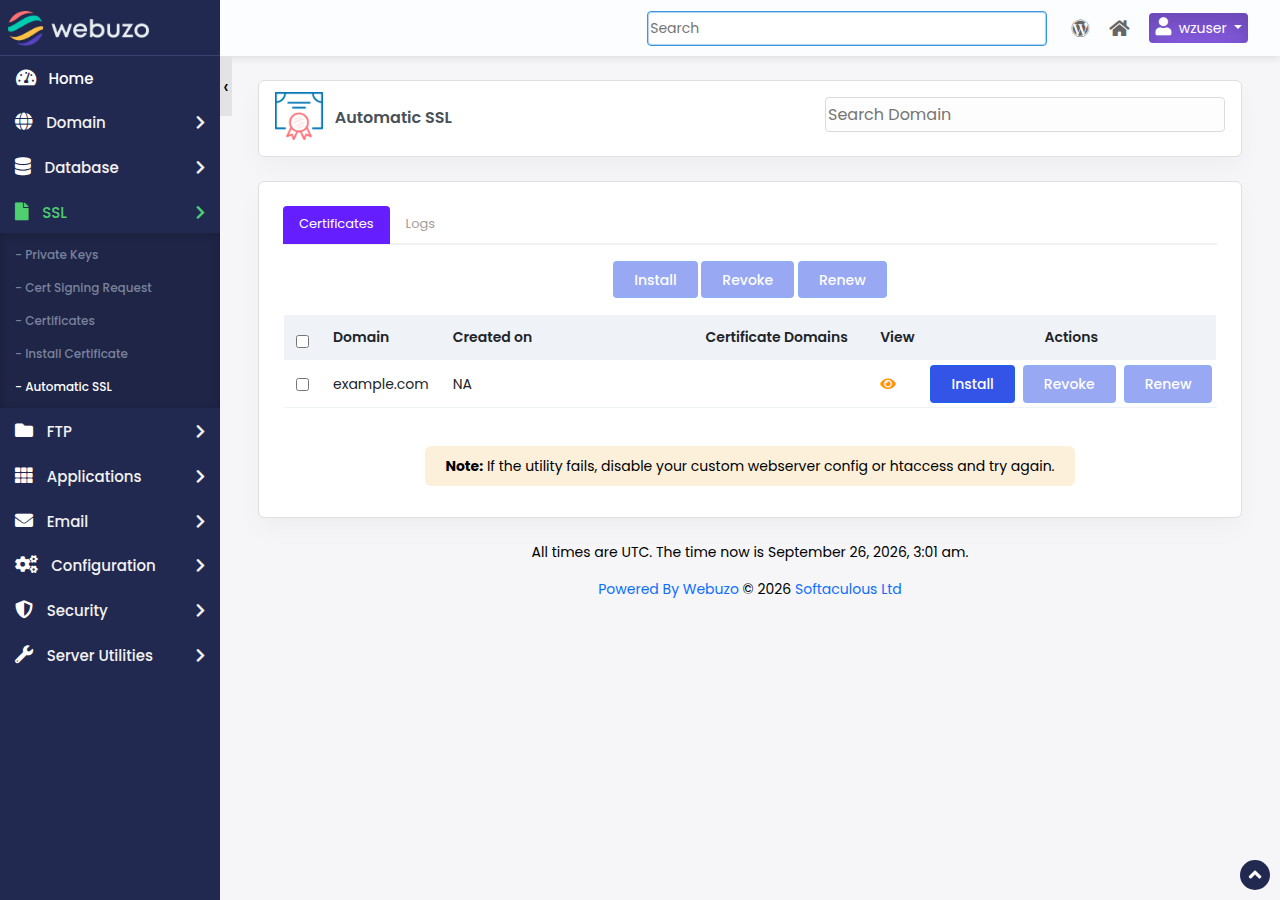
Webuzo hosting includes free SSL certificates. Once your domain points to the server, open SSL › Automatic SSL in Webuzo and issue a free certificate for your domain, then make your site use https:// (in WordPress, set both addresses under Settings › General to https://). If the certificate will not issue, ask support. A certificate bought from another provider can also be installed.
7. Create an email address
In Webuzo, open Email › Email Account, add an email account, choose the part before the @, set a strong password and a quota, and save. Read mail at https://yourdomain.com/webmail, which opens Webuzo Email; webmail.yourdomain.com does not exist on Webuzo. Full steps: creating email accounts in Webuzo.
8. Backups and restores
Domain India backs up your Webuzo account every night to a separate backup server. The backup covers your website files, email, databases, Webuzo account settings and DNS zones, and several earlier copies are kept, so you can go back to an earlier date. It is still good practice to keep your own copy of important data. Before any big change, and regularly:
- Download your files, for example as a zip from the File Manager.
- Export your databases from phpMyAdmin as
.sqlfiles. - Store the copies off the server, on your computer or cloud storage.
To restore something from Domain India's backups, open a support ticket saying what to restore (a file, a folder, a database or the whole account) and from which date. There is no self-service restore for these backups, and the Backups section inside the Webuzo panel is not Domain India's backup system, so don't rely on it. If you want to restore backups yourself from the panel, cPanel and DirectAdmin hosting include weekly JetBackup 5 backups.
9. Troubleshooting
| Problem | Likely cause | What to do |
|---|---|---|
| No Webuzo button on the hosting row | The account is not Active yet | Check the invoice shows Payment Received; if it does, contact support |
| The login page rejects your password | Wrong or old password | Check the Access tab for the username; ask support for a password reset |
| Your site shows a default page | Domain not pointing yet, or app installed in the wrong folder | Check nameservers or the A record, and the install folder |
| An app install fails | Folder not empty, no free database, or the app needs newer PHP | Read the Softaculous error, then see the install issues guide |
| Panel, site and webmail all stop loading from one connection | Your IP may be blocked after failed logins | Send support your public IP by chat or ticket |
10. Where Webuzo hosting fits
Webuzo hosting starts from ₹100 a month (Webuzo Starter; Webuzo Developer ₹200 and Webuzo Agency ₹350 a month), Domain India list prices on 19 September 2026, excluding 18% GST. It suits a small site on a simple panel with Softaculous, email and free SSL. If you need current PHP versions, self-service backups or the Node.js and Python app tools, choose cPanel hosting instead. New shared hosting purchases can be refunded in full within 30 days; see the refund policy.
Support is 24/7 live chat, and tickets get a first response within 15 minutes. There is no phone support.
- 10 GB NVMe SSD Storage
- 50 GB Monthly Bandwidth
- 1 Website
- 5 Email Accounts
Prices on the cards exclude 18% GST.
Frequently asked questions
How long does it take to activate Webuzo hosting?
Most Domain India hosting accounts are created automatically within a couple of minutes of payment. A small number need a manual check and take longer. If yours is not active a while after the invoice shows Payment Received, contact support.
How do I log in to Webuzo?
Log in at https://yourdomain.com:2003 with the Webuzo username and password from your welcome email. If the Webuzo button in the client area doesn't open the panel, use that address.
Where are my Webuzo login details?
In the "Your Hosting Account is Ready" welcome email, and on the Access tab of your hosting service in the client area, which shows the username, server IP and panel URL.
How do I reset my Webuzo password?
The Reset password button in the client area does not work for Webuzo accounts yet. Contact Domain India support by live chat or a ticket and we will reset it for you.
Which PHP versions does Webuzo hosting offer?
Our Webuzo server currently offers PHP 8.0 and 8.1. Check each app's PHP requirement before installing, and ask support if an app needs PHP 8.2 or later.
Does Webuzo hosting include backups?
Yes. Domain India backs up every Webuzo account every night to a separate backup server, including files, email and databases. To restore something, open a support ticket saying what to restore and from which date. Keeping your own copy of important data is still good practice.
Ready to get started? Log in at https://yourdomain.com:2003, read installing WordPress with Webuzo, or open a support ticket if anything does not work.
Log in at yourdomain.com:2003 with your Webuzo username and password.
Open my hosting